Create a standard customer invoice
الغرض
The standard customer invoice is the everyday billing document: draft it, confirm it to post, send it, get paid. This article covers both ways to create one — from the confirmed sales order (the usual path, because the lines arrive filled in) and from scratch in Accounting — plus what Confirm really checks, the bilingual print format, the WhatsApp button, and the payment ribbon lifecycle.
قبل أن تبدأ
- Billing access (the Billing group) — creating, confirming, and sending invoices all require it.
- For the sales-order path, a confirmed order whose invoice status shows To Invoice.
From the sales order — the usual path
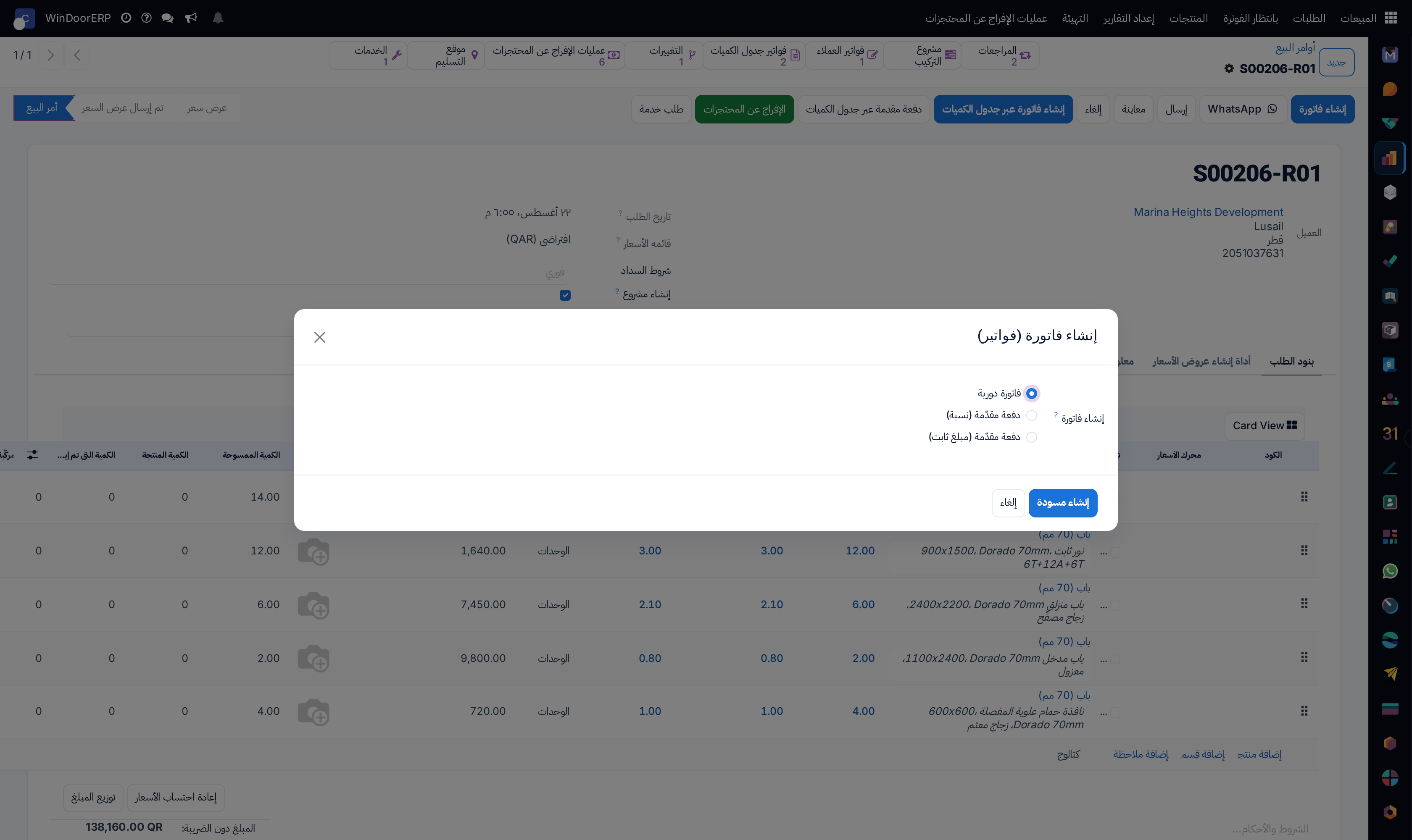
Products invoice by their invoicing policy — ordered or delivered quantities — so an order can show To Invoice only after delivery. Invoicing several orders at once works from the list: tick them under Sales › To Invoice › Orders to Invoice and run the same dialog.
-
01
Open the confirmed order and click Create Invoice.
-
02
Leave Regular invoice selected. The two Down payment options take a deposit by percentage or fixed amount — fine on a simple order, but on a BOQ-managed contract use the BOQ advance route instead (see the advance article).
-
03
Click Create Draft. The invoice opens as a draft carrying the order's billable lines, taxes, payment terms, and analytic distribution — nothing is posted yet.
-
04
Review the lines and dates, then click Confirm. The invoice numbers itself into the Sales journal (
INV/…) and posts to the customer's receivable. -
05
Click Send to email the PDF, and register the receipt with Pay when the money arrives (both covered in the credit-notes-and-payments article).
From Accounting, when there is no order
Accounting › Customers › Invoices › New opens a blank draft: pick the customer, add lines with product, quantity, price, and tax (on this configuration, Exempt 0% (Qatar — No VAT)), set the Invoice Date — the due date follows the payment terms — and confirm. Reserve this path for charges that genuinely have no order behind them; an invoice born from the order keeps quantities, analytic accounts, and the sales history reconciled by construction.
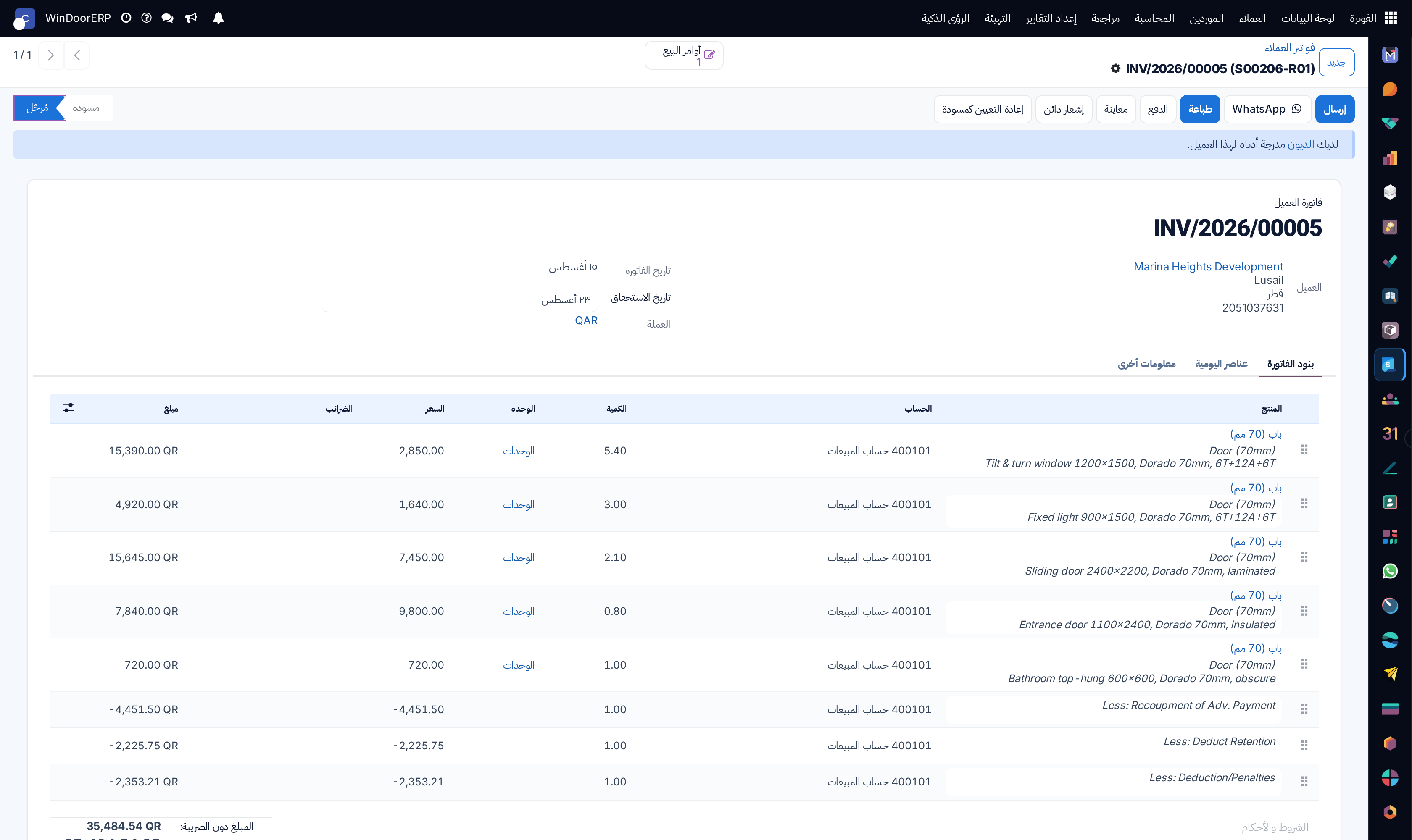
What Confirm actually does — and blocks
Confirm posts the journal entry, nothing more exotic — but it enforces credit control first: posting fails with a clear error if the customer is on Credit Hold or past their credit limit (see the receivables article for releasing holds). Two quieter behaviours ride along: a line carrying an Asset Category creates its fixed asset on posting, and the form warns with a banner — without blocking — when the customer already owes money or has crossed their warning limit.
Note
Printing is bilingual: with the Gulf Cooperation Council Format enabled, the PDF carries English and Arabic side by side, plus the amount in words. The QR code on it is a bank-transfer "scan to pay" code built from your bank account — a payment convenience, not a fiscal stamp; Qatar has no e-invoicing clearance regime and this system implements none. And the WhatsApp button on a posted invoice sends a text-template notification (the customer needs a WhatsApp number and must not have opted out) — the PDF itself travels by Send, not by WhatsApp.
After posting
The payment ribbon walks Not Paid → Partial → In Payment → Paid as receipts land; Reset to Draft exists but belongs to the just-posted mistake, not to documents the customer already has — correct those with a Credit Note. A second pair of eyes can stamp a posted invoice Reviewed. The Preview button shows the customer's portal view of the document.
Troubleshooting
"Cannot post invoice: … has an active Credit Hold. Reason: … Please contact the Credit department to release the hold." — release the hold from the customer's follow-up report, or collect first.
"Cannot post invoice: … would exceed their credit limit." — the limit block; the message shows the limit, current receivable, and this invoice's amount.
The order shows nothing to invoice — its products invoice on delivered quantities and nothing is delivered yet, or everything is invoiced already; check the order's invoice status and deliveries.
"Multiple Invoice Copies" prints the labelled copies but not the invoice itself — a known conflict between that print option and the Gulf bilingual format on this configuration; print the invoice normally and the copies separately.
"This contact has opted out of WhatsApp communications." / "Please enter a phone number." — the WhatsApp composer needs an opted-in contact with a number on file.
أخطاء شائعة
- Creating invoices from scratch for ordered goods — quantities and analytic accounts stop matching the order and the delivery.
- Taking a contract advance through the dialog's down-payment options when the contract is BOQ-managed.
- Confirming with yesterday's date after the period was locked, then hunting the sequence gap — set the invoice date before confirming.
- Resetting a sent invoice to draft to "fix" it — the customer's copy no longer matches the books; credit and re-issue instead.
- Assuming the WhatsApp notification delivered the document — the PDF goes by email.
هل كان هذا المقال مفيداً؟
شكراً — ملاحظتك تساعدنا.
تدير مصنع نوافذ أو أبواب؟
اطلب عرضاً تجريبياً