Find every customer or opportunity within a distance of a point
What this does
Radius Search answers a question a list cannot: what else is near this one. Give it a centre and a distance and it returns every customer, or every opportunity, within that circle — as records you can open, not as a map.
It is the tool for planning a surveyor's day, for finding who else to visit while a van is already in Lusail, and for judging whether a new enquiry sits near work you are already doing.
Before you start
- Records need coordinates. A customer whose location has never been set on their map tab is invisible to this search, however close they are.
- Pick the centre from an existing customer where you can. Choosing one copies their coordinates for you and avoids typing latitude and longitude by hand.
- The result is a plain list of records. There is no map view of the results and no route planning here.
Steps
-
01
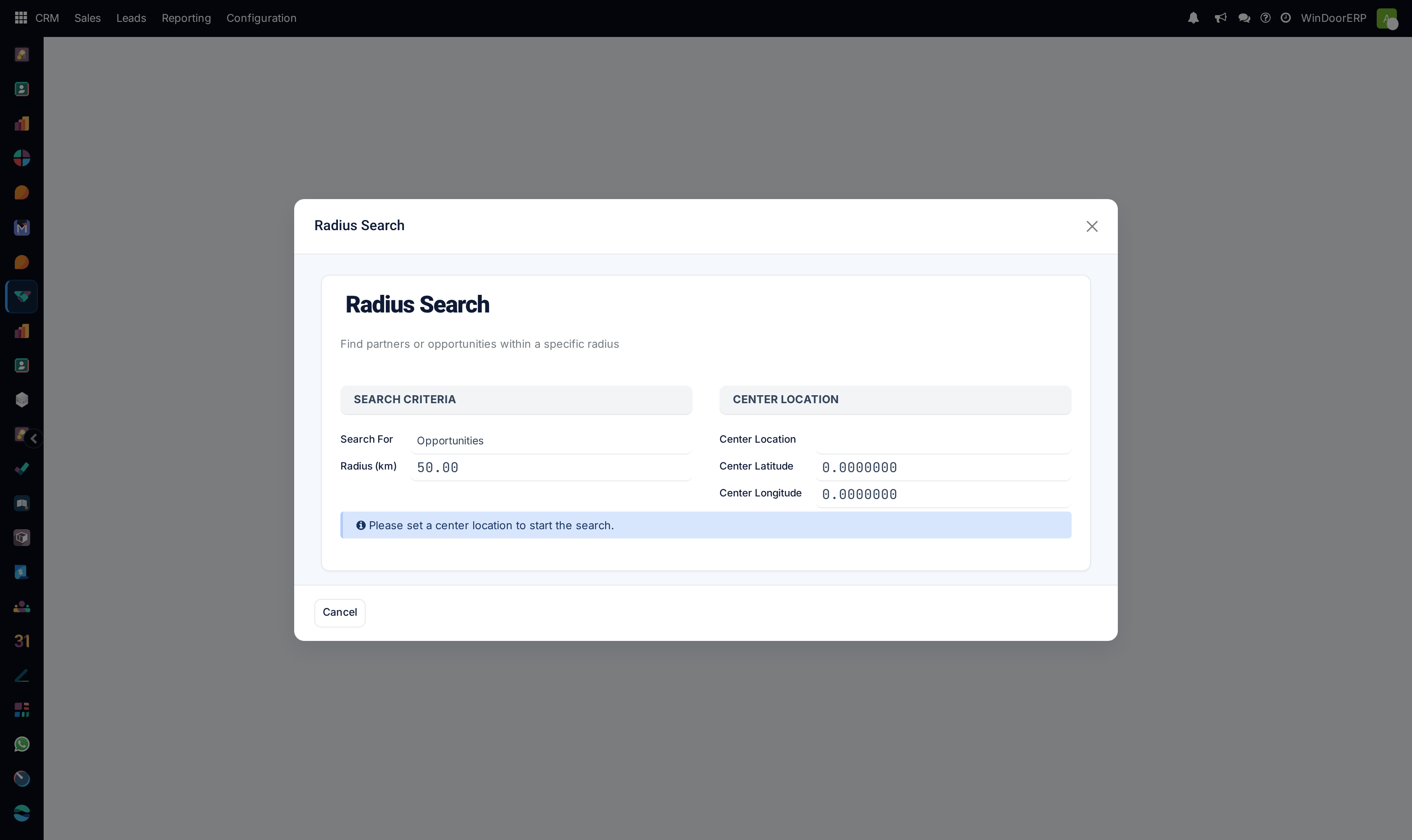
Open CRM › Sales › Radius Search. The dialog opens with no centre set and only a Cancel button.
-
02
Choose Search For: Opportunities (the default) or Partners.
-
03
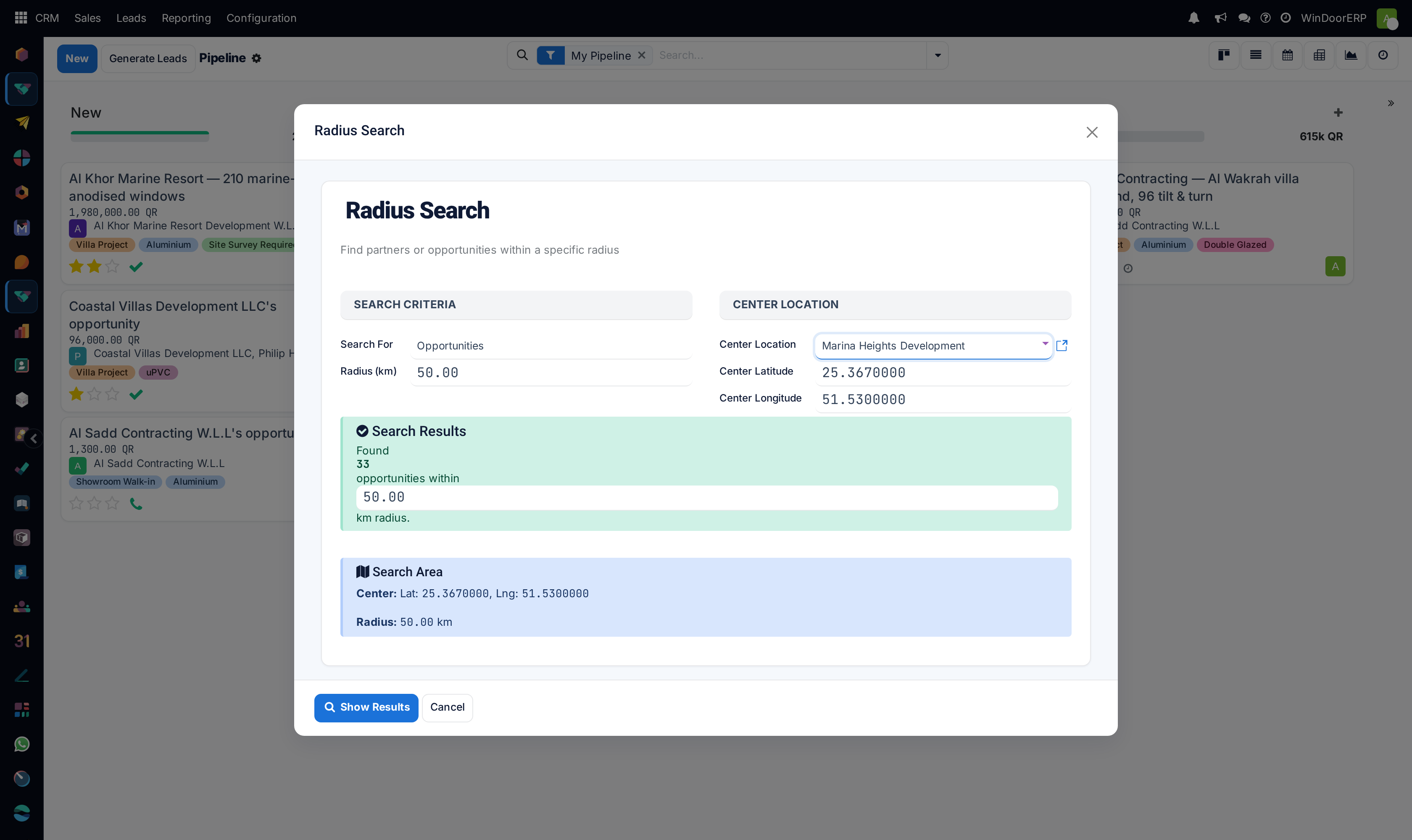
Set the Center Location by picking a customer. Their Center Latitude and Center Longitude fill in automatically; you can also type coordinates directly and leave the customer empty.
-
04
Set the Radius (km). It starts at 50.
-
05
Read the green Search Results panel — it counts the matches live, before you go anywhere, and the radius inside it can be adjusted to tune the count.
-
06
Press Show Results to open the matching records in a kanban you can work from.
The dialog, field by field
| Search For | Opportunities or Partners. Required, and it changes what the result list contains. |
|---|---|
| Center Location | A customer whose coordinates become the centre. Optional — the coordinate fields can be filled directly instead. |
| Center Latitude / Center Longitude | Decimal degrees to seven places. Filled from the chosen customer, and editable afterwards. |
| Radius (km) | Straight-line distance from the centre. Default 50, required, and repeated inside the results panel so it can be tuned without scrolling back. |
| Results Found | A live count, recomputed as you change the centre or the radius. It costs nothing to try three radii before committing. |
| Show Results | Opens the matches. Hidden until a centre exists. |
How near is decided
Distance is measured with the haversine formula — the true distance across the curve of the earth — and anything at or inside the radius is returned. It is a straight line, not a driving distance, so a site across a bay is "near" even when the drive is an hour.
Opportunities are treated more generously than customers. An opportunity is matched on its own coordinates or on its customer's, so a deal that has never had a site location set is still found through the customer's address. A partner search uses only the partner's own coordinates.
A centre with no coordinates gives an empty circle, quietly
Picking a customer who has never had their location set copies zeros into the centre fields — which is a real point in the Gulf of Guinea, thousands of kilometres away. The search then runs perfectly and finds nothing.
The tell is the coordinate fields reading 0.0000000 after you choose someone. If they do, that customer has no location and you should either set it on their record or type the centre yourself.
Troubleshooting
| "Please set a center location." | Pressed with no coordinates. Choose a customer or type them in. |
|---|---|
| Nothing is found | Check the centre is not 0,0, then widen the radius. Remember only records with coordinates can ever match. |
| A customer you know is nearby is missing | They have no coordinates. Set the location on their contact record. |
| The count seems too high | Opportunities also match through their customer's address, so several deals for one customer all fall at the same point. |
| Results include somewhere across the water | The measure is straight-line, not travel distance. |
Common mistakes
- Treating the radius as travel time. It is a circle on a globe.
- Choosing a centre without checking the coordinates filled in.
- Expecting a map or a route. This returns records; the planning is yours.
- Concluding an area is empty when what is actually empty is the location data.
Was this article helpful?
Thanks — your feedback helps.
Running a window or door factory?
Ask for a demo