Build pricelists: rules, price types, volume breaks and which rule wins
What this does
A pricelist decides what a customer pays. It holds a set of rules, each saying which products it covers, from what quantity, between which dates, and how the price is worked out — a percentage off, a formula, or a flat figure.
Assign a pricelist to a customer and every quotation raised for them uses it. Nothing is retyped, and nobody has to remember that a particular contractor gets twelve per cent.
Before you start
- Pricelists must be switched on: Sales › Configuration › Settings › Pricing. Without it the menu is hidden and every order falls back to the product's own sales price.
- Get the product sales prices right first. Most rules are a percentage off the sales price, so a wrong base price is quietly multiplied across every pricelist that discounts it.
- Decide the currency before you save. A pricelist has one currency, and it converts at the rate of the order's date.
Steps
-
01
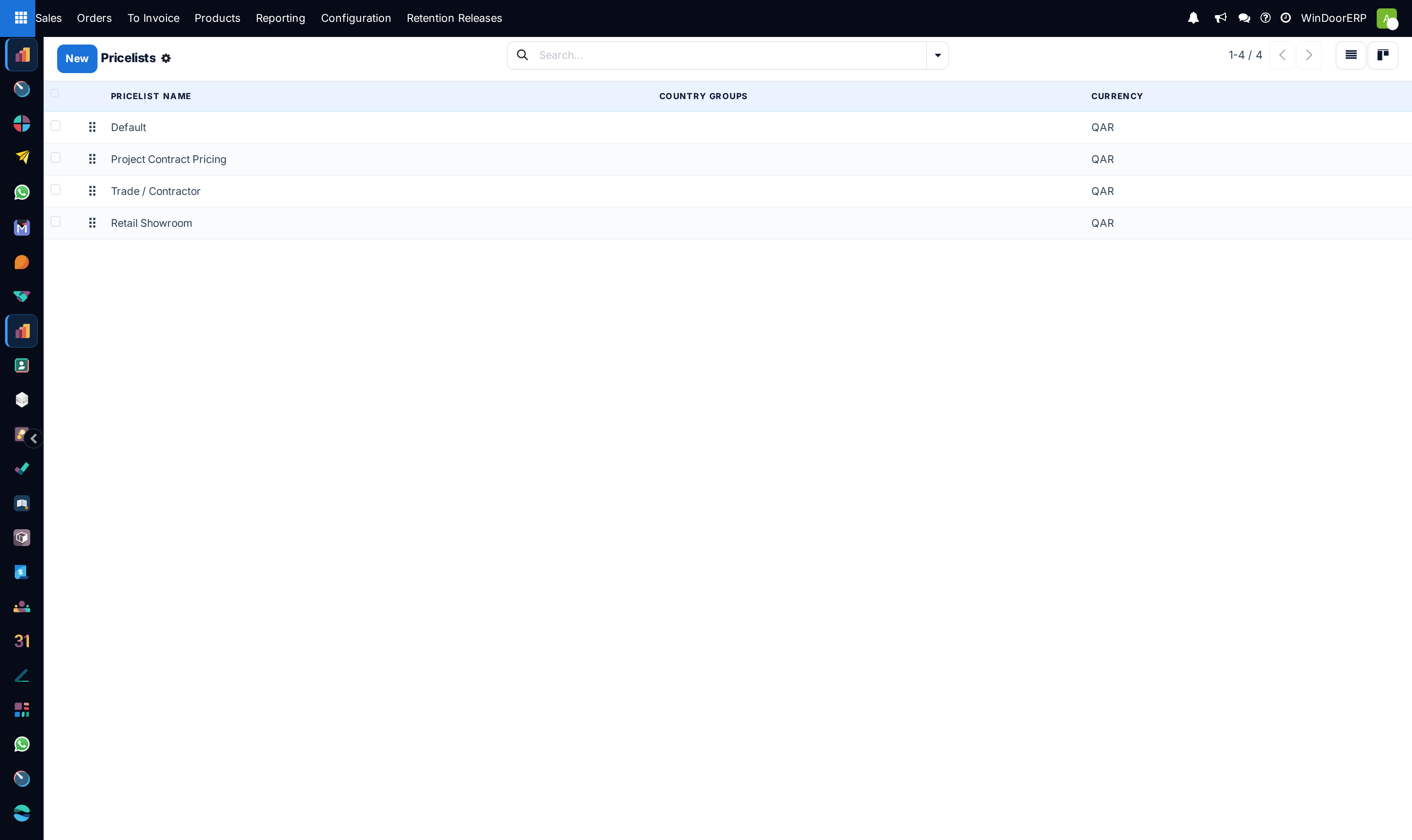
Open Sales › Products › Pricelists and click New.
-
02
Name it for the audience rather than the mechanism — Trade / Contractor reads better on an order than 12% off list.
-
03
Set the Currency, and leave Company empty unless it belongs to one company.
-
04
Use Country Groups only if this list should be offered automatically to customers in certain countries; leave it empty otherwise.
-
05
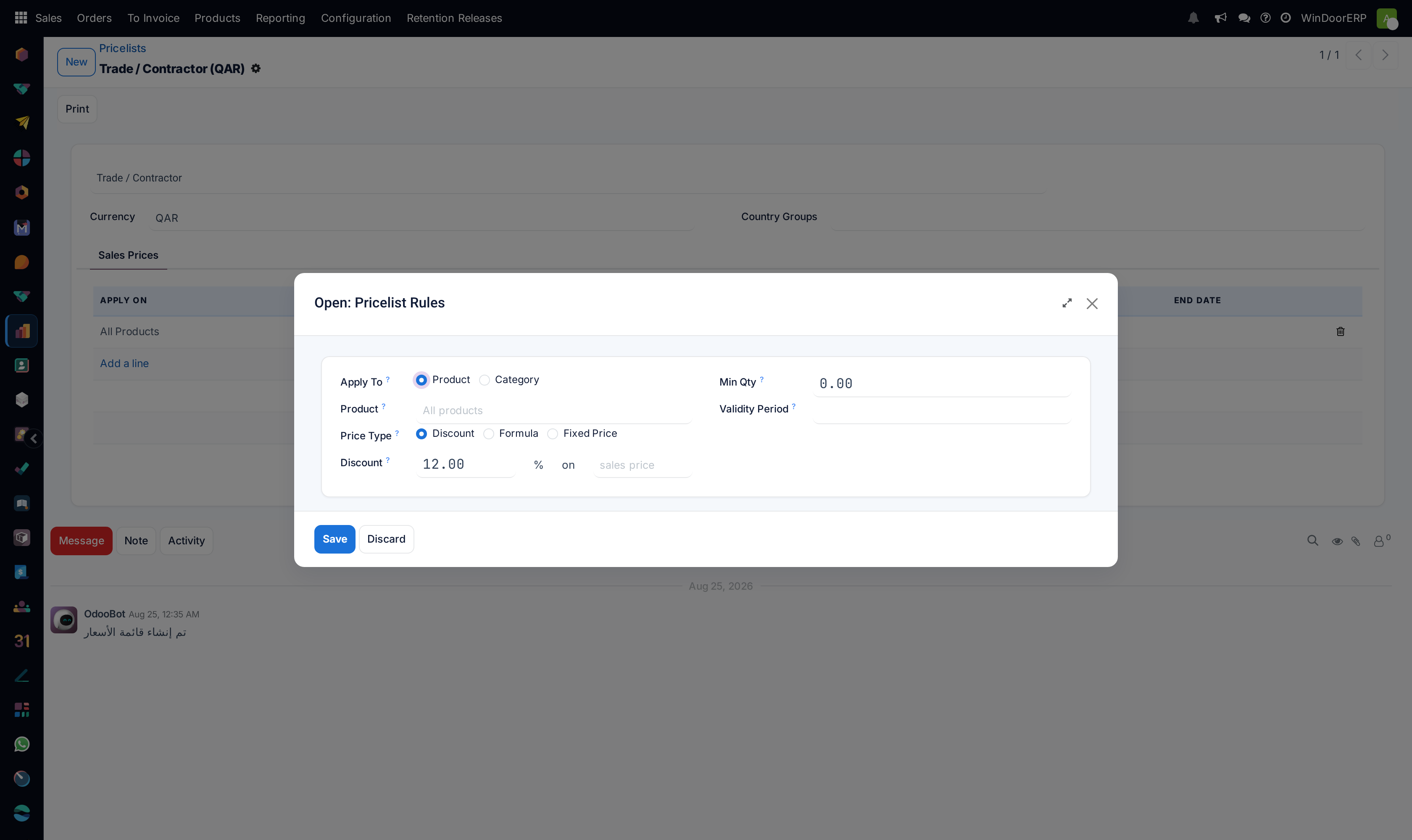
On the Sales Prices tab, click Add a line. The row opens a dialog — this is where the rule is really defined.
-
06
Set Apply To: Product or Category. Leaving the product empty makes the rule apply to everything.
-
07
Choose a Price Type: Discount, Formula or Fixed Price, and fill in what it asks for.
-
08
Set Min Qty for a volume break, and a Validity Period for a promotion with an end date. Save.
-
09
Put the pricelist on the customer, on the Sales & Purchase tab of their contact record.
The pricelist itself
| Pricelist Name | Required. Placeholder e.g. USD Retailers. Translated, so each language can carry its own wording. |
|---|---|
| Currency | The currency every price in this list is expressed in. Converted to the order's currency at the order's date. |
| Company | Optional. Visible to all when empty. |
| Country Groups | Makes the list a candidate for customers in those countries. Empty means it is only ever used when someone assigns it. |
| Sales Prices | The rules. A pricelist with no rules is legal and changes nothing. |
| A header button that produces a price-list document for the products you choose. |
A rule, field by field
The list shows four columns; everything else is in the dialog behind the row.
| Apply To | Product or Category. With Product chosen and the product box left empty, the rule covers all products — which is how a blanket discount is written. |
|---|---|
| Product / Category | What the rule covers. Naming a specific variant rather than the product narrows it further still. |
| Price Type | Discount takes a percentage off a base price. Fixed Price ignores the base entirely and charges the figure you type. Formula exposes the full set: markup, extra fee, rounding, and minimum and maximum margins. |
| Discount … % on … | The percentage, and the base it comes off: the sales price, the cost, or another pricelist. Basing one list on another is how a two-step structure is built — trade off list, then a further step off trade. |
| Min Qty | The rule only applies from this quantity up. This is the volume break. |
| Validity Period | Start and end dates. Outside them the rule is skipped as though it did not exist. |
Which rule wins
A product can match several rules at once, and only one is used: the first that fits, in a fixed order that you cannot change.
The order is most specific first. A rule on a particular variant beats one on the product, which beats one on the category, which beats one on all products. Within the same level, the rule with the higher minimum quantity is tried first, then the deeper product category, then the most recently created rule.
This is why a blanket "10% off everything" line does not stop a "25% off this product" line from working — the product rule is more specific and is reached first. It is also why two rules at the same level with the same minimum quantity are decided by which was created last, which is not a good way to run a pricelist.
Minimum quantity is measured in the product's own unit
The quantity on the order line is converted into the product's default unit before it is compared with Min Qty. If a product is stored in metres and sold in boxes, a break set at 100 is a hundred metres, not a hundred boxes. Set volume breaks in the unit the product is defined in, not the unit you happen to sell in.
Troubleshooting
| The price did not change | Check the customer actually carries the pricelist, then that a rule matches: the product, the quantity against Min Qty, and today's date against the validity period. |
|---|---|
| The wrong discount is applied | Another rule is more specific. Look for a variant, product or category rule sitting above the one you expected. |
| Changing a rule did nothing to existing quotations | Prices are copied onto the order line when the line is created. Existing lines keep the price they were given; re-select the product to re-price it. |
| The Pricelists menu is missing | The pricing setting is off. |
| A percentage is right but the total is not | A Formula rule may be applying rounding, an extra fee, or a minimum margin on top of the percentage. |
Common mistakes
- Writing one rule per product. Rules are inherited down from all-products to category to product — start broad and add exceptions.
- Using Fixed Price for a discount. A fixed price never moves when the product's sales price does.
- Setting a volume break without checking the product's unit.
- Building several rules at the same level and relying on their order. Make them differ by specificity or by minimum quantity, not by creation date.
Was this article helpful?
Thanks — your feedback helps.
Running a window or door factory?
Ask for a demo