Run the stock aging report to identify slow-moving material
What this does
Analyzes the age of inventory sitting in your warehouse across customizable retention intervals (e.g. 0–30 days, 31–60 days, 61–90 days, 90+ days). It highlights dormant extrusion offcuts, obsolete glass sheets, and slow-moving hardware to free up working capital and warehouse space.
Before you start
- Ensure incoming supplier receipts and internal movements have been properly validated with accurate receipt dates.
Steps
Tip
Review the 90+ days bracket before every major material procurement cycle to check whether existing offcuts or excess stock can fulfill new quotation cutting plans.
-
01
Open Inventory › Reporting › Stock Aging Report.
-
02
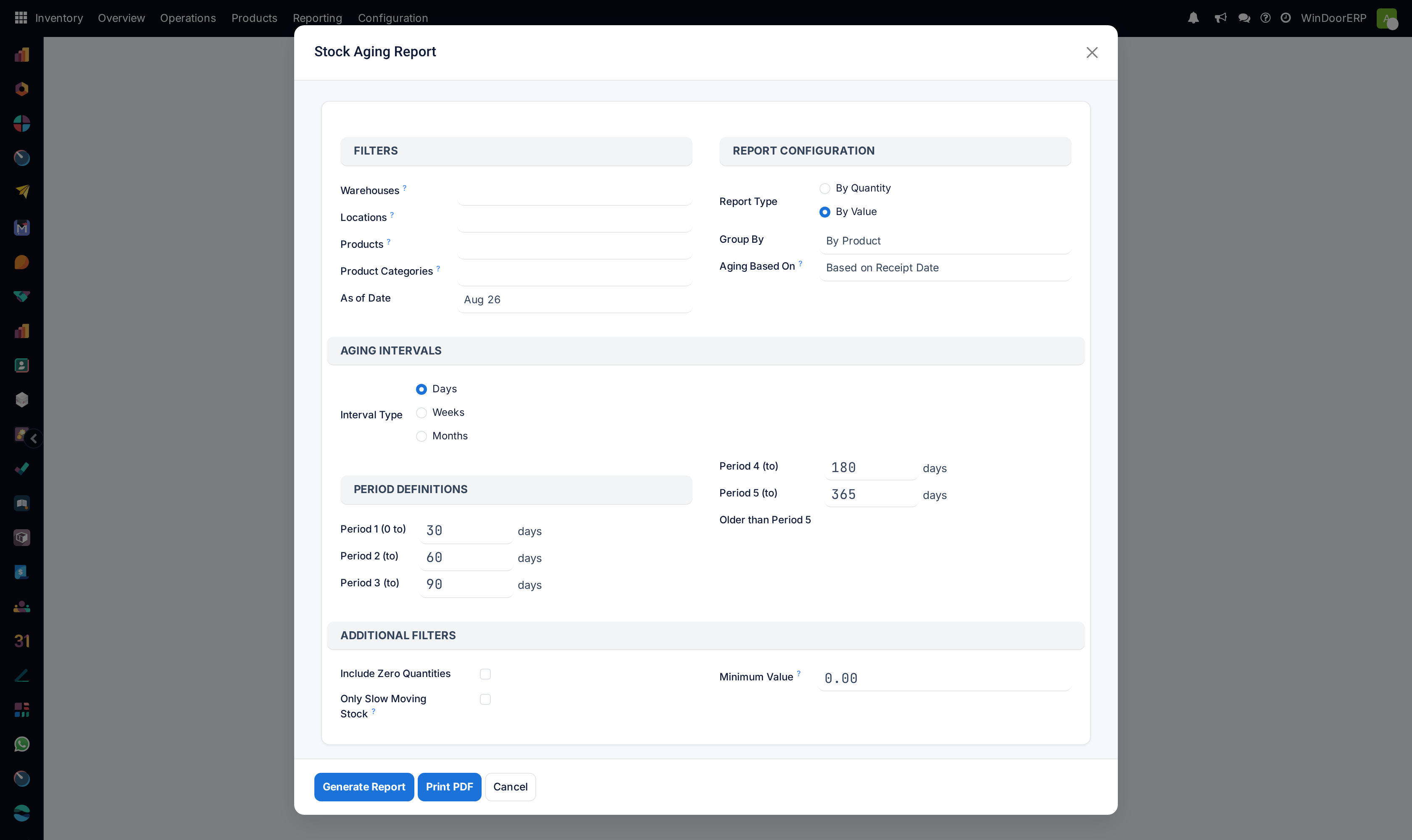
Select the target warehouse, product categories, and the aging breakdown intervals.
-
03
Click Generate Report.
-
04
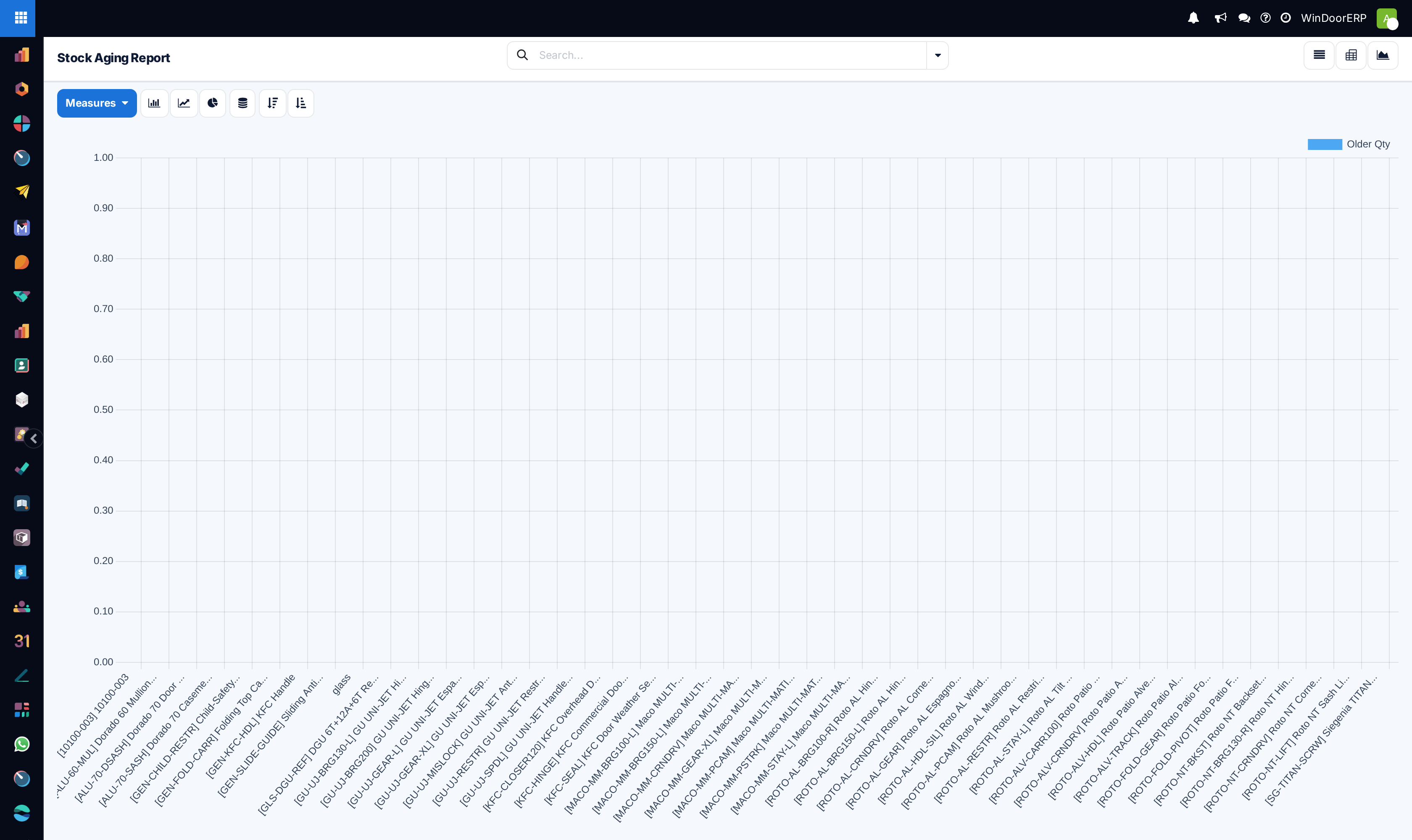
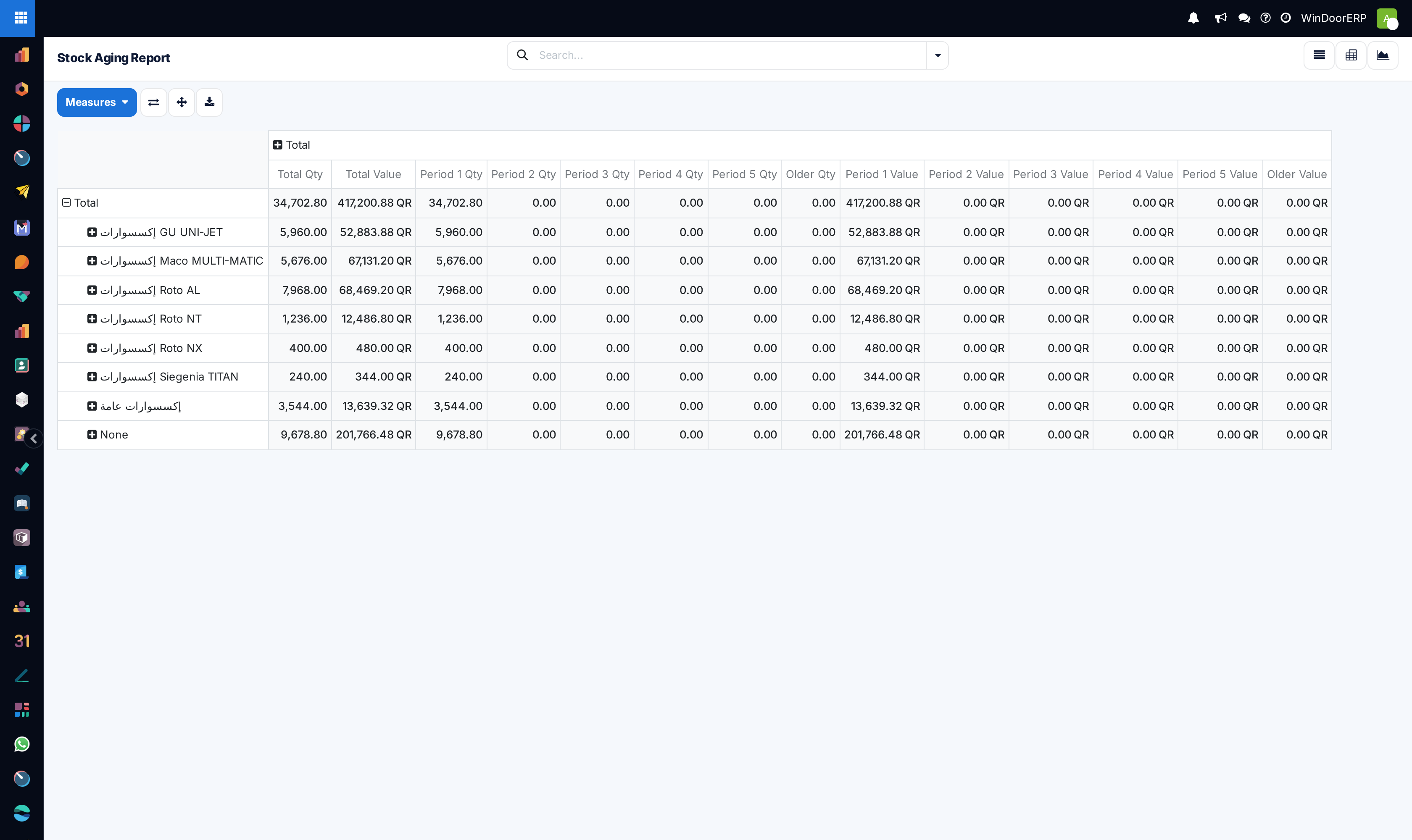
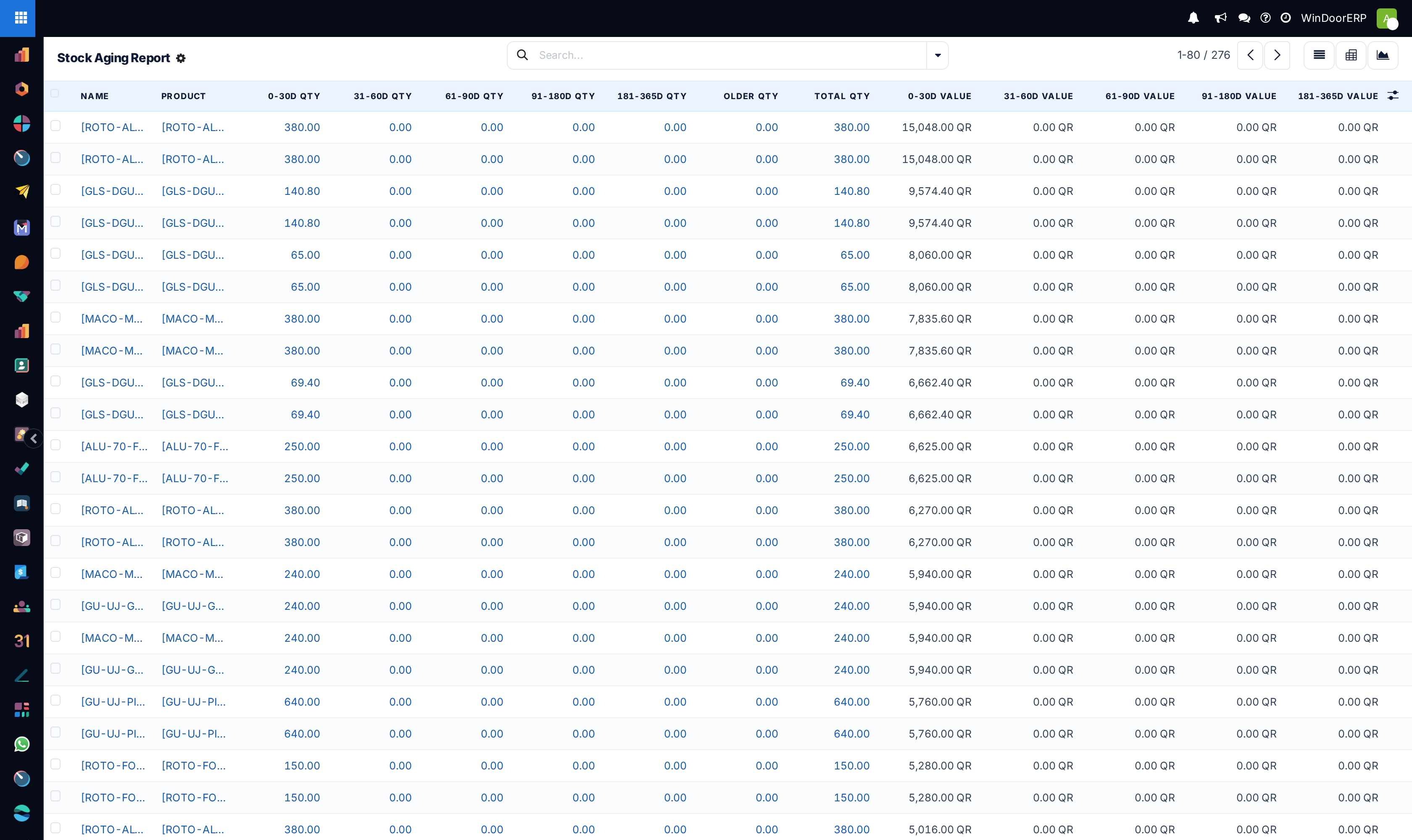
Switch between Graph view (to visualize capital tied up by age bracket) and List / Pivot view (to pinpoint individual item codes).
-
05
Use filters to group by product family or location zone.
Common mistakes
- Leaving unconfirmed scrap orders or negative inventory adjustments unposted, which skews aging calculation.
Was this article helpful?
Thanks — your feedback helps.
Running a window or door factory?
Ask for a demo