Keep one contact record per company, person and site
What this does
Keeps one record per organisation or person you deal with — the villa owner, the main contractor, the architectural consultant, the glass supplier, the subcontractor — and lets every other app point at it. Quotations, purchases, deliveries, invoices and site surveys all borrow the same contact, which is why a tidy address book is worth more than it looks.
Before you start
- Sales, purchase or administrative access. The Contacts app is the shared address book; almost everyone reads it, fewer people should be creating in it.
- Agree who owns the data. One person tidying is worth five people typing.
Steps
-
01
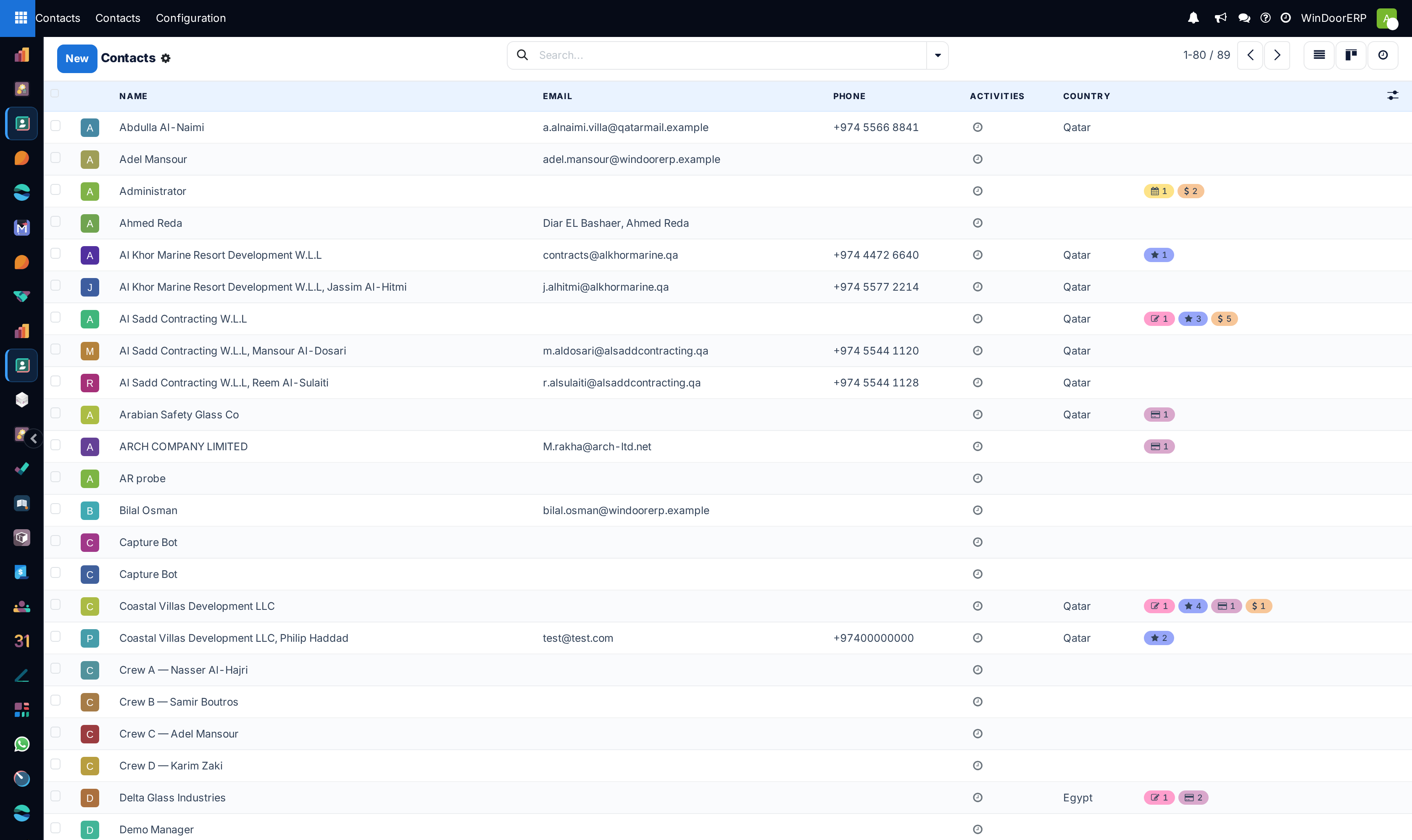
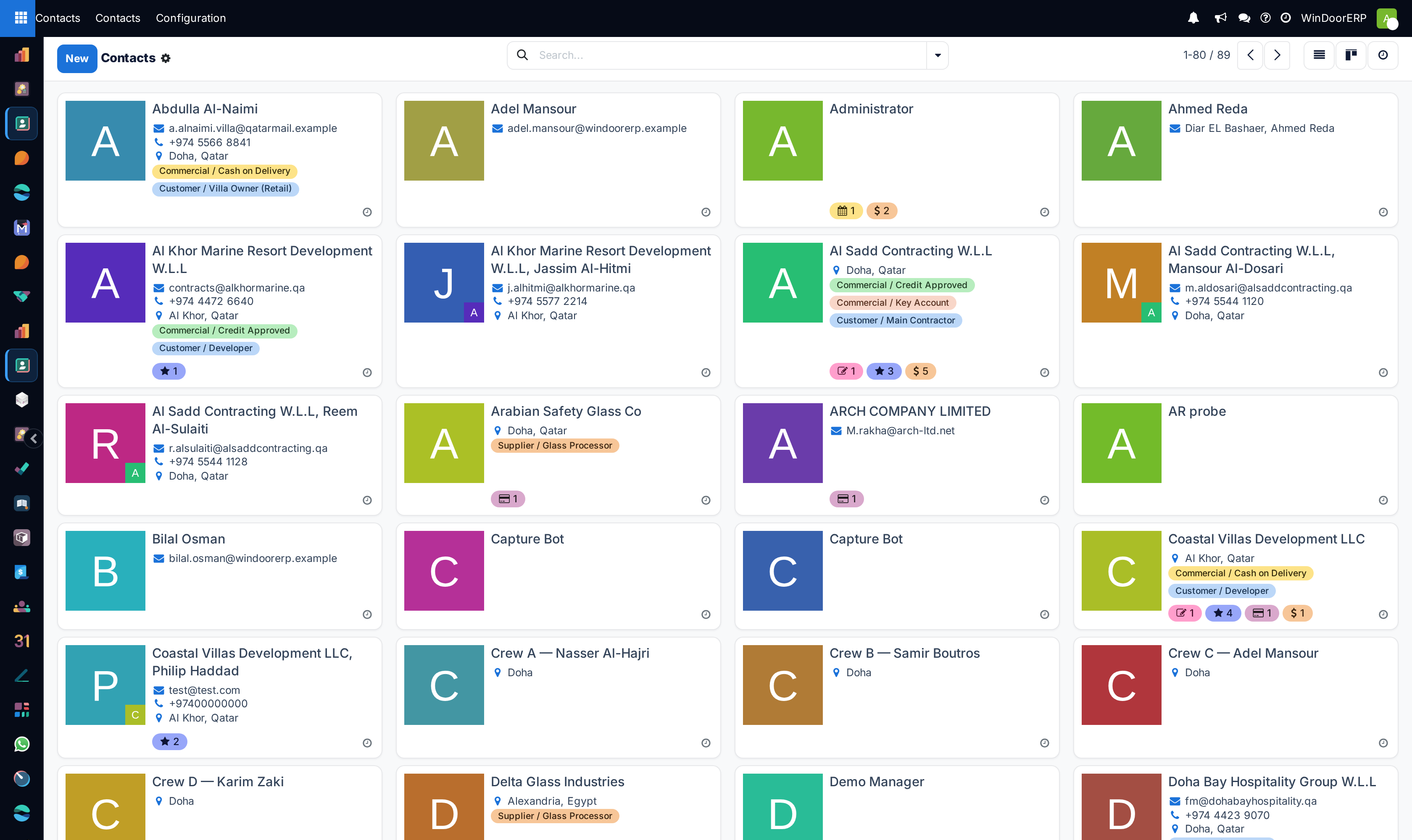
Open Contacts. The default kanban shows one card per contact; the list, and the activity view for follow-ups, are behind the view switcher.
-
02
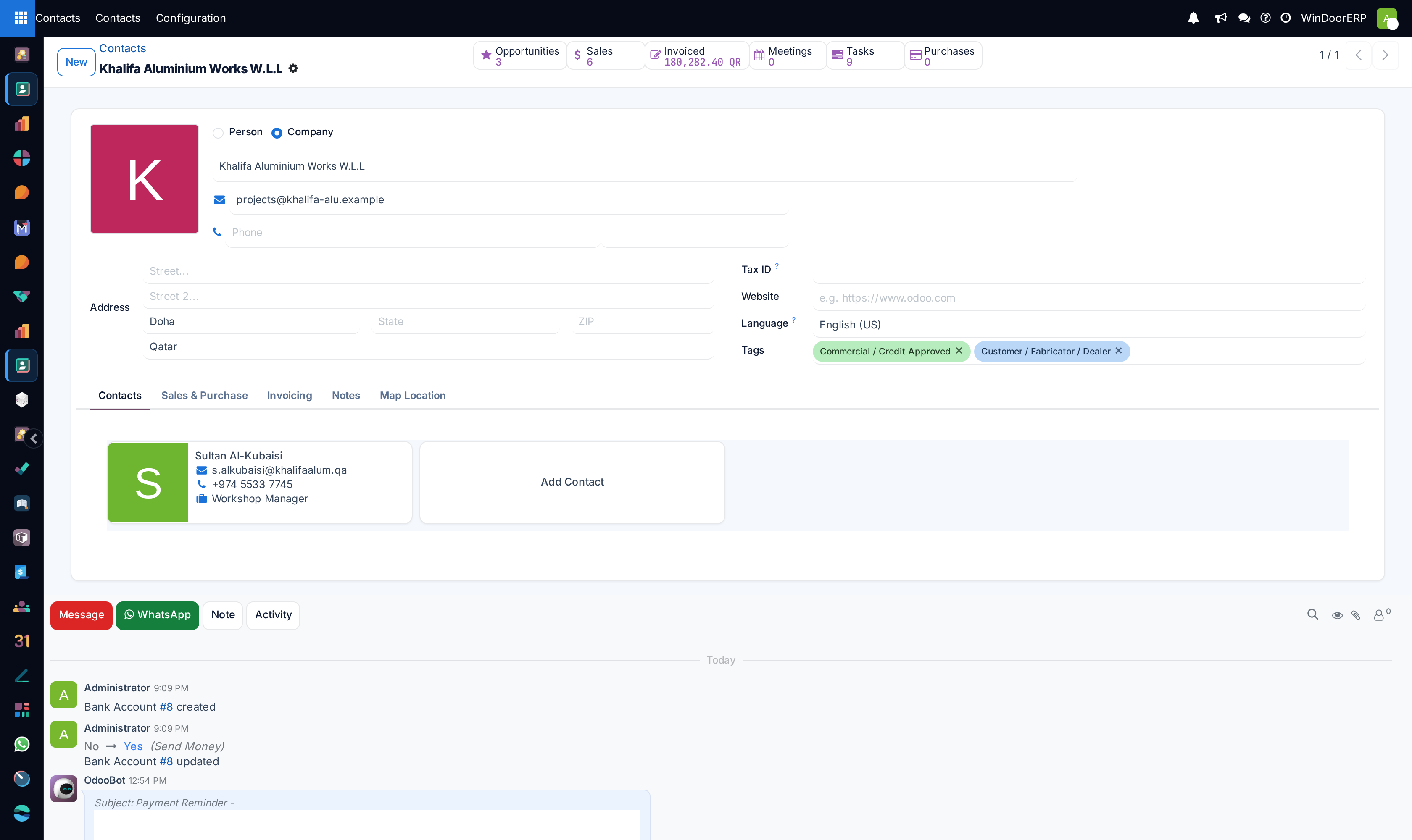
Click New and choose Individual or Company at the top of the form — this is the one choice that is awkward to change later.
-
03
Fill the address, Tax ID, phone, mobile and email. Start typing a company name and the autocomplete may offer to fill the rest for you (its own topic explains what that service does).
-
04
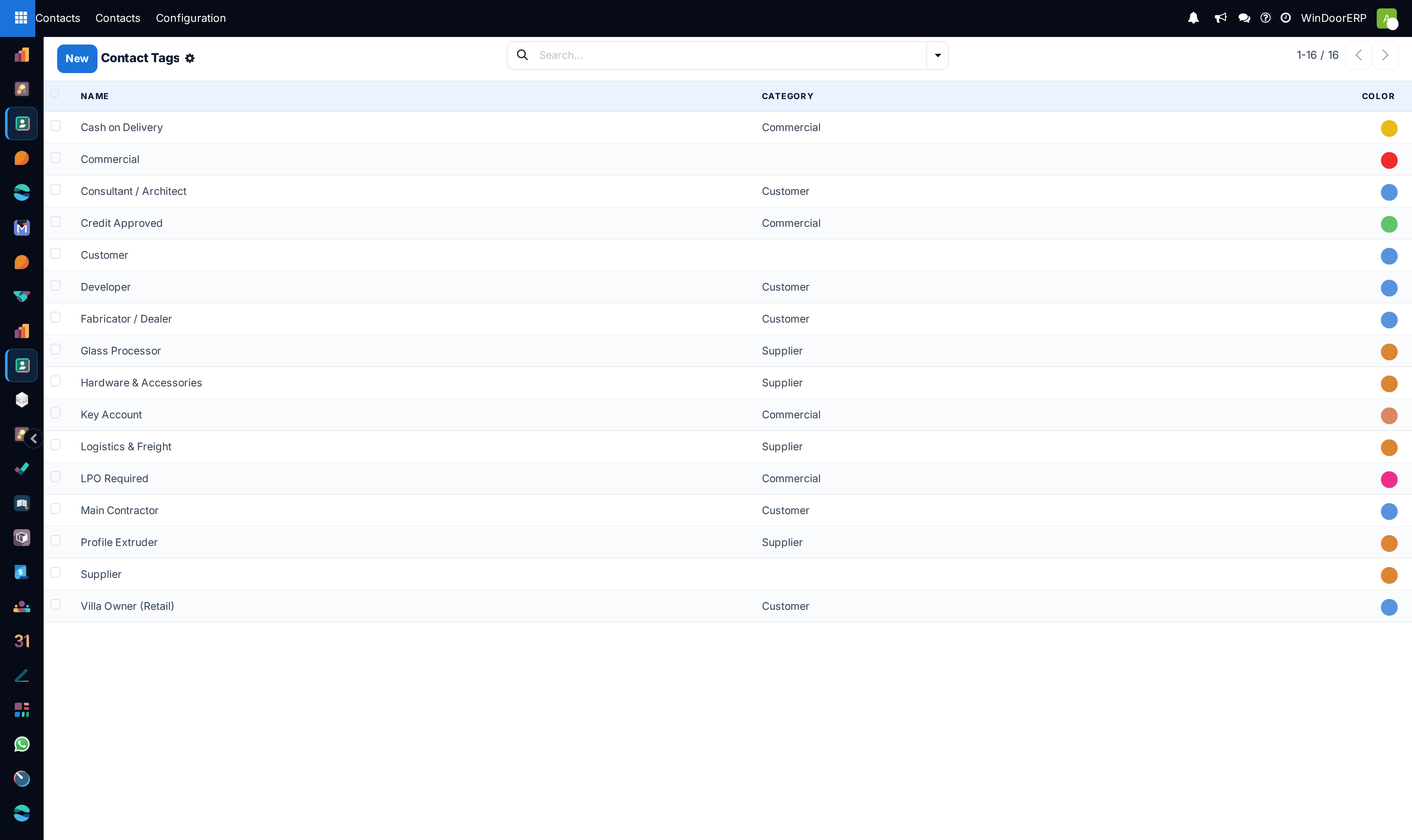
Add Tags to describe what the contact is to you — Tier-1 contractor, Consultant, Key account — and set the Industry for the sector it works in.
-
05
For a company, add its people and sites in the Contacts & Addresses tab, each with an Address Type: contact, invoice address, delivery address. Delivery and invoice addresses are what quotations and deliveries offer later.
Company, person, or address
The structure matters more than any single field. A company is the legal counterparty — it carries the Tax ID, the payment terms and the invoices. A person under it is who you phone. An address under it is where goods go. Model the villa owner as an individual, the contractor as a company with its project managers beneath it, and each site as a delivery address under the company that pays. Get this right and a delivery note names the right site while the invoice names the right office, without anybody retyping anything.
The two vocabularies you maintain
| Screen | What it holds |
|---|---|
| Configuration › Contact Tags | Your own labels, free to invent — the ones you will filter and group by. Keep the list short enough that people pick from it instead of adding to it. |
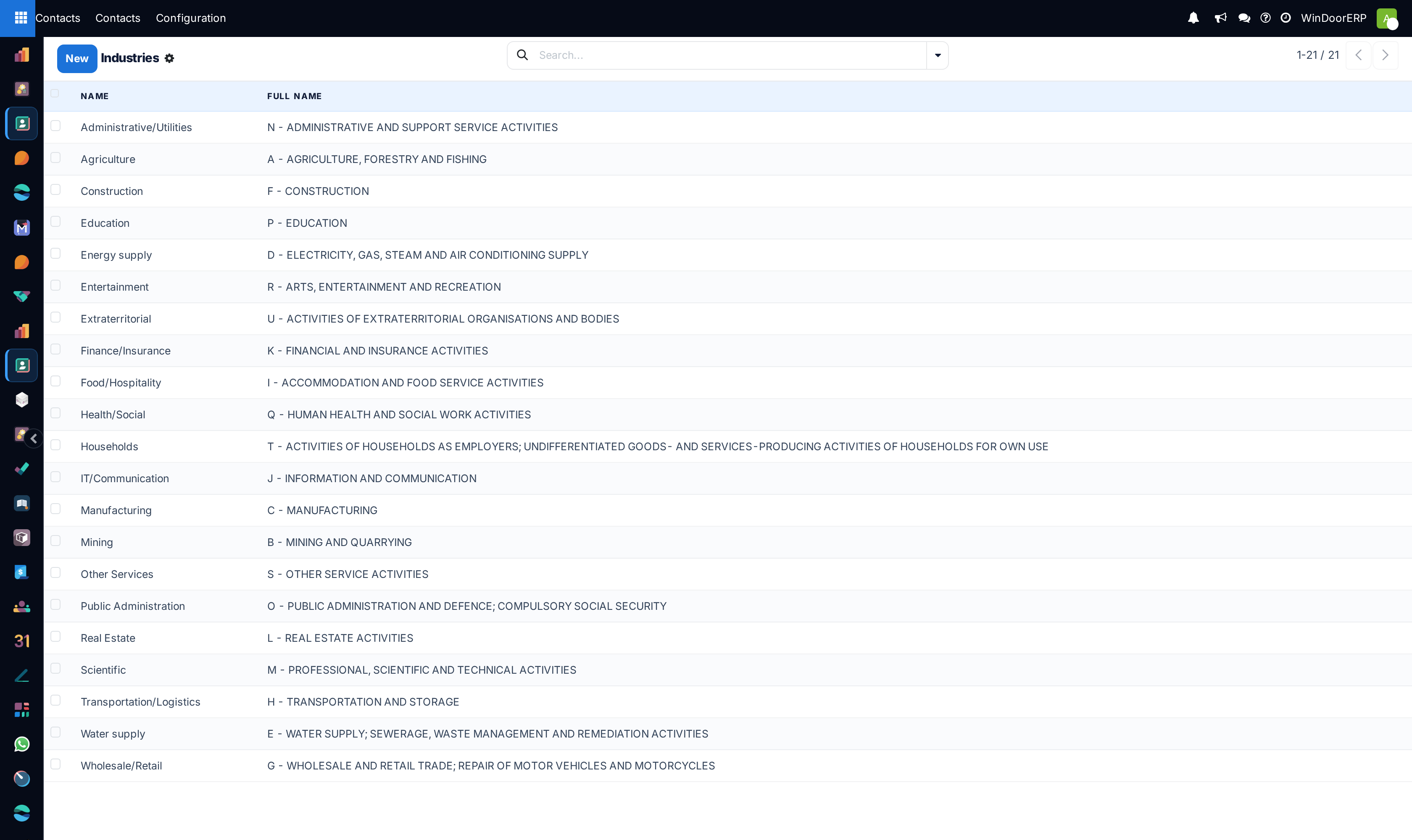
| Configuration › Industries | The sector a contact operates in. One value per contact, from a shipped list. |
What the Tax ID does, and does not, do
The Tax ID field stores the number and prints it on documents. On this system it is not checked: no format validation, no lookup against any tax authority, no warning if two contacts carry the same one. A wrong number will be accepted silently and then appear on invoices, so the care has to happen where it is typed. The same is true of every other identifier on the form.
Troubleshooting
Two records for the same contractor with different spellings — merge them rather than deleting one; a separate topic covers the merge tool, which moves the history instead of orphaning it.
A delivery went to the head office instead of the site — the site was never created as a delivery address under the company, so there was nothing else to choose.
You cannot change a contact from a person into a company — that choice is made at creation. Create the company properly and merge the individual into it.
Tags nobody uses, or twenty near-identical ones — tags are free text by design; prune the list under Configuration, and agree who is allowed to add new ones.
Common mistakes
- Creating a fresh contact because search did not find the existing one — search by phone or Tax ID before typing a new name.
- Putting a site address in the company's own address field, so every invoice goes to the villa.
- Treating tags as a filing cabinet: dozens of tags, each on one contact, useful to nobody.
Was this article helpful?
Thanks — your feedback helps.
Running a window or door factory?
Ask for a demo