Raise, assign and track technical requests
What this does
A technical request is the work item of the technical office: a site survey to price, a quotation drawing to produce, a fabrication request to check, or any other job the sales side hands to the technical side. Requests live in the Technical Tasks app under Requests, move through configurable stages, carry a deadline, planned hours and logged time, and — when the work involves measuring — anchor the whole survey journey from pre-quote measurement to production release.
This article covers raising a request, the request queue, every tab of the request form, and who may do what. The surveys themselves are covered in the site survey topics of this chapter.
Before you start
- Request types, stages and teams are configured — see the configuration topic in this chapter.
- Your user has the Technical Measurment or Technical Manager access right (Field Service CRM section of the user form).
- To raise a request from a sale or an opportunity, that document already has a customer set.
Raise a request
-
01
From an opportunity, open the Survey Status tab and press New Technical Request. From a sale order, use its technical request button. Either way the Create Technical Request dialog opens.
-
02
Pick the Technical Request Type and a Deadline Date — both are required. The dialog shows the type's built-in guidance text and a summary of the source document, its customer and its salesperson.
-
03
Optionally describe the job in Task Description, then press Create. The request receives the next TR reference and is named
TR<n>-<document name>; customer, contact, salesperson and — from an opportunity — the technical project and site coordinates are copied in. -
04
On the new request, set the Manager (defaults to you), a Technical Team? and, if useful, Tags? and a Priority star.
-
05
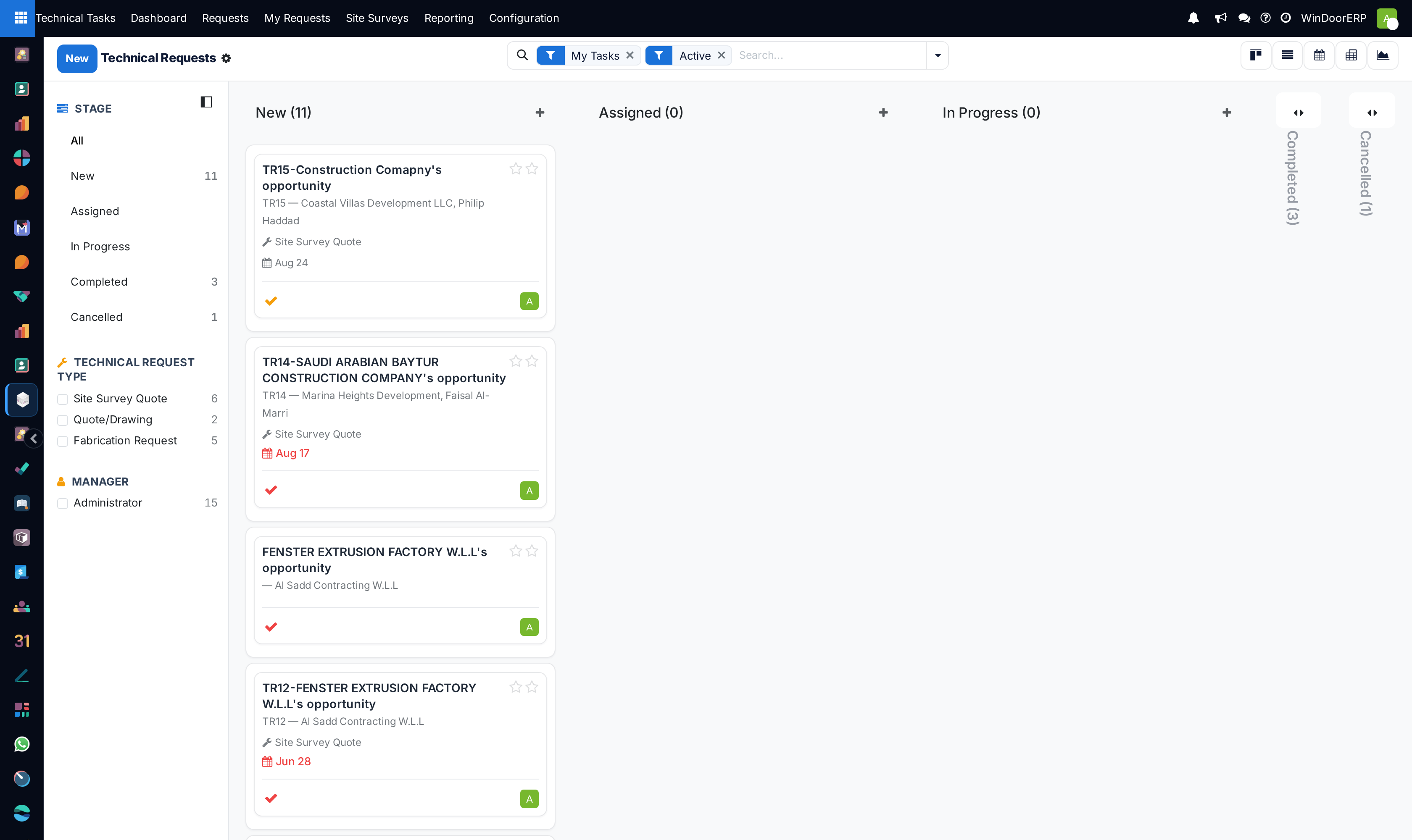
Work the request across the kanban: New › Assigned › In Progress › Completed, with Cancelled for dead requests. Use the small kanban-state dot on each card to flag a request Blocked or Ready for next stage without changing its stage.
The Requests queue
Both Requests and My Requests open pre-filtered to My Tasks and Active — so the Requests menu also shows only requests you manage until you remove the My Tasks filter from the search bar. To see the whole queue, clear that filter; to load-balance a team, group by Manager or use the left search panel, which filters by Stage, Technical Request Type, Team and Manager with live counters.
Six views are available: kanban (default, grouped by stage, quick-create on), list, calendar (by deadline, colored by stage), pivot, graph and form. The list shows each request's name, customer, manager, technical team, request type, deadline and priority, and totals the Planned and Spent hours at the bottom — the same two measures the pivot and graph slice.
Search filters worth knowing: Unassigned (no manager), High Priority, Urgent, Blocked, Overdue, Deadline Today, Deadline This Week, and Archived. A request counts as Overdue when its deadline has passed and its stage is not a folded (closed) one.
The request form
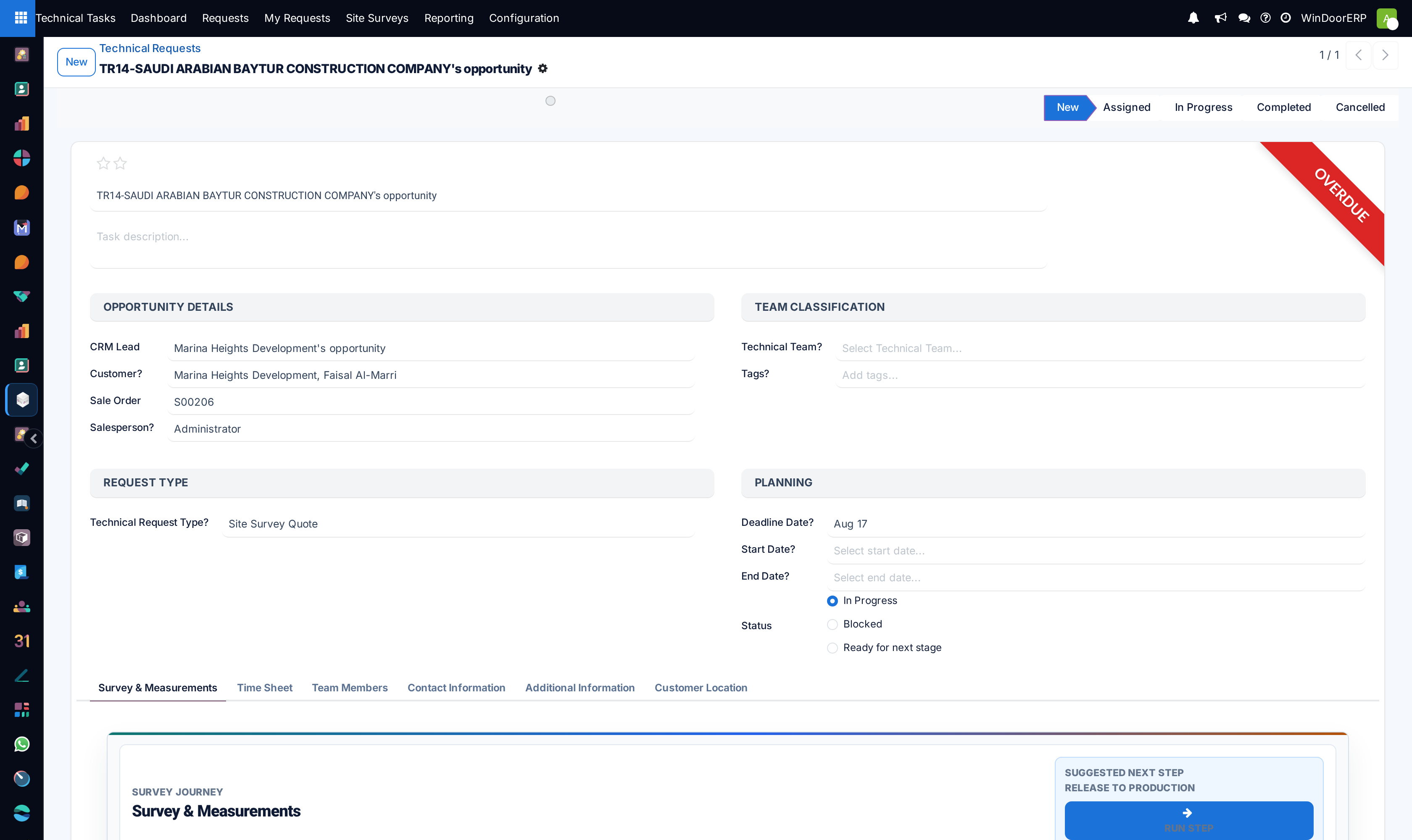
The header carries the stage bar (click a stage to move the request) and the kanban-state selector. An OVERDUE ribbon appears once the deadline is missed. The main groups:
| Field | What it does |
|---|---|
| Task Name / description | Free title and one-line description. Requests raised through the dialog are named TR<n>-<document> automatically. |
| CRM Lead, Customer?, Sale Order, Salesperson? | Where the work came from. Customer and sale order pickers do not allow creating new records here. |
| Technical Team? | A label for grouping and filtering. Teams have no routing logic — assigning a team notifies nobody by itself. |
| Tags? | Free multi-tags (Urgent, Installation, Repair, Maintenance, Consultation ship as defaults). |
| Technical Request Type? | What kind of work this is. Types can auto-create a linked site survey — see the configuration topic. |
| Deadline Date?, Start Date?, End Date? | Deadline drives the calendar view, the overdue flag and the reporting menus. Start must be before End or saving fails. |
| Status | The kanban state as radio buttons: In Progress, Blocked, Ready for next stage. Independent of the stage. |
| Reference | The TR number, read-only. Only the request dialog assigns it — a request created directly with New keeps an empty reference forever. |
The name, customer, sale order, stage, kanban state, priority and planned hours are tracked — every change to them is logged in the chatter. The deadline itself is not tracked; note deadline changes in a chatter message when the history matters.
Survey & Measurements tab
The first tab is the survey journey hub. It shows the journey phase bar (Opportunity › Pre-Quote Survey › Quotation › Won › Production Survey › Production), status cards for the pre-quote and production surveys, a progress bar, and one Run Step button that always performs the suggested next step. Around it sit the explicit buttons: Schedule Pre-Quote / Open Pre-Quote, New Pre-Quote (offered only once the current pre-quote is Completed or Approved), Schedule Production Survey / Open Production Survey, Create Quotation and Release to Production (each appears only when it is the suggested step), and View All Previous Surveys. Below, once at least one survey exists, a read-only Previous Surveys list shows every linked survey with its type, surveyor, progress and state. All of these buttons require the Survey User access right.
Time Sheet tab
Four cards summarise the effort: Planned (editable — the budget), Spent (sum of the entries below), Remaining (planned minus spent, never negative) and Entries. Under them, a progress bar shows spent as a percentage of planned, capped at 100%, and an inline list records the entries themselves — Date, Employee, Description, Hours. Logging the first entry on a request still in New silently moves it to In Progress.
Team Members tab
A simple crew list — Employee, Role, Assigned Hours, Start and End — plus an Add Team Member button that opens a small dialog for the same fields. Team members listed here are informational; hours assigned to a member are not checked against the timesheet entries.
Contact Information and Additional Information tabs
Contact Information holds the on-site contact: Contact plus its read-only email and phone, and a secondary Co contact. Additional Information keeps the request-type description snapshot, the kanban Color, the Sequence, and the created/updated audit fields.
Customer Location tab
Geolocation for the visit. Enter Latitude and Longitude directly, click or drag the marker on the interactive map, or use the buttons:
| Button | Effect |
|---|---|
| 🔄 Refresh from CRM | Copies the linked opportunity's coordinates (shown only when a lead is linked; warns when the lead has none). |
| 🔄 Refresh from Customer | Copies the customer record's coordinates. |
| 💾 Save to Customer | Writes this request's coordinates back onto the customer record — a permanent change to the contact. |
| 📍 Extract Coordinates from URL | Parses a pasted Google Maps link, including shortened maps.app.goo.gl links. |
| Open in Maps / Get Directions | Open Google Maps on, or navigating to, the saved point. |
Once both coordinates are set the tab also shows the Google Maps URL and a QR code a driver can scan. The address block itself is the customer's address, editable here and written through to the customer record.
Assignment notifications
When a request is created, WindoorERP can schedule a to-do activity — "Assign technician for …" — on one designated technical manager. This fires only when an administrator has set the system parameter sale_order_line_input.technical_manager_user_id to that user's id; without it, creating a request notifies nobody. The companion parameter sale_order_line_input.notify_technical_manager (default on) switches the behaviour off without losing the configured user.
Who can do what
| Access right | On requests |
|---|---|
| Technical Measurment | Create, read and edit requests; cannot delete them; sees stages, tags, types and teams read-only. |
| Technical Manager | Everything, including deleting requests and maintaining the configuration menus. |
| Salespeople | Read-only on requests and stages — enough to follow their own deals' technical work. |
Troubleshooting
"Start date must be before end date." — the Planning dates are crossed; fix either date.
"Please select a Customer on the opportunity before creating a technical request." (or the sale-order variant) — the source document has no customer; set one first.
A request has no TR reference — it was created with the New button instead of the request dialog. The reference cannot be added later; if the number matters, raise the request from its opportunity or order.
New requests notify nobody — the technical-manager system parameter is not set; see Assignment notifications above.
The Requests menu looks empty although requests exist — the My Tasks default filter is hiding other managers' requests; remove it in the search bar.
Common mistakes
- Creating requests with the New button when the TR numbering matters — only the dialog on the opportunity or order assigns a reference.
- Treating the Technical Team field as an assignment — it never notifies anyone; the Manager field is the responsible person.
- Flagging a request Blocked and leaving the deadline in the past — it keeps counting as overdue in every report until the stage is moved to a folded one.
Was this article helpful?
Thanks — your feedback helps.
Running a window or door factory?
Ask for a demo