Send a quotation to the customer
What this does
Puts the quotation in front of the customer as a branded PDF and a portal link they can sign online, and starts the clock on follow-up.
Before you start
- Every fabricated line should carry a current analysis. A line whose last analysis failed is quoting from an older drawing.
- Check the payment terms and the expiration date — both print on the document.
- Make sure the customer's contact has the right email; that address is where the portal link goes.
Steps
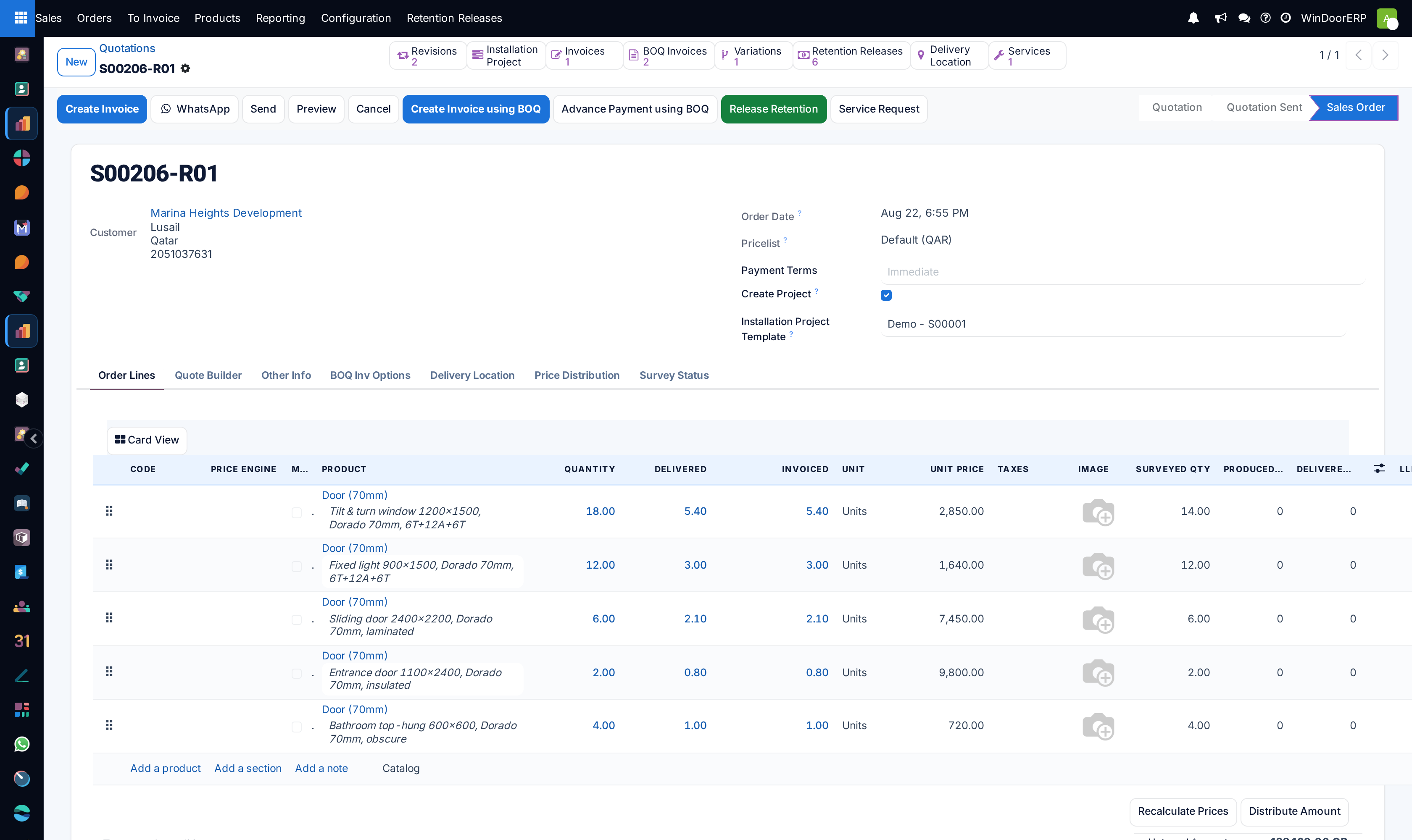
-
01
Open the quotation and click Preview to see exactly what the customer will see.
-
02
Click Send. The email composer opens with the quotation template, the PDF attached and the portal link in the body.
-
03
Check the recipient — it should be the person who signs, not the site engineer.
-
04
Adjust the message if this quotation needs a covering note.
-
05
Send. The status moves to Quotation Sent.
-
06
Schedule a follow-up activity on the order so the chase is not a memory.
What the customer can do
The portal link opens the quotation in their browser, where they can read it, download the PDF, and accept it. Acceptance here means Accept & Sign: they type or draw a signature, and that signature confirms the order. There is no online payment step — nothing is asked of them beyond the signature — and the signature and its timestamp land in the order's chatter as the record of what was agreed.
Replies to the email arrive in the same chatter, so the negotiation stays on the order rather than in one person's mailbox.
Note
Nothing is manufactured because a quotation was sent, or even because it was signed. Confirmation creates the sales order and the installation project; production still waits for the survey, and invoicing waits for you to raise it.
If the answer is no, or not yet
A customer who wants changes should get a revision, not an edited original: use Create Revision to produce -R01 and negotiate on that, leaving the sent version intact as the record of what they were offered. A quotation that simply goes quiet expires on its own date and stops being a live commitment — which is precisely why the expiration date is worth setting deliberately.
Troubleshooting
| Symptom | Cause and fix |
|---|---|
| The customer says the link asks them to pay | It does not — the portal confirms by signature only, with no payment providers configured. Check they are not looking at an unrelated invoice link. |
| The email never arrived | Check the order's chatter for the message and its delivery state, then the recipient address on the contact. Outgoing mail queues and can take up to an hour to leave. |
| The status stayed Quotation after sending | The composer was closed without sending. Re-send; the state moves only when the mail actually goes. |
| The PDF shows an old price | The design was changed after the last successful analysis, or the line was re-priced after the PDF was generated. Re-analyse or re-price, then preview again before sending. |
| They signed but nobody noticed | The confirmation is in the chatter and the order is now a sales order. Follow the orders list rather than the mailbox. |
Common mistakes
- Sending without previewing, and discovering the customer received a page of internal notes.
- Sending to the site contact rather than the person with signing authority.
- Editing a sent quotation in place instead of revising it, so the signed version and the current version disagree.
- Sending and not scheduling a follow-up. The quotation expires quietly and the enquiry is lost.
Was this article helpful?
Thanks — your feedback helps.
Running a window or door factory?
Ask for a demo