Process credit notes, register customer payments, and manage customer accounts
What this does
Money comes back to a fabricator two ways: as a receipt against an invoice, or as a correction when the invoice itself was wrong. This article covers both sides under Accounting › Customers — issuing Credit Notes against posted invoices, registering customer Payments (including partial receipts, write-offs, post-dated cheques, and receipts in a foreign currency), and the accounting side of the Customers and Products screens where receivable accounts, payment terms, and income accounts are set.
Before you start
- A posted customer invoice — credit notes and payments both start from one.
- Invoicing access (the Billing group) for credit notes and payments; account fields on customers and products need full accounting access.
- To take post-dated cheques, the PDC payment method must be added to your bank journal's payment methods first — it does not appear by itself.
Credit notes
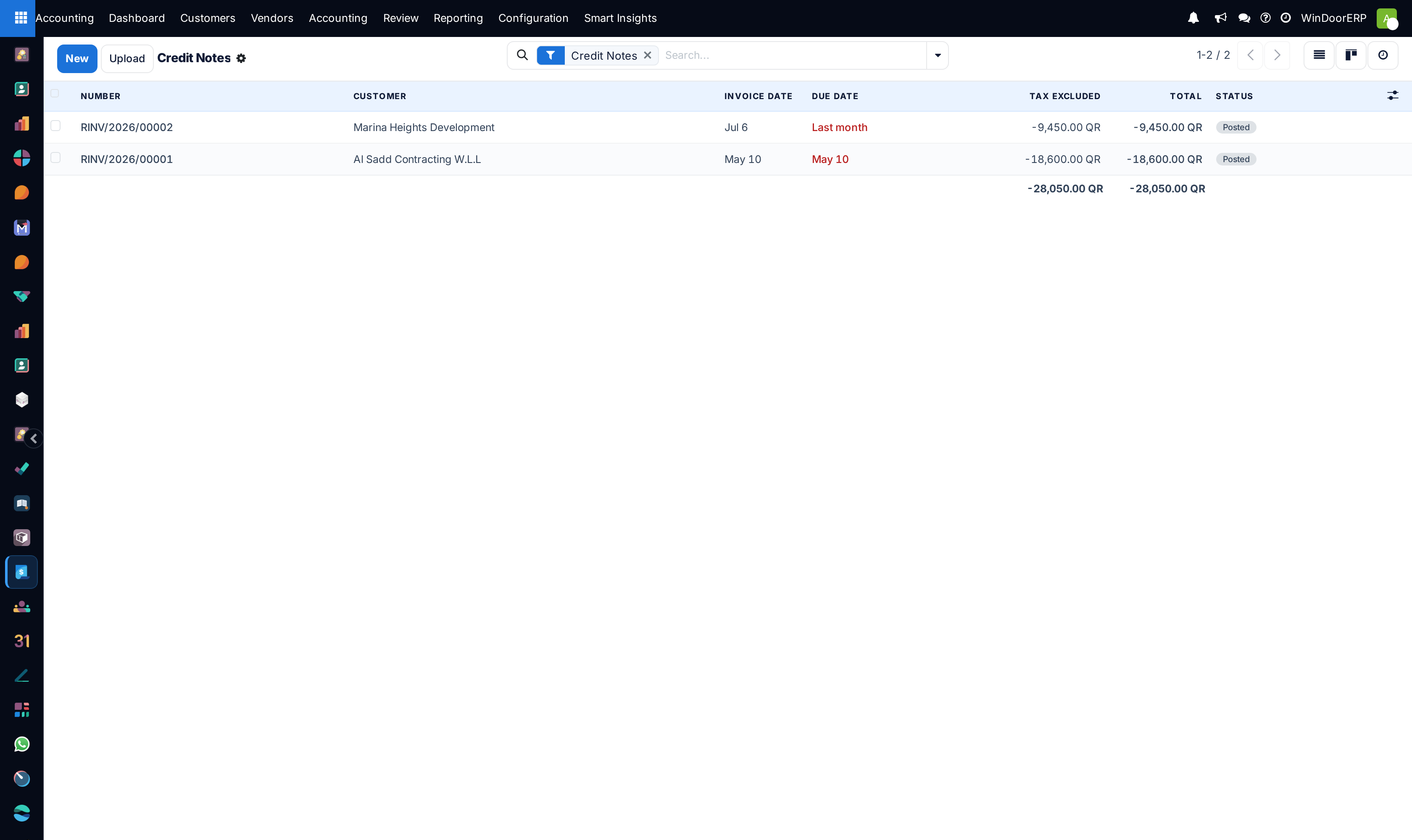
Customers › Credit Notes lists documents numbered RINV/…. It is the invoice list with a Credit Notes filter pre-applied — clear the filter chip and invoices mix back in. You can create one from scratch with New, but the everyday path starts on the invoice being corrected:
Note
There is no "credit method" choice in the dialog — older documentation mentioning Partial Refund / Full Refund options describes a previous version. And a reversal dated in the future is not posted immediately: it is queued to post automatically on that date, without any extra warning.
-
01
Open the posted invoice and click Credit Note in its header.
-
02
In the dialog, write the Reason displayed on Credit Note, and check the Journal and Reversal date.
-
03
Choose the button that matches your intent: Reverse creates the credit note and leaves the original invoice posted, its balance settled by the credit; Reverse and Create Invoice additionally cancels the original and opens a fresh draft copy to correct and re-issue — the re-bill path for a wrong price or a changed opening size.
-
04
For a partial credit, use Reverse, then edit the draft credit note's quantities or amounts down to what is actually being credited before posting it.
-
05
Post the credit note. Its reference reads Reversal of: [invoice], [reason].
Customer payments
Customers › Payments is the register of inbound receipts — date, number, journal, payment method, customer, amount, and state. The screen is pre-filtered to customer receipts; vendor disbursements live under Vendors › Payments on the same model.
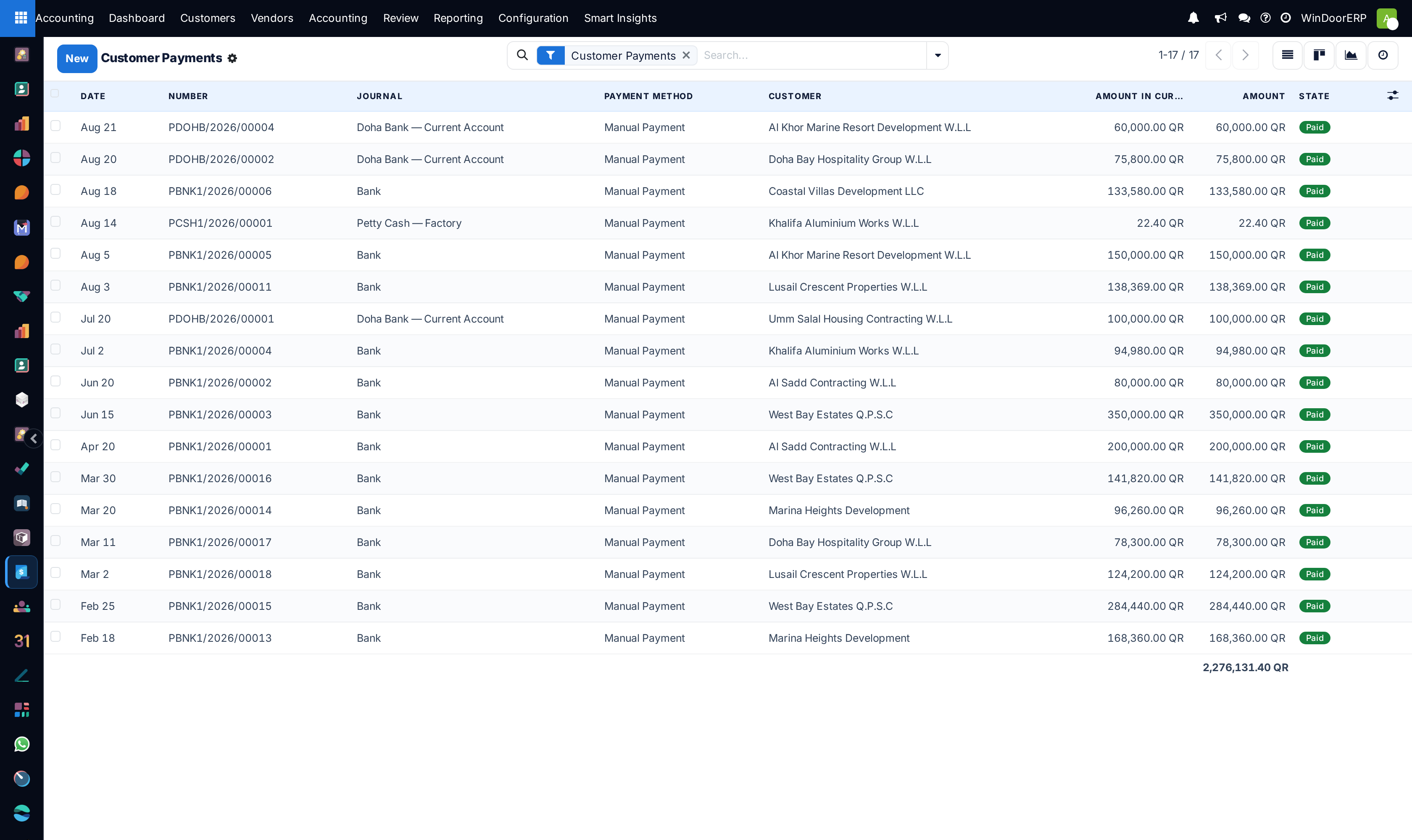
The usual entry point is the Pay button on a posted invoice, which opens the Register Payment dialog:
| Field | What it does |
|---|---|
| Journal | Which bank or cash journal receives the money — on this database Bank, Doha Bank — Current Account, or Petty Cash — Factory. |
| Payment Method | The journal's configured methods — Manual Payment out of the box; PDC for post-dated cheques once added to the journal. |
| Amount | Defaults to what is owed. Type less for a partial receipt — a hint offers the next instalment or overdue amount when the invoice has a staged payment term. |
| Payment Date / Memo | Value date and the reference that appears on the bank reconciliation. |
| Post Difference In | Appears when the amount is short: Keep open leaves the invoice partially paid; Mark as fully paid books the gap to the write-off account and label you choose. |
| Group Payments | When paying several invoices at once, one payment per customer and bank instead of one per invoice. |
| Effective Date / Bank Reference / Cheque Reference | Cheque bookkeeping: the effective date is required for a PDC and records when the cheque matures; the references keep the bank's and cheque's numbers searchable. |
The dialog warns rather than blocks when it spots a payment with the same partner, amount, and date (possible duplicate), and tells you when payments will be skipped for untrusted or missing recipient bank accounts. After posting, a payment form offers Print Check for cheque and PDC payments and Unmark Sent to reverse a "sent" flag.
Important
Two behaviours of a registered receipt are easy to miss. First, a receipt in another currency never asks you for an exchange rate: the dialog defaults to the journal's currency and settles the invoice at the rate table's rate for the payment date, booking any difference straight to the exchange gain/loss accounts. Check the rate table before registering large foreign-currency receipts. Second, even a token partial payment flips the invoice out of every collections computation — the aging dashboards and follow-up screens only count fully unpaid invoices, so a customer who pays 1% disappears from the chase list (see the follow-ups article).
Customers and Products — the account plumbing
Customers › Customers opens the contact list filtered to customers. On a customer's form, the Invoicing tab holds the fields that decide how their documents post: Receivable Account and Payable Account, bank accounts (which must be marked trusted before outbound payments will use them), and the credit limit block; payment terms sit in the Sales section, the fiscal position under Fiscal Information. The same form also carries the whole collections apparatus — risk grade, aging, credit hold — covered in the follow-ups article.
Customers › Products lists sellable products. Each product's Accounting tab sets the Income Account and Expense Account (left empty, the product category's accounts apply) and the Customer Taxes — on this Qatar configuration, Exempt 0% (Qatar — No VAT). An Asset Type on a product makes vendor-bill lines for it generate a fixed asset automatically (see the assets article).
Troubleshooting
"There's nothing left to pay for the selected journal items, so no payment registration is necessary." — the invoice is already fully settled; check its payment ribbon and the credit notes applied to it.
"You cannot register payments for blocked invoices." — someone toggled the payment block on the invoice (its payment status shows Blocked); lift it from the invoice before paying.
"You can't register payments for both inbound and outbound moves at the same time." — the selection mixes customer invoices and vendor bills; register them separately.
"To reverse a journal entry, it has to be posted first." — draft invoices are simply edited or deleted; credit notes exist to correct posted ones.
"Journal should be the same type as the reversed entry." — pick a sales-type journal when crediting a customer invoice.
"Payments to print as a checks must have 'Check' or 'PDC' selected as payment method and not have already been reconciled" — Print Check only works on cheque/PDC payments that are still open, and ("In order to print multiple checks at once, they must belong to the same bank journal.") on one journal at a time.
PDC does not appear as a payment method — add the PDC method to the bank journal under Configuration › Journals › [journal] › Incoming/Outgoing Payments.
Common mistakes
- Reaching for Reverse and Create Invoice for a partial credit — that path cancels and re-bills the whole invoice; a partial credit is Reverse plus editing the draft down.
- Issuing a credit note dated next month and wondering why nothing posted — future-dated reversals wait silently for their date.
- Registering a foreign-currency receipt without checking the currency rate table first, then hunting the "missing" difference that went to the exchange accounts.
- Marking a short payment fully paid into a write-off account as a habit — that books away real receivables; keep genuine underpayments open or chase them.
- Changing a customer's receivable account while they have open invoices — old entries stay on the old account and the partner ledger splits across both.
Was this article helpful?
Thanks — your feedback helps.
Running a window or door factory?
Ask for a demo