Work with project tasks and their stages
What this does
Project tasks are the granular to-dos that live inside a project — one per deliverable, with assignees, a stage, a deadline and logged hours. In WindoorERP they surface in three places: the Tasks smart button of any project form, the Installation app's Tasks › My Tasks / All Tasks menus for installation work, and the personal To-do app, where a task without a project is a private note until it is given one. Technical requests are a separate, richer work item with their own topic — this article is about the plain project task.
Before you start
- A project exists to hold the tasks — the stage columns belong to the project.
- Task work needs ordinary internal access; timesheets on tasks need the project's Timesheets setting on.
Working a task board
-
01
Open the tasks — the project's Tasks button, or Installation › Tasks › All Tasks for site work.
-
02
Create tasks with New: a name, one or more Assignees, a Deadline and, when the effort is budgeted, Allocated Hours.
-
03
Drag cards across the stage columns as work moves — typed projects come seeded with New, In Progress, QA, Done and a folded Cancelled.
-
04
Log hours in the task's Timesheets tab; the Progress bar compares them to the allocated hours.
-
05
Break big work down in the Sub-tasks tab — the parent shows its children's count and completion.
The task form
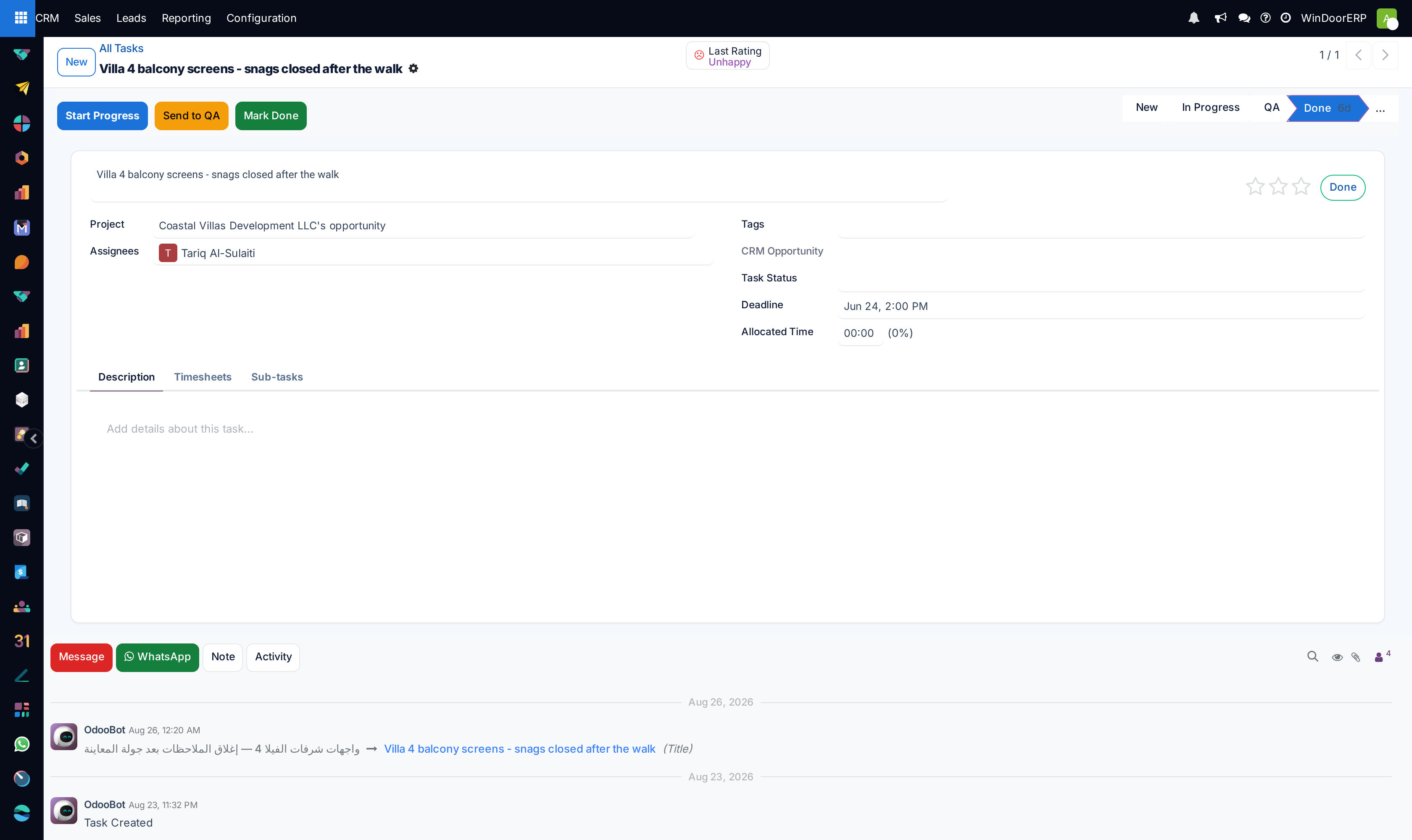
| Element | What it does |
|---|---|
| Stage bar and Personal Stage | The project's shared stage, plus a private stage each assignee can use to organise their own board without touching the team's. |
| Set to Draft / Start Progress / Send to QA / Mark Done | Four header buttons that set the task's Work Status field (Draft, In Progress, QA, Done) — a tracked flag on top of the stage. In this release they set the flag only; see Troubleshooting. |
| Project, Assignees, Roles, Tags | The task's home and its people. Roles label who acts in what capacity on this task. |
| CRM Opportunity / Task Status | A read-only link to the originating opportunity, and a free classification (Site Survey, Quote/Drawing, Fabrication Request, Other Request) with no automation behind it. |
| Customer, Sales Order Item | Commercial context; the sales order smart button appears when linked. |
| Deadline, Allocated Hours, Progress | The plan and its consumption; sub-task hours are shown alongside. |
| Tabs | Description, Timesheets, Sub-tasks; installation tasks add the Installation Items tab covered in the Installation chapter. |
Installation work packages are the exception: on them the four Work Status buttons and the Task Status and CRM Opportunity fields are hidden on purpose — installation progress is driven by the item check-grid and the Installation Status badge instead, as described in the Installation chapter.
Stages belong to the project
Every typed project is created with the same five task stages, so boards look identical across contracts; the folded Cancelled column keeps dead tasks out of sight without deleting history. Stages can be renamed and added per project from the board itself, or fleet-wide under Installation › Configuration › Task Stages — that screen lists the task stages of every project, technical ones included.
Troubleshooting
The Start Progress / Send to QA / Mark Done buttons change the Work Status but the card does not move — that is the current behaviour: the buttons set the flag and the kanban stage stays where it is, silently. Drag the card (or click the stage bar) as well; treat the buttons as a status stamp, not a mover.
A task is invisible to a colleague — it has no project (a private To-do), or the project's Visibility is set to invited users only.
The Timesheets tab is missing — the project's Timesheets setting is off.
Common mistakes
- Reading Work Status as the team's truth while the kanban stage says otherwise — pick one signal for the team and keep both in step.
- Splitting one deliverable across tasks in two projects — sub-tasks under one parent keep the accounting whole.
Was this article helpful?
Thanks — your feedback helps.
Running a window or door factory?
Ask for a demo