Trace every movement of a product
What this does
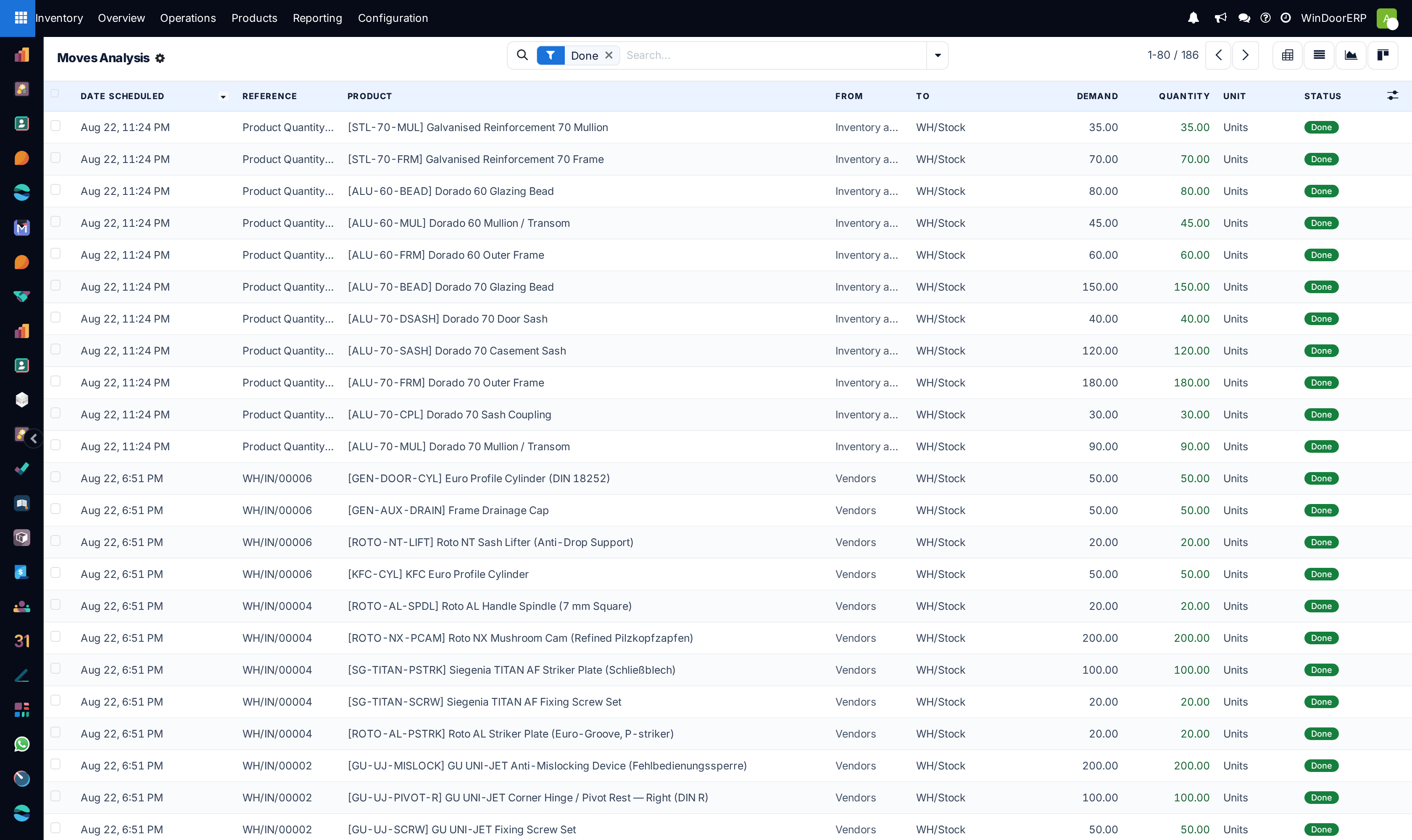
The complete ledger of stock movement: what moved, when, from where to where, under which reference, and whether it is finished. This is the report you open when a customer, an auditor or an argument needs an answer.
Steps
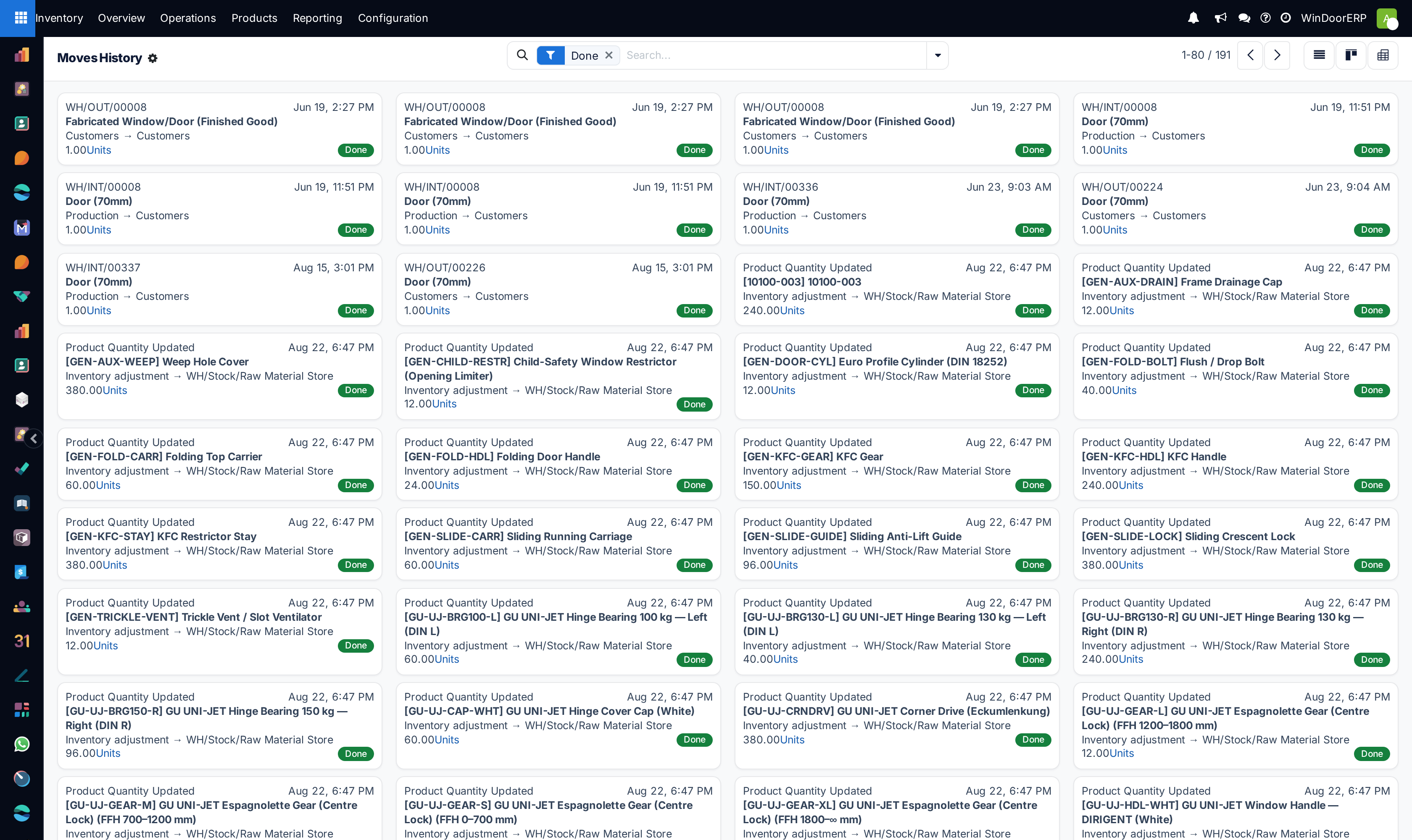
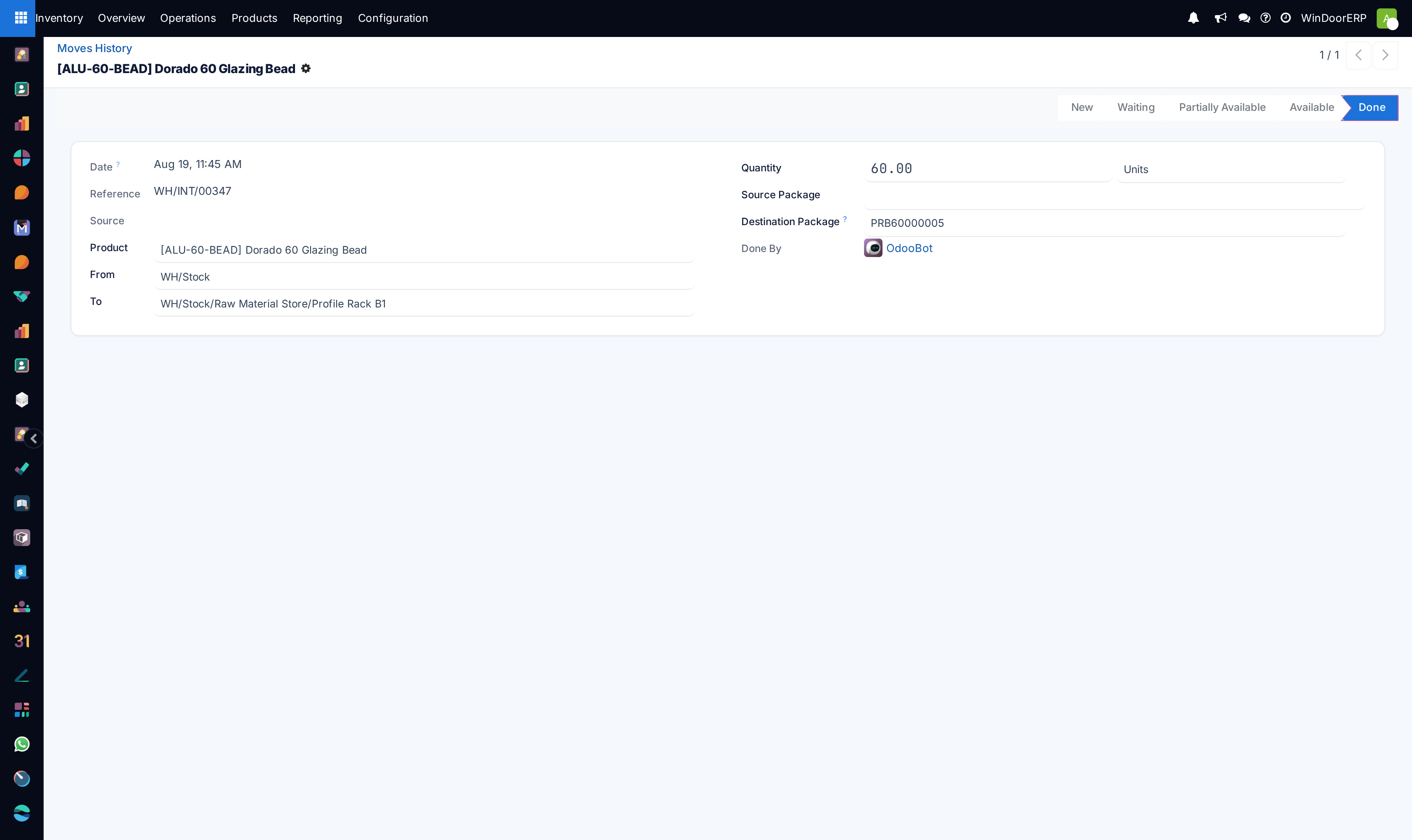
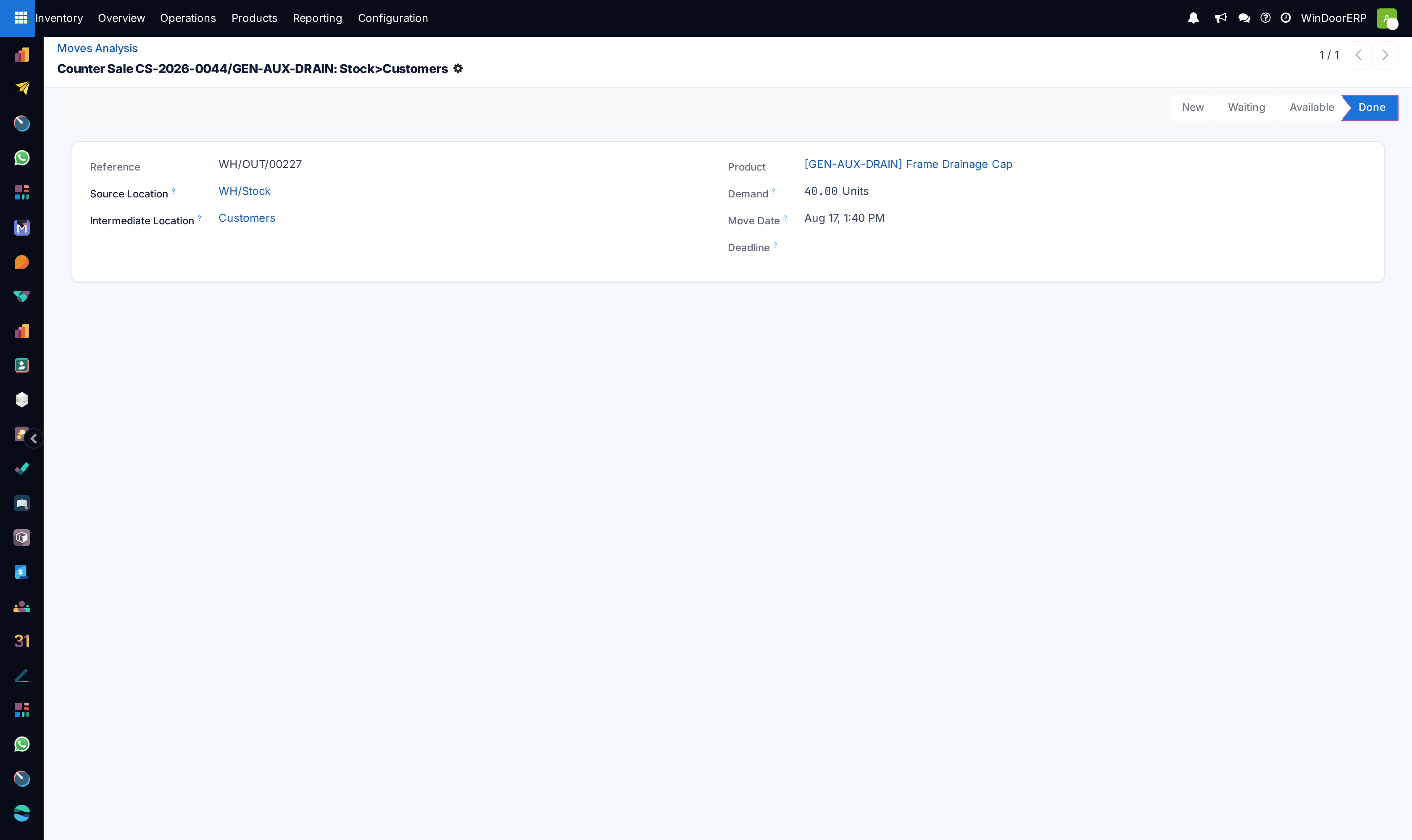
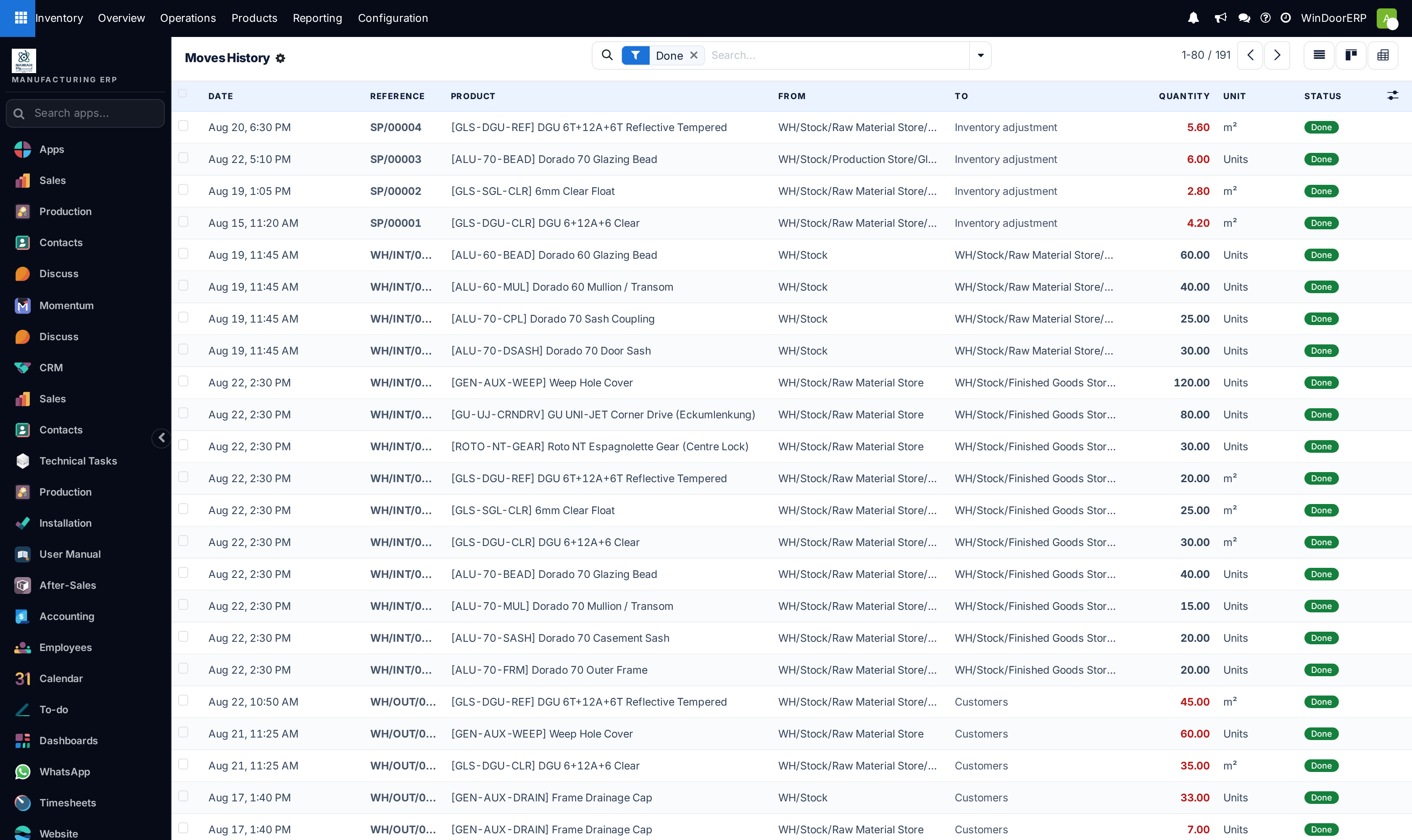
The Status column separates what has happened from what is only planned: Done, Available (ready to pick) and Partially Available (not enough stock to complete it). The To Do filter shows the second and third.
Inventory adjustments appear here too, which is what makes a count auditable — and where an adjustment can be reverted from.
The Moves History report in WindoorERP Inventory provides a detailed record of product movements (containing past and current locations), lot numbers, and reasons for movement. Reports can be generated for any time frame, making this report essential for analyzing stock levels, monitoring inventory turnover, and identifying any discrepancies in inventory.
Note
The reporting feature is only accessible to users with admin access.
To access the moves history report, go to Inventory app › Reporting › Moves History.
-
01
Go to Inventory › Reporting › Moves History.
-
02
Filter to the period in question — Last 30 Days, Last 3 Months, or a date range of your own.
-
03
Narrow by direction: Incoming, Outgoing, Internal or Manufacturing.
-
04
Group by Product, Transfers, Location or Batch Transfer depending on the question you are answering.
-
05
Save the search if it is one you run often.
Navigate the report
In the report, the columns represent:
- Date: calendar date and time of the stock move.
- Reference: description of the reason for the stock move or quantity change, such as a receipt number (e.g.
WH/IN/00012). - Product: name of the product involved in the move.
- Lot/Serial Number: specifies the lot or serial number of the tracked product being moved.
- From: source location of the moved product.
- To: destination location of the moved product.
- Quantity: number of products moved.
- Unit: unit of measure of the products moved.
- Status: indicates the move status, which can be Done, Available (ready for action), or Partially Available (insufficient quantities to complete the operation).
Search options
Use the following search options to customize the Moves History report to display relevant information
The Filters section allows users to search among pre-made and custom filters to find specific stock records.
- To Do: show stock move records that are in progress. This includes lines with a Status column value of Available or Partially Available.
- Done: completed stock moves, with a Status of Done.
- Incoming: displays move records from vendor locations.
- Outgoing: displays move records to customer locations, including customer returns.
- Internal: displays move records from one internal location to another.
- Manufacturing: shows records where products were produced from the virtual, production location.
- Date: select this drop-down menu to access various date filter options and view stock moves from a specific month, quarter, or year.
- Last 30 Days: show records that occurred in the last thirty days.
- Last 3 Months: show records from the last three months.
The Group By section allows users to add pre-made and custom groupings to the search.
- Product: group records by product.
- Status: group records by the three status types: Done, Available, and Partially Available.
- Date: group records by Year, Quarter, Month, Week, or Day.
- Transfers: group records by operation number, e.g.
WH/OUT/00012,WH/MO/00211. - Location: group records by source location (the From column in this report).
- Category: group records by product category. To configure these, go to Inventory app › Configuration › Products: Product Categories.
- Batch Transfer: group records by batch.
To save the current applied filters and groups, so the same information can be easily accessed after closing this page, click Save current search.
Optionally, tick the Default filter checkbox to make this current view the default filter when opening the Moves History report. Or tick the Shared checkbox to make the search option available to other users.
Lastly, click the Save button.
Common mistakes
- Forgetting that the report opens filtered to Done and concluding that a pending move does not exist.
- Searching by product name when the reference (
WH/OUT/00123) would have found the answer in one step. - Treating a partially available line as a system fault rather than as a shortage to be resolved.
Was this article helpful?
Thanks — your feedback helps.
Running a window or door factory?
Ask for a demo