Automatically assign leads to sales teams and salespeople
What this does
Rule-based assignment is how WindoorERP hands out unassigned enquiries by itself: it allocates each new lead to a sales team whose rules match it, then to a salesperson on that team, in proportion to how much work each person can take. Distribution runs either when a manager presses a button on the team, or repeatedly on a schedule.
The rules live in two places. Each sales team carries a domain saying which unassigned leads it may take; each team member carries a monthly capacity, an optional filter, an optional priority filter, and a pause switch. The switch that turns the whole mechanism on sits in CRM › Configuration › Settings and is covered by the CRM settings article; the member capacities themselves are covered by the workload article. This article is about wiring the two together and understanding what a run actually does.
Two things about a run are easy to miss. First, when a lead is assigned to a salesperson it is converted into an opportunity at the same moment, with its Assignment Date stamped. Second, while allocating, WindoorERP looks for duplicates of each lead (same customer e-mail) and merges them, so a run can also delete records — that is deliberate database cleaning, not a bug.
Before you start
- Sales Manager rights. Anyone else who triggers a run is refused with "Lead/Opportunities automatic assignment is limited to managers or administrators".
- Rule-Based Assignment switched on in CRM › Configuration › Settings and saved. Until then the team form has no Assignment Rules and no Assign Leads button, and the member form shows only the capacity and pause switch without the two filters.
- At least one member with a capacity above zero. A team whose members total zero capacity is skipped entirely.
Steps
-
01
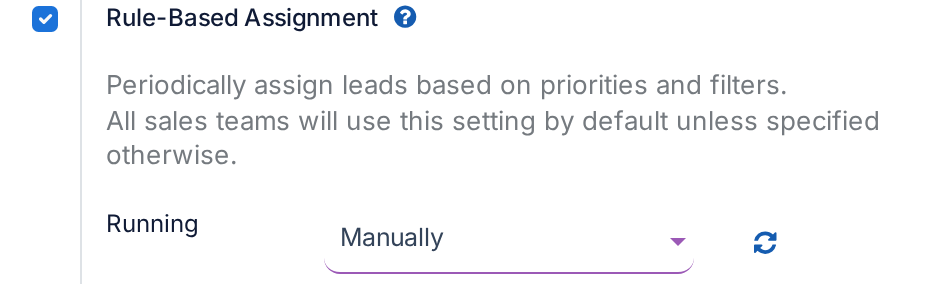
In CRM › Configuration › Settings, enable Rule-Based Assignment, leave Running on Manually for now, and press Save.
-
02
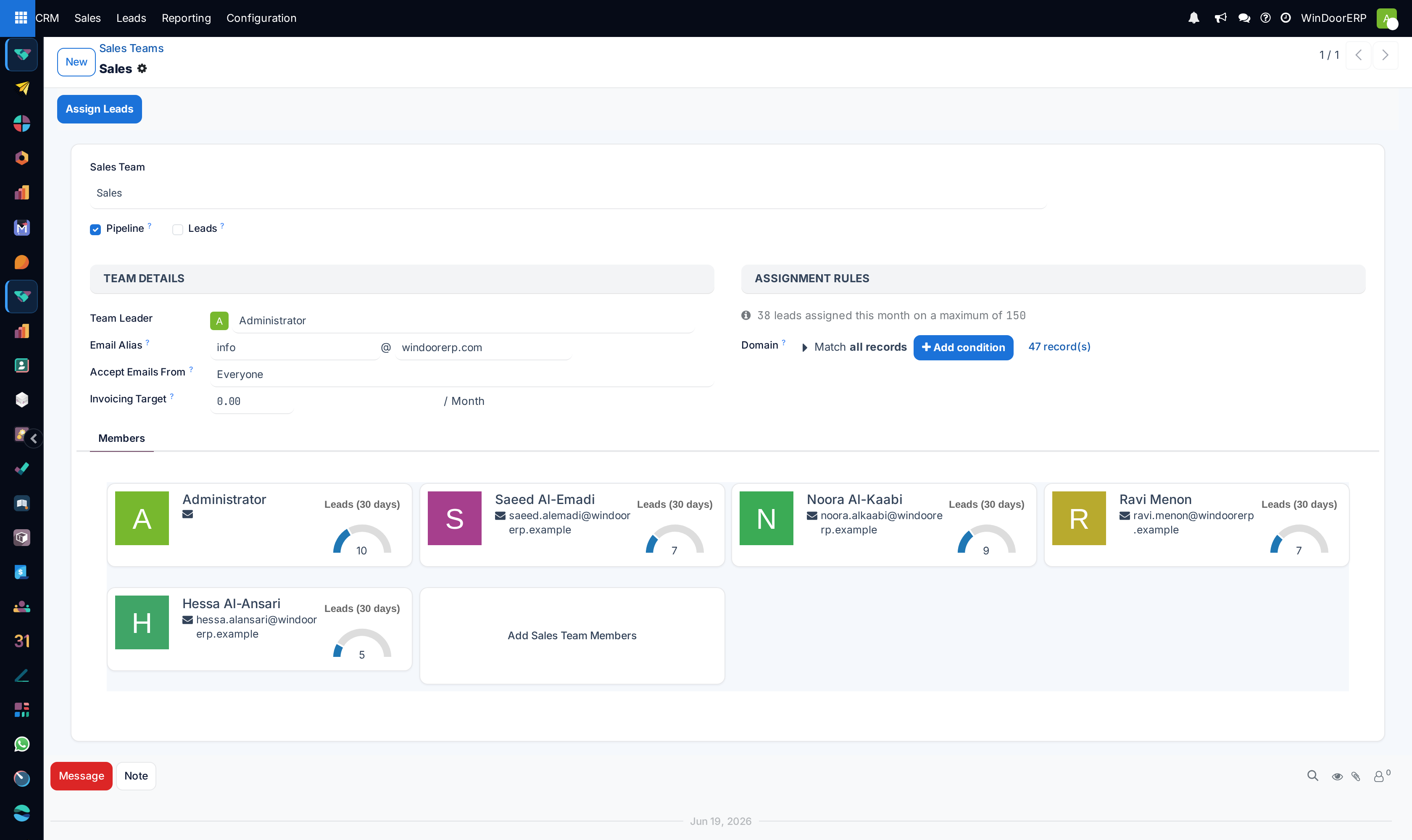
Open CRM › Configuration › Sales Teams and pick a team. The form now shows an Assignment Rules group and an Assign Leads button in the header.
-
03
Under Assignment Rules, set the Domain — the filter deciding which unassigned leads this team may take. Match all records is a valid choice; press the record counter beside it to see exactly which leads match today.
-
04
Open each member from the Members tab (or CRM › Configuration › Team Members). On the Lead Assignment tab, check the capacity, and set a Lead Assignment Filter if this person should only receive certain leads — for instance only curtain-wall projects, or only enquiries in Arabic.
-
05
Back on the team, press Assign Leads and confirm — the dialog warns "This will assign leads to all members. Do you want to proceed?". A green notification then reports what was allocated, assigned and merged, and the same summary is logged in the team's chatter.
-
06
Once the result looks right, switch Running to Repeatedly in the settings so the same distribution happens on a schedule without anyone pressing the button.
What a run actually does
Every run — button, scheduled job, or the ↻ refresh in the settings — is the same two-phase process.
Phase 1: leads are allocated to teams. WindoorERP gathers leads that have no team and no salesperson, are not won, and match the team's Domain, then deals them out one at a time. When several teams compete, each pick goes to a random team weighted by its total capacity, so a team of five salespeople receives roughly five times the leads of a one-person team with the same domain, and overlapping domains share fairly instead of one team draining the pool. As each lead lands on a team it is checked for duplicates by customer e-mail; duplicates are merged into one record.
Phase 2: the team's leads are assigned to members. Every lead sitting on the team with no salesperson yet — including ones a person put on the team by hand — is now offered to the members in round robin, starting from those with the most remaining quota. A member only receives leads matching their Lead Assignment Filter; leads matching their Lead Priority Filter are served to them first, and within each pass the highest-probability leads go out before the rest. Each assigned lead becomes an opportunity owned by that salesperson.
How many leads a member receives in one run is their daily quota: the monthly capacity divided by 30, rounded. A capacity of 30 therefore hands out one lead per run, not thirty. The scheduled job additionally subtracts whatever the member already received in the last 24 hours, so running it hourly does not multiply the flow; the Assign Leads button ignores that subtraction and always hands out the full daily quota.
The two triggers also differ in how far back they look: the scheduled job only considers leads created in the last 7 days, while the button takes all outstanding unassigned leads whatever their age. So a backlog older than a week is drained with the button, not by waiting on the schedule.
The team's Assignment Rules
| Assigned this month | An information line — "N leads assigned this month on a maximum of M" — where M is the sum of the members' capacities. It turns orange when the month's assignments exceed that maximum. |
|---|---|
| Domain | The team's filter over unassigned leads. Saving an ill-formed one is refused with "Assignment domain for team … is incorrectly formatted". The record counter beside the widget shows how many leads currently match. |
| Skip auto assignment | Only visible while Running is Repeatedly. Ticking it excludes this team from the scheduled runs and from ↻ Update now — but its own Assign Leads button keeps working. |
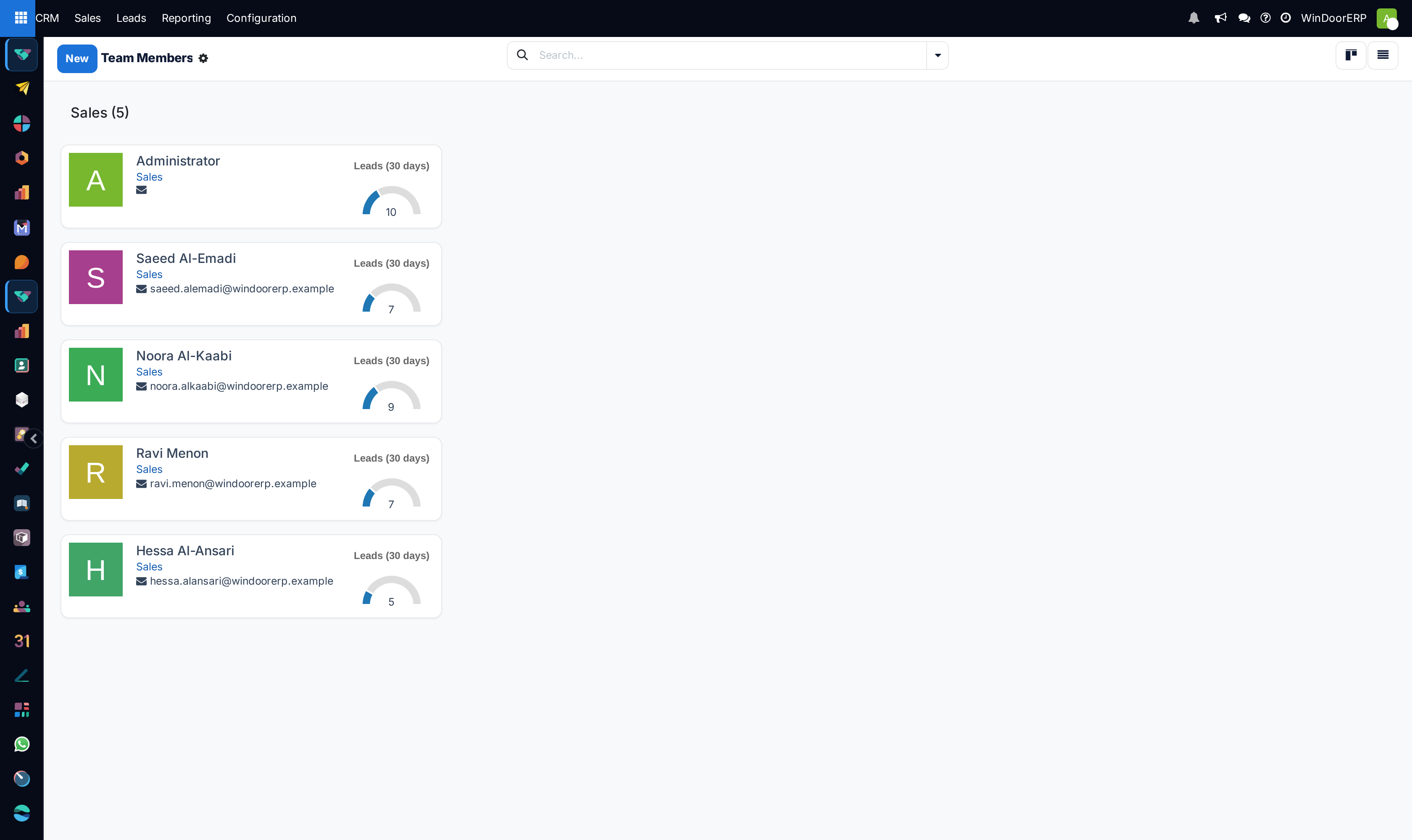
With assignment enabled, the Members tab also changes: instead of plain salesperson cards it shows each member with a gauge of leads received in the last 30 days against their capacity, and the same gauges appear on CRM › Configuration › Team Members.
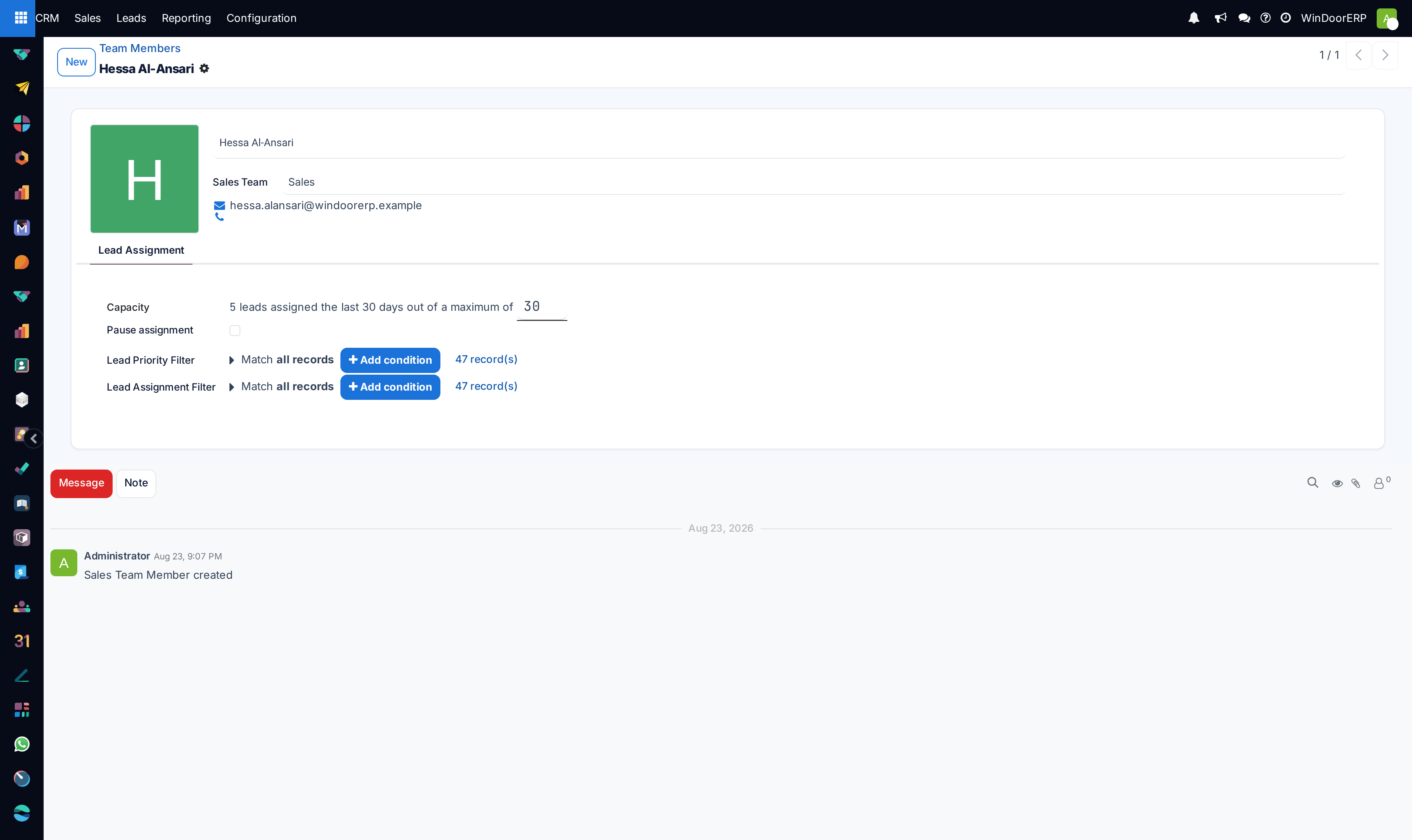
The member's Lead Assignment tab
| Capacity | The line "N leads assigned the last 30 days out of a maximum of …", with the capacity as the editable number. It is the member's weight in every calculation above; zero takes the member out of distribution and hides both filters. |
|---|---|
| Pause assignment | Suspends this member: runs skip them, and the tab hides the capacity line and filters while ticked. Use it for annual leave instead of deleting the membership. |
| Lead Priority Filter | Leads matching it are offered to this member before anything else — a specialisation served first, without excluding the rest. |
| Lead Assignment Filter | A hard limit: the member only ever receives leads matching it. An ill-formed filter is refused with "Member assignment domain for user … and team … is incorrectly formatted". |
Running it on a schedule
In CRM › Configuration › Settings, switching Running to Repeatedly and saving activates a scheduled job; Repeat every and Next Run control its rhythm, and the ↻ icon runs assignment immediately for every team that has not opted out. The full settings block, including its refusal messages for bad frequencies, is documented in the CRM settings article.
See also
The settings switch, the schedule and predictive lead scoring are covered in CRM settings: predictive lead scoring, rule-based assignment and lead mining; setting the capacities themselves is covered in Manage sales member capacities, lead limits, and workload distribution.
Troubleshooting
| "Lead/Opportunities automatic assignment is limited to managers or administrators" | The run was triggered without Sales Manager rights. The rules can be read by others, but only a manager or administrator may execute a run. |
|---|---|
| "No allocated leads to … team because it has no capacity. Add capacity to its salespersons." | The members' capacities sum to zero — every member is at zero or paused. Give at least one member a capacity. |
| "No allocated leads to … team and its salespersons because no unassigned lead matches its domain." | There are no leads that are simultaneously team-less, salesperson-less, not won, and inside the team's Domain. Check the domain's record counter. |
| A run assigns far fewer leads than expected | By design: each member receives at most their daily quota (capacity ÷ 30) per run, and the scheduled job also deducts what they already received in the last 24 hours. |
| The scheduled job never touches the old backlog | It only considers leads created in the last 7 days. Press Assign Leads on the team to drain older leads. |
| One member receives nothing | They are paused, their capacity is zero, they already got their daily quota in the last 24 hours, or no eligible lead matches their Lead Assignment Filter. |
| Assigned leads "disappeared" from the Leads list | Assignment converts them to opportunities, and duplicates are merged away. Look in the pipeline, and in the merged record's chatter. |
Common mistakes
- Switching Rule-Based Assignment on and expecting distribution to start by itself. Nothing runs until someone presses Assign Leads or sets Running to Repeatedly.
- Reading a capacity of 30 as "30 leads per run". It is a 30-day average; one run hands out capacity ÷ 30.
- Giving a member a Lead Assignment Filter that does not intersect the team's Domain — the member is then permanently starved while the rest of the team absorbs their share.
- Testing the button on a live database "just to see". It really assigns, really converts to opportunities, and really merges duplicates; there is no preview mode.
- Pausing a member for leave and forgetting to unpause them — the gauges on the Team Members kanban make a paused member easy to spot, but only if someone looks.
Was this article helpful?
Thanks — your feedback helps.
Running a window or door factory?
Ask for a demo