Set up sales teams: leader, email alias, invoicing target and members
What this does
A sales team is the unit everything in CRM and Sales hangs from: which deals a person sees, which mailbox turns customer emails into deals, which monthly target the dashboard measures against, and — once automatic assignment is switched on — which deals the system hands out and to whom.
Most companies need very few. One team per way of selling, not one per person: a joinery contractor might run Residential, Contracting and Trade Counter and never need a fourth.
Before you start
- You need Sales Manager rights to reach CRM › Configuration › Sales Teams. Salespeople can see the team dashboard but not this screen.
- Decide whether you want an email alias before you create the team. A team's alias is what turns incoming mail into deals automatically, and it is easier to set up front than to retrofit once mail is already flowing elsewhere.
- This screen changes shape depending on one setting. Until Rule-Based Assignment is enabled in the CRM settings, the entire assignment half of the form is hidden — see the note below before you conclude a field is missing.
Steps
-
01
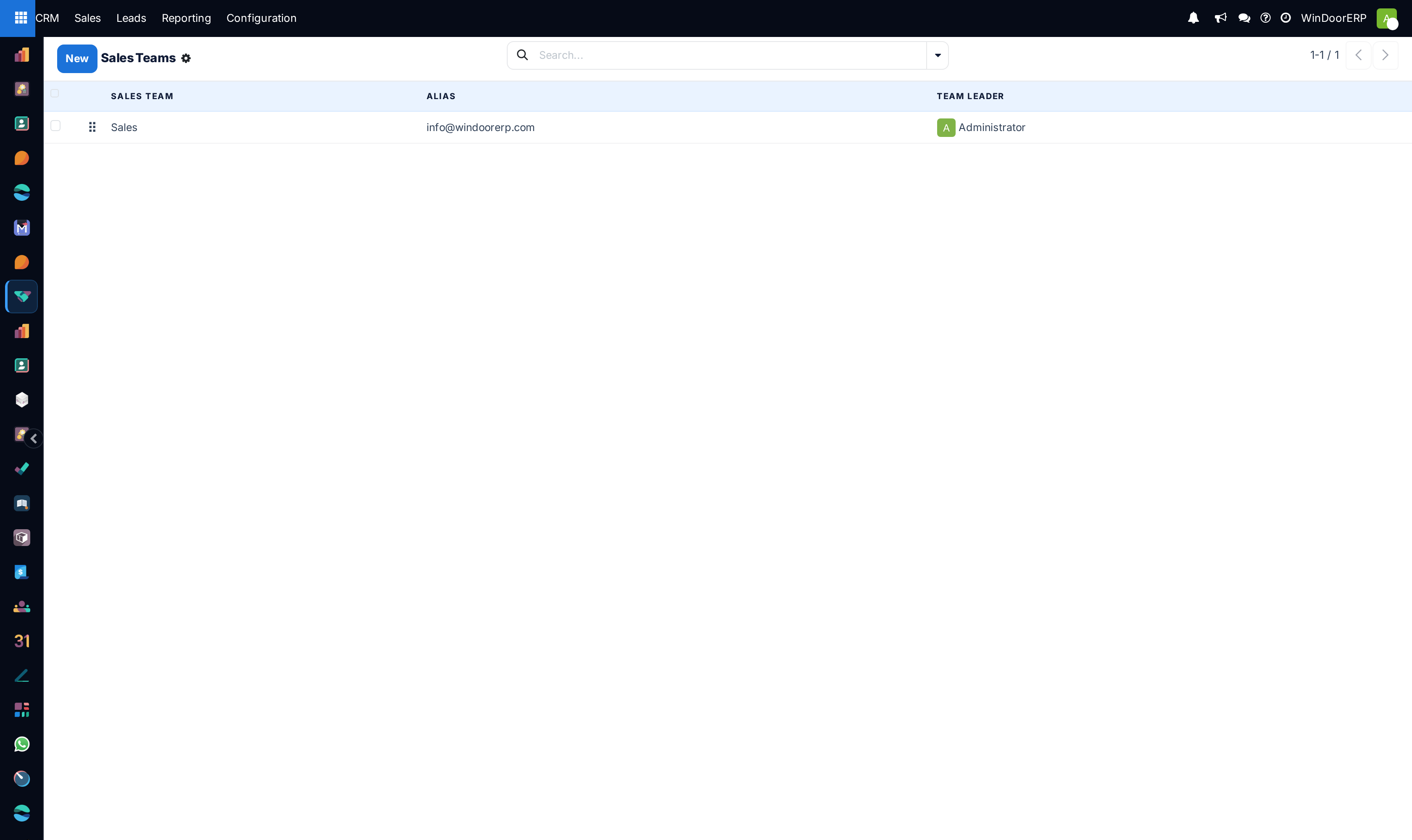
Open CRM › Configuration › Sales Teams and click New.
-
02
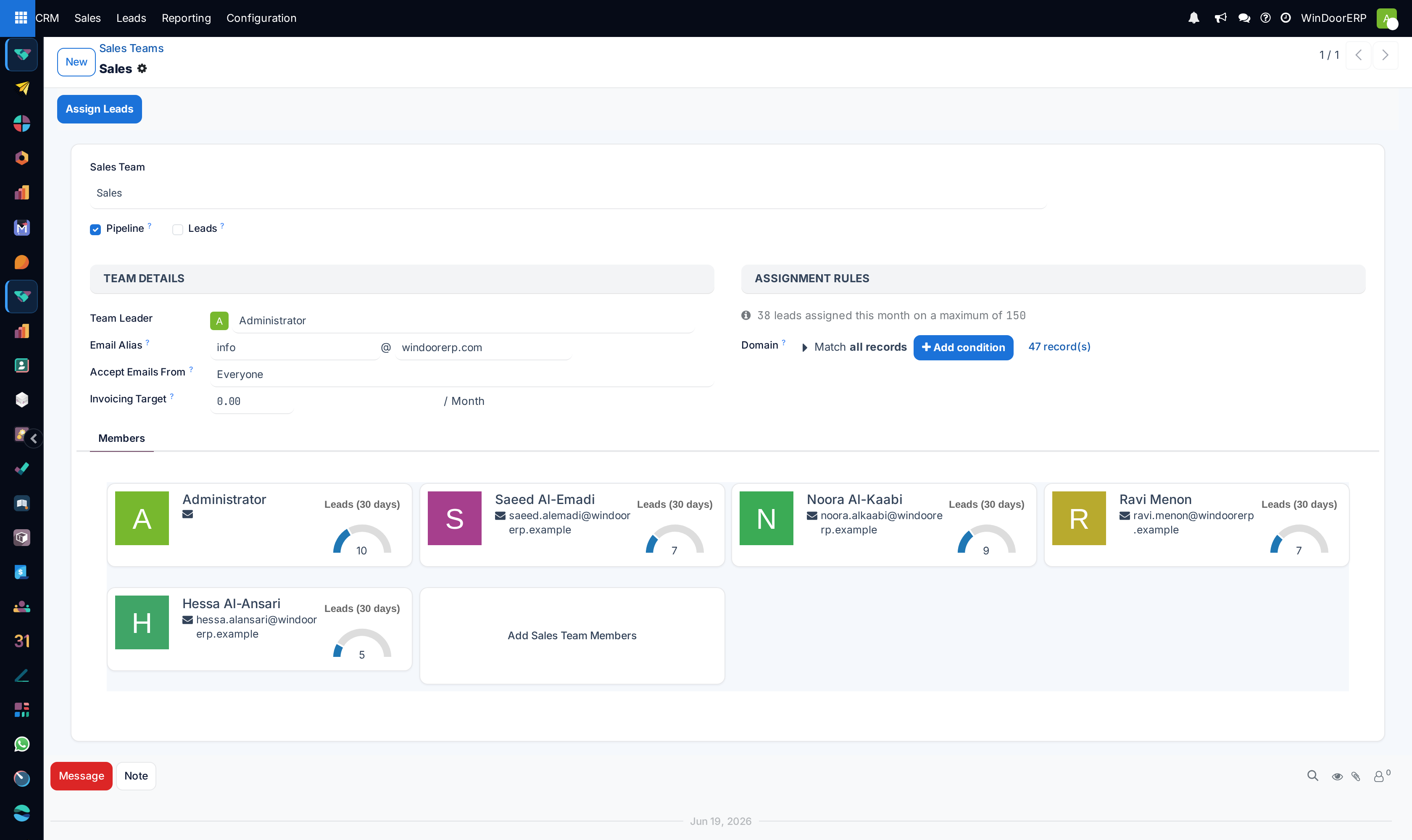
Type the team's name. The placeholder suggests a region, but naming teams by what they sell usually ages better than naming them by geography.
-
03
Set the two toggles beside the name. Pipeline is on by default and gives the team a pipeline of opportunities. Leads adds a separate qualification step before an enquiry becomes an opportunity, and only appears once the Leads setting is enabled company-wide.
-
04
Choose a Team Leader. Only internal users are offered — a portal or shared user cannot lead a team.
-
05
Set the Email Alias: a local part on the left, the mail domain on the right. Mail arriving at that address creates deals for this team.
-
06
Set Accept Emails From to control who is allowed to create deals by writing to that alias.
-
07
Leave Company empty unless the team belongs to one company in a multi-company database. Empty means visible to all.
-
08
Enter the Invoicing Target — the monthly figure the dashboard compares actual invoicing against. It is a goal, not a limit; nothing is blocked when it is passed.
-
09
Add people on the Members tab and save.
The team form, field by field
| Sales Team | The name. Required. Placeholder e.g. North America. |
|---|---|
| Pipeline | On by default. Gives the team opportunities and a pipeline to move them through. Turning it off on a team that already has deals does not delete them — it removes the team's pipeline view. |
| Leads | Adds the lead stage in front of the pipeline for this team. Hidden entirely unless leads are enabled for the database. |
| Team Leader | Shown as an avatar. Restricted to internal users. Used as the default follower on the team's deals. |
| Email Alias | Two boxes: the local part and the mail domain. Only shown while Pipeline or Leads is on — clear both toggles and the alias is dropped. |
| Accept Emails From | Who may create a deal by emailing the alias: everyone, authenticated users, followers only, and so on. The safe default for a public address is to accept everyone and rely on the pipeline to triage. |
| Company | Optional. Placeholder Visible to all, which is what an empty value means. |
| Invoicing Target | A monthly money figure, shown with / Month after it. Feeds the progress bar on the dashboard. |
| Lead Average Capacity | Read-only, and only visible once assignment is enabled. It is the sum of the team members' capacities, not a number you set here. |
| Domain | A filter over leads. Only leads matching it are ever allocated to this team. Empty means no restriction. |
| Skip auto assignment | Takes the team out of the automatic run while leaving it fully usable by hand. |
Half of this form is invisible until one setting is on
The Assign Leads button in the header, the whole assignment group on the right, the capacity figure and the domain all appear only when Rule-Based Assignment is enabled under CRM › Configuration › Settings. Before that the form looks much simpler and nothing explains why. If a colleague describes a field you cannot find, check that setting first.
The Members tab is two different screens
This surprises people, so it is worth stating plainly. With assignment off, the Members tab lists salespersons — a plain set of users, added and removed like any other list. With assignment on, the same tab lists team members instead: a record per person per team, each carrying its own capacity, its own filters and a gauge showing how loaded that person is.
They are different objects, not two views of one thing. Switching the setting on does not lose anyone — the membership records already exist behind the plain list — but it does mean the tab suddenly shows cards with numbers on them where it used to show names.
By default a person belongs to one team. If someone genuinely sells for two, the form offers a banner with an Activate "Multi-team" button; until you press it, adding them to a second team moves them rather than duplicating them.
The team dashboard
CRM › Sales › Teams shows one card per team, carrying the team name and its email alias. It is deliberately sparse: the invoicing bar appears only once an Invoicing Target has been set, and the counters only once there is something to count. A brand-new database therefore shows a card that looks empty, which is not a fault.
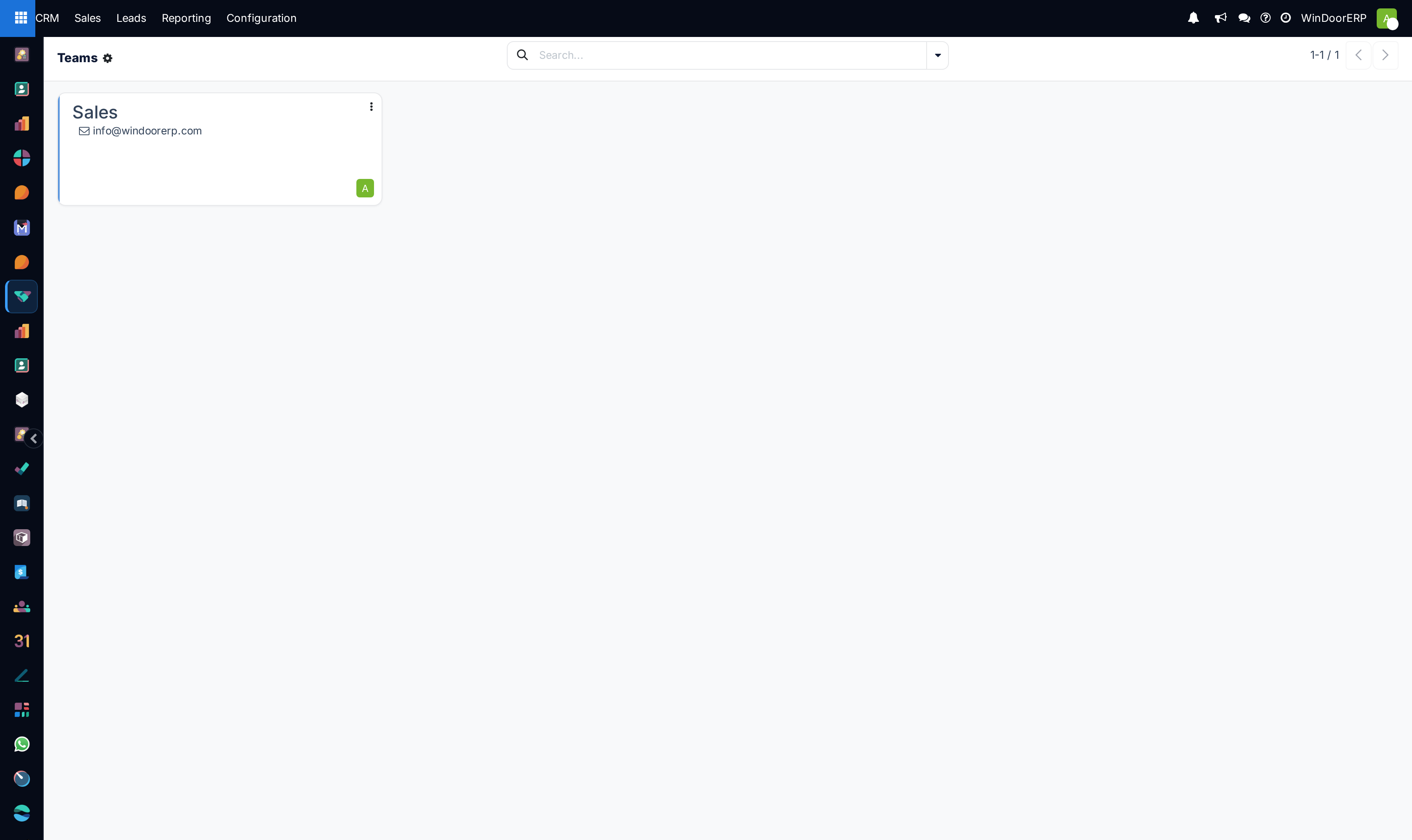
Once a target is set, the card gains a progress bar comparing this month’s invoicing against it, and the figures on the card become links into the records behind them.
Assigning leads by hand
With assignment enabled, the header carries an Assign Leads button. It asks for confirmation — This will assign leads to all members. Do you want to proceed? — and then allocates leads to the team and shares them out among its members immediately, reporting what it did in a notification and writing the same summary into the team's chatter.
Two things make the button behave differently from the scheduled run: it grants each member their full daily quota regardless of what they have already received today, and it considers all unassigned leads rather than only recent ones. That makes it the right tool after a backlog has built up, and the wrong tool for topping up a team that is already being served automatically.
Troubleshooting
| "Lead/Opportunities automatic assignment is limited to managers or administrators" | Exactly what it says: pressing Assign Leads requires Sales Manager rights. The button is visible to others but refuses. |
|---|---|
| "No allocated leads to this team because it has no capacity" | The team's members all have a capacity of zero, so the team never enters the draw. Set a capacity on at least one member. |
| "…because no unassigned lead matches its domain" | The team has capacity but its domain excludes everything available. Widen it, or clear it to accept anything. |
| The alias boxes vanished | Both Pipeline and Leads were turned off. The alias is cleared when a team can hold neither. |
| Adding someone to a team removed them from another | Multi-team membership is off. Use the Activate "Multi-team" button on the banner. |
Common mistakes
- Creating a team per salesperson. Teams are how work is grouped and reported; individuals are handled by membership and capacity inside a team.
- Setting an invoicing target and expecting it to constrain something. It only draws a bar.
- Concluding that the assignment fields do not exist, when the setting that reveals them is simply off.
- Pressing Assign Leads on a live team to test it. It assigns real leads to real people and there is no undo.
Was this article helpful?
Thanks — your feedback helps.
Running a window or door factory?
Ask for a demo