Configure the Installation app: actions, stages, tags and settings
What this does
Four screens shape how the Installation app behaves: Installation Actions define the per-opening checklist every crew ticks; Task Stages and Project Tags organise the task boards; and Settings holds the master switch that turns installation tracking on at all.
Before you start
- Installation Actions are edited by Installation Managers; the Settings menu itself is administrator-only.
- Change actions before a project starts, not mid-job: new actions apply to newly generated items only, never retroactively.
Steps
-
01
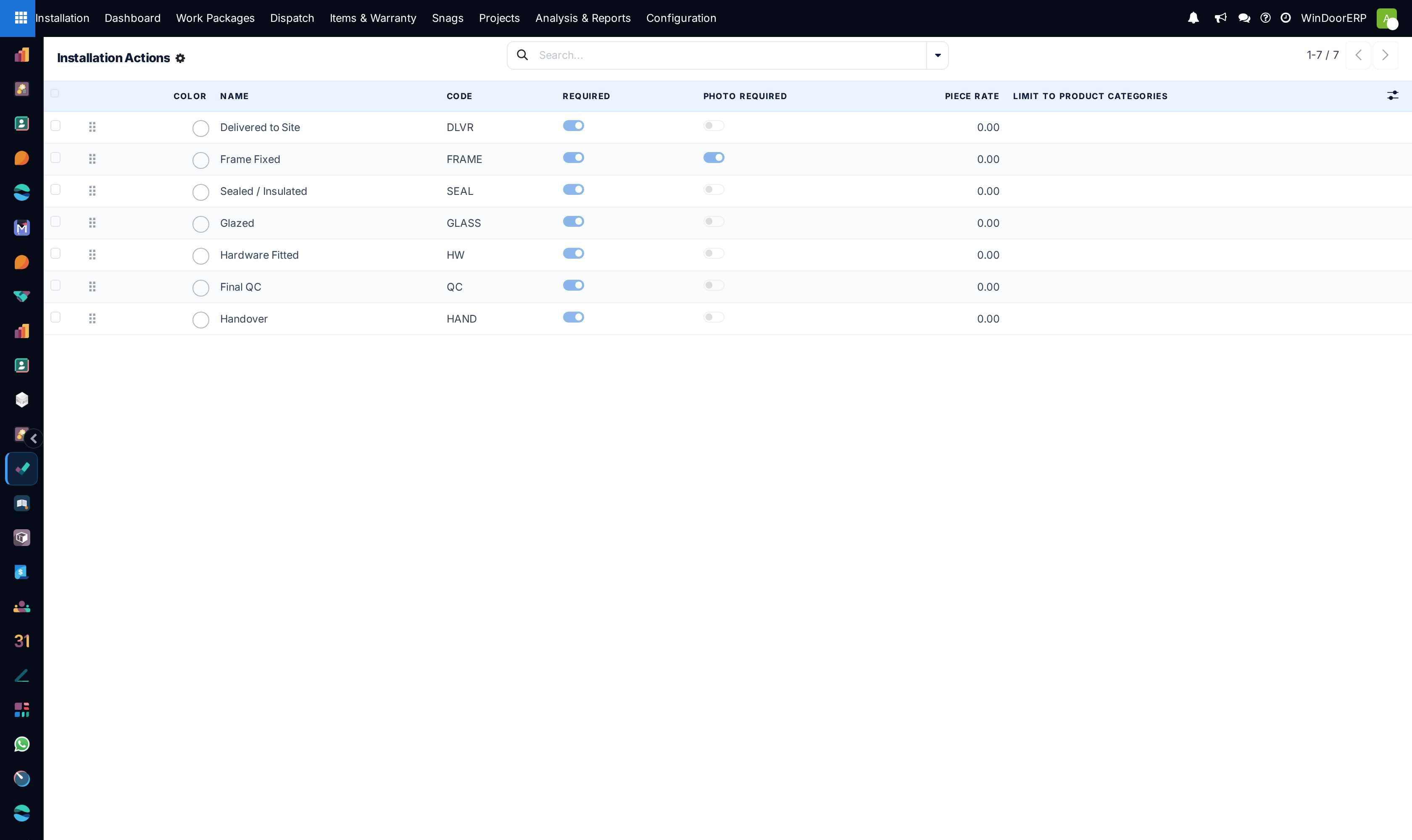
Open Installation › Configuration › Installation Actions and review the shipped checklist of seven: Delivered to Site, Frame Fixed, Sealed / Insulated, Glazed, Hardware Fitted, Final QC, Handover.
-
02
Adjust each action's Code (the grid column header), Required flag, Photo Required gate and Piece Rate.
-
03
Scope specialised actions with Limit to Product Categories — an action limited to doors never appears on a window's checklist.
-
04
Keep Task Stages and Project Tags tidy for the task boards.
-
05
In Settings, find the WinDoor Installation section: the Installation Tracking toggle and the Installation Project Template.
Installation Actions — the checklist itself
| Field | What it does |
|---|---|
| Name / Code | The action and its short grid header (FRAME, GLASS…). Sequence orders the columns — and, in sequential mode, the order the crew must follow. |
| Required | On by default. An item is Done only when all its required actions are ticked; optional actions can be marked Not needed without blocking completion. |
| Photo Required | The action cannot be marked done until a photo is attached — the strongest evidence rule in the app; Frame Fixed ships with it on. |
| Piece Rate | What the installer earns for completing this action on one unit; it feeds the earnings figures in the crew's portal header. |
| Limit to Product Categories | Empty applies to everything; a set list scopes the action, and a parent category matches its children. |
| Active | Archiving stops the action appearing on new items; existing progress rows stay untouched. |
These actions are the check-grid's columns — they are not the kanban pipeline of the task boards. That is Task Stages, next.
Task Stages and Project Tags
Task Stages are the columns of the My Tasks / All Tasks kanban — ordinary project stages shared across the installation projects, with per-stage fold, colour and an optional automatic email template. Two traps: archiving a stage archives every task sitting in it, and this list also shows users' personal stages, so filter before mass-editing.
Project Tags are free labels for projects and tasks — Villa, Tower Package, Retrofit. A duplicate name is refused with "A tag with the same name already exists."
Settings — the two that matter
Installation Tracking is the feature's master switch. On, every internal user gains the feature and the Installation app appears; off, the whole app — menus, item generation, everything — vanishes, and confirming orders creates plain projects with template tasks instead of installation items. The Settings menu opens the general Settings window; scroll to the WinDoor Installation section in its left rail.
Installation Project Template names the project every order-created installation project is copied from — its stages, its Site QC mode and checklists. Decide the template and the order's Create Project toggle before confirming the order: they are meant to stay fixed once a sale is confirmed, and changing them afterwards does not rebuild anything already generated.
Free order or sequential — set per project
Each project chooses its Action Order: Free order lets the crew tick actions as the site allows; Sequential unlocks each action only when the previous required one on the same item is done, refusing with "Sequential mode: finish “…” before “…”." New projects default to free — but the Plan Installation wizard proposes sequential and writes its choice back onto the whole project, changing the rule for every existing work package in it. Decide once per project, deliberately.
Troubleshooting
| Symptom | Cause and fix |
|---|---|
| The Installation app disappeared for everyone | The Installation Tracking toggle was saved off. Turn it back on in Settings; no data is lost. |
| A new action does not appear on existing jobs | By design — actions attach when items are generated. Re-run Sync from Order only adds newly added order lines, not new columns; existing items keep their original checklist. |
| An action is missing on some items | Its product-category limit excludes those products, or it was created after those items were generated. |
| Tasks vanished after tidying stages | A stage was archived and took its tasks with it — un-archive the stage. |
Common mistakes
- Editing the seven shipped actions into a different process mid-project — items already generated keep the old checklist, and the reports then compare unlike jobs.
- Using Task Stages as installation status — the badges (Ready, Under Progress, Done) are computed from ticks and cannot be dragged.
- Setting piece rates without agreeing them with the crews first — the portal shows installers their earnings from day one.
Was this article helpful?
Thanks — your feedback helps.
Running a window or door factory?
Ask for a demo