Attributes and variants: when a choice becomes a stock item and when it does not
What this does
Attributes describe the choices a product offers — finish, glass specification, hardware brand — and each attribute decides for itself whether those choices become separate stock items or stay as options recorded on the order line.
That decision is the whole subject of this topic, and it matters more here than in most businesses. A window is not a shirt: its width and height are continuous, so enumerating every combination as a stock item is impossible. WindoorERP therefore keeps size and layout in the designer and uses attributes for the choices that are genuinely a short list.
Before you start
- Turn on Variants under Sales › Configuration › Settings before you expect any of this to appear.
- Know which product you are editing. A variant is a child of a product; the attributes are defined once centrally and then attached to individual products.
- Think before you set an attribute to create variants. The number of variants is the product of every value on every attached attribute — three attributes of six, four and five values make one hundred and twenty stock items from a single product.
Steps

-
01
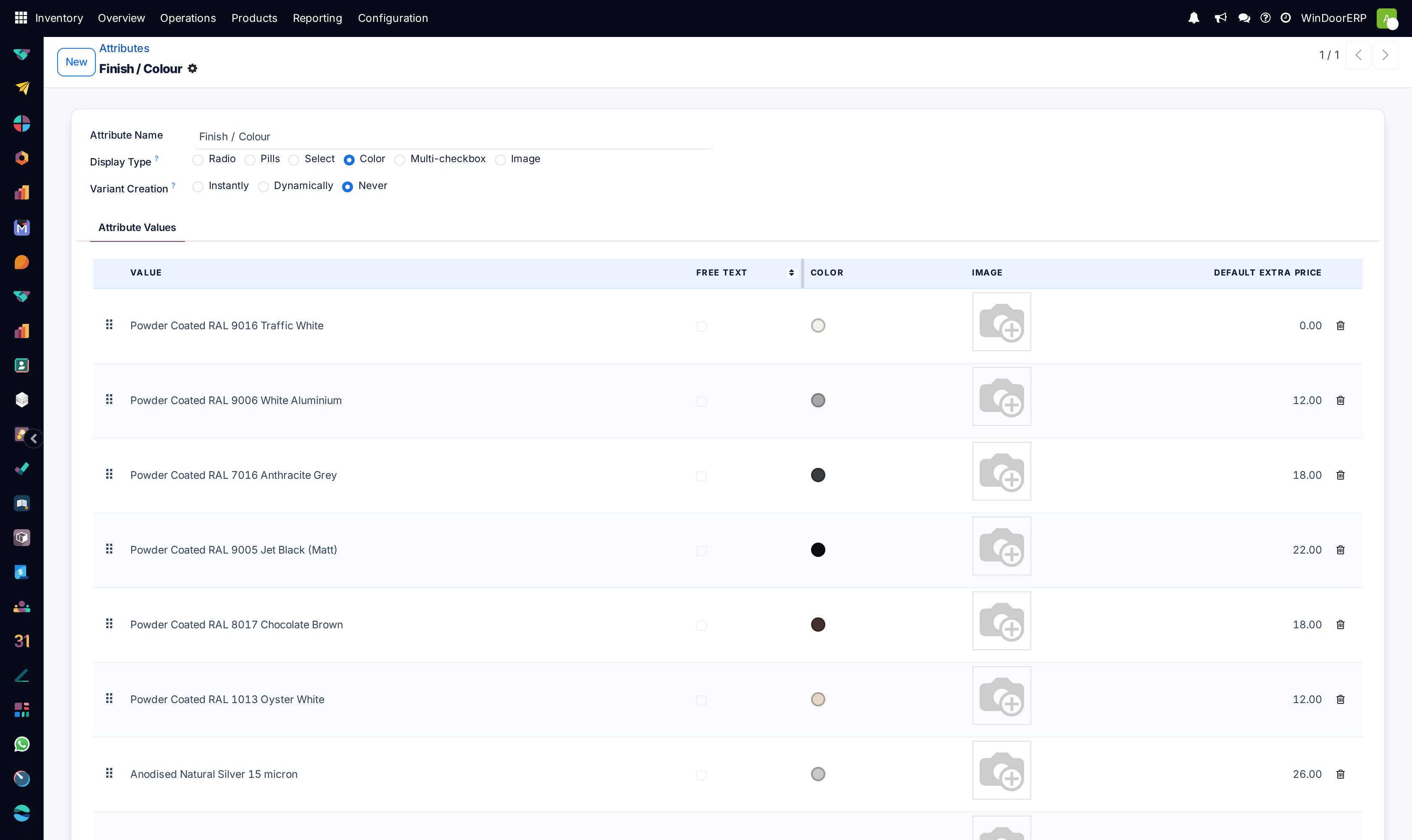
Open Inventory › Configuration › Products › Attributes (the same catalogue serves Sales) and click New, or open an existing attribute.
-
02
Name the attribute for the choice it represents — Finish / Colour, not Colour of the frame.
-
03
Pick a Display Type: Radio, Pills, Select, Color, Multi-checkbox or Image. This is only how the choice is drawn.
-
04
Set Variant Creation — Instantly, Dynamically or Never. This is the decision that matters; see the table below.
-
05
Add the values on the Attribute Values tab. Give each a Default Extra Price where a choice costs more, and a colour swatch or image if the display type shows one.
-
06
Tick Free Text on a value that should let the customer type something instead of choosing.
-
07
Attach the attribute to a product: open the product, go to its Attributes tab, add a line, and pick which of the values that product actually offers.
-
08
Check Sales › Products › Product Variants to see what was generated.
Variant Creation, the three modes
| Instantly | Every combination becomes a real stock item the moment the attribute is attached. Each one can be counted, costed, barcoded and reordered on its own. Use it when the choices really are different things to hold in stock — a profile series, a frame colour you powder-coat in batches. |
|---|---|
| Dynamically | The combination becomes a stock item only when it is first sold. The catalogue stays small until reality fills it in. Use it when the theoretical count is large but only a handful will ever be ordered. |
| Never | No stock item is ever created. The choice is recorded on the order line and can still add to the price, but there is nothing to count in the warehouse. Use it for a specification rather than a thing — glass make-up, hardware brand, insect screen. |
WindoorERP ships a catalogue of twelve attributes and sets ten of them to Never. That is not an oversight. Glass specification, opening type, hardware brand and the rest describe how a unit is made, not a box on a shelf, and making them variants would multiply the catalogue without ever producing a number anyone counts.
The attributes ship unattached, on purpose
The attribute catalogue is complete and ready, but no attribute is attached to any product out of the box, so no product has more than one variant until you attach one. Attach only what you will genuinely stock and report on separately. For made-to-measure work the designer already carries the size, the layout and the profile choice, and duplicating those as attributes creates a second version of the truth that nothing reconciles.
Attribute values, column by column
| Value | The choice as the customer sees it. Translated per language. |
|---|---|
| Free Text | Turns the value into a box the customer types into — a bespoke RAL number, a note. It cannot be a stock item, so a free-text value never generates a variant. |
| Color | A swatch, shown when the display type is Color. |
| Image | A picture, shown when the display type is Image. |
| Default Extra Price | What this choice adds to the price. It is a default: attach the attribute to a product and the extra price can be overridden for that product alone. |
What a variant carries of its own
A variant shares almost everything with its parent — name, category, unit, taxes, description. What it holds separately is what has to differ: its own internal reference and barcode, its own stock on hand and forecast, its own cost, and the extra price its attribute values add.
The sales price is not stored on the variant. It is the product's price plus the extras of the values that variant carries, which is why editing one variant's price is not offered — change the product's price, or the value's extra.
Troubleshooting
| No variants appeared | Either the attribute is set to Never, or it has not been attached to the product, or only one value was chosen on the product's attribute line. |
|---|---|
| Far too many variants appeared | The count multiplies across attributes. Switch the attribute to Dynamically, or to Never if nobody counts it in the warehouse. |
| A value cannot be removed from a product | A variant carrying it is already used on an order or has stock. Archive the variant instead; the history stays intact. |
| The extra price is not applied | Extras come from the value on that product's attribute line, not from the central default. Check the product's own Attributes tab. |
| The Attributes tab is missing on the product | The Variants setting is off. |
Common mistakes
- Making size an attribute. Sizes are continuous in this trade; they belong in the designer, and as values they produce a catalogue nobody can maintain.
- Setting everything to Instantly because it is the first option offered.
- Duplicating in attributes what the designer already records, and then having two answers to the same question.
- Deleting a value to tidy up. Archive it — deleting is blocked wherever it has been sold, and where it is not blocked it takes history with it.
Was this article helpful?
Thanks — your feedback helps.
Running a window or door factory?
Ask for a demo