Work your own task list and log site hours
What this does
My Tasks is the signed-in user's slice of the installation task list — everything assigned to you, open by default — plus the place hours get logged against site work. It is a backend screen for supervisors and coordinators; crews on site use the installer portal, which needs no backend login at all.
Before you start
- You appear in a task's Assignees or it will not be in your list.
- Logging hours needs Timesheets access on your user.
Steps
-
01
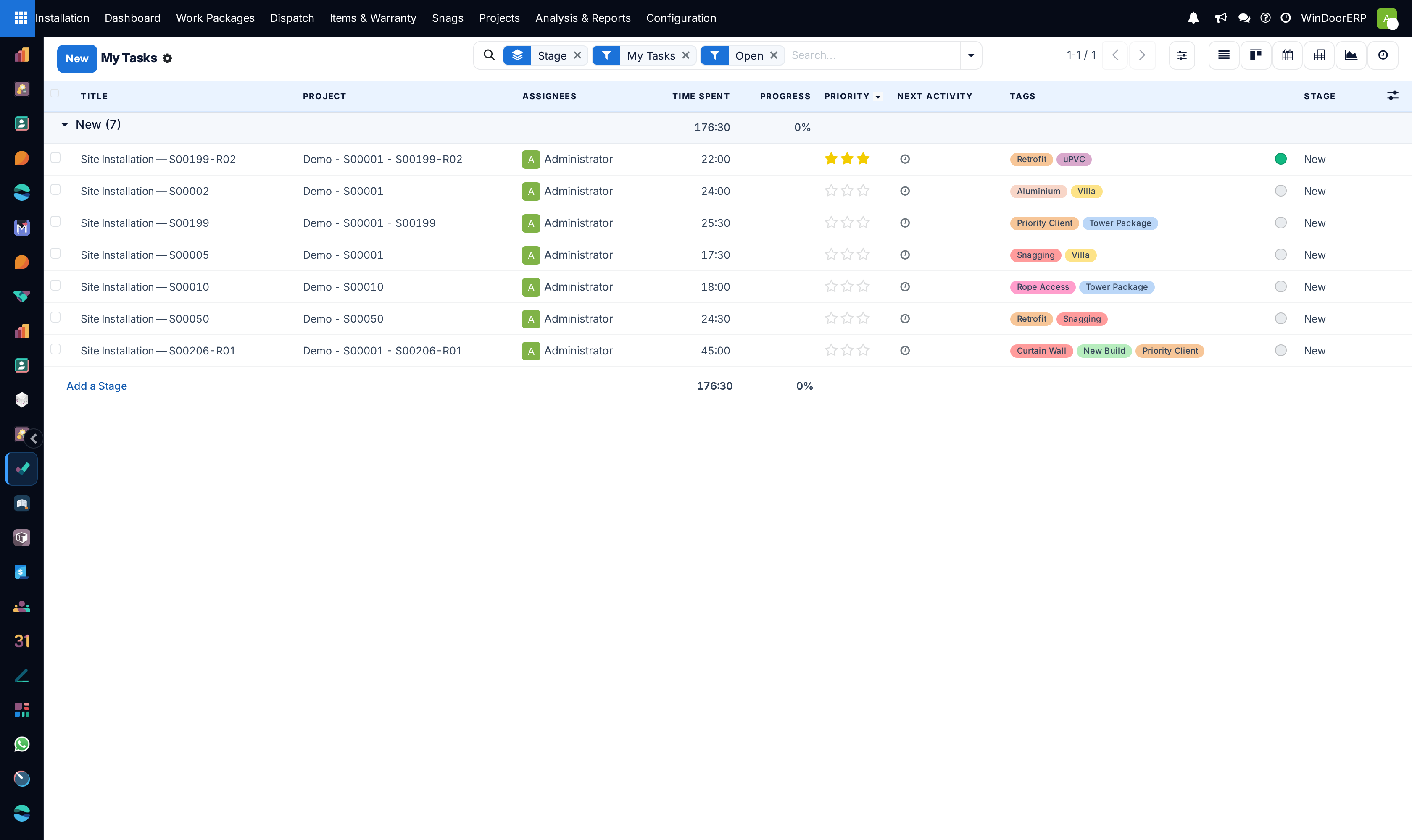
Open Installation › Analysis & Reports › Tasks › My Tasks — the My Tasks and Open filters are already applied, grouped by stage.
-
02
Work the list: the Time Spent column shows your logged hours; the star sets priority; the clock schedules your next activity.
-
03
Open a task and record hours on its Timesheets tab — date, description, duration — while the day is still fresh.
-
04
Move your finished tasks along their stages so the shared kanban stays truthful.
Where the hours go
Analysis & Reports › Reporting › Timesheets collects every hour logged on installation projects — opened on this month, grouped by project, measuring Time Spent and timesheet cost. It is the screen that answers "what did that tower cost us in site labour", and it only sees what was actually typed into the Timesheets tabs.
The Timesheets menu appears only for users with Timesheets access; the hours themselves also feed the standard Timesheets app and payroll flows.
Two lists, two audiences
Do not confuse this screen with the crew's portal. An installer contact sees their jobs, tick-grids and earnings at My Site Work in the portal; the hours a supervisor logs here are timesheets, while the crew's piece-rate earnings come from ticked actions, not timesheets. A foreman who is both an employee and a crew leader may legitimately use both.
Troubleshooting
| Symptom | Cause and fix |
|---|---|
| The list is empty but work exists | You are not in the tasks' Assignees, or the work is done and the Open filter hides it. Clear the chips to check. |
| No Timesheets tab on the task | Your user lacks Timesheets access, or timesheets are disabled on that project's settings. |
| Reporting › Timesheets looks too small | It opens filtered to this month and to installation projects only. Widen the date filter before concluding hours are missing. |
Common mistakes
- Logging the week's hours on Thursday from memory — the per-day truth is the whole value of the report.
- Booking hours to the project without picking the task, which strands the cost above the job it belongs to.
Was this article helpful?
Thanks — your feedback helps.
Running a window or door factory?
Ask for a demo