Record manual journal entries, split costs with analytic distribution, and lock the books
What this does
Everything the other screens post — invoices, bills, payments, depreciation — ends up as journal entries. This article covers the entries you make by hand under Accounting › Accounting › Transactions › Journal Entries, how a line's Analytic Distribution splits costs and revenue across the Project, Department, and Product Line dimensions, the Journal Items and Audit Trail review screens, and the two ways WindoorERP closes a period: Lock Dates and Secure Entries.
Before you start
- Full accounting access. Lock dates additionally require the accounting administrator role, and Secure Entries is only visible with its dedicated access.
- Analytic accounts under the plans you report on — this database ships three plans: Project, Department, and Product Line.
- A general journal for adjustments — Miscellaneous Operations is the standard one; Exchange Difference, Assets & Depreciation, and Inventory Valuation are reserved for their own automatic postings.
Recording a manual entry
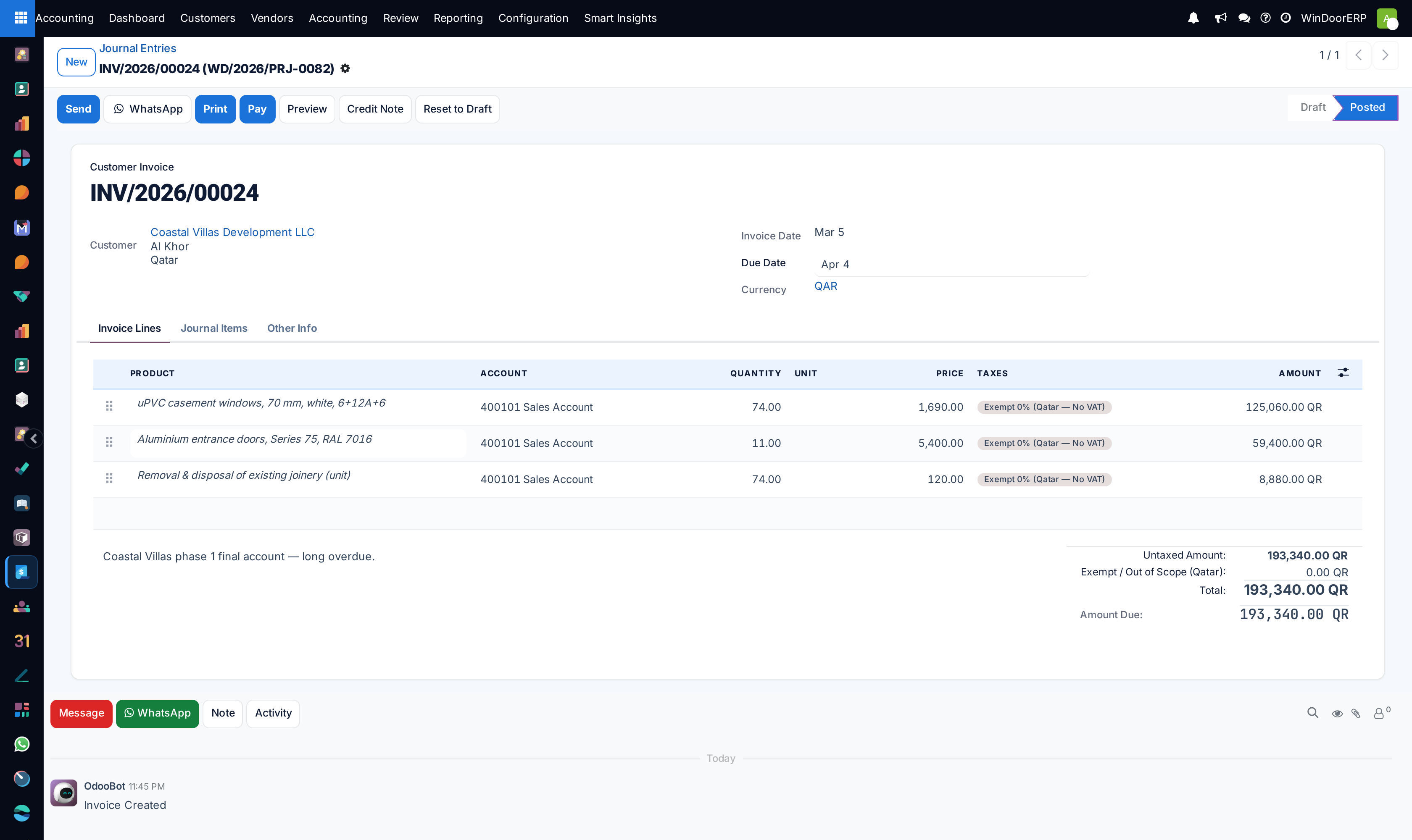
-
01
Open Accounting › Accounting › Transactions › Journal Entries and click New.
-
02
Set the Journal (normally Miscellaneous Operations), the Date, and a Reference that will still mean something at audit time.
-
03
Add the lines: account, label, partner where relevant, and debit or credit. The entry must balance to the cent — an unbalanced save is refused outright.
-
04
On each profit-and-loss line, set the Analytic Distribution: pick the project (and department or product line) and the percentage of the line each should carry. A split like 60/40 across two projects is typed straight into the widget.
-
05
Click Post. To correct a posted entry, use Reverse Entry — it builds the mirror-image entry, dated today or a date you choose — rather than resetting audited periods to draft.
Analytic Items — where the split lands
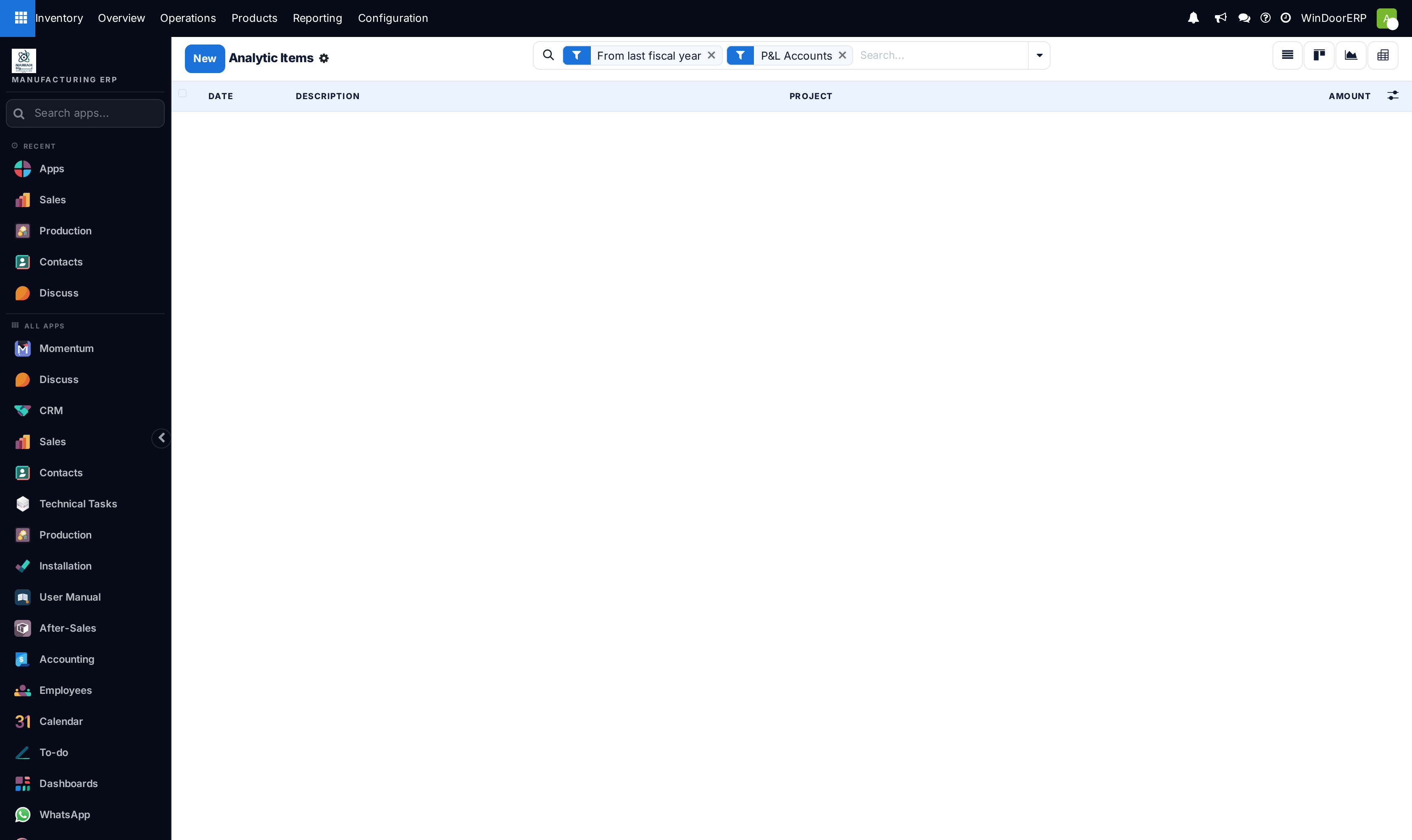
Posting a line whose analytic distribution names two projects creates one Analytic Item per project, each carrying its share of the amount. Transactions › Analytic Items is that ledger: date, description, one column per plan (Project, Department, Product Line), and the amount, with graph and pivot views for slicing profitability. The screen opens pre-filtered to the current fiscal year and profit-and-loss accounts — group by an analytic account for per-project totals, and clear those filter chips if you are looking for older items or balance-sheet postings and the list seems mysteriously empty.
There is no separate "assign this entry to a project" step: the analytic distribution widget on the journal line (or invoice line) is the only doorway, so a cost booked without it simply never appears in any project's analytics. Automatic assignment rules can be configured under Configuration › Analytic Accounting › Analytic Distribution Models (see the configuration article).
Reviewing: Journal Items and the Audit Trail
Review › Control › Journal Items is the line-level ledger — every debit and credit, filterable by journal type, account type (Receivable, Payable, P&L Accounts), Posted/Unposted, Unreconciled, and To Review, and groupable by account, partner, journal, or entry. The list is multi-edit-capable: tick rows, change a field once, and it applies to the selection. It is where month-end questions ("what hit this account in July?") get answered without printing anything.
Review › Logs › Audit Trail lists the system's field-change log entries for journal entries, accounts, taxes, partners, and the company — who changed what, when. Read its scope honestly: it records changes to tracked fields only (the same entries you see in a record's chatter log), not every modification of every field, and it is not the tamper-evidence mechanism — that is Secure Entries, below.
Closing the period — Lock Dates
Accounting › Actions › Lock Dates opens the Lock your Fiscal Period dialog with three dates:
| Field | Effect |
|---|---|
| Sales Lock Date | No creating or modifying customer invoices up to and including this date. |
| Purchase Lock date | The same for vendor bills. |
| Lock Everyone | The hard lock: nobody, advisers included, can edit anything on or before this date. It can never be removed and can only move forward. |
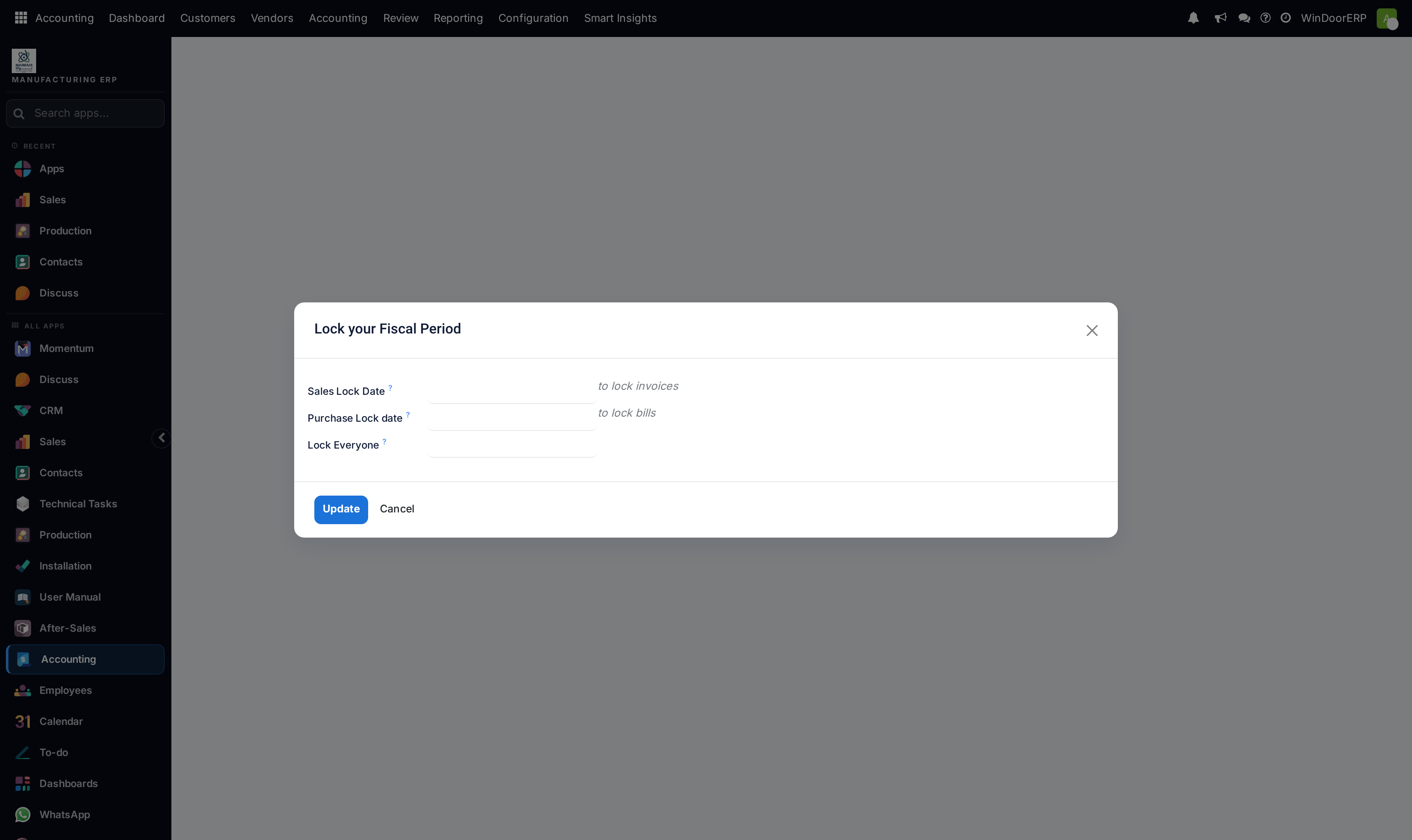
Update writes the dates onto the company; only accounting administrators may execute it. Treat Lock Everyone with the respect its help text demands — it is irreversible by design, and the system refuses to hard-lock a period that still contains draft entries or unreconciled bank statement lines, telling you to post or delete them first.
Making entries tamper-evident — Secure Entries
Accounting › Closing › Secure Entries goes one step beyond locking: it chains the posted entries up to your chosen date into a cryptographic hash sequence, making any later alteration detectable. The wizard shows exactly which entries will be secured and warns about anything in the way — draft entries before the date, unreconciled bank statement lines (those journals are skipped), entries that cannot be hashed, or sequence gaps the operation would create. Securing is manual, per company, and the menu itself is hidden behind a dedicated access group, so on most databases only the adviser who closes the year will ever see it.
Troubleshooting
"The entry is not balanced." — debits and credits differ; fix the lines before saving. Saving several entries at once lists the unbalanced ones by name.
"You are not allowed to execute this action." — the Lock Dates Update button requires the accounting administrator role.
"A new Hard Lock Date must be posterior (or equal) to the previous one." / "The Hard Lock Date cannot be removed." — the hard lock only moves forward; there is no undo, which is the point of it.
"There are still draft entries in the period you want to hard lock." — post or delete them; the warning links to the offending entries. The same applies to unreconciled bank statement lines.
"Set a date. The moves will be secured up to including this date." — Secure Entries needs the cut-off date filled in.
Analytic Items looks empty though costs were posted — either the default fiscal-year/P&L filters are hiding them, or the journal lines were posted without an analytic distribution; check one line under Journal Items.
Common mistakes
- Posting adjustments straight to Exchange Difference or Assets & Depreciation — those journals belong to their automatic mechanisms; hand adjustments live in Miscellaneous Operations.
- Booking a project cost without an analytic distribution and expecting the project P&L to show it.
- Resetting a posted entry in a closed month to draft instead of reversing it — if the lock dates don't stop you, the auditor will.
- Setting Lock Everyone on a date you may still need to adjust — it cannot be walked back; lock sales and purchases first, hard-lock only what is truly final.
- Citing the Audit Trail as a complete change log — it lists tracked fields on five models, not every edit in the system.
Was this article helpful?
Thanks — your feedback helps.
Running a window or door factory?
Ask for a demo