See production commitments on the calendar
What this does
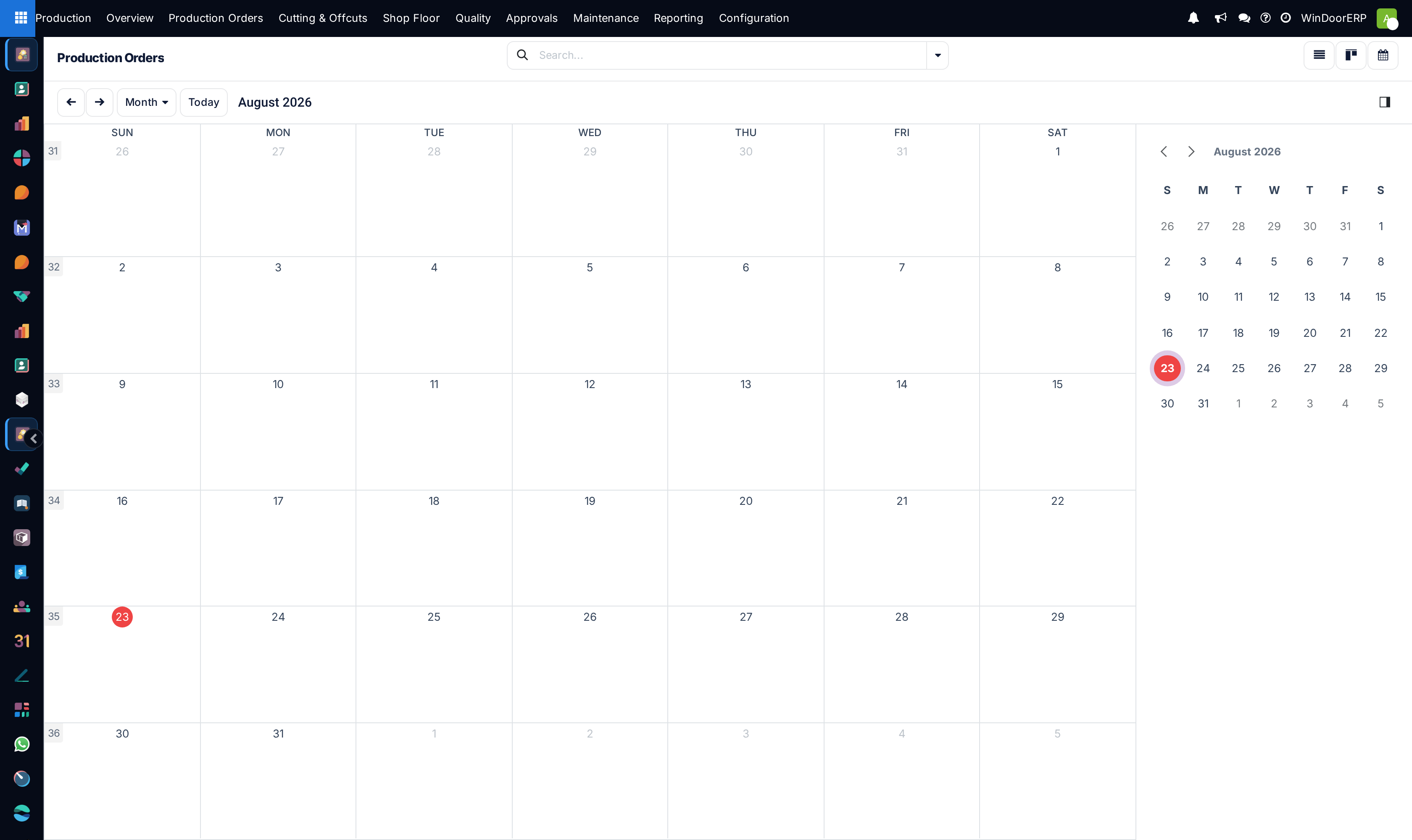
The production order list has a calendar view — the same orders plotted between their scheduled start and end dates, coloured by the responsible person. It is the fastest way to see a month of factory commitments at once: which weeks are crowded, where a promised delivery collides with three other jobs, and which orders have no dates at all.
Before you start
- A production role — the calendar is a view of the ordinary Production Orders screen.
- Scheduled dates on the orders. An order with no Scheduled Start simply does not appear on the calendar; the list is where you find it. One that has a start but no Scheduled End is drawn as a point rather than a span.
Steps
Note
The calendar shows the order-level dates you maintain — it is a commitment board, not a capacity plan. Levelling actual operations against work-center capacity is done by Schedule and Schedule (Finite Capacity) on the order, which set the work orders' own times; those do not move the order's scheduled dates, and the calendar does not show work orders. New orders cannot be created directly on the calendar either — production orders come from surveys.
-
01
Open Production › Production Orders and switch to the calendar view from the view switcher.
-
02
Read the month: each block is one order, spanning its scheduled start to its scheduled end, coloured by responsible person.
-
03
Click a block to open the order; drag it to move both dates together, or drag its edge to change the end date.
-
04
Use the ordinary filters and grouping while in the calendar — by state, customer or responsible person — to isolate the jobs you are planning.
-
05
Fill the gaps: switch to the list, sort by scheduled start, and set dates on the orders that never appeared.
Troubleshooting
| An order is missing from the calendar | It has no scheduled start. Set one on the order form; the list view shows everything regardless of dates. |
|---|---|
| Dragging a block did not change the plan | It changed the order's scheduled dates, which is all the calendar owns — work-order times come from the scheduling buttons. |
| Everything is one colour | Colouring follows the responsible person; unassigned orders share a colour. Assign owners, or group by state instead. |
| Cancelled and done orders clutter the month | Filter them out — the calendar honours the same filters as the list. |
Common mistakes
- Reading the calendar as capacity. Two orders on one week may be an hour's work or a fortnight's; the calendar shows commitments, not load.
- Planning only in the calendar and leaving dateless orders invisible — check the list for orders with no schedule.
- Dragging blocks to "reschedule the factory" without re-running the scheduling buttons; the shop floor's work orders keep their old times.
Was this article helpful?
Thanks — your feedback helps.
Running a window or door factory?
Ask for a demo