Dispatch installation crews and plan their site days
What this does
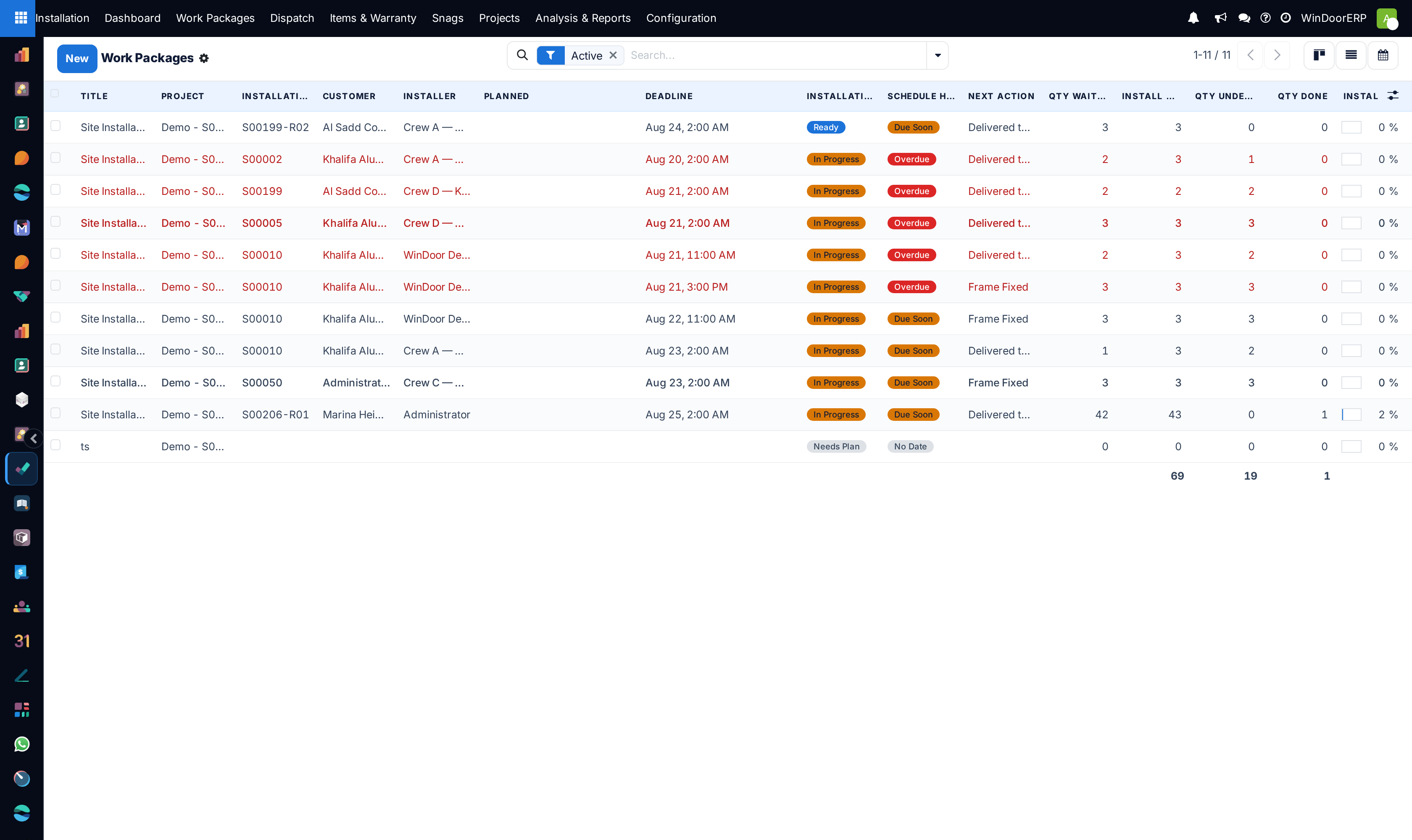
Answers "who is on which site, which day" for every crew at once. Dispatch is the same work packages as the Work Packages menu, opened as a schedule: a list grouped by Installer and Planned Week, with a calendar behind it — so an unassigned or undated job is immediately visible as a gap.
Before you start
- Each work package needs an Installer — a contact, usually a crew leader, whose portal account will receive the work.
- Scheduling lives on the work package; if a job has no planned dates yet, the Plan Installation wizard (see the planning article) sets them together with the checklist.
Steps
-
01
Open Installation › Dispatch. The list opens on active jobs, grouped by planned week and installer.
-
02
Find the unplaced work: the Unscheduled filter shows jobs with no planned start, and jobs group under None until they have one.
-
03
Open a job and set Installer, Planned Start, Planned End and the Time Window (Full day, Morning, Afternoon).
-
04
Switch to the Calendar — one colour per installer, month view, multi-day jobs spanning their whole window — and drag to rebalance a week.
-
05
Before the crew drives, check the job's site block: the site address, phone and map pin, and whether Site Ready has been confirmed.
The scheduling fields
| Field | What it does |
|---|---|
| Installer | The crew contact. It colours the dispatch calendar, groups the Dispatch list, and decides whose installer portal the job appears in. |
| Planned Start / Planned End | When the crew is planned on site. A multi-day job shows on every day of its window. Changing the start on a scheduled job automatically emails the installer a "Rescheduled" note with the old and new times. |
| Time Window | Full day, Morning or Afternoon — it orders the crew's day sheet in the portal. |
| Requested Date | What was promised commercially; filled from the order's delivery date when the job is created. |
| Deadline | Drives Schedule Health: On Track, Due Soon (within 3 days), Overdue, Done or No Date, refreshed nightly. |
| Actual Start / Actual Finish | Read-only truth from the floor: the first tick on site, and the last tick once every unit is installed. |
What the crew receives
Every evening at 18:00 Doha time, each installer with jobs planned for tomorrow is emailed a brief — the stops, the unit counts, and a link to their portal day sheet. The day sheet itself sorts the jobs morning to afternoon and offers a one-tap multi-stop driving route.
These messages go to the installer contact's email address; a crew contact without one is skipped silently. The reschedule email behaves the same way.
Double-booking
When the Plan Installation wizard schedules a crew into a window that overlaps another of their open jobs, it posts a warning in the job's chatter naming the clash — it warns, it never blocks. Read the chatter after planning a busy week.
Filters worth knowing
- Active — on by default; done work is hidden until you remove it.
- Unscheduled — no planned start and not done: the backlog to place.
- Overdue and Due Soon — schedule health at a glance; overdue rows also turn red in the list.
- Needs Photo — jobs stuck behind a photo-gated action.
- Planned This Week, and group-bys for Planned Week, Installer, Status, Next Action.
Troubleshooting
| Symptom | Cause and fix |
|---|---|
| The Dispatch list shows one collapsed None group | Nothing has a planned start yet — the week grouping has nothing to group by. Plan dates, or use Work Packages while the schedule is empty. |
| A job is missing from Dispatch | The Active filter hides done work; remove the chip to see it. |
| The installer says no brief arrived | The brief goes out at 18:00 Doha for the next day, only for jobs with a planned start, and only if the installer contact has an email address. |
| The crew was not told about a date change | The automatic email fires when Planned Start changes on a job that has an installer and items; check the contact's email address, and the chatter for the "Rescheduled" note. |
Common mistakes
- Scheduling by deadline alone — the deadline is the promise, Planned Start is the plan; Schedule Health compares the two for you.
- Sending a crew before checking Site Ready and the delivered quantity on the job — "produced" is not "delivered", and an unconfirmed site is a paid morning at a locked gate.
- Leaving the installer field on an internal user's name instead of the crew contact — the portal, the brief and the calendar colours all key on that contact.
Was this article helpful?
Thanks — your feedback helps.
Running a window or door factory?
Ask for a demo