Chase overdue invoices: follow-up levels, promises, disputes, payment plans and write-offs
What this does
When a fabrication client stops paying, WindoorERP gives you one screen per customer to run the chase from: the Follow-up Report. It shows the overdue book in aging buckets, tells you which reminder level the customer has reached, and puts every collection action — email, call log, promise to pay, dispute, payment plan, credit hold, legal referral, write-off — one button away. Around it sit the registers this article also covers: Follow-up History, Promises to Pay, Disputes, Payment Plans, Write-offs, Collector Performance, and the Batch Processing wizard, all under Accounting › Customers.
Before you start
- Posted customer invoices past their due date — the whole suite is driven by overdue receivables.
- Accounting access for the day-to-day screens; the Chief Accountant group for Configuration › Accounting › Follow-up Levels and for approving write-offs.
- An email template on each follow-up level that should send automatically — without one, the automatic reminder fails and only a log entry is written.
Follow-up levels — who gets chased, and how hard
Levels are configured at Accounting › Configuration › Accounting › Follow-up Levels. A customer's current level is not a counter that advances with each reminder: it is recomputed from the age of their single worst overdue invoice, matched against each level's Due Days. Pay off the oldest invoice and the customer can drop straight back to No Follow-up. WindoorERP ships four levels:
| Level | Days past due | Action Type | Automatic? |
|---|---|---|---|
| First Reminder | 5 | Yes — the daily job emails the level's template by itself. | |
| Second Reminder | 15 | Yes. | |
| Urgent Notice | 30 | Email + Letter | No — the job only creates a to-do for the responsible user. |
| Final Notice | 60 | All channels | No — to-do only. |
Each level carries an email template, a responsible user, a severity badge, and two flags with teeth: Auto Execute (send without a human) and Block New Sales. Note that Block New Sales only ever fires on a level that is also set to Auto Execute — on the shipped configuration no such level exists, so blocking is driven by escalation rules and the manual Apply Credit Hold button instead. The SMS Message field on a level is inert: no SMS gateway is wired in this release, and the form itself says so.
A scheduled job (Follow-up: Daily Processing, active by default) walks every customer whose status is In need of action once a day. It skips customers whose follow-ups are paused, customers with a pending promise to pay that is not yet overdue, and customers with an open dispute. For the rest it either sends the level's email (auto-execute levels) or creates a to-do for the level's responsible user — it never applies a credit hold or sends anything beyond email on its own.
The Follow-up Report — one customer, every lever
Open Accounting › Customers › Follow-up Management › Follow-up Reports. The list ranks customers with their grade, totals, worst-overdue age, current level, and follow-up status; the pre-set filter shows those needing action first. Open a row and you get the cockpit:
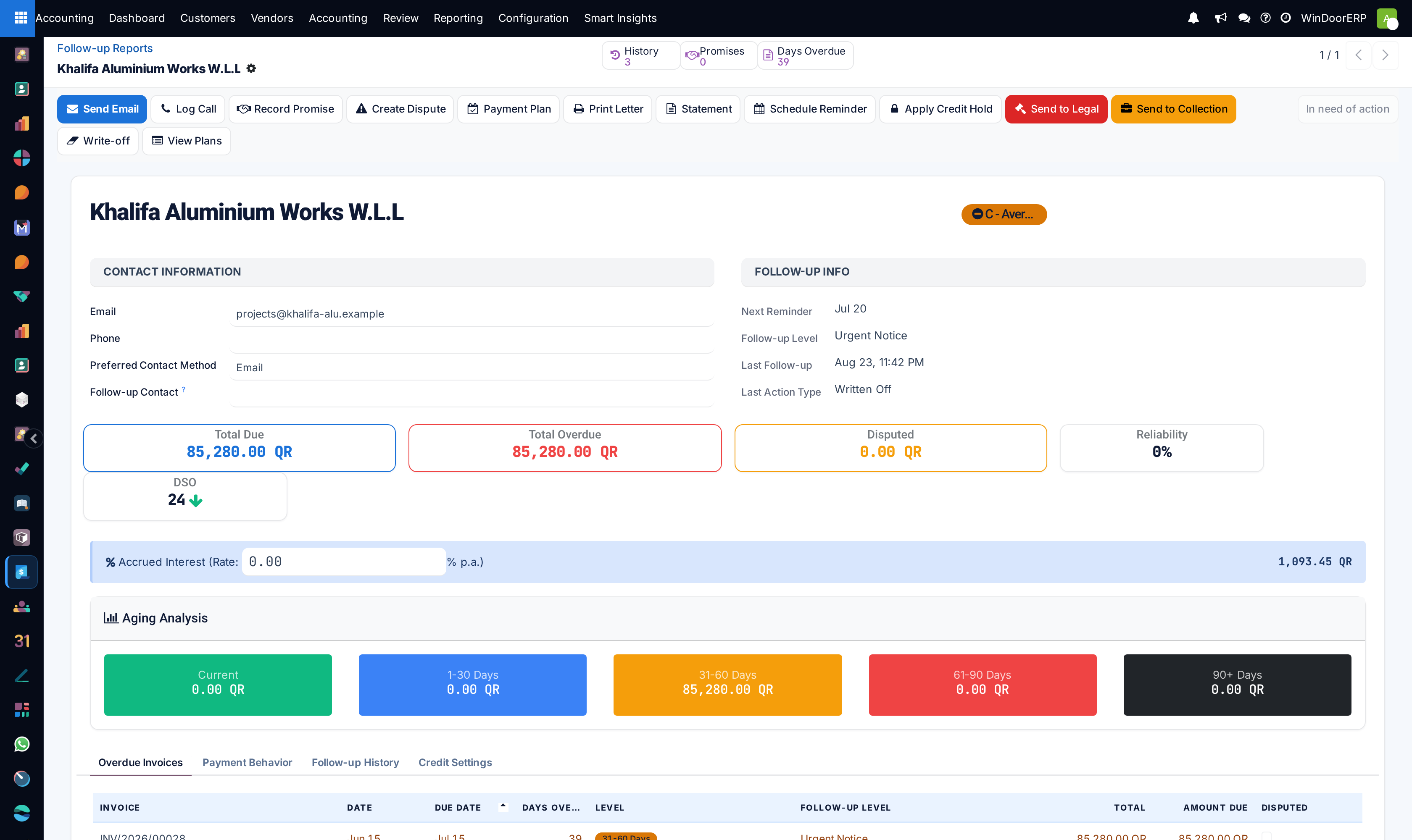
| Button | What it really does |
|---|---|
| Send Email | Opens the mail composer pre-filled with the current level's template — you still review and press send. Nothing is transmitted by the button alone, and there is no WhatsApp send here (WhatsApp lives on the posted invoice form). |
| Log Call | Records a call with its outcome in the history; can create a promise to pay and a callback activity in the same dialog. |
| Record Promise | Opens a new promise to pay for the customer. |
| Create Dispute | Opens a new dispute on selected invoices. |
| Payment Plan | Opens a new instalment plan. |
| Print Letter / Statement | PDF dunning letter / customer statement. |
| Schedule Reminder | Opens a blank activity to plan the next touch. |
| Apply Credit Hold | Toggles the hold that blocks confirming new sales orders and posting new invoices for this customer; logged in the history either way. |
| Send to Legal / Send to Collection | Moves the customer's legal status to Pending / records the collection agency handover. Status changes and paperwork only — no documents are sent anywhere. |
| Write-off / View Plans | Opens the write-off wizard / the customer's payment plans. |
Smart buttons count the history, promises, and disputes, and banners flag a credit hold, paused follow-ups, or a legal status. The Reliability tile is the share of recorded promises the customer kept; DSO is their days-sales-outstanding with a trend arrow.
Chasing one overdue account, start to finish
-
01
Open Follow-up Management › Follow-up Reports and pick the customer — the default filter already shows who needs action.
-
02
Read the aging tiles and the Overdue Invoices tab, and check the Follow-up History tab so you do not repeat yesterday's call.
-
03
Click Send Email, review the level's template in the composer, and send it.
-
04
When the customer calls back, use Log Call; if they commit to a date, tick Create Promise in the same dialog so the daily job stops reminding them until that date passes.
-
05
If they contest an invoice, use Create Dispute — automated reminders stop for the whole customer while a dispute is open.
-
06
If they need time, build a Payment Plan: set the number of instalments and frequency, Generate Installments, then Activate Plan — activation pauses follow-ups for the customer while the plan runs.
-
07
When nothing works, escalate: Apply Credit Hold, Send to Legal, Send to Collection, and as the last resort a Write-off.
Promises to Pay
Follow-up Management › Promises to Pay registers each commitment: reference (PTP/…), promise date, promised amount, the covered invoices, and a status of Pending, Kept, Partially Kept, Broken, or Cancelled. A pending, not-yet-due promise is what silences the daily reminder job for that customer — the promise is the pause.
Warning
Payments are not matched to promises automatically — Amount Paid is a manual field. And in this release the Mark as Kept and Mark as Broken buttons fail with a server error (they call a routine that no longer exists), which also stops the overnight job from flipping overdue promises to Broken. Until a fix ships, treat the promise register as a diary: record the outcome with Log Call or Cancel the promise, and rely on the Missed Promise to Pay escalation rule — which works independently — for automation.
Disputes
Follow-up Management › Disputes tracks contested invoices: a category (Pricing Disagreement, Quantity Mismatch, Quality Issue, Delivery Issue, duplicates, and more), the disputed invoices and amount, a priority, and an assignee. The lifecycle runs Open → Under Investigation → Awaiting Customer → Resolved / Rejected, with every step tracked in the chatter.
Creating a dispute flags its invoices as Disputed and — because the daily job skips any customer with an open dispute — pauses automated reminders for that customer entirely. Two things to know: the pause is customer-wide, so one disputed invoice silences reminders on all the others too; and it only pauses the automatic job — nothing stops you from manually emailing or holding a disputed customer. Resolving through the Resolve dialog records the resolution type and can open a pre-filled credit note for the agreed amount; the credit note is a draft you still review and post.
Payment Plans
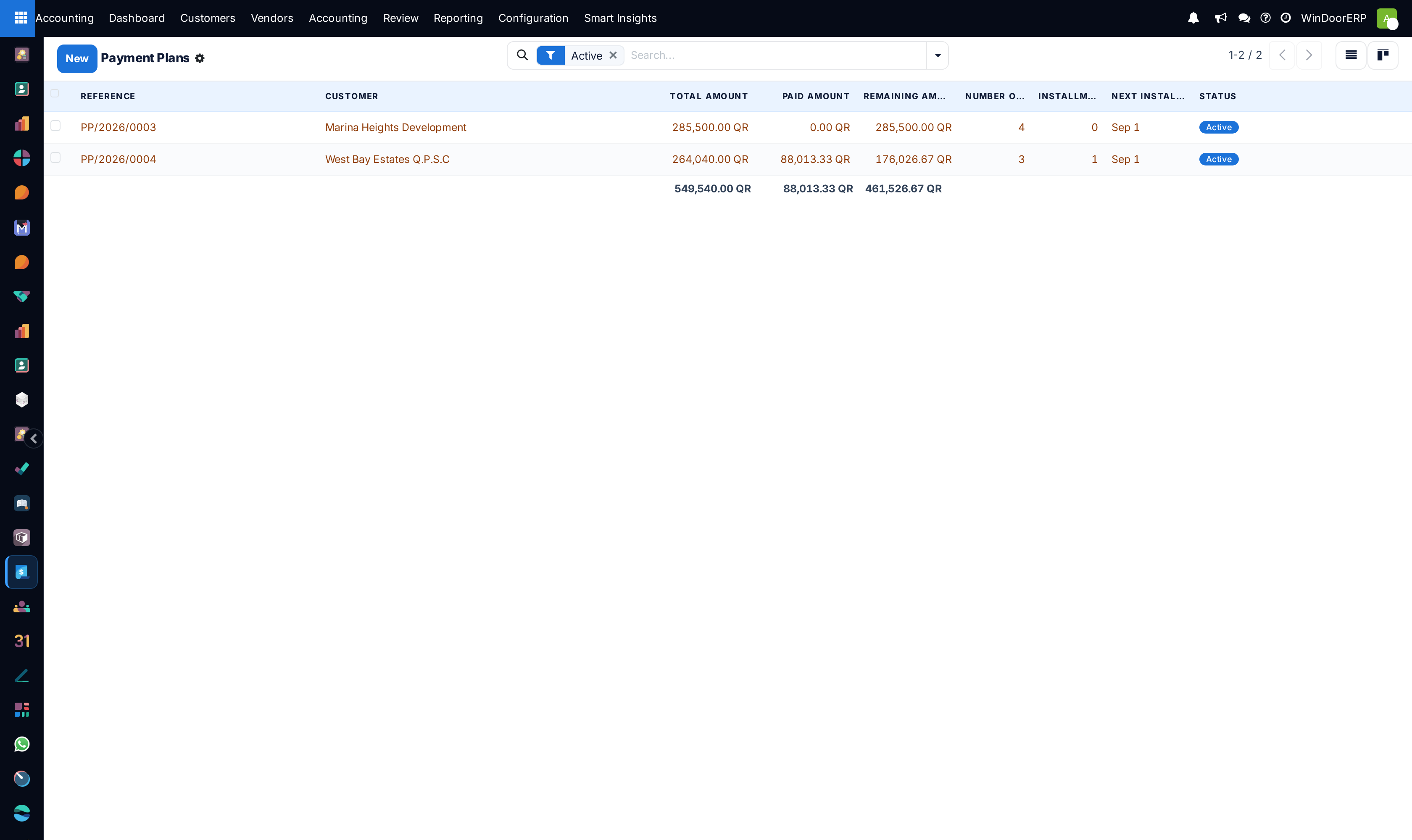
A plan (PP/…) splits the covered invoices' total into equal instalments — pick the count and frequency (Weekly, Bi-Weekly, Monthly, Quarterly), click Generate Installments, review the schedule, then Activate Plan. The last instalment absorbs any rounding difference. Mark instalments paid from the plan as money arrives (a partial dialog handles under-payments; over-payment on one instalment is capped, not carried forward). The daily job completes a plan when every instalment is paid — and marks it Defaulted once two or more instalments are seven days past due, which also lifts the follow-up pause.
Write-offs
Collections › Write-offs is the audit trail for giving up on a debt: reason (Customer Bankruptcy, Deemed Uncollectible, Legal Counsel Advised, …), the invoices, the collection efforts made, and a four-step flow — Draft → Pending Approval → Approved → Confirmed. Approve and Confirm are visible only to the Chief Accountant group. Confirming books the journal entry (debit the write-off account, credit receivables) only if both Write-off Journal and Write-off Account are filled in — leave either empty and the record confirms with no accounting entry and no warning. The entry posts exactly the typed Write-off Amount, which is not validated against the invoices' residuals, and the invoices themselves stay open until you reconcile or credit them separately.
Collector Performance and Batch Processing
Collections › Collector Performance is the overdue customer list pivoted by Assigned Collector — the user set in the Assigned Collector field of each follow-up report; nothing assigns collectors automatically. Read Collected YTD carefully: it is the customer's total posted inbound payments this year, not the amount credited to that collector.
Customers › Batch Processing works a whole slice of the book at once: filter by follow-up level, risk grade, or days-overdue range (customers who are paused, have an active promise, or an open dispute are excluded by default), click Generate Preview, untick anyone you want to spare, then run one action on the rest — Send Emails (sent immediately, no composer), Generate Letters, Create Activities, or Advance Follow-up Level. Per-customer failures are only reflected in the final Failed counter. The same actions, plus hold/pause, are available on a selection from any customer list via the ⚙ Actions menu.
Troubleshooting
"No email template configured for this follow-up level." — the customer's current level has no template; set one on the level or pick a template in the composer.
Marking a promise Kept or Broken shows a server error — known defect in this release (the buttons call a removed routine). The promise stays Pending; record the outcome in the history instead.
The Approve button on a write-off is missing — you are not in the Chief Accountant group. If nobody in the company is, no one can approve write-offs until an administrator assigns the group.
"Please enter the paid amount first." — Partially Kept needs an Amount Paid between zero and the promised amount.
"Installments can only be generated for draft plans." / "Please generate installments first." — generate on the draft, then activate.
A confirmed write-off produced no journal entry — the journal or write-off account was left empty at confirmation; create the entry manually or reverse and redo the write-off with both fields set.
Automated reminders never go out — check that the level is set to Auto Execute with an email template, the customer is not paused, and no open dispute or pending promise is silencing them; then check the Follow-up: Daily Processing scheduled job is active.
Common mistakes
- Waiting for a "Send Reminder" robot on the report form — Send Email opens a composer for you to send; only the daily job for the first two levels sends unattended.
- Expecting a promise to mark itself kept when the payment arrives — payment matching is manual, and an unkept promise silences reminders until its date passes.
- Opening a dispute over one small invoice and not noticing that every automated reminder for that customer stopped.
- Confirming a write-off without journal and account and assuming the books changed.
- Reading Collected YTD on Collector Performance as the collector's personal recovery figure.
- Running Batch Processing with Send Emails and expecting a review step — batch emails go out immediately, unlike the single-customer button.
Was this article helpful?
Thanks — your feedback helps.
Running a window or door factory?
Ask for a demo