Measure on site from the surveyor's phone
What this does
A surveyor does not need a WindoorERP seat, a laptop, or the backend. They sign in on their phone and live at https://<your company>.windoorerp.com/my/surveys — a mobile portal that plans their day, captures every opening where it stands, collects the customer's signature, and hands the finished survey back to the office. This article is the surveyor's side; what the office does with the results is covered in the site-survey topics of the Technical Office chapter. Installation crews have their own portal pages, described in the Installation chapter.
Before you start
- The surveyor exists as a portal user marked Survey Field User, or simply has surveys assigned to them.
- Enable Customer Portal is on in Site Surveys › Configuration › Settings — it is the master switch for these pages.
- Surveys are assigned: a surveyor sees the surveys where they are the Surveyor, plus the pool of unassigned drafts.
A survey, start to finish, from the phone
-
01
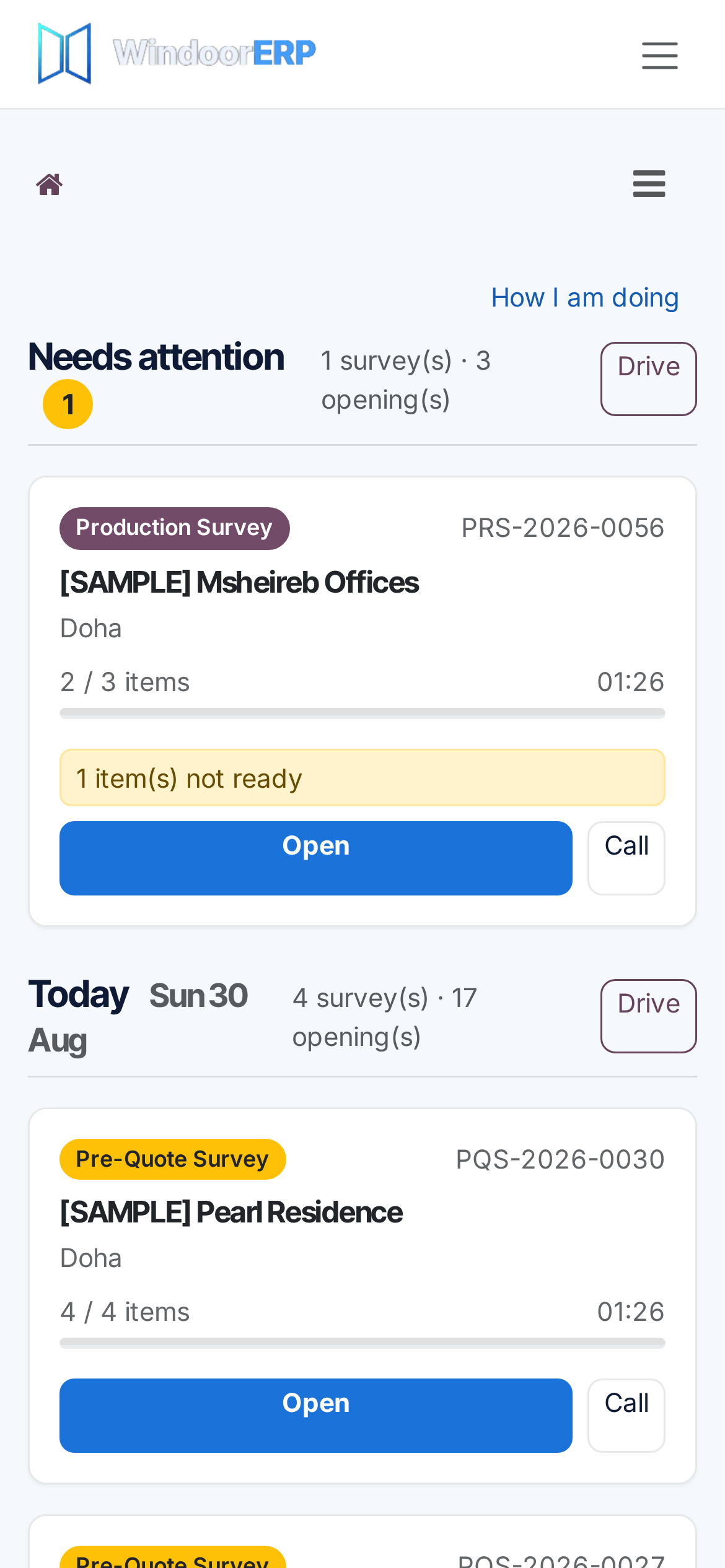
Open /my/surveys. The day plan groups the work: Needs attention first (sent-back or overdue jobs), then Today, Tomorrow, the rest of the week, Later and Unscheduled. Each day's header counts jobs and openings, and one tap opens the whole day as a Google Maps driving route in visit order.
-
02
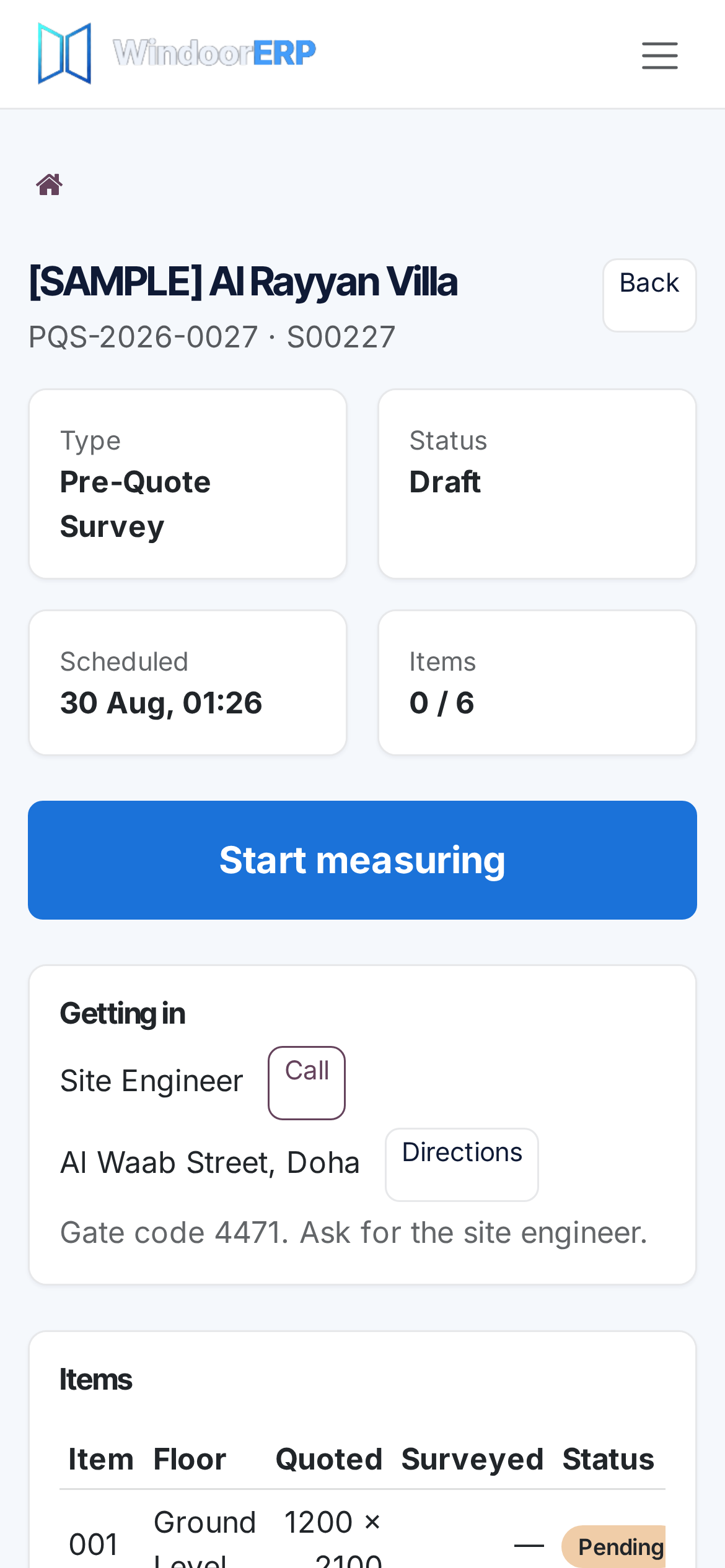
Open the job. Its page shows the items to measure — openings an earlier visit left "not ready" float to the top — the access details and site address, and the history of earlier surveys on the same job. Press Start measuring; the phone's position is recorded with the start.
-
03
Measure on the capture screen. A pre-quote lets you add openings as you find them; a production survey shows each ordered item's quoted size next to your measurement and lets you split a multi-unit line into individual openings — but never add items to a priced order: an extra opening is reported to the office instead.
-
04
Run the ready check before leaving. It lists everything at once — items neither measured nor marked not-ready, not-ready items without a reason or photo, measurements missing a dimension, and advisory warnings for out-of-tolerance items and openings that disagree with their own siblings.
-
05
Collect the sign-off. The signature screen shows the customer a summary — items measured, items not ready, total area — before they sign, recording who signed and in what capacity (Owner, Site Engineer, Main Contractor, Tenant, Other). When nobody authorised is on site, record Signature Not Obtained with the reason instead.
-
06
Press Submit. The survey completes with the end position, goes to the office's approval flow, and — for a pre-quote — immediately raises a "Quote …" activity on the salesperson with the survey attached.
The day plan
Approved work moves to its own done list, so the plan holds only what is still to do. Searching or filtering (by Still to do, Submitted, Approved, Pre-Quote, Production, or free text over reference, customer, city and order) switches to a flat result list; clearing it brings the day sections back. After a few completed surveys the day header also shows a time estimate, learned from that surveyor's own pace — it appears only once there is real history behind it.
Two conveniences are built for a phone. The portal can be installed to the home screen like an app, and it keeps the pages reachable through connection gaps, queueing the saves; when a queued save collides with an office edit, the surveyor's measurements always win, the office's planning fields win the rest, and whatever was overruled is written openly to the survey's log. Get a calendar subscription link mints a private URL the phone's own calendar app can subscribe to, with one event per scheduled survey; requesting a new link invalidates the old one.
On site: more than measuring
A visit that produced no measurements still produced information, and the portal has a place for all of it:
| Action on the phone | What happens in the office |
|---|---|
| Report Could not get in or Site not ready (a note is required) | A field event lands in Reported from Site, with the photo and the phone's position, and an activity is raised on whoever owns the job. |
| Report Running late, Paused/Resumed, a question, or an extra opening found | Same queue; questions and variations also alert the owner immediately. |
| Send the customer a message | Only pre-approved templates from the office's library, in the customer's language, with at most one value typed by the surveyor — and never more than six messages to one customer in an hour. |
| Ask the office a question with a photo | Posted on the survey's chatter and raised as an activity. |
| Request a re-visit on a submitted survey | A formal request awaits a manager's approve/decline; approval re-opens the survey or, if it was already approved, issues a revision copy. |
| Take an unassigned draft from the pool | The survey becomes theirs — allowed only for marked field surveyors. |
| "I have finished for the day" | One summary to the survey managers: completed, still open, and everything reported from site today. |
My performance
The How I am doing page shows the surveyor their own figures for the last week or the last month: surveys and openings completed, minutes per opening, first-time-right rate (submitted and approved with no rejection), photo completeness, and lost trips. Visits lost to a locked gate or an unready site are counted separately and never against productivity — reporting them honestly is exactly what the office needs. The comparison offered is with the surveyor's own previous window, not with colleagues.
Troubleshooting
The portal tile is missing or /my/surveys bounces back to the portal home — Enable Customer Portal is switched off in the survey settings, or the user is neither a marked field surveyor nor assigned any survey.
A job the surveyor swears was submitted shows conflicts in the survey log — it was edited in the office while the phone was offline; the log lists exactly which office values stood and which field values were kept.
"Items cannot be added to a production survey." — by design; report the extra opening instead so the office can price the variation.
"This survey is locked (…) and can no longer be edited." — the office moved it to Pending Approval or approved it while the phone was out; further changes need a re-visit request.
"You already have a re-visit request waiting on this survey." — one pending request per survey; chase the office for the decision.
The calendar feed stopped updating — the link was rotated; open the portal and take a fresh subscription link.
Common mistakes
- Measuring on paper for typing up later — the point of the portal is the measurement recorded where the opening is, with its photos, position and timestamp.
- Skipping the ready check and discovering the blockers one at a time back at the van.
- Letting whoever happens to be on site scribble a signature — record the signer's capacity honestly, or record that no signature could be obtained.
Was this article helpful?
Thanks — your feedback helps.
Running a window or door factory?
Ask for a demo