Read Purchase Analysis: spend, prices and vendor performance
What this does
Purchase Analysis answers the money questions — what was spent, with whom, on what, and how fast vendors deliver — from one report over every purchase line. It is a Purchase-administrator screen.
Before you start
- The Reporting menu appears only for Purchase administrators.
- Amounts are converted into the company currency; the report is deliberately single-currency.
Steps
-
01
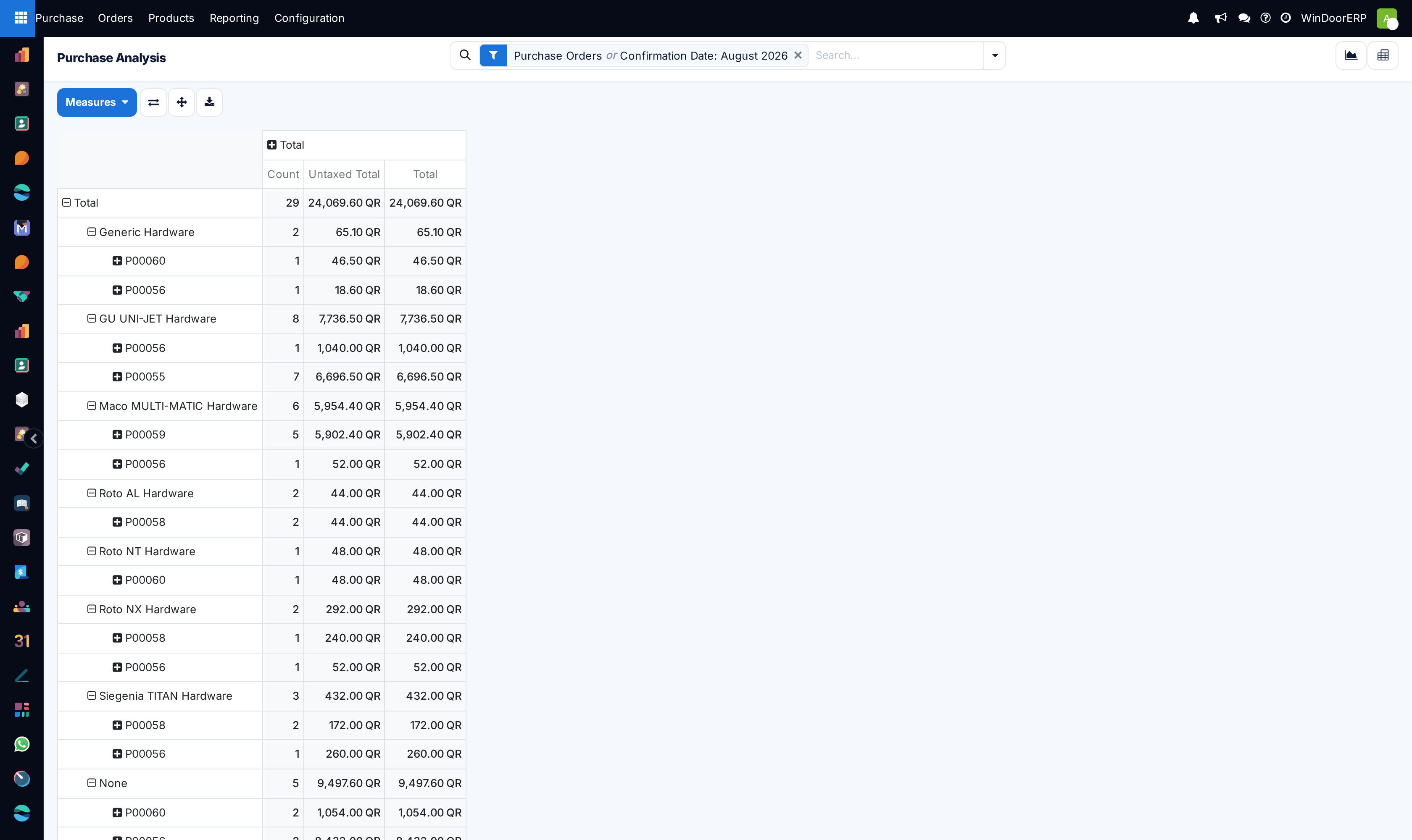
Open Purchase › Reporting › Purchase. It opens as a line chart of Untaxed Total by confirmation day, pre-filtered to Purchase Orders and the current month's confirmation dates.
-
02
Widen the window first — clear or change the date filter chip; a quiet month is not a quiet year.
-
03
Switch to the Pivot, group rows by Vendor and columns by month, and pick the measures that answer the question.
-
04
For sourcing decisions, group by Product and read Average Cost across time — the quantity-weighted real price paid.
-
05
For discipline, compare Days to Confirm and Days to Receive per vendor; for delivery reliability, open the vendor's On-time Rate from their contact form.
The measures, verbatim
| Measure | What it counts |
|---|---|
| Untaxed Total / Total | Spend without and with taxes, in company currency. |
| Average Cost | Quantity-weighted average unit price — the honest "what do we really pay". |
| Qty Ordered / Qty Received / Qty Billed / Qty to be Billed | The volume funnel; "to be billed" follows each product's Control Policy. |
| Days to Confirm | From order deadline to confirmation — how long deciding takes. |
| Days to Receive / Effective Days To Arrival | Promised versus actual arrival intervals. |
| # of Lines, Gross Weight, Volume, Count | Line counts and logistics totals. |
Reading it honestly
- The default Purchase Orders filter covers confirmed and to-approve documents; switch to the Requests for Quotation filter to analyse the unconfirmed pipeline instead.
- Draft RFQ is how the draft state is labelled inside this report's Status dimension.
- The Warehouse dimension is the receiving operation type — useful with multiple sites.
- Vendor on-time delivery is its own report (quantity-weighted, per receipt line against the promised date), reached from the vendor form's On-time Rate or the % link on a draft RFQ — not from this menu.
Troubleshooting
| Symptom | Cause and fix |
|---|---|
| The report looks almost empty | The preset filter is this month's confirmation dates. Clear the date chip or pick a longer range. |
| Numbers differ from the accounting ledgers | This is order-side analysis in company currency, not the posted journal entries — small conversion and timing differences are normal. |
| An RFQ you expect is missing | Unconfirmed documents are excluded by the default filter; use the Requests for Quotation filter. |
Common mistakes
- Comparing vendors on Total spend alone — volume differences hide price differences; use Average Cost.
- Judging delivery performance from this report's date averages instead of the on-time delivery report, which weighs quantities and real receipts.
Was this article helpful?
Thanks — your feedback helps.
Running a window or door factory?
Ask for a demo