Read the receivables dashboards: aging, risk grades, credit holds and the cash flow forecast
What this does
WindoorERP watches your receivables for you: it sorts every customer's unpaid invoices into aging buckets, grades each customer from A to F on payment behaviour, and can place a delinquent account on Credit Hold so no new order can be confirmed and no new invoice posted until the hold is released. This article covers the four read-only dashboards under Accounting › Customers › Dashboard, the risk grade itself, and the three automation screens under Accounting › Customers › Configuration › Automation — Escalation Rules, Cash Flow Forecast, and Risk Score Trends.
Before you start
- Posted customer invoices with due dates — everything here is computed from open invoices, so an empty ledger shows empty dashboards.
- The Dashboard menu is visible to accounting users; the Configuration › Automation menu needs the Chief Accountant access group.
- In a multi-company database, the aging figures count only invoices of the company you are logged into.
The five aging buckets
Every open, unpaid customer invoice is aged from its due date (its invoice date when no due date is set). The buckets appear as columns on the dashboards and as coloured tiles on each customer's follow-up report:
| Bucket | Meaning |
|---|---|
| Current | Not yet due, or due today. An invoice due today is not overdue. |
| 1-30 Days | 1 to 30 days past due. |
| 31-60 Days | 31 to 60 days past due. |
| 61-90 Days | 61 to 90 days past due. |
| 90+ Days | More than 90 days past due — this bucket alone defines the Critical Overdue dashboard. |
Beside the buckets the list shows Total Due (all open invoices, aged or not), Total Overdue (everything past due), Max Days Overdue (the age of the worst invoice, which is also what picks the customer's follow-up level), and the Credit Hold flag.
Important
The aging engine counts only invoices whose payment status is exactly Not Paid. The moment a partial payment is registered, that invoice drops out of every bucket, out of Total Overdue, and out of the dashboards entirely — a customer who pays a token amount on a large overdue invoice can disappear from the aging list. Check the customer's Partner Ledger before treating an empty dashboard as good news.
The four dashboards
| Dashboard | Who appears on it |
|---|---|
| Aging Analysis | Companies with overdue receivables, worst first. Opens as a list; Pivot and Graph views group by risk grade × follow-up status. |
| High Risk Customers | Customers graded D or F that also have overdue receivables right now. An F-graded customer with a clean current ledger is not listed. |
| Critical Overdue | Anyone with any amount at all in the 90+ Days bucket, whatever their grade. There is no minimum amount and the 90-day cutoff is fixed. |
| Statistics | The same data pivot-first and across all company-type customers — clear the pre-set Has Overdue filter to include customers with nothing overdue. |
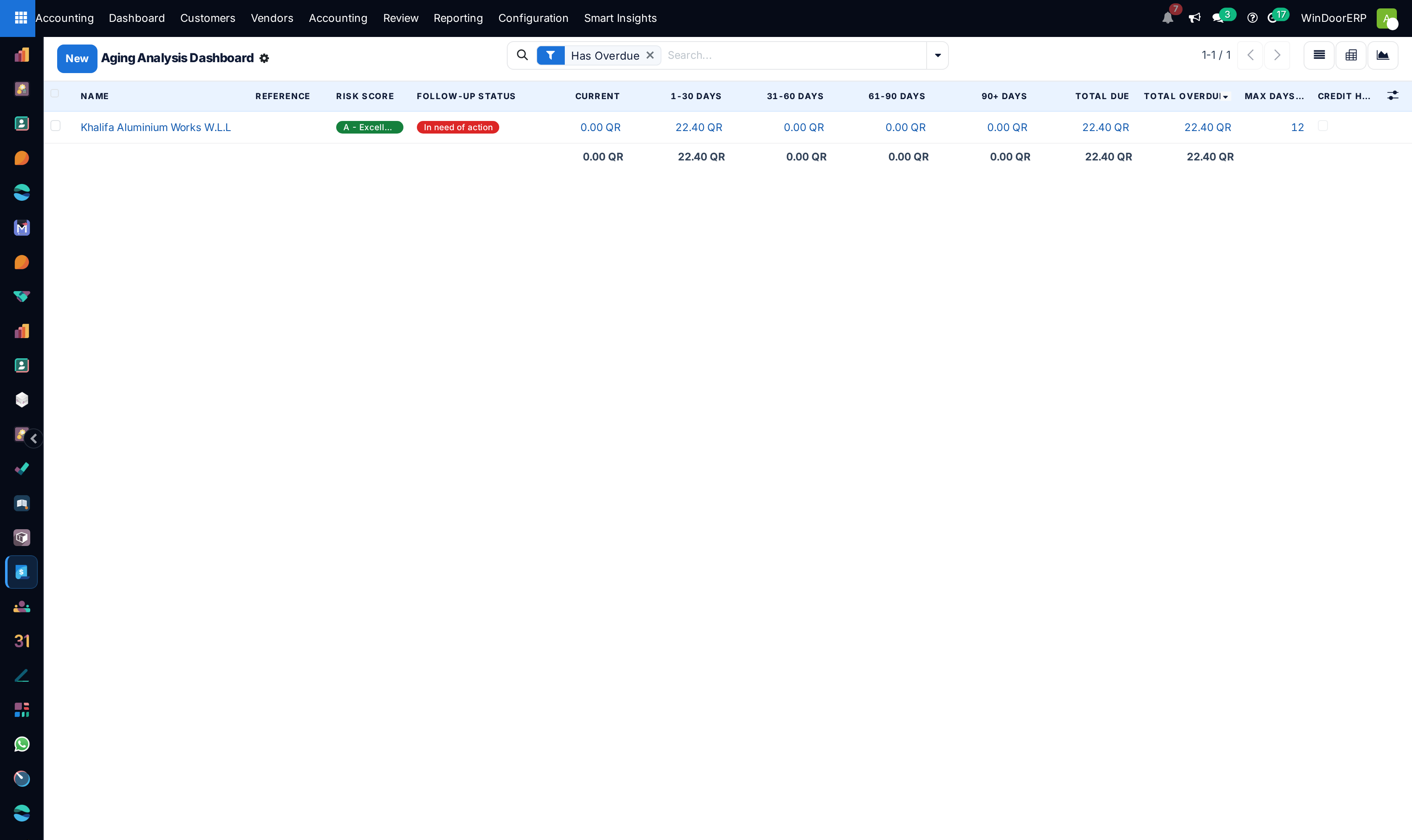
Rows are coloured by urgency: red for grades D/F, orange for C, blue for customers whose follow-up status is In need of action. The search panel adds filters for Needs Action, Has Overdue, On Credit Hold, grade bands, and 30+/60+/90+ days overdue, with grouping by risk score, follow-up status, current level, salesperson, or country.
A collections review, step by step
-
01
Open Accounting › Customers › Dashboard › Aging Analysis. The list is already sorted by Total Overdue, worst first.
-
02
Scan the 90+ Days column, then cross-check Critical Overdue — it catches old invoices even on customers whose overall grade still looks healthy.
-
03
Click a customer to open their follow-up report, where the same buckets appear as tiles above the overdue invoice list and every collection action (reminder, promise, dispute, hold) is one button away.
-
04
Open High Risk Customers and decide, customer by customer, whether to tighten payment terms, apply a credit hold, or hand the account to a collector.
-
05
Finish in Statistics: group the pivot by salesperson or country to see where the overdue book is concentrated.
How the risk grade is computed
The grade is a weighted score over four ingredients of the customer's own history — higher points mean higher risk:
| Ingredient | Weight | What feeds it |
|---|---|---|
| Payment reliability | 40% | Share of the last 100 paid invoices that were paid on time. |
| Average payment days | 20% | How long the customer takes to pay, banded at 30/60/90 days. |
| Worst overdue invoice | 25% | Max Days Overdue, banded at 30/60/90 days. |
| Promises kept | 15% | Share of recorded promises to pay that were honoured; neutral when no promises exist. |
The total maps to a letter: 0-20 A, 21-40 B, 41-60 C, 61-80 D, above 80 F. The weights and cutoffs are fixed — there is no configuration screen for them. The score recomputes when the underlying invoice, payment, or promise data changes; there is no nightly recompute of the grade itself.
Note
A brand-new customer with no payment history starts at grade A, not at a neutral middle grade — reliability defaults to 100% until real invoices prove otherwise. Do not read A on a first-time contractor as a credit assessment.
Credit hold — what it actually blocks
A customer on Credit Hold is blocked in two places: confirming a new sales order fails, and posting a new customer invoice, credit note, or receipt fails, each with an error naming the customer and the hold reason. Draft documents can still be created and edited — only confirmation and posting are gated.
The hold is toggled from the customer's follow-up report (Apply Credit Hold), set automatically by an escalation rule, and every change is logged in the follow-up history. Releasing the hold clears the reason and date. Separately from the hold, a customer can carry a credit limit — either the standard limit on the customer form or the kit's warning/blocking amounts — which blocks confirmation and posting once the customer's balance passes the blocking threshold.
Escalation Rules
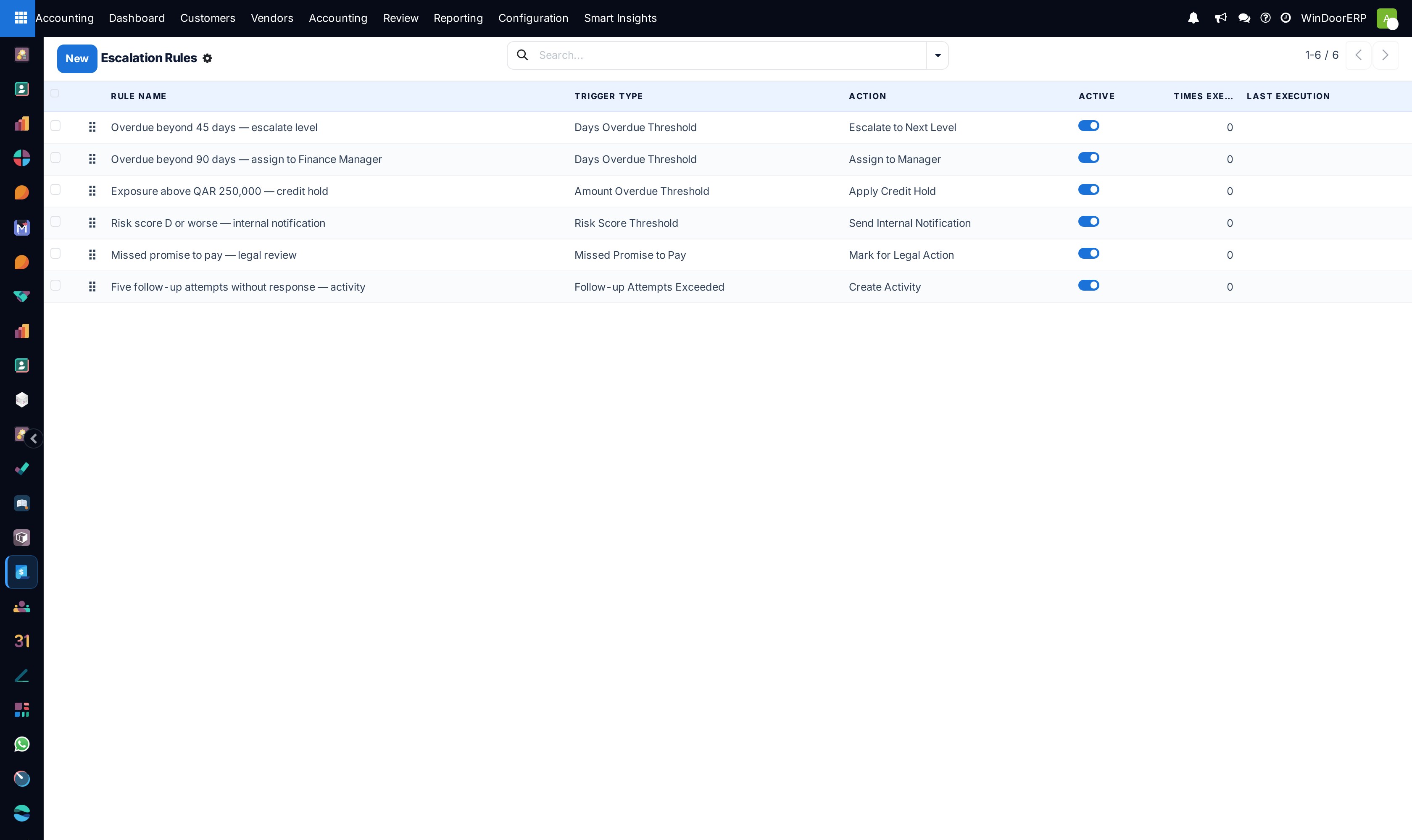
Configuration › Automation › Escalation Rules holds the automation: each rule pairs one trigger with one action, and a daily scheduled job evaluates every active rule against every customer with overdue receivables (paused customers are skipped).
| Trigger Type | Fires when |
|---|---|
| Days Overdue Threshold | The worst invoice is at least Days Threshold days overdue. |
| Amount Overdue Threshold | Total overdue reaches Amount Threshold. |
| Missed Promise to Pay | A promise was broken within the threshold window (30 days by default). |
| No Response | No follow-up recorded for at least the threshold number of days. |
| Risk Score Threshold | The grade is at or beyond the chosen letter (C, D, or F). |
| Follow-up Attempts Exceeded | The number of logged emails, calls, and letters reaches Max Follow-up Attempts (default 5). |
| Action | What it does |
|---|---|
| Escalate to Next Level | Logs an escalation entry in the follow-up history. The customer's current level itself still follows days-overdue, so this is a paper trail, not a level change. |
| Assign to Manager | Sets the chosen user as the customer's assigned collector. |
| Apply Credit Hold | Puts the customer on hold with an automatic reason naming the rule. |
| Mark for Legal Action | Moves the customer's legal status to Pending Legal Review. |
| Create Activity | Creates a to-do due tomorrow for the chosen manager. |
| Send Internal Notification | Messages the chosen users, filling the customer, rule, amount, and days into the template. |
Warning
The scheduler re-evaluates every rule every day and does not remember what it already did. Apply Credit Hold is harmless to repeat, but a Create Activity rule creates a fresh to-do every single day the condition stays true — pair it with a trigger that the action itself resolves, or expect a pile of duplicates. Times Executed counts evaluations that matched, not actions that changed anything.
Cash Flow Forecast
Configuration › Automation › Cash Flow Forecast lists weekly collection estimates: for each forecast date a Low Estimate, Expected, and High Estimate (70% / 100% / 120% of the same figure), the split of the expected amount by aging bucket, and an Actual Collections column with a Forecast Accuracy % bar.
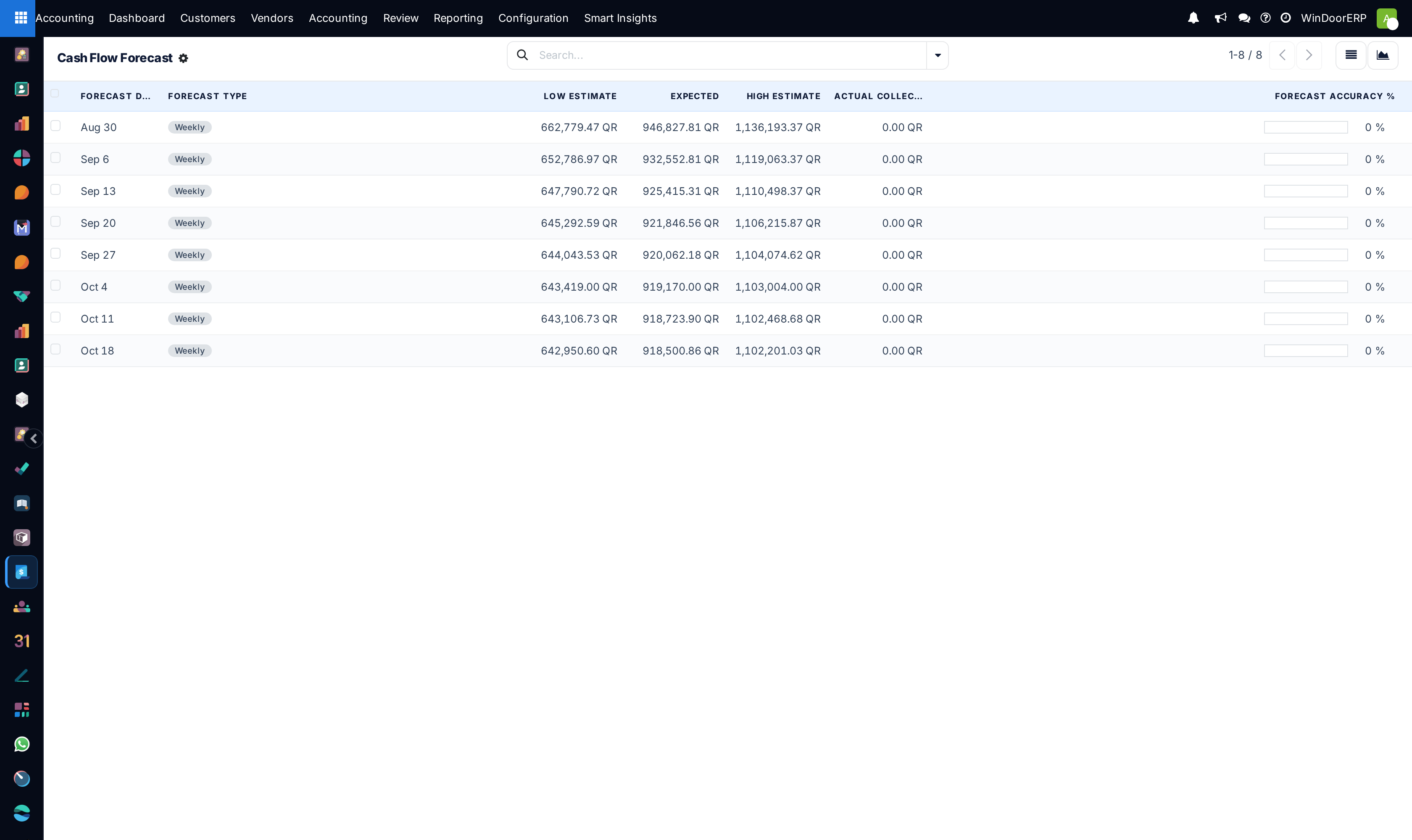
Read the estimates for what they are: each week multiplies today's open balances by a fixed collection probability per bucket (95% of current amounts down to 10% of the 90+ bucket, discounted further for later weeks). The customer's individual payment history does not enter the calculation, and Actual Collections is not filled in automatically — the accuracy column stays at 0% unless actuals are recorded by hand.
Note
The list is read-only and this release ships no Generate Forecast button, even though the empty-screen text mentions one. New forecast rows can only be generated by an administrator from the server shell — if the screen is empty or stale, that is why.
Risk Score Trends
Configuration › Automation › Risk Score Trends is the history behind the grade: a scheduled job runs daily and snapshots the numeric score, grade, totals, and worst-overdue age of every customer with an open balance. The screen opens as a graph filtered to the last 30 days; switch to the pivot or list for exact values. Rows are read-only, cannot be backfilled, and are purged after one year.
Use it the way a credit controller reads a chart: a customer whose numeric score climbs week after week is deteriorating long before the letter grade flips, and that is the moment to tighten terms — not after the first F.
Troubleshooting
"Cannot confirm order: … has an active Credit Hold. Reason: … Please contact the Credit department to release the hold." — the customer is on hold; release it from their follow-up report (Apply Credit Hold toggles it off) or have an accounting user do so. The same hold also blocks posting invoices with the matching message "Cannot post invoice: … has an active Credit Hold."
"… is in Blocking Stage and has a due amount of … to pay" — the customer passed the kit's Blocking Amount. Collect first, or raise the blocking amount on the customer form.
"Cannot confirm order: … would exceed their credit limit." — the standard credit limit would be breached by this order; the message shows the limit, the current receivable, and the order amount.
A customer vanished from the aging dashboard without paying in full — a partial payment was registered; partially paid invoices leave the aging computation entirely. Their invoices are still open in Customers › Invoices and in the Partner Ledger.
Cash Flow Forecast is empty — rows are only created from the server shell in this release; there is no button in the interface.
Common mistakes
- Treating the A grade of a customer with no history as proven creditworthiness — new customers start at A by default.
- Reading the Expected column of the cash flow forecast as a commitment. It is a fixed-probability estimate over today's balances, not a promise-dated schedule — the customer's actual payment plans live under Follow-up Management.
- Watching only High Risk Customers and missing the well-graded customer whose one old invoice sits in Critical Overdue.
- Creating a daily-repeating Create Activity escalation rule and drowning the collector in duplicate to-dos.
- Expecting a credit hold to stop everything — it blocks confirming orders and posting invoices, but drafts can still be prepared and deliveries already confirmed keep moving.
Was this article helpful?
Thanks — your feedback helps.
Running a window or door factory?
Ask for a demo