Process supplier bills, control what gets paid, and handle vendor payments and refunds
What this does
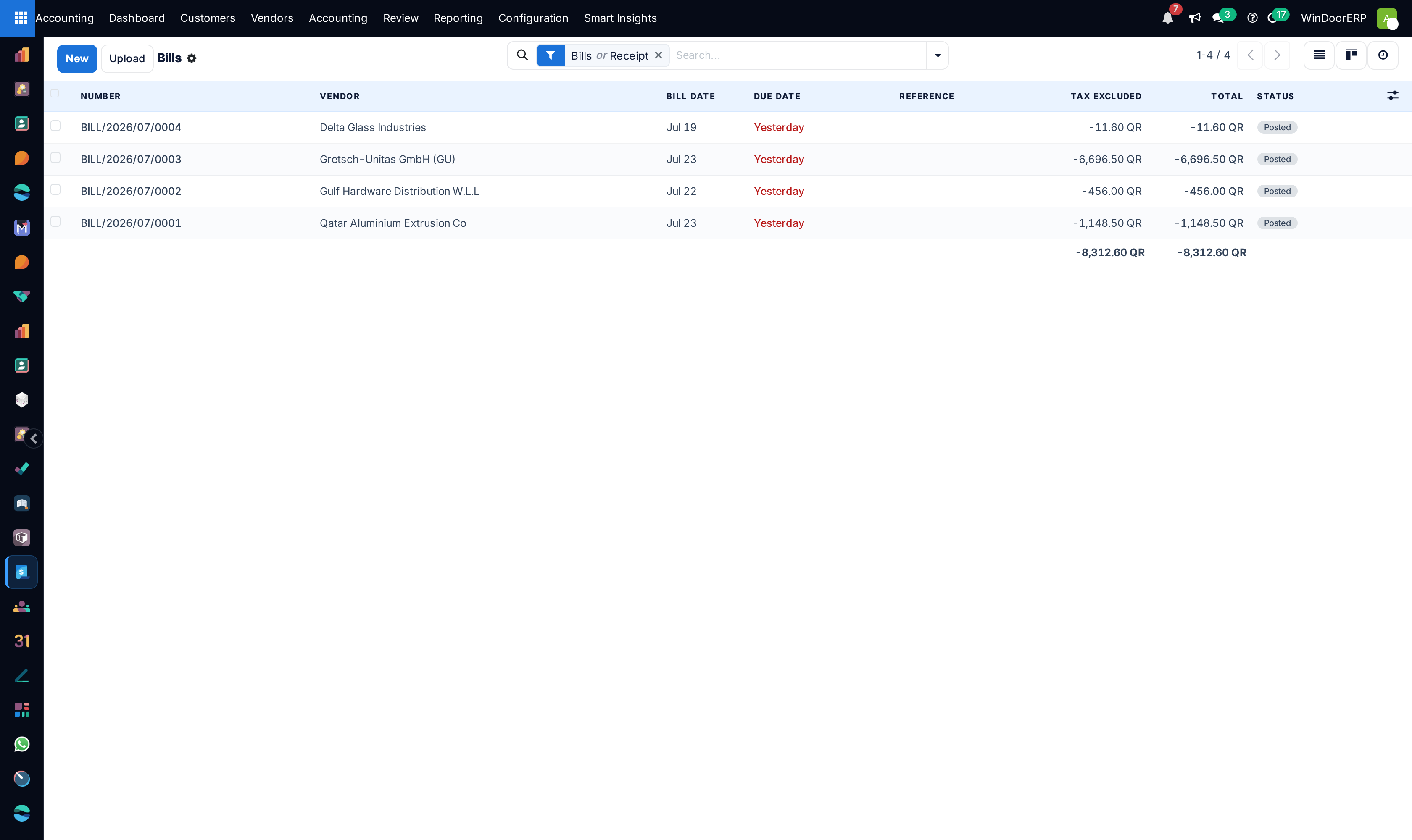
Supplier bills for billet, extruded profile, glass, and hardware arrive under Accounting › Vendors. This article covers entering a bill (and letting a purchase order fill it in), the controls that actually decide what gets paid, vendor refunds, outgoing payments including printed and post-dated cheques, and the accounting fields on the Vendors and Products screens that drive it all.
Before you start
- A confirmed purchase order if you want the bill filled in for you — and, for goods you only want billed once received, the product's Control Policy set to On Received Quantities ahead of time.
- Billing access to enter and post bills; purchase access for the Auto-Complete field.
Entering a bill
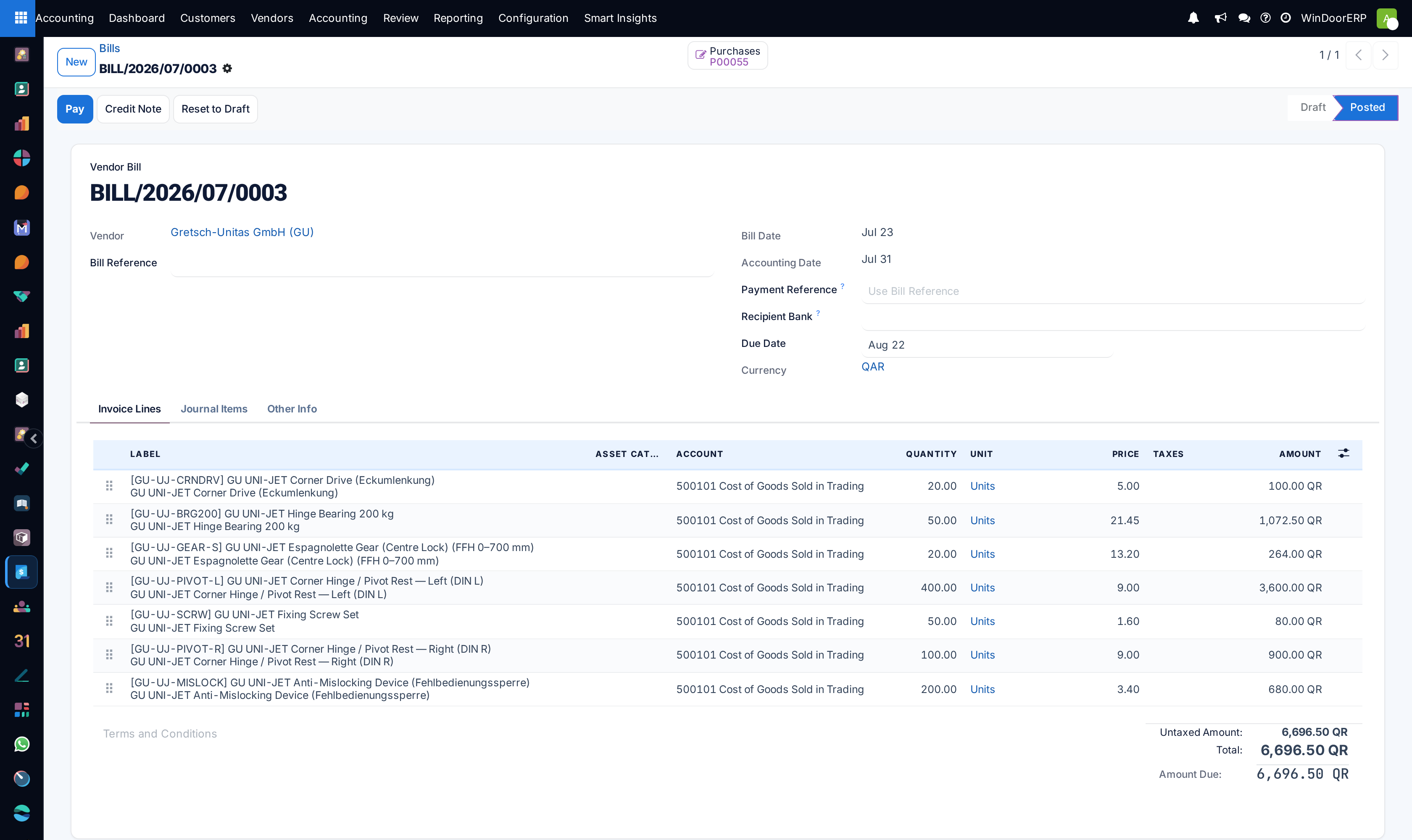
If a line carries an Asset Category (a column shown only on vendor bills), posting the bill creates the corresponding fixed asset automatically — that is how a new CNC centre or delivery truck enters the asset register from its purchase bill (see the assets article). The Reviewed button lets a second pair of eyes mark a posted bill checked, and bills you were unsure about can carry the To Check flag until then.
Important
What Auto-Complete proposes depends on each product's Control Policy: for On Received Quantities products it offers only what the warehouse has received and not yet been billed; for On Ordered Quantities products (the default) it offers the full ordered quantity the moment the order is confirmed, received or not. There is no automatic three-way matching in this edition — nothing blocks posting or paying a bill because goods were short-shipped or damaged. The controls that exist are the per-product policy above, the manual Purchase Matching screen for pairing bill lines to order lines, and the payment block below. If quantities matter, set the policy on the product, not your memory.
-
01
Open Accounting › Vendors › Bills and click New (or Upload to start from the supplier's PDF).
-
02
Pick the Vendor, then use the Auto-Complete field on the draft to pull in one of their purchase orders — lines arrive with the PO's products, prices, discounts, and taxes.
-
03
Type the supplier's invoice number into Bill Reference, and set the Bill Date — the due date follows the payment terms from it.
-
04
Check the quantities against what actually arrived at the warehouse (see the control note below), and the account on each line.
-
05
Click Confirm. The bill posts to the Purchases journal and appears in the vendor's payable ledger.
Holding a payment back
When a delivery is disputed — cracked panels, a short pallet of profile — block the bill instead of leaving it to be remembered: select it and use ⚙ Actions › (Un)Block Payment. Its payment status turns Blocked, and any attempt to pay is refused with "You cannot register payments for blocked invoices." The block is a manual toggle (unblock the same way once the credit note arrives); it is not applied automatically by any receipt check. Duplicate protection is also a warning, not a gate: a second bill from the same vendor with the same reference in the same year raises a banner on the form — read it before posting, because posting is still allowed.
Refunds
Vendors › Refunds holds vendor credit notes. Enter one directly with New (Auto-Complete works here too), or open the posted bill being corrected and click Credit Note — the same reversal dialog as on the customer side, with Reverse to offset the bill and Reverse and Create Invoice to cancel and redraft it. A refund reduces what Pay will offer on the vendor's next payment run once it is posted.
Paying suppliers
Vendors › Payments lists outgoing payments; the usual entry point is Pay on a posted bill, which opens the same Register Payment dialog described in the customer payments article — journal, payment method, amount (edit it down for a partial payment), date, and memo. Payments move through Draft → In Process → Paid; a manual payment can be marked sent, validated, or rejected along the way.
Cheque handling is built in. With the Checks method on the journal, Print Check produces the cheque itself (pre-numbered stock asks for the first cheque number); with the PDC method configured, a post-dated cheque records its Effective Date (required), Bank Reference, and Cheque Reference. Those three fields are saved onto the payment only for cheque and PDC methods — on a plain manual payment they are ignored. There is no separate "payment voucher" report in this edition: the printable artefact for a cheque payment is the cheque, and the emailable one is the standard payment receipt.
Vendors and Products
Vendors › Vendors is the contact list filtered to suppliers; the payable-side fields on the form are the Payable Account, the vendor's Payment Terms (Purchase section), and their bank accounts — mark a bank account trusted before it can receive payments. Vendors › Products lists purchasable products; besides the expense account and vendor taxes, the field that matters most to billing is the Control Policy discussed above, and an Asset Type here makes every purchase of that product an asset candidate.
Troubleshooting
"You cannot register payments for blocked invoices." — the bill's payment was blocked from the Actions menu; unblock it there once the dispute is settled.
"You can't block a paid invoice." — the payment already went through; recover the money with a vendor refund instead.
"This document might be a duplicate of…" — a bill from this vendor with the same reference already exists; open the linked document from the banner before posting, and delete the duplicate from there if it is one.
Auto-Complete billed more than was delivered — the products are on On Ordered Quantities; correct the quantities on the draft, and switch the products' Control Policy so the next bill starts from receipts.
"Payments to print as a checks must have 'Check' or 'PDC' selected as payment method and not have already been reconciled" — Print Check only applies to open cheque/PDC payments, and only one bank journal at a time ("In order to print multiple checks at once, they must belong to the same bank journal.").
PDC is not offered when registering a payment — add the PDC method to the bank journal's payment methods in Configuration › Journals.
Common mistakes
- Confirming a bill without the supplier's invoice number in Bill Reference — it is the duplicate check's key and the auditor's cross-reference.
- Trusting Auto-Complete to enforce goods receipt — it only does so for products set to On Received Quantities.
- Leaving a disputed bill unblocked and relying on someone remembering not to pay it.
- Typing cheque references onto a manual-method payment and expecting them to be kept — they are only stored for cheque and PDC payments.
- Entering a price correction by editing next month's bill instead of posting a vendor refund against the wrong one — the vendor's ledger stops matching their statement.
Was this article helpful?
Thanks — your feedback helps.
Running a window or door factory?
Ask for a demo