Watch the backlog: Overdue, This Week and the analysis views
What this does
The Reporting menu of the Technical Tasks app is five pre-filtered views over the requests and their logged hours: Tasks Analysis, Overdue, This Week, Timesheets and Timesheets Analysis. Nothing here is a separate data model — every screen is the request queue or its timesheet entries, opened with a particular filter and view, so anything you learn here can be fixed by opening the request itself.
Before you start
- Requests carry a Deadline Date — the Overdue and This Week screens are built entirely on it.
- Planned Hours are set and hours are logged on the requests, or the analysis views will compare zeros.
- The two timesheet menus appear only for users with the Timesheets app access right.
A weekly review
-
01
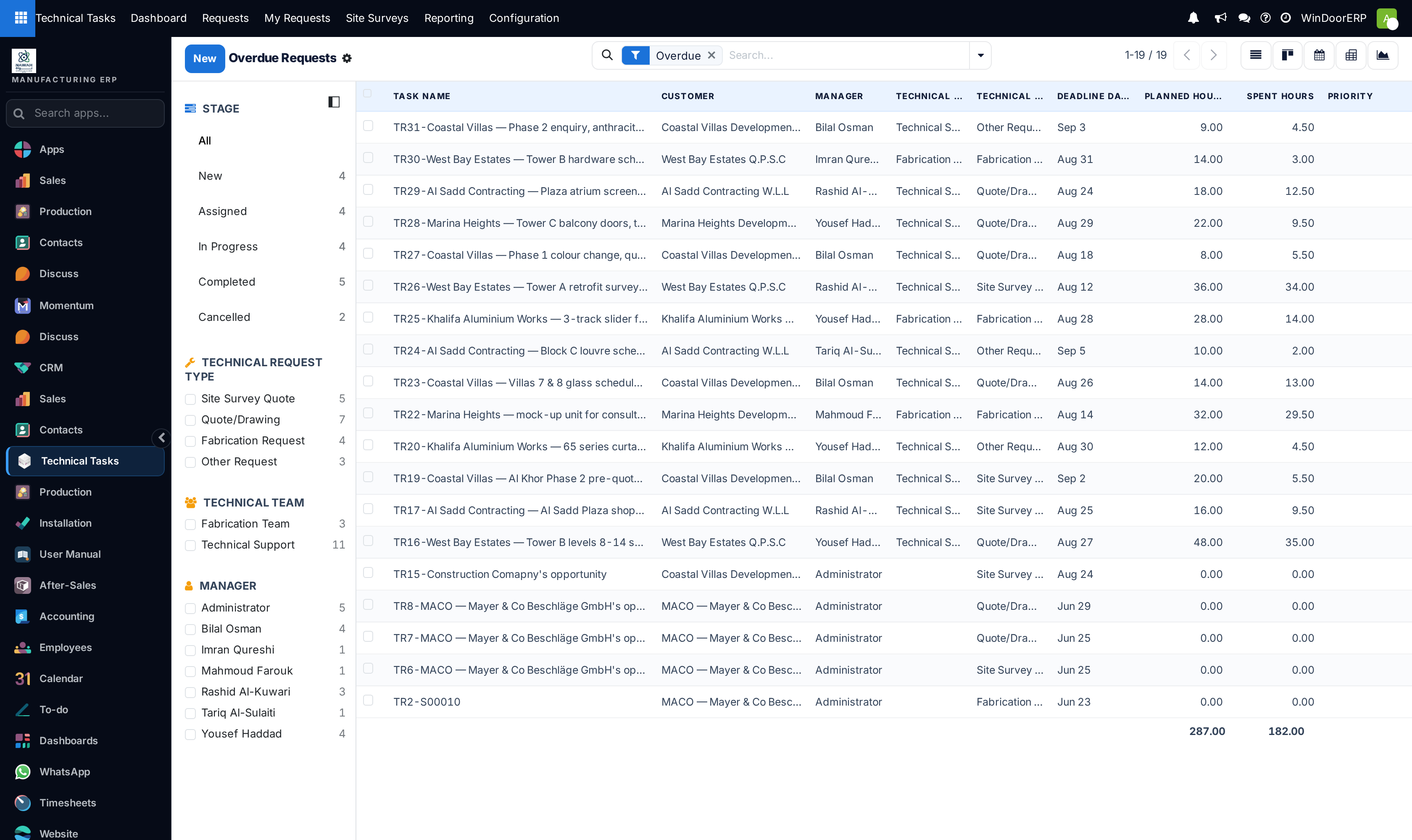
Open Reporting › Overdue. Every active request whose deadline has passed and whose stage is not a folded (closed) one is listed, with Planned and Spent hour totals at the bottom.
-
02
Clear the worst first: group by Manager or use the left panel to see who holds the overdue load, then reassign or re-deadline from the request forms.
-
03
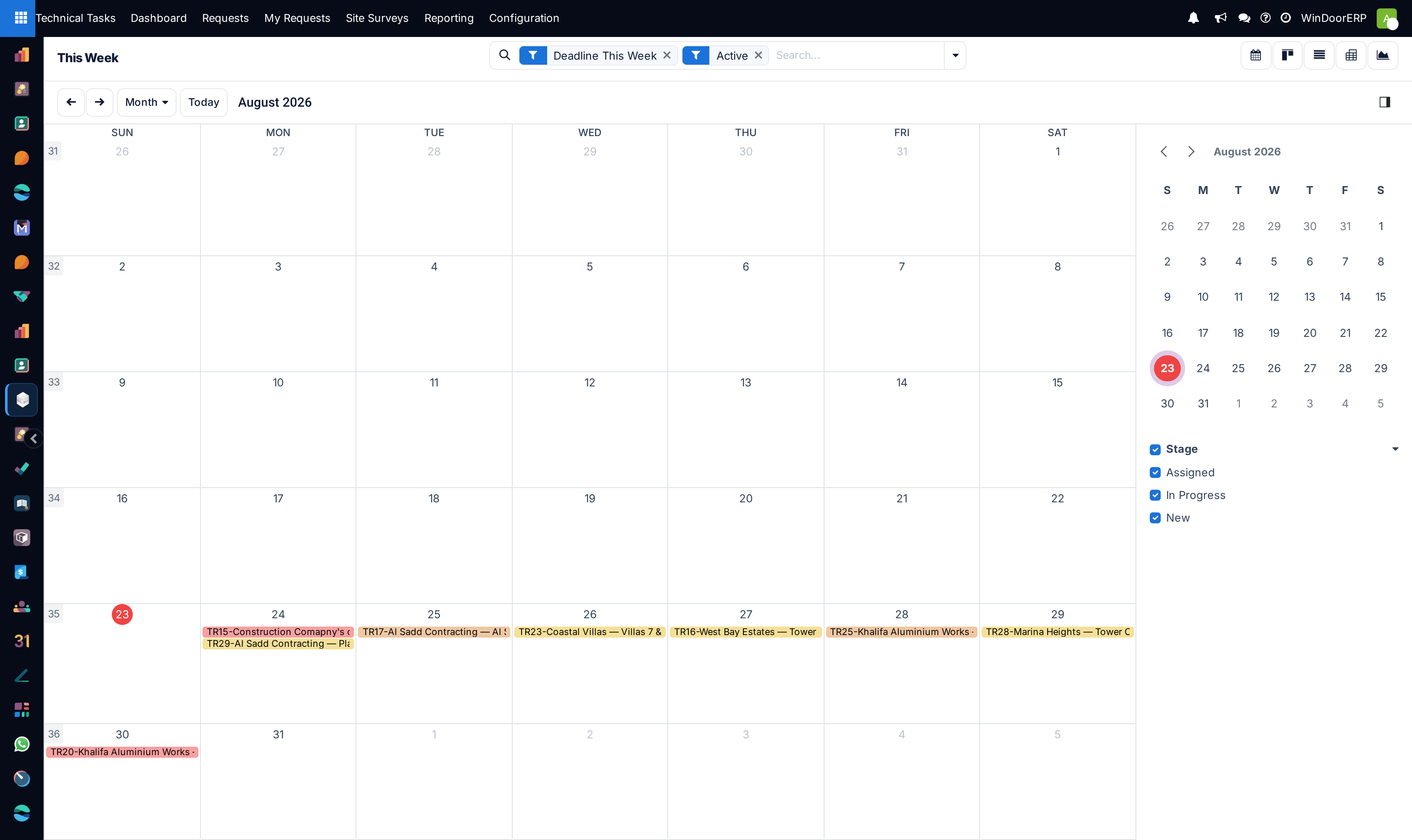
Open Reporting › This Week. It opens as a calendar of every active request due between today and seven days out — the promise board for the coming week.
-
04
Open Reporting › Tasks Analysis for the wider picture: planned versus spent hours across the whole queue, sliced any way you drag.
-
05
Finish in Timesheets or Timesheets Analysis to see where the hours actually went, by request, employee and month.
What each screen shows
| Menu | Records and opening view |
|---|---|
| Overdue | Active requests with a deadline before today and a stage that is not folded. Opens as a list; kanban, calendar, pivot, graph and form are one click away. |
| This Week | Active requests due between today and seven days ahead. Opens as a month calendar colored by stage; the side panel filters stages in and out. |
| Tasks Analysis | All active requests, opened in graph with pivot and list behind it. Measures are Planned Hours and Spent Hours; regroup by manager, stage, customer, team or request type as needed. |
| Timesheets | Every timesheet entry that belongs to a technical request. Graph, pivot and list; group by request, employee or month as needed. |
| Timesheets Analysis | The same entries under a second entry point — use whichever grouping answers the question; the measure is always the entry's Hours. |
Reading the numbers
All the request-side measures are the same two fields everywhere: Planned Hours, the budget typed on each request, and Spent Hours, the sum of its timesheet entries. A request with hours logged but no plan inflates every "spent" column while contributing nothing to "planned" — which is why the analysis is only as good as the discipline of setting Planned Hours when the request is raised.
On the timesheet side the measure is the entry's Hours; each entry also carries its date, employee, description and the request it belongs to, so a pivot of request × month or employee × month answers most "where did the week go" questions.
Troubleshooting
Tasks Analysis has quick filters named New, Assigned, In Progress, Completed and Cancelled that match stages by name. If the stages were renamed in the configuration, these filters silently return nothing — the requests are still there; filter through the stage grouping instead.
The Timesheets and Timesheets Analysis menus are missing — your user lacks the Timesheets access right; the rest of the Reporting menu is unaffected.
A cancelled request still shows as overdue — its stage is not folded. The overdue rule only respects the Folded in Kanban flag on the stage, so a "Cancelled" stage that is not folded keeps its requests in the overdue count.
A request appears in no reporting screen — it is archived. All five menus open on active records only.
Common mistakes
- Reviewing Overdue without also opening This Week — the requests due in the next few days are the overdue list you can still prevent.
- Comparing spent hours between people whose requests have no Planned Hours — the ratio is what carries meaning, not the raw total.
- Renaming request stages and forgetting that the Tasks Analysis quick filters match the old names.
Was this article helpful?
Thanks — your feedback helps.
Running a window or door factory?
Ask for a demo