Reserve stock at confirmation
What this does
Reserves the goods the moment the order is confirmed, provided they are on the shelf. The delivery goes straight to Ready and the units are no longer available to anyone else.
Steps
Where stock is short, only what exists is reserved and the rest waits. Hovering the availability tells you what is reserved and what is forecast.
The at confirmation reservation method reserves products only when a sales order (SO) is confirmed, and enough product stock is available.
-
01
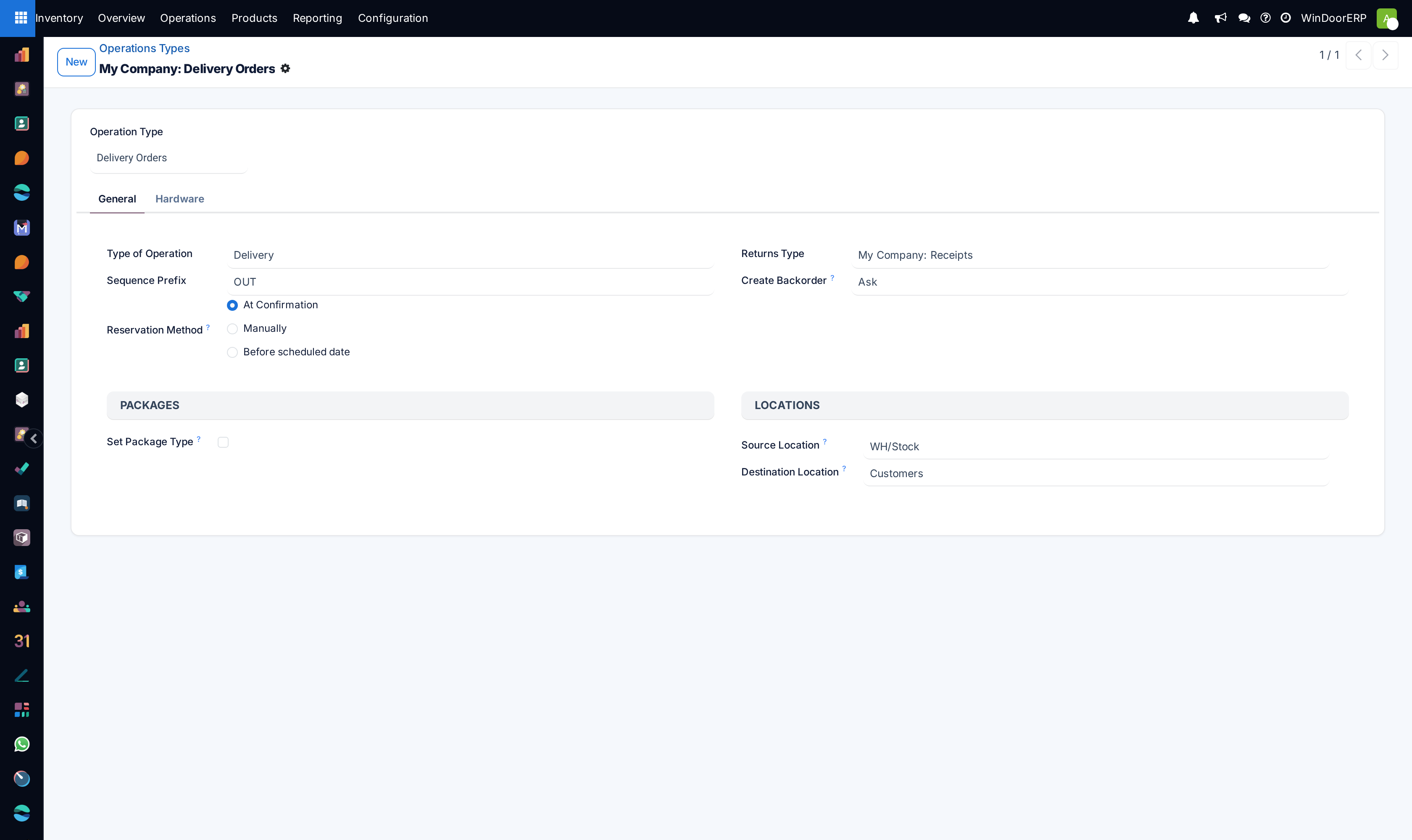
Go to Inventory › Configuration › Operations Types and open the delivery type.
-
02
Set Reservation Method to At Confirmation.
-
03
Save.
-
04
Confirm a sales order and open its delivery: the quantities are already reserved.
Configuration
To set the reservation method to at confirmation, navigate to the Inventory app › Configuration › Operations Types. Then, select the desired Operation Type to configure, or create a new one by clicking New.
In the General tab on the operation type form, locate the Reservation Method field and select At Confirmation.
Workflow
To see the at confirmation reservation method in action, create a new SO by navigating to the Sales app. On the Quotations page, click New.
On the quotation, add a customer in the Customer field. Then, in the Order Lines tab, click Add a product and select a product to add to the quotation from the drop-down menu. Finally, in the Quantity column, adjust the desired quantity of the product to sell.
Once ready, click Confirm to create the sales order.
Click the (area chart) icon on the product line to reveal the product's Availability tooltip, which shows the Reserved quantity for this order.
Note
If there is not sufficient quantity of stock for the product included in the SO, the (area chart) icon is red instead of green.
Instead of showing the reserved number of units for the order, the Availability tooltip reads Reserved and shows the reserved number of units (e.g., 0 Units).
To see all the factors that affect product reservation, click the View Forecast internal link arrow to view the Forecasted Report dashboard.
The Forecasted Report displays forecast information for the products included in the sales order, namely any live receipts of the product and any active sales orders, which are listed in the Used By column. See how each order is fulfilled in the Replenishment column.
Additionally, the Forecasted quantity is calculated at the top of the page by adding the On Hand and Incoming quantity and subtracting the Outgoing quantity, as shown below:
If one order should be prioritized over another order, click the Unreserve button on the corresponding order line in the Replenishment column.
To deliver the products, click the Delivery smart button at the top of the sales order form. To confirm that the reservation worked properly, ensure that the Product Availability field reads Available (in green text), and that the numbers in the Demand and Quantity columns match (in this case, both should read 10.00).
Once ready, click Validate.
Note
Delivery orders can be starred, or favorited. Unlike Before scheduled date reservations, adding a delivery order to favorites via the At Confirmation reservation does not prioritize it. The delivery order is only prioritized in the Inventory app's display of delivery orders.
Common mistakes
- Using it on long-lead jobs: material is locked to an order that will not ship for two months.
- Unreserving by hand to free stock and forgetting to reserve it again before the picking date.
Was this article helpful?
Thanks — your feedback helps.
Running a window or door factory?
Ask for a demo