Control Discuss notifications, and use roles to reach a whole team
What this does
Decides how loudly WindoorERP talks to you: whether a channel notifies you
on every message, only when you are mentioned, or not at all — and lets you
mute one noisy conversation without going silent everywhere. Alongside it,
Roles gives each team a name you can mention, so
@Site Installation Crew reaches everyone on that crew in one go.
Before you start
- Internal user access. Discuss › Configuration is not an administrator menu — notification settings belong to each person, and everyone sees their own.
- Creating or editing Roles does need administrator (Settings) rights; everyone else can read the list and mention what is in it.
Set your default, then tune per channel
-
01
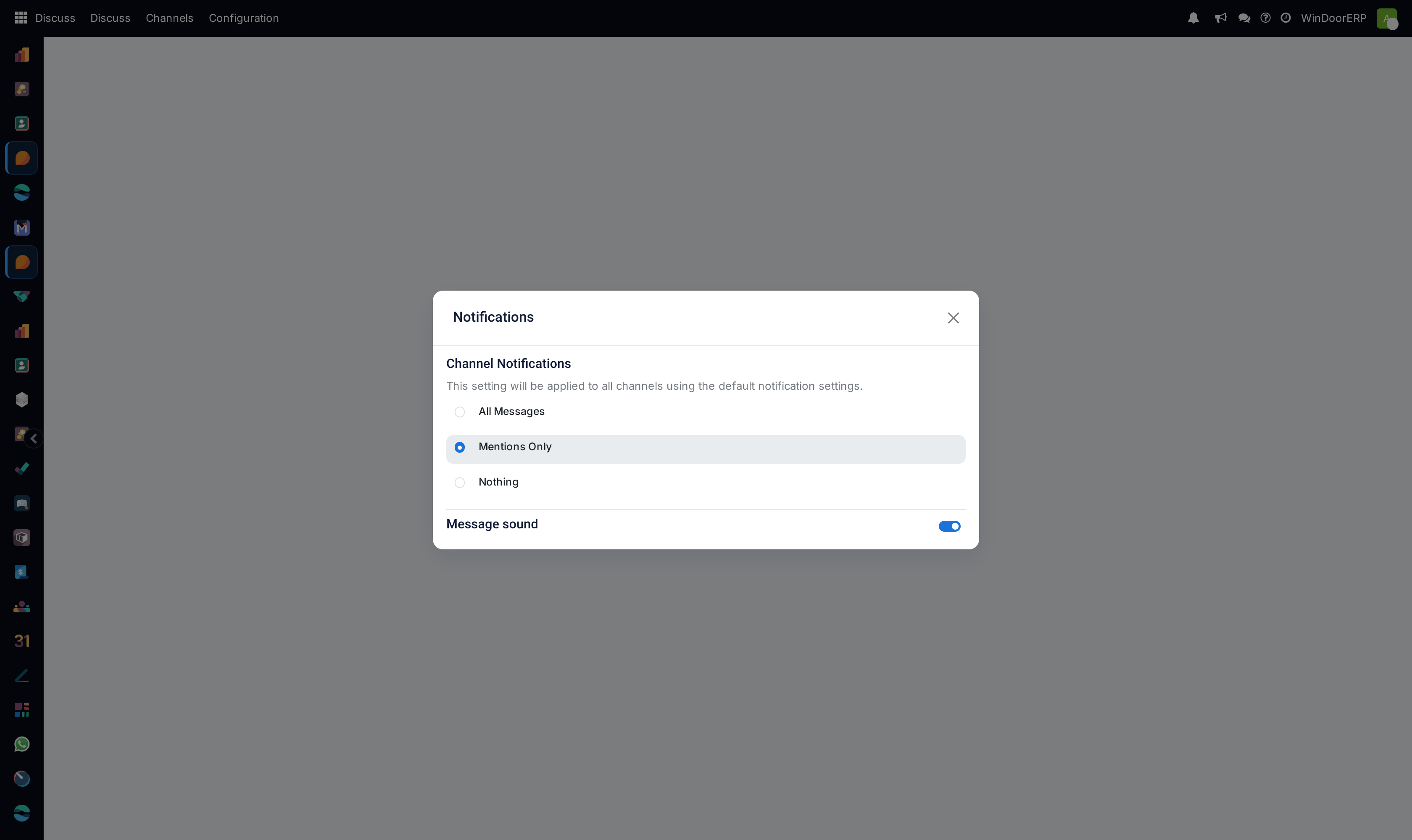
Open Discuss › Configuration › Notifications. Under Channel Notifications, choose All Messages, Mentions Only or Nothing, and turn Message sound on or off. This is your default, applied to every channel you have not set individually.
-
02
Open a channel that deserves different treatment and use its Notification Settings panel (the bell in the channel header).
-
03
Pick the level for that channel alone — the same three options, plus Use Default, which shows your default underneath so you always know what you are falling back to.
-
04
To silence something temporarily, choose Mute Conversation and a duration; Unmute Conversation appears in its place, with the date the mute expires.
The levels, and how long a mute lasts
| Setting | What you get |
|---|---|
| All Messages | Every message in the channel notifies you. Right for a small crew channel, punishing on a company-wide one. |
| Mentions Only | You are notified when somebody writes @your name or mentions a role you belong to. The sane default for busy channels. |
| Nothing | No notifications at all; the channel still shows unread messages when you look at it. |
| Use Default (per channel) | Follow whatever you set on the Notifications page — the value is printed under the option. |
| Mute Conversation | For 15 minutes, 1 hour, 3 hours, 8 hours, 24 hours, or Until I turn it back on. A timed mute lifts itself. |
Roles: a name for a team, not a rank
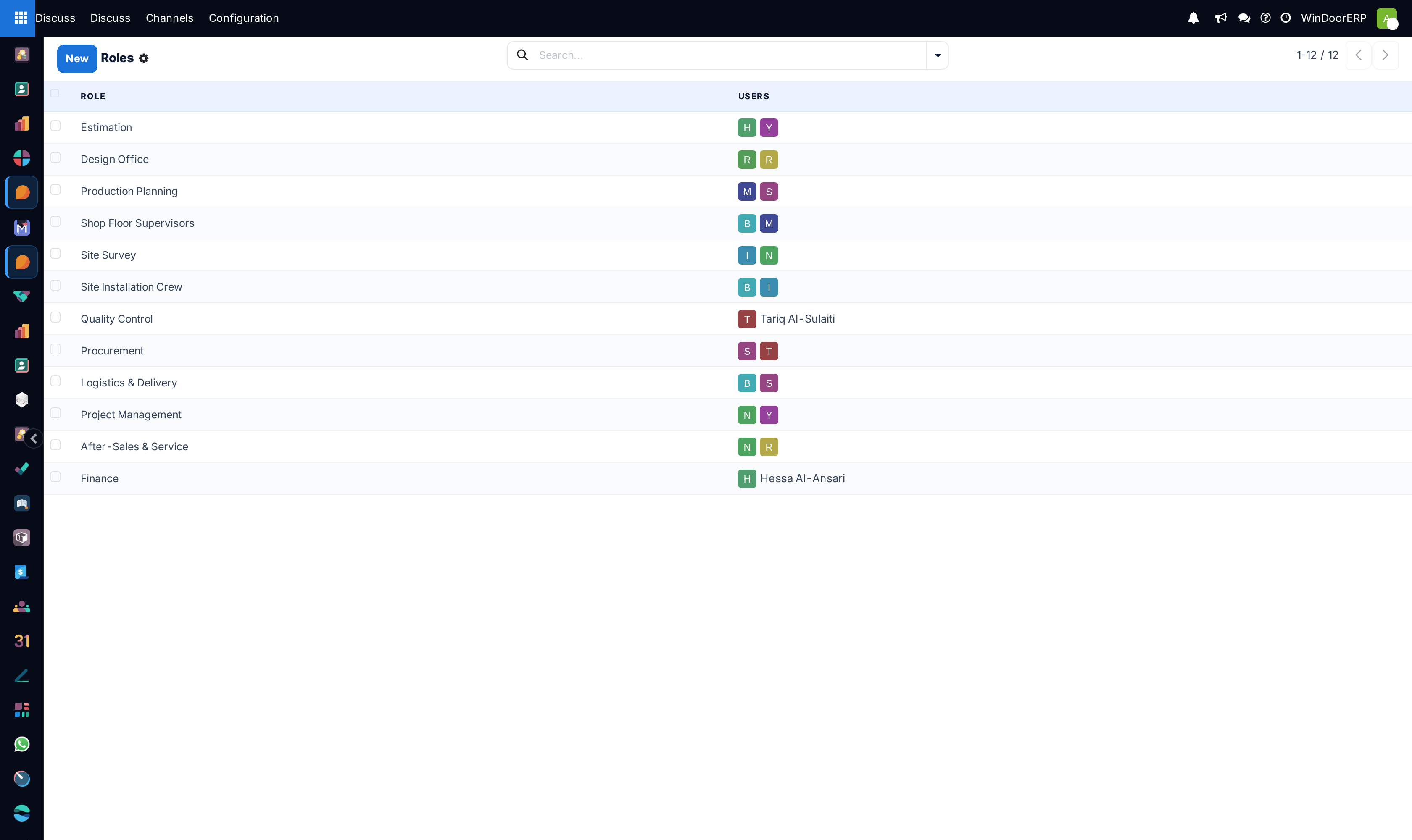
Discuss › Configuration › Roles holds a plain list:
a role name and the users in it. Mention the role in any message or chatter
and everyone in it is notified — @Quality Control reaches the
inspectors without you remembering who is on shift. This system ships twelve
of them, one per function: Estimation, Design Office, Production Planning,
Shop Floor Supervisors, Site Survey, Site Installation Crew, Quality Control,
Procurement, Logistics & Delivery, Project Management, After-Sales &
Service, and Finance. Keep their membership current and the mention stays
truthful.
A role grants nothing. It carries no moderation powers, no right to restrict who joins a channel, and no right to delete other people's messages — those things do not exist here as role settings, whatever a job title suggests. Who can open a channel is decided by the channel itself (public, private, or a direct message) and by who was invited; what anyone may delete or edit is decided by the ordinary access rights in Settings. Treat a role as an address list with a memorable name.
Desktop notifications live in the browser
Pop-up alerts outside the WindoorERP tab are a browser permission, not a field in your preferences. The first time it matters, the browser asks; allow it and WindoorERP confirms "Notifications allowed", refuse and it says "Notifications blocked" and stops trying. Change your mind later in the browser's own site settings — WindoorERP cannot re-ask once you have refused, and no administrator can turn it on for you.
Troubleshooting
A channel still pings you after you set Mentions Only — you set the default, but that channel has its own level; open its Notification Settings and choose Use Default.
You are notified for a message that never named you — check the roles you belong to; a mention of your role notifies you exactly like a mention of your name.
Nothing pops up outside the tab although notifications are on — the browser permission was refused or never granted, or the tab is focused (alerts appear when you are looking elsewhere). Fix it in the browser's site settings.
A muted channel is loud again — timed mutes expire by design; re-mute it, or choose Until I turn it back on if the silence should be permanent.
You want to force a policy on the team — you cannot: notification levels are personal. Agree conventions instead (announcement channels on Mentions Only) and use roles so the important messages reach people who muted the general chatter.
Common mistakes
- Leaving a company-wide channel on All Messages, then muting it forever after a week — the alerts you actually needed go with it. Use Mentions Only and roles.
- Expecting Roles to control who may post, join or delete; it controls who a mention reaches, nothing more.
- Letting role membership rot, so
@Site Surveynotifies two people who left and none of the surveyors working today.
Was this article helpful?
Thanks — your feedback helps.
Running a window or door factory?
Ask for a demo