Work your own deals: the My Pipeline filter, priority stars and next actions
What this does
My Pipeline is the deal board narrowed to the opportunities you personally carry. It is the same Kanban as the team pipeline, opened through a menu that adds one search facet — My Pipeline — so that the columns, the totals and the progress bars describe your own workload rather than the department's. This article covers what that facet actually selects, how the priority stars behave, what the next-action signal on a card is telling you, and which other views the same menu can switch to.
For the mechanics of the board itself — dragging between stages, marking a deal won or lost, rotting deals and merging duplicates — see Work the sales pipeline. For the queue of follow-ups you owe, see Work the My Activities queue.
Before you start
- You need a CRM role. The whole CRM menu is restricted to Salesperson and Sales Manager users; a user with neither never sees the app.
- At least one opportunity must name you as its Salesperson, or the board opens empty.
- Stages, tags and lost reasons are configured once by a manager. If a column you expect is missing, that is a stage setting, not a permission.
Open your pipeline
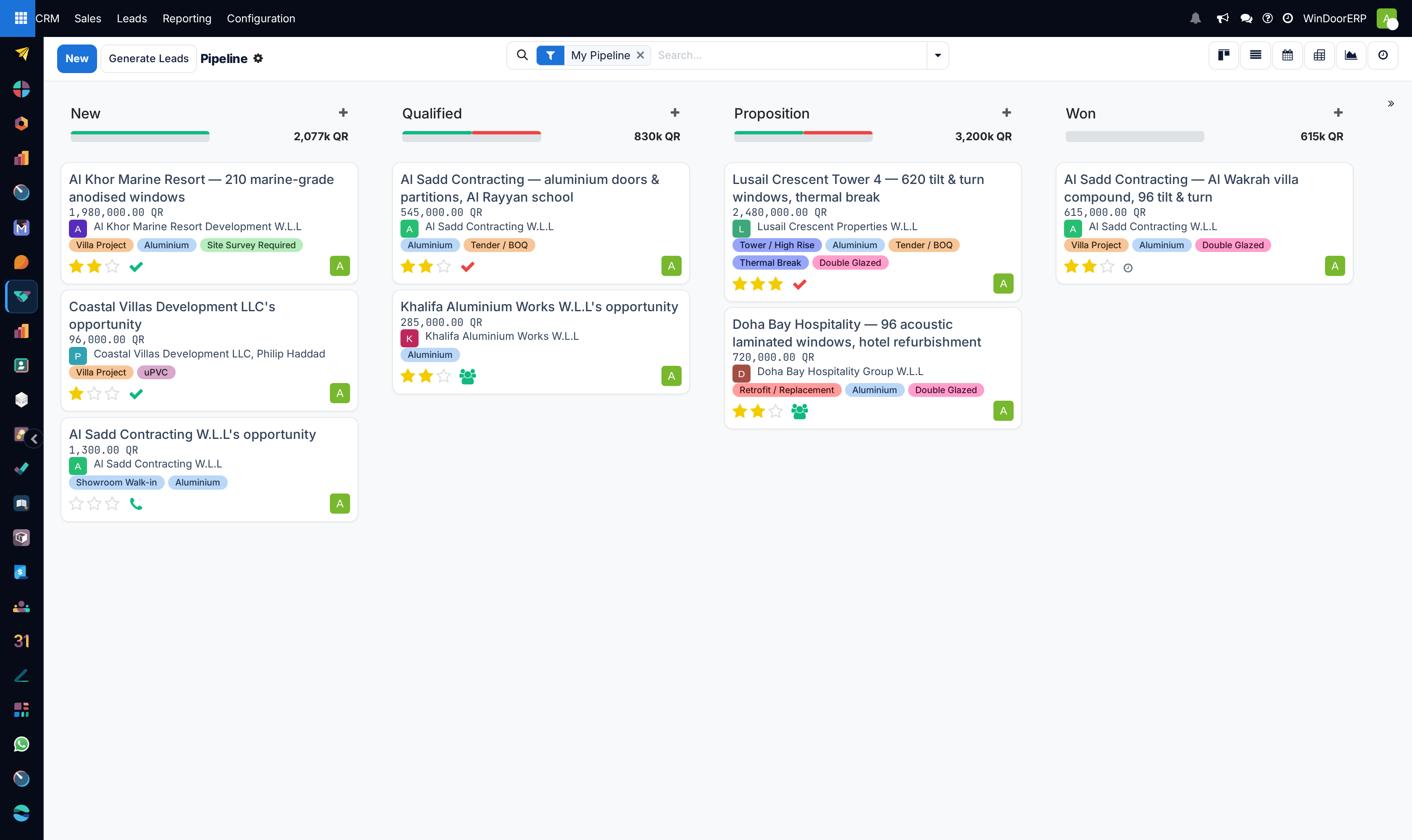
The breadcrumb reads Pipeline rather than My Pipeline. That is not a fault: the menu runs a small server action called Crm: My Pipeline whose only job is to fetch the Pipeline window action and hand it back, so the window keeps its own name. The same action answers on the short address /odoo/crm.
-
01
Go to CRM › Sales › My Pipeline. The board opens as a Kanban grouped by Stage, with the facet My Pipeline already in the search bar.
-
02
Read the column headers. Each shows the stage name, a thin progress bar split by the state of each deal's next activity, and the total Expected Revenue of the deals in that column.
-
03
Click a colour segment in a progress bar to keep only the deals in that state; click it again to release. Green is Planned, amber is Today, red is Overdue.
-
04
Set the stars on a card to record how much the deal matters to you, and use the activity icon beside them to schedule or check the next step.
-
05
Click New — at the top of the screen or the + in a column header — to add a deal without leaving the board.
What "mine" means here
The facet My Pipeline is a filter on one field: Salesperson — the deal's owner. It has nothing to do with who owes the next activity, and nothing to do with which sales team you belong to. Remove the facet and the board immediately widens to every opportunity in the database you are allowed to read, which on a small installation is the whole company.
The action's own domain restricts the board to records of type Opportunity. A record still sitting in the Leads queue never appears here whatever its salesperson says, and the Leads menu itself only exists when a manager has switched the Leads feature on — on a stock WindoorERP tenant it is off and every enquiry is created straight as an opportunity.
Which stage columns you get is decided per team. The board shows every stage that is shared with all teams, every stage attached to a team you are a member of, and any stage that already holds one of the deals on screen. A stage reserved for a team you do not belong to is simply absent from your board. On a stock system there are four stages, all shared: New, Qualified, Proposition and Won.
Note
If you belong to no sales team at all, an empty board shows a message offering to send you to Sales Teams to join one. It is guidance, not a filter — nothing in this version narrows the board to a team, so joining a team changes which stage columns you see and which leads the assignment engine may give you, not which deals are listed.
Priority: four levels, three stars
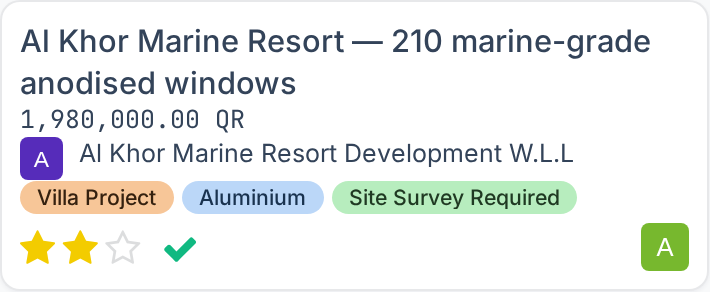
Priority is a four-value field rendered as three stars, so the lowest value is "no star lit". The values are Low (no stars), Medium (one), High (two) and Very High (three). Click a star directly on the card to set it; click the same star again to drop back to Low.
| Where priority appears | Behaviour |
|---|---|
| Kanban card | Along the bottom edge, left of the activity icon. Editable in place, no save needed. |
| Quick-create form | Beside Expected Revenue, so a deal can be rated the moment it is raised. |
| Opportunity form | Beside the deal name. |
| Opportunity list | An optional column, hidden by default. Add it from the column picker at the right end of the header row. |
Priority is a signal, not a selector: no shipped filter, group-by or sort uses it, and it does not affect the order of the cards, the column totals or the forecast. It also does not feed lead assignment — a member's Lead Priority Filter is a domain a manager writes, not this field.
The next-action signal
The small icon at the bottom of every card is the deal's next activity. Its shape is the activity type — a tick for a to-do, an envelope, a telephone, a group of people for a meeting, an upward arrow for a document — and its colour repeats the state used by the progress bar above.
| State | Meaning |
|---|---|
| Planned (green) | Every open activity on the deal falls after today. |
| Today (amber) | At least one open activity is due today and none is late. |
| Overdue (red) | At least one open activity is past its date. |
| No icon | Nothing is scheduled. This is the state to hunt for — a deal with no next step is a deal nobody is working. |
The state is taken from all open activities on the deal, not only yours, so a card can glow red because a colleague is late on it. Click the icon to read what is planned, mark it done, or schedule the next one without leaving the board.
Tip
Clicking the red segment of a column's progress bar is the fastest way to get a list of exactly the deals in that stage that have slipped. It is a per-column filter, so do it stage by stage.
The other views on this menu
The switcher at the top right offers six views on the same filtered set, in this order.
| View | What it gives you |
|---|---|
| Kanban | The default. Grouped by stage, drag-and-drop, progress bars and column totals. |
| List | The opportunity list — contact name, email, expected revenue with a running total, and stage. Everything else is an optional column. Multi-edit is on, and the header carries Mark Lost, Email and SMS for the rows you tick. |
| Calendar | Deals plotted on the month by the date of their next activity. It is read-only for creation — you cannot add a deal by clicking a day. |
| Pivot | Opens with Creation Date by month down the side, Stage across the top and Expected Revenue as the measure. |
| Graph | Opens on Stage against Salesperson. |
| Activity | Your deals against the activity types scheduled on them. The same board the My Activities menu opens, but on this menu's selection. |
Important
Days to Assign and Days to Close can be added as pivot measures, and they are totalled, not averaged. A cell reading 1,340 is the sum of the days of every deal underneath it, not a typical duration. To get an average, add Count as a second measure and divide. Both figures are absolute gaps measured from the creation date — to the moment a salesperson was first set, and to the closed date.
Troubleshooting
| What you see | Why, and what to do |
|---|---|
| The board is empty and offers to send you to Sales Teams | You are a member of no sales team and own no opportunity. Joining a team does not populate the board; being named Salesperson on a deal does. |
| You can see colleagues' deals | The My Pipeline facet has been removed from the search bar. Re-add it from the Filters menu, where it is listed as My Pipeline. |
| A deal you own is not on the board | Three usual causes: it is still a lead rather than an opportunity; it is lost, which archives it; or its Salesperson has been changed. The Lost filter only returns archived losses, so a restored deal is found under Ongoing. |
| A stage column you expect is missing | The stage is attached to sales teams and you are in none of them. A manager can share it by clearing its Sales Teams field. |
| No card ever shows the rotting badge | Days to rot is 0 on every stage on this system, which disables rotting. A manager sets it per stage. |
| The Won column shows a total but no green bar | Won deals usually have no open activity left, so they have no activity state to colour. |
Common mistakes
- Reading the column total as your commission base. It totals Expected Revenue at face value, with no weighting by probability — the weighted figure is Prorated Revenue, which the Forecast view uses.
- Working from the board with the My Pipeline facet dropped, and then reporting the whole company's pipeline as your own.
- Using the stars as a stage. Priority does not move a deal, does not filter anything, and is invisible to every report.
- Leaving cards with no activity icon. Nothing chases them, and they are invisible in the My Activities queue.
- Averaging Days to Close straight off a pivot cell. The cell is a sum.
Was this article helpful?
Thanks — your feedback helps.
Running a window or door factory?
Ask for a demo