Scope activity types to sales orders — and find the menu that lists them
What this does
An activity type is the kind of a to-do — Call, Email, Meeting, Document, To-Do — and it carries the icon, the default wording, how far ahead the activity falls, and what should happen when it is marked done. WindoorERP keeps one shared library of types for the whole database, and every app that uses activities offers its own window onto that library.
This article is about the Sales window: a list restricted to the types that quotations and sales orders can actually use, and a form that quietly stamps Sales Order on anything you create there. It is a small screen with two surprises — it is hidden by default, and what it hides is what it is doing to your records. Both are worth knowing before you build a type from here.
Before you start
- The menu is Sales › Configuration › Activities › Activity Types, and it will not be in your Configuration menu. It is a developer-mode item; the next section is how to reveal it.
- The everyday route to the same records is CRM › Configuration › Activities › Activity Types, which needs no developer mode and whose list already includes the sales-order types.
- Know the difference between a type and a plan. A type is one kind of activity; a plan is an ordered list of several. Change a type and every future activity of that kind changes with it, across every app.
- The field-by-field behaviour of the type form — action, schedule, chaining, default note — is documented once, in Define activity types: action, default summary, schedule and chaining. This article covers only what the Sales entry does differently.
Steps
-
01
Open Settings › General Settings, scroll to the Developer Tools block at the foot of the page, and click Activate the developer mode.
-
02
Go back to Sales › Configuration › Activities. Activity Types now sits above Activity Plans.
-
03
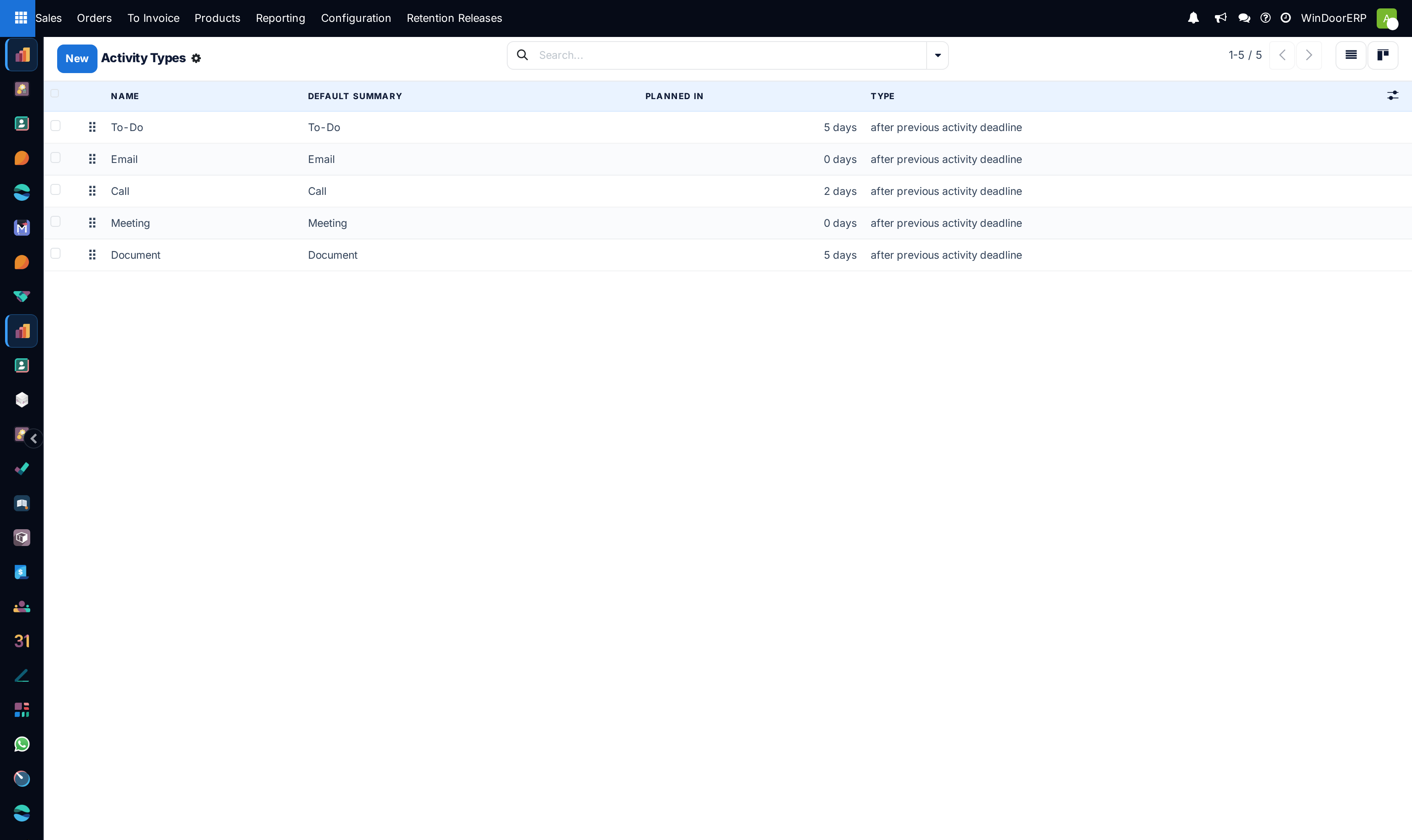
Read the list before adding anything. It shows the types a sales order may use — the general ones plus any already scoped to sales orders — so if what you want is already there, stop.
-
04
Click New and give it a Name. It is translated, so each language keeps its own wording.
-
05
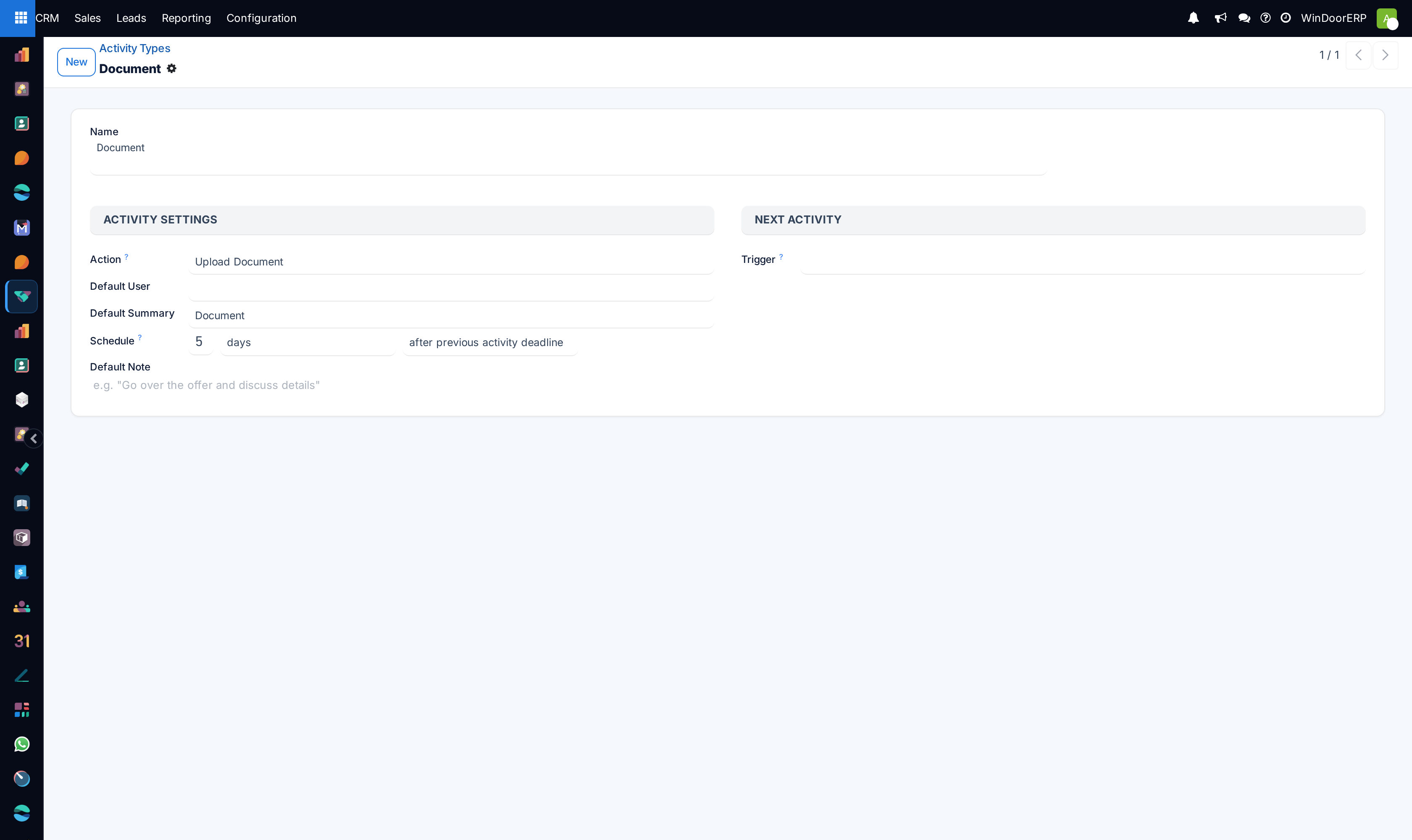
Fill in the rest of the form as you would anywhere else: Action, Default User, Default Summary, Schedule, Next Activity and Default Note.
-
06
Attach Email templates if the type is an email step. Only templates written for sales orders are offered, which is the one thing this entry gives you that the general list does not.
-
07
Save. Nothing on the form says so, but the type has just been bound to sales orders — read the warning below before you rely on it elsewhere.
Why the menu is not there
The Activity Types item under Sales carries a developer-only restriction, so the menu is filtered out of everybody's Configuration list until developer mode is switched on. Once it is on, the item appears for any internal user who can already see the Sales configuration menu — there is no separate access right to grant, and no setting to enable.
The neighbouring Activity Plans item is not restricted this way; it needs Sales Manager rights and is visible normally. So a Configuration menu showing Activities ▸ Activity Plans and nothing else is the expected state of this system, not a broken menu.
You almost never need this menu
The CRM entry at CRM › Configuration › Activities › Activity Types lists everything this one does and more — its filter admits types for leads, sales orders, contacts and products — and it needs no developer mode. Turning on developer mode changes several other screens at the same time and is easy to leave on by mistake. Use the CRM list unless you specifically want a new type to be born scoped to sales orders.
What this list is filtered to
The Sales entry shows types with no model at all, plus types whose model is Sales Order. Nothing else. On this fleet that comes to exactly the five general types that ship with the software — To-Do, Email, Call, Meeting and Document — because no sales-order-specific type has been created yet. Types added by other apps, such as the HR certification type or the WhatsApp follow-up type, are correctly absent: they belong to employees and contacts.
An archived type is hidden too. The software ships a sixth type, Exception, which arrives archived and stays that way; Filters ▸ Archived is the only filter this screen offers and is what brings it into view.
| Column | What it shows |
|---|---|
| Name | The type, with a drag handle at the start of the row for re-ordering. The order decides the sequence of the badges in the Schedule Activity dialog everywhere in the database. |
| Default Summary | The wording that pre-fills when somebody picks this type. |
| Planned in | The schedule as one phrase — 5 days, 2 days — built from the type's interval and unit. |
| Type | Which end the schedule is counted from: after previous activity deadline or after previous activity completion date. |
| Model | Not shown here. The column is suppressed on this entry because the menu has already fixed the model. It is the one column you would want, and the reason a type's scope is easy to lose track of. |
| Triggered Next / Suggested Next | Hidden by default; both available from the ⚙ column toggle at the right of the header row. Worth switching on before editing anything, because chains are invisible otherwise. |
Anything you create here is bound to sales orders
The Sales entry pre-sets the model, which has two visible effects and one invisible one. The Model field is hidden on the form — its normal placeholder, Available everywhere, never appears — and the Model column is hidden in the list. The invisible effect is that the new type is stored with its model set to Sales Order, and that stays true for the life of the record.
What that means in practice:
- The type is offered when scheduling an activity on a quotation or a sales order, and not when scheduling one on a lead, a contact, a project task or an employee. The dialog filters types to the record it is on.
- It can be used as a step in a sales-order activity plan, and it is rejected by a plan on any other model, with "The activity type … is not compatible with the plan … because it is limited to the model …".
- It appears in the CRM list of activity types as well, because that list admits sales-order types — so finding it there is not evidence that it is available on leads.
- To make it general again you have to open it from a screen that shows the Model field — the CRM entry, or Settings ▸ Technical ▸ Activity Types — and clear it.
Scoping is a one-way door in daily use
A type created here looks identical to a general one on every screen a salesperson sees, and behaves identically until somebody tries to use it somewhere else and finds it missing. If the kind of work is genuinely specific to selling — a technical submittal, a drawing approval chase, a sample delivery — scope it deliberately and it will keep the other apps' dialogs clean. If it is anything a colleague might want on a lead or a project task, create it from the CRM list with no model instead.
Email templates: the reason to scope a type at all
The Email templates field only exists on a type that has a model, and it offers only templates written for that model. Scope a type to sales orders and it can carry your quotation follow-up wording; leave a type general and the field is not there at all, because a template belongs to a model and there is nothing to offer.
Two consequences follow. Attaching templates is the one capability the Sales entry unlocks that the general list cannot. And changing a type's model afterwards silently drops any attached template that does not belong to the new model — the templates disappear from the field as soon as you change it, before you have saved.

Troubleshooting
| What you see | Why, and what to do |
|---|---|
| There is no Activity Types item under Sales › Configuration › Activities | It is a developer-mode menu. Switch developer mode on in Settings › General Settings ▸ Developer Tools, or use the CRM entry instead. |
| The list is much shorter than the one under CRM | Correct. This entry admits general types and sales-order types only; the CRM entry also admits lead, contact and product types. |
| A type you created here is missing when scheduling on a lead | It was bound to Sales Order on creation. Open it from the CRM list or from Settings ▸ Technical and clear the Model field. |
| There is no Model field on the form and no Model column in the list | Both are suppressed because the menu fixed the model. Open the same record from the CRM list to see and change it. |
| The Email templates field is not there | The type has no model. Reached from this menu it always does, so a missing field means you are looking at the record from a general list. |
| A type disappeared after somebody changed its model | It is still there, now scoped elsewhere. Look for it from the CRM list, which shows a wider set. |
| "The activity type … is not compatible with the plan …" | A plan on another model is trying to use a sales-order type. Either clear the type's model or build the step from a general type. |
| The Exception type is missing from every list | It ships archived. Use Filters ▸ Archived to see it; leave it archived unless you have a reason. |
Common mistakes
- Turning developer mode on to reach this menu and leaving it on. It changes what other screens show for everyone using that browser session.
- Creating a type here that the whole company needs, and finding it absent on leads and tasks a week later.
- Creating a type for every task. Types are kinds of work, not individual jobs — the job belongs in the summary.
- Editing a shipped type such as Call to mean something specific to the sales team. It is used across the whole database, by every app.
- Re-creating Email or Meeting under a sales-specific name instead of attaching an email template to a scoped copy.
- Changing a type's model and losing its attached email templates without noticing, because the field empties before the save.
See also
The full behaviour of the type form — Action, Default User, Schedule, Suggest against Trigger chaining, Default Note and the loops a trigger chain can create — is covered once, in Define activity types: action, default summary, schedule and chaining. Assembling types into a repeatable sequence for quotations is covered in Build activity plans for quotations and sales orders.
Was this article helpful?
Thanks — your feedback helps.
Running a window or door factory?
Ask for a demo