Follow a quotation after it is sent: revisions, expiration and follow-ups
What this does
A quotation is not finished when it is sent. It gets revised after the customer sees the price, it goes stale on a date somebody chose, it changes status when it is confirmed, and somebody has to chase it in between. CRM › Sales › My Quotations is where that whole afterlife is worked, and this article covers it: the statuses, the revision chain, the expiration date, the follow-ups, and the three views the screen offers for reading the same set of documents.
Raising the quotation in the first place — the New Quotation button on the opportunity, what it copies from the deal and the counters it feeds back — is a separate job and is covered in Raise a quotation from an opportunity. Start there if the quotation does not exist yet.
Before you start
- The menu item is called My Quotations, but the screen it opens is titled Quotations. It is the ordinary company-wide quotations screen with the My Quotations facet applied for you.
- That facet is a filter, not a permission. Clear it and you see everybody's; a quotation reassigned to a colleague leaves your list and appears on theirs.
- The list holds confirmed orders as well as quotations. Everything that started life as a quotation stays here after it is confirmed — that is what makes the status column worth reading.
- Revisions are a WindoorERP addition, not standard behaviour. If your system does not show a Create Revision button, the feature is not installed there.
Work the list
-
01
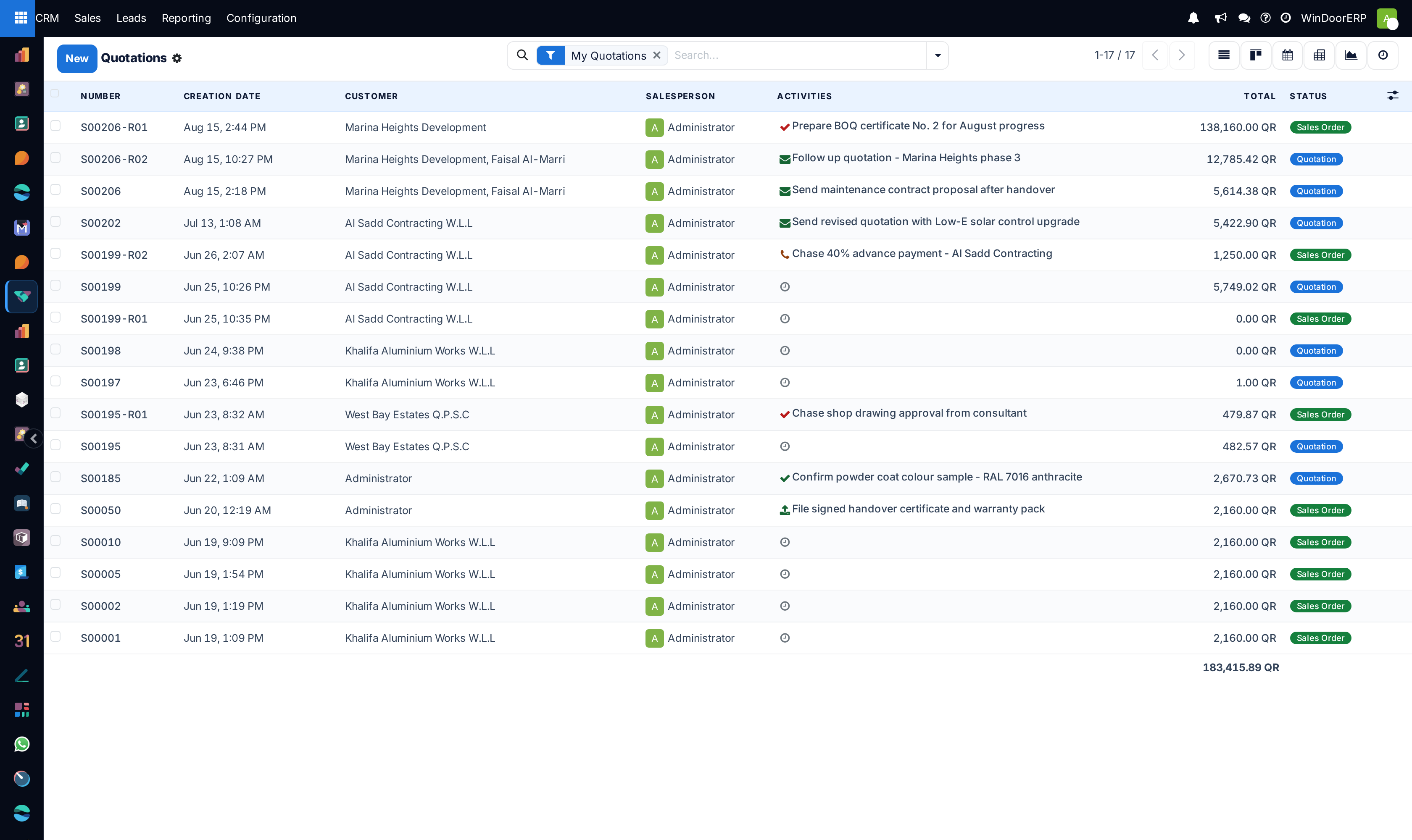
Open CRM › Sales › My Quotations. It lists your own documents, most recent order date first, and the foot of the Total column adds up what is on the screen.
-
02
Read the Status badge on each row to see where the document stands, and the Activities column to see what has been promised on it.
-
03
Open one that needs work. Use Send to issue it, or Create Revision when the customer has come back with changes.
-
04
Check Expiration on the quotation and move it out if the offer is still live — nothing in the system will do that for you.
-
05
Schedule the next chase from the chatter at the foot of the quotation so it shows in the Activities column and on the activity board.
-
06
Switch to the Calendar or the activity board with the icons at the top of the screen when you want the same documents laid out by their next follow-up rather than by date.
The list and its columns
The list opens on a reduced set of columns; the rest are behind the picker at the right end of the header row.
| Column | Notes |
|---|---|
| Number | The document reference, read-only. A revision carries the original's number with -R01, -R02 and so on appended. |
| Creation Date | When the document was created. This screen deliberately shows creation rather than order date, because a quotation has not been ordered yet. |
| Customer | Read-only here. It is the contact the offer was made to, which is not necessarily the invoicing address. |
| Salesperson | Shown as an avatar. This is the field the My Quotations facet matches on. |
| Activities | The next follow-up due, with its type icon. A grey clock means nothing is scheduled. |
| Total | Tax included, in the company currency, with a column total at the foot. |
| Status | The badge described below. |
The picker adds: Delivery Date, Expected Date, Sales Team, Company where more than one is in use, Untaxed Amount and Taxes (each with its own column total), Tags, Invoice Status, Customer Reference and Expiration. Add Expiration if chasing offers before they go stale is part of your week — it is hidden by default, and that is why most people never see it. Note that Order Date is not among them on this screen: it has been swapped out for Creation Date, although you can still group by it.
Ticking rows puts a Create Invoices button in the header. That is an invoicing action, not a quotation one; leave it alone unless invoicing is your job.
The four statuses
| Badge | What it means |
|---|---|
| Quotation | Drafted, never sent. Fully editable. |
| Quotation Sent | Issued to the customer. Still editable, still a quotation. |
| Sales Order | Confirmed. The customer, the order date and the expiration are locked, and the document is now a commitment. |
| Cancelled | Withdrawn. The row goes grey. Cancelling is not the same as losing the deal — the opportunity in the pipeline is a separate record with its own won and lost state. |
There is no expired status and no revised status. Both of those are conditions rather than states, and both are described below.
Revisions
When a customer comes back with changed sizes, a different glass build-up or a request for a better price, the honest answer is a new document rather than an edit to the one they have already seen. Create Revision in the quotation header does that in one press.
| What happens | Detail |
|---|---|
| A new quotation is created | In status Quotation, numbered after the original — S00206 becomes S00206-R01, then S00206-R02. Numbering always counts from the original, so revising a revision continues the same series. |
| It is an exact snapshot | Description, quantity, unit of measure, taxes, unit price and discount are copied line for line, and the pricelist, payment terms and fiscal position are copied on the header. This matters: without that pinning the copy would re-price itself from today's pricelist, and the revision would silently differ from the quotation it claims to revise. |
| Both documents are noted | The original's chatter records that a revision was created and links to it; the revision's chatter records which document it is a revision of. |
| The original is left alone | It is not cancelled, not archived and not marked in any way. If it should not be acted on any more, cancel it yourself. |
| A Revisions counter appears | A smart button at the top of the document, counting the revisions in the family. |
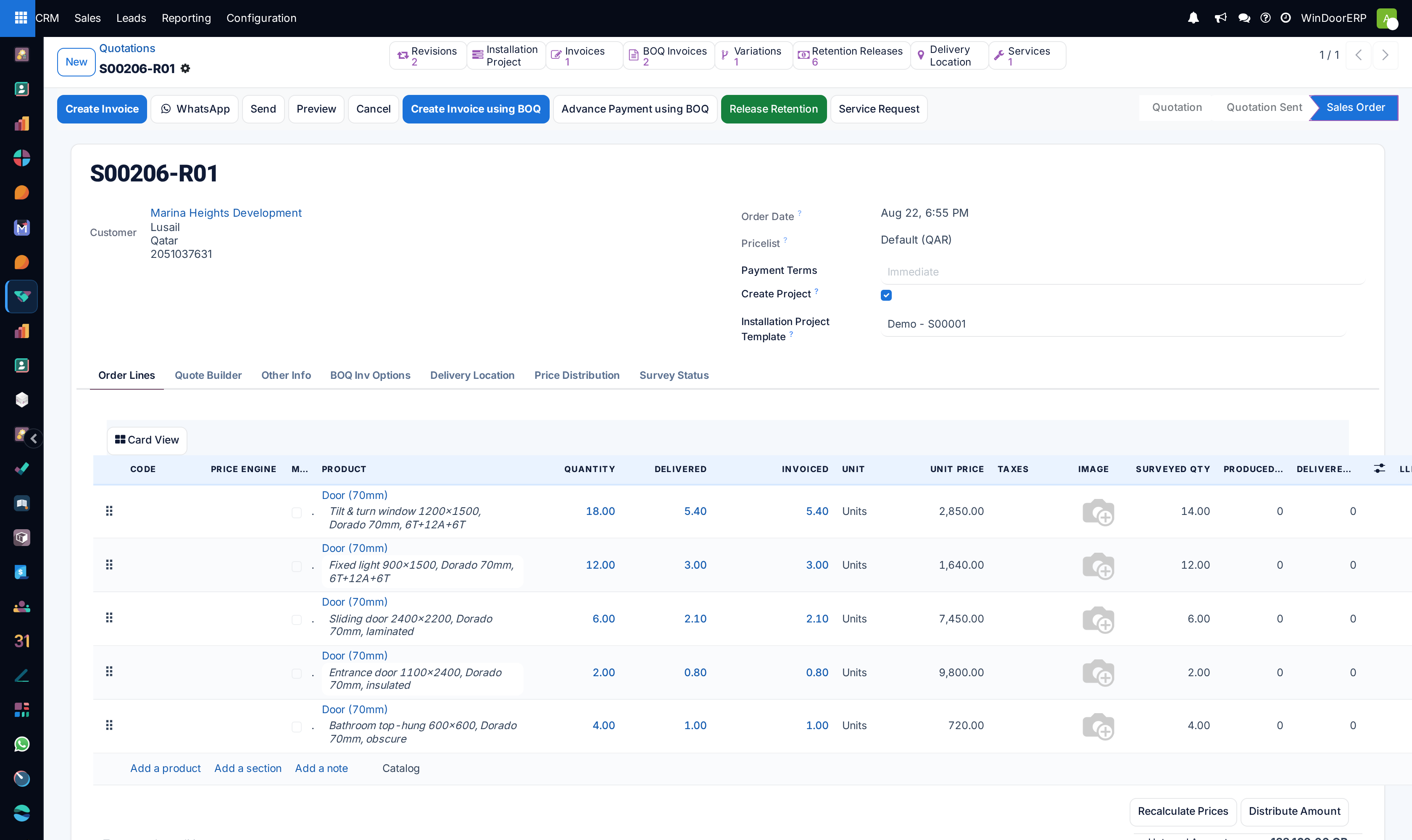
The button is only offered while the document is a Quotation or Quotation Sent. Press the equivalent on a confirmed order and you are refused with "Only draft or sent quotations can be revised." — a message that appears in English even in the Arabic interface, because it is not among the module's translated strings. A confirmed order that has to change is a variation or an amended order, not a revision.
Open the original to see the family
The Revisions counter is calculated from the original quotation, but the list it opens is filtered on the document you are standing on. On the original that works, and you get every revision of it. On a revision, the counter still reads two or three while the list it opens is empty — the revision has no revisions of its own. It is not data loss; go back to the base quotation, whose number is the part before the -R, and open the counter from there.
Both the original and every revision stay in the list as separate documents, and every one of them adds its value into the Total at the foot of the column. A job quoted three times is counted three times. Keep that in mind before quoting a figure from the bottom of this screen — and see Total your own quotations in the pivot and graph for what that does to the reporting.
Expiration
The field is called Expiration and it sits with the order details on the quotation, above the pricelist. It is filled in for you when the quotation is created: today plus the number of days set on the company, which on this system is 30. Change it freely while the document is a quotation; it is locked once the order is confirmed, and it disappears from the form entirely at that point, because a confirmed order does not expire.
What expiry actually does is narrower than most people assume.
| Where | What happens when the date has passed |
|---|---|
| The back office | Nothing. There is no banner, no status change, no badge, and no scheduled job that cancels anything. An expired quotation looks exactly like a live one. |
| The list | Nothing either, and there is no Expired filter to add. Show the Expiration column and sort on it — that is the whole mechanism. |
| The customer portal | This is where it bites. The customer's own list shows a red Expired pill, and the quotation page carries a warning reading "This offer expired!" with an invitation to contact you for a new one. |
| Online signature and payment | Both are refused on an expired quotation. If a customer says the sign button has vanished, check this date first. |
Push the date rather than raising a new document
When an offer is still good and only the date has run out, edit Expiration and re-send. A revision is for a changed offer; extending validity is not a changed offer, and issuing -R01 for it makes the revision history harder to read later.
Follow-ups, and where the customer's answer is kept
Everything the customer says about a quotation belongs on the quotation. The chatter at the foot of the document holds the messages sent from Send, any note you log after a phone call, and the completion notes of activities as they are finished. That record is what makes a price objection or a promised deadline findable months later, and it is the only place any of it is kept — none of it is a field.
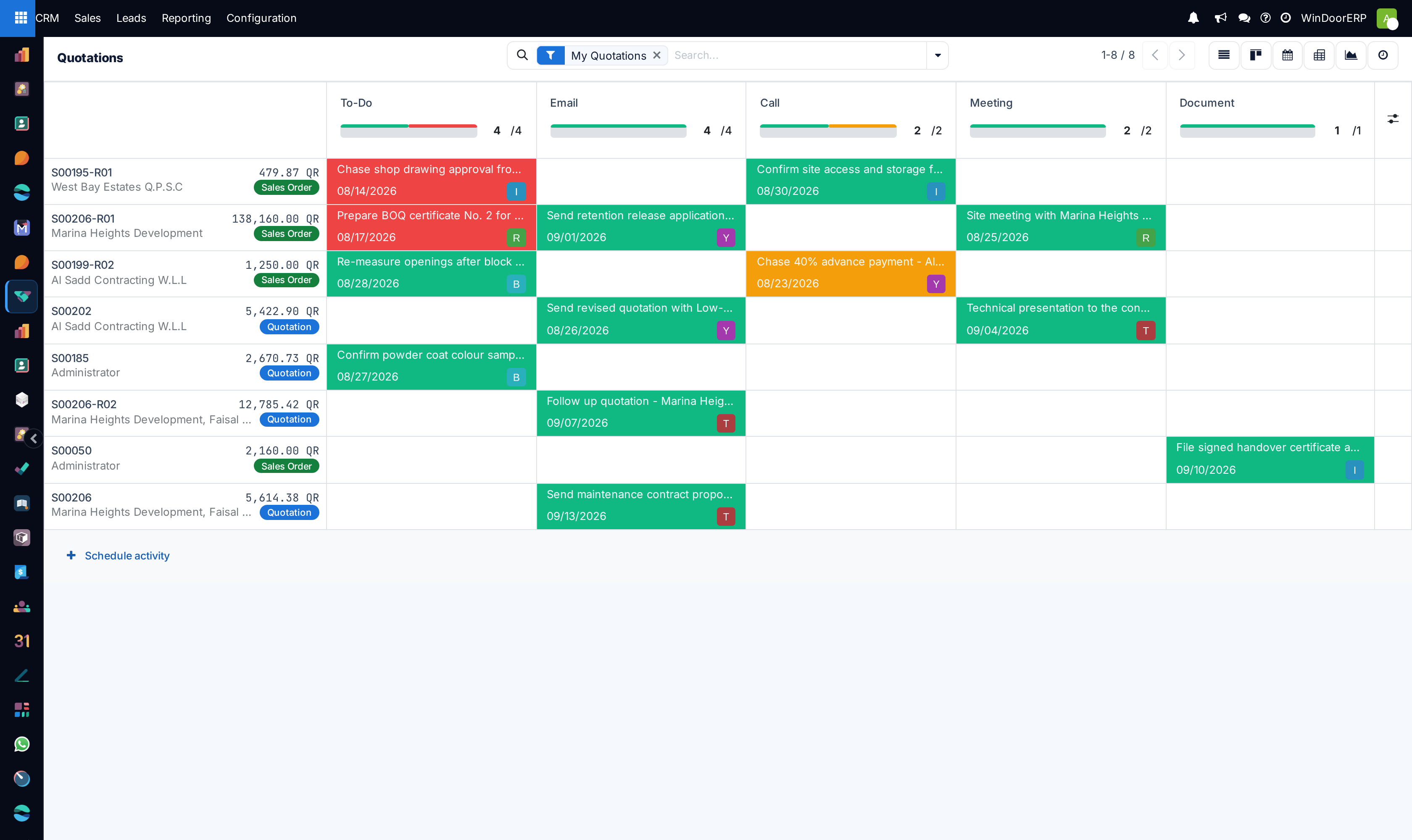
The next step is scheduled the same way as on a deal: Activity in the chatter, pick a type, write what the step actually is, set the date and the owner. What you write in Summary is what appears in the Activities column of the list and in the cell on the activity board, so write the step rather than the type.
| View | What it gives you |
|---|---|
| Activity board | One row per document, one column per activity type, with a progress bar and count in each column header. Red is overdue, amber is due today, green is ahead. Hovering an empty cell offers a + to schedule that kind of step, and Schedule activity under the last row adds one to a document you pick. Only documents that carry an activity appear. |
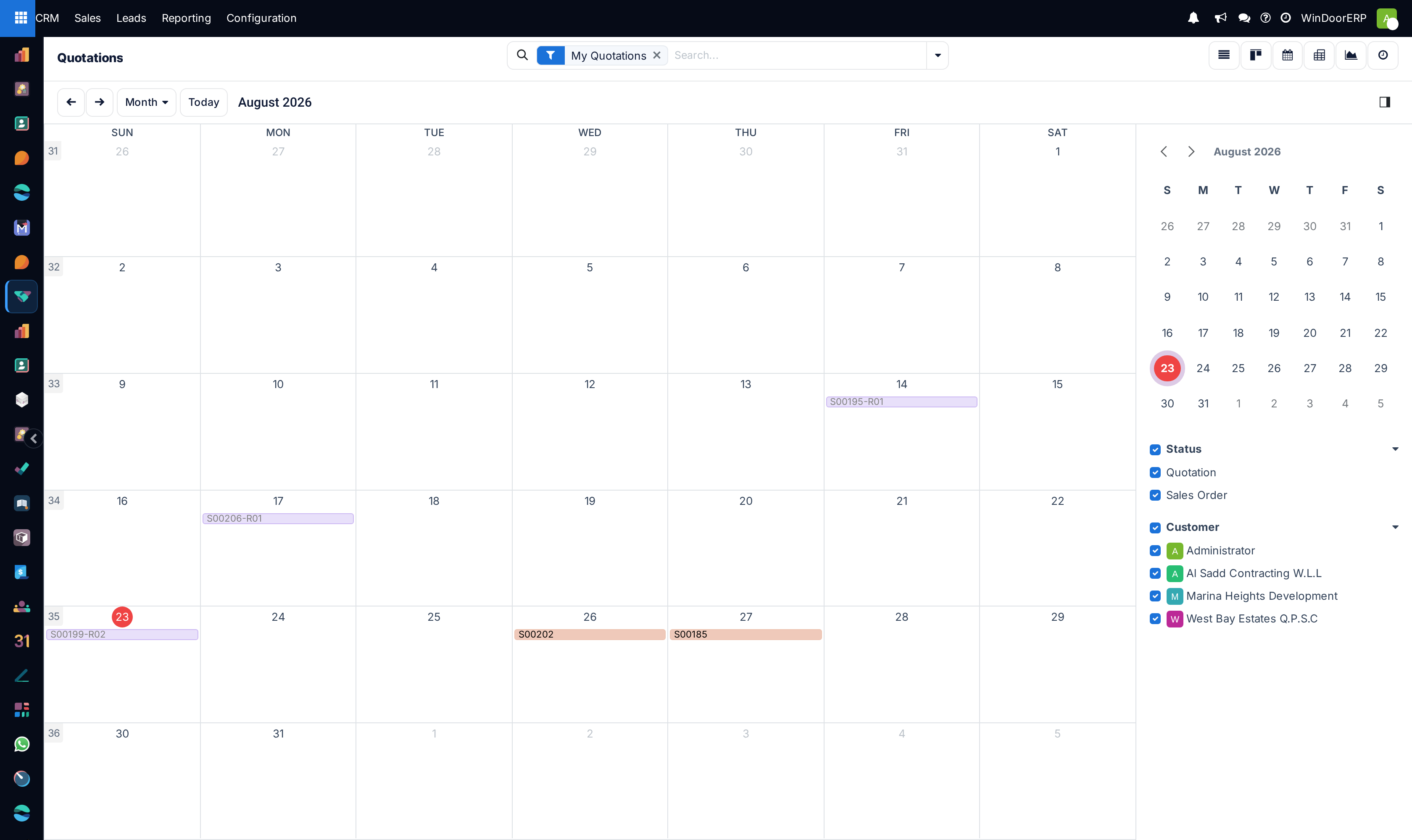
| Calendar | The same documents on a month, each placed on the date of its next follow-up and coloured by status. The side panel filters by Status and by Customer. Like the CRM calendar it cannot create and cannot be dragged, and a document with nothing scheduled on it is simply absent. |
| Kanban | Cards with customer, total and status badge. Useful on a small screen, not much else. |
| Pivot and graph | Totals of the money on the screen. See Total your own quotations in the pivot and graph. |
Filters, search and grouping
This screen has a deliberately short filter list, and it is not the one on the Sales app's own orders screen.
| Filter | What it keeps |
|---|---|
| My Quotations | Documents where you are the salesperson. Applied by default. |
| Quotations | Status Quotation or Quotation Sent — everything not yet confirmed. |
| Sales Orders | Status Sales Order only. |
| Create Date | A period picker on the creation date, with the usual month and quarter comparisons. |
The search box additionally matches on Order (number, customer reference or customer), Customer, Salesperson, Sales Team, Product, Activities of, Activity type and Campaign. Group by is limited to Salesperson, Customer, Order Date and Payment Method.
Two absences are worth knowing. There is no Late Activities, Today Activities or Future Activities here, unlike the My Activities queue — sort the Activities column or use the activity board instead. And there is no To Invoice or To Upsell; those live on Sales › Orders › Orders, which is the same model with a different search view.
Troubleshooting
| What you see | Why, and what to do |
|---|---|
| A quotation you were working on is missing | You are no longer its salesperson. Clear the My Quotations facet and search for the number. |
| "Only draft or sent quotations can be revised." | The document is confirmed or cancelled. Revisions are for offers, not for orders. |
| The Create Revision button is not in the header | Same reason: it is hidden on anything that is not a Quotation or Quotation Sent. |
| The Revisions counter opens an empty list | You are standing on a revision. Open the base quotation — the number before the -R — and press it there. |
| A revision has different prices from the original | It should not: prices, discounts and taxes are pinned when the copy is made. If they differ, somebody edited the revision afterwards. Compare the two documents line by line. |
| The customer says the quotation expired | Look at Expiration. It defaults to 30 days from creation and nothing renews it. Move the date and re-send. |
| The customer cannot sign or pay online | Same field. Signature and payment are both refused past the expiry date. |
| The column total looks far too big | Revisions and their originals are all in it, and confirmed orders are in it too. Add the Quotations filter, or read the number as document value rather than as pipeline value. |
| A document is absent from the calendar or the board | Neither view can place a document that has no activity scheduled on it. Use the list. |
Common mistakes
- Editing a quotation the customer has already received instead of issuing a revision, so nobody can reconstruct what was offered when.
- Issuing a revision to extend an expiry date, which fills the history with revisions that changed nothing.
- Leaving the original live beside its revision, so two valid offers for the same job are outstanding at once.
- Reading the total at the foot of the list as the value of your pipeline, when it counts every revision and every confirmed order.
- Keeping the customer's objections in your inbox instead of the chatter, where the next person to touch the job would find them.
- Waiting for the system to warn you about an expiry. It never does — only the customer's portal says anything.
Was this article helpful?
Thanks — your feedback helps.
Running a window or door factory?
Ask for a demo