Quotation expiry: where the Expiration date comes from and what it actually blocks
What this does
Every quotation carries an Expiration date, and WindoorERP fills it in for you the moment the quotation is created. This article is about that one date: where its value comes from, what expiry actually stops and what it very deliberately does not stop, and how to find the quotations that are about to run out — because nothing in the system goes looking for them on your behalf.
It matters most on fenestration work, where a quotation is priced from aluminium, glass and hardware costs that move. The date is the sentence in your offer that says "this price holds until". What the software does with it is narrower than most people assume, and knowing exactly how narrow is what stops a team relying on a safeguard that is not there.
Before you start
- Expiration is a field, not a workflow. Nothing archives, cancels, hides or flags an expired quotation inside the app. There is no scheduled job that expires anything.
- The default comes from a company setting that ships at thirty days and is set to thirty on every company on this fleet.
- Building the quotation itself — customer, order lines, sections, Send and Confirm — is covered in Build a quotation: customer, expiry, designed lines, sections and Confirm. This article picks up the one field that article introduces.
Steps
-
01
Set the house default first. Open Sales › Configuration › Settings, find the Quotations & Orders block, and set Default Quotation Validity. The tooltip is the whole rule: days between quotation proposal and expiration; 0 days means automatic expiration is disabled. The value is per company, and a negative number is refused.
-
02
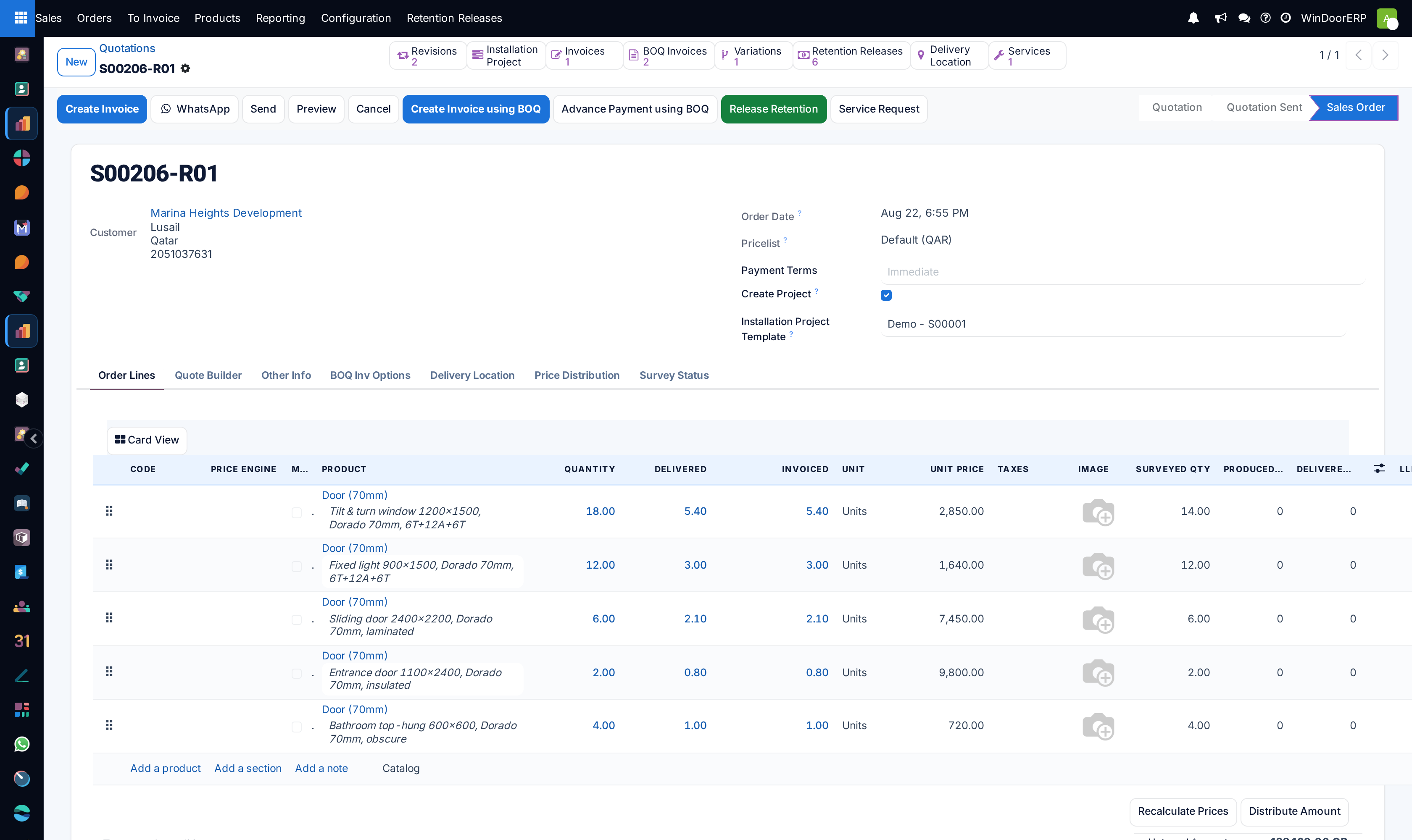
Open Sales › Orders › Quotations and create or open a quotation. Expiration is the first field in the right-hand column of the header, above Pricelist.
-
03
Read the date that is already there. It is today plus the company's validity, not a blank waiting to be filled.
-
04
Override it by typing a date when a particular job needs a shorter or longer window — a tender with a fixed submission deadline, or a supply price you have locked with your own vendor.
-
05
Use Preview before you send the first quotation of a new season. The date appears on the customer's portal page and on the printed quotation, labelled Expiration Date and Expiration respectively.
-
06
Turn on the Expiration column in the quotations list — the ⚙ optional-column toggle at the far right of the header row — and sort on it. This is the quickest way to see the dates side by side.
-
07
Chase the ones that are close. Schedule an activity on the quotation so the follow-up appears in the calendar and the activity board, which is what those views actually track.
Where the date comes from
The value is computed once, when the quotation is created, as today plus the company's Default Quotation Validity. It is then a stored, editable date like any other — it does not slide as the days pass, and it does not recompute when you edit the lines, change the pricelist or send the quotation again.
| Field | What it does |
|---|---|
| Expiration (on the quotation) | Its help text is exact: validity of the order, after that you will not able to sign & pay the quotation. Editable while the quotation is a draft or sent; read-only once confirmed or cancelled, and hidden entirely on a confirmed order because it no longer means anything. |
| Default Quotation Validity (company setting) | Whole days. 30 as shipped, and 30 on every company here. Set it to 0 and new quotations are created with an empty Expiration — that is the supported way to switch the whole mechanism off. |
| Quotation Duration (on a quotation template) | A template can carry its own validity that overrides the company default. Quotation templates are not enabled on this fleet, so on your system this field is not reachable. |
What expiry actually blocks
Expiry is enforced in exactly one place: the customer portal. Once the date has passed and the order is still a quotation, the portal page for that quotation stops offering the customer any way to accept it.
- The Accept & Sign button disappears, and so does an online payment button where one is configured. The rule is the same for both: the order must be draft or sent, and not expired.
- A warning banner appears across the top of the page: "This offer expired!", with a link inviting the customer to contact you for a new quotation.
- In the customer's portal list of quotations — the page headed Quotations, whose date column is Valid Until — the row picks up a red Expired pill beside its total.
- The "Your advantage" savings panel is hidden too, so an expired offer no longer advertises its discount.
Nothing is blocked on your side
Inside the app an expired quotation behaves exactly like any other. Confirm still works and raises no warning. The list shows no badge, no colour and no icon; the form shows nothing beside the date. You can edit it, send it again and confirm it a year late, and the software will not object once. If your commercial policy is that an expired price must be re-approved before it is confirmed, that policy has to live with your people — there is no control here to enforce it.
Finding quotations that are about to expire
There is no shipped filter for this, and there cannot be a simple one: the flag the portal reads, Is Expired, is computed on the fly rather than stored, so it cannot be searched, filtered or grouped on. What you can search is the date itself, which is stored.
- The Expiration column. Add it from the ⚙ toggle at the right of the list header and click the column to sort. Quickest reliable method, and it works with any other filter you already have on.
- A custom filter. Filters ▸ Custom Filter… on Expiration with a range covering the next week, combined with the Quotations filter so confirmed orders are excluded. Save it as a favourite and it becomes a one-click list.
- The Momentum home page. If Momentum is installed on your tenant, its insight panel raises a "N quotes expiring soon" card with a View Quotes button. Read its scope before relying on it: it looks only at quotations where you are the salesperson, only at ones still in Quotation state — a quotation you have already emailed has moved to Quotation Sent and will not appear — within a window of today to three days out, and it shows at most five.
The Calendar view is not an expiry calendar
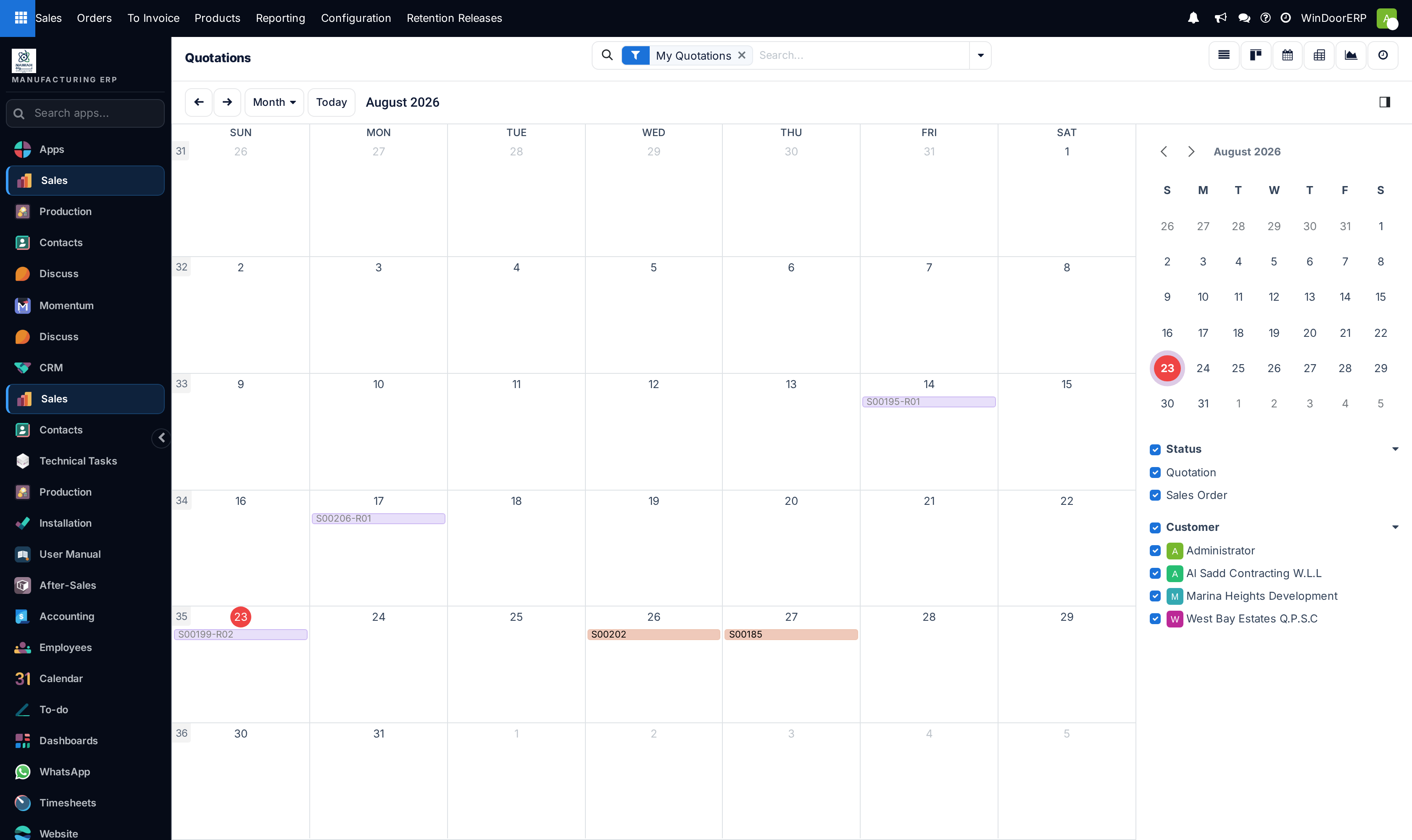
This is worth stating plainly because the opposite is widely assumed, and because an earlier version of this very page said otherwise. The Calendar in the view switcher of the Quotations screen plots each order's next activity deadline. It has nothing to do with Expiration.
Three things follow. A quotation with no scheduled activity does not appear on the calendar at all, whatever its expiry date. The chips you do see are somebody's follow-up tasks, not offers running out. And the calendar cannot create records, so there is no way to place an expiry on it. The same calendar, and the activity board beside it, are covered in full in Track order deadlines and fulfilment status — and what the calendar actually plots; everything that article says about the Orders menu is true of this one.
Make expiry visible by making it an activity
Because activities are what the calendar and the activity board read, the practical way to see expiries coming is to schedule one. When you send a quotation, schedule a Call a few days before its Expiration. The date then shows up everywhere deadlines show up, it belongs to a named person, and it turns red when it is late. An activity plan can do this for you on every quotation — see Build activity plans for quotations and sales orders.
Troubleshooting
| What you see | Why, and what to do |
|---|---|
| Expiration was already filled in and nobody typed it | Correct. It is computed on creation from the company's Default Quotation Validity, thirty days as configured here. |
| New quotations are created with no Expiration | Default Quotation Validity is 0 for that company, which switches automatic expiration off. Set a positive number of days. |
| The setting was refused with a message about a negative number | A database constraint blocks it: "You cannot set a negative number for the default quotation validity. Leave empty (or 0) to disable the automatic expiration of quotations." |
| Changing the setting did not move the dates on existing quotations | By design. The date is stored on each quotation when it is created; the setting only affects quotations made after the change. Edit the existing ones individually. |
| The customer says the accept button has vanished | The quotation has expired, or it has already been confirmed or cancelled. Extend the Expiration and the button returns on the same portal link. |
| The Expiration field is missing from a record | It is confirmed. The field is hidden once the order reaches Sales Order, because a validity date on a live contract has no meaning. |
| There is no Expired filter in the Filters menu | There is none to add. The expired flag is computed rather than stored, so it cannot be searched on. Filter on the Expiration date instead. |
| The calendar shows nothing although several quotations are expiring | The calendar plots activity deadlines. It will stay empty until somebody schedules activities. |
Common mistakes
- Believing an expired quotation cannot be confirmed. It can, silently, by anyone.
- Clearing the Expiration to "keep the offer open". An empty date removes the portal expiry entirely, which is the opposite of a safeguard.
- Changing the company setting and expecting the quotations already out with customers to follow.
- Reading the Calendar as a schedule of expiries.
- Relying on the Momentum insight as complete coverage. Its count stops at five, it is limited to your own quotations, and skips anything already in Quotation Sent — which is most of what you have actually emailed.
- Setting a long validity on a fenestration job to look generous, then honouring a price built on last quarter's aluminium.
See also
Creating the quotation and everything else on its form is covered in Build a quotation: customer, expiry, designed lines, sections and Confirm; the calendar, activity board, pivot and graph behind the same view switcher are covered in Track order deadlines and fulfilment status — and what the calendar actually plots; reading the Quotations list as a book of work is covered in Work the Quotations list: its filters, its seven views, and what the pivot really counts.
Was this article helpful?
Thanks — your feedback helps.
Running a window or door factory?
Ask for a demo