Look up a customer from CRM: the Customers directory, its counters and the account record
What this does
CRM › Sales › Customers is how a salesperson reaches the address book from inside CRM. It opens the contact directory with a set of counters that summarise, per contact, how much business is attached to it — opportunities, orders, invoices and meetings — so you can judge an account before you open it.
The record itself is the shared contact record used by every application, and it is documented in full under Keep one contact record per company, person and site. This article covers what the CRM entry point gives you that the plain Contacts app does not: the counters, the sales-side fields, and the traps of a directory that is labelled "Customers" but is not filtered to customers.
Before you start
- The menu needs a CRM role, and the counters are group-dependent: the opportunity and order counts need a Salesperson role, the invoice count needs an accounting role.
- Contact tags — the coloured chips on a card — are shared with every application. Agree the vocabulary before inventing new ones.
- Nothing here is CRM-only data. Editing a contact from this menu edits the same record Sales, Purchase and Accounting use.
Find an account
-
01
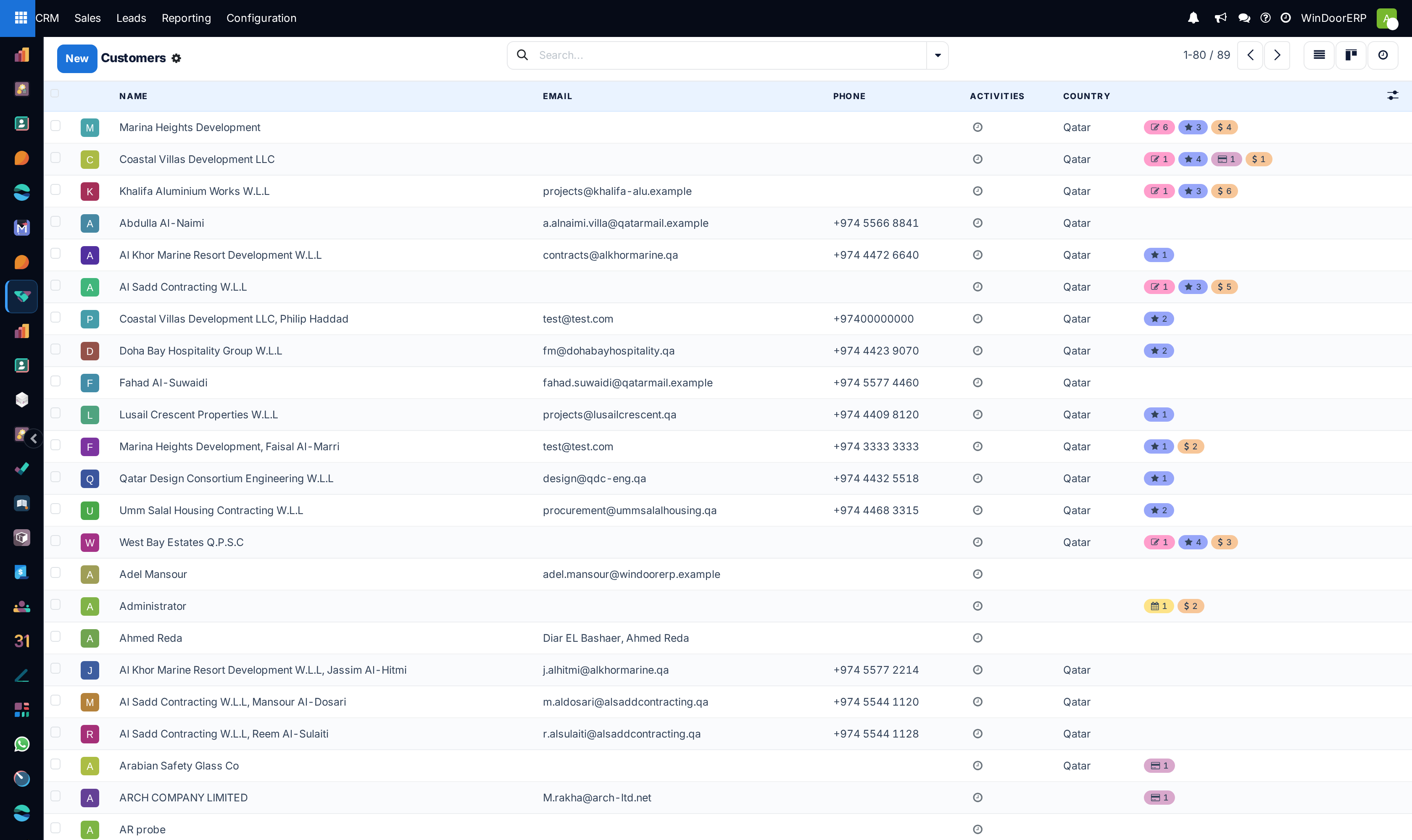
Go to CRM › Sales › Customers. The directory opens as a list.
-
02
Type into the search box. Typing alone matches the displayed name only; to search an email address, a phone number, a tag or a salesperson, type the value and pick that heading from the dropdown the search box offers.
-
03
Narrow with Filters if the list is too broad: Customer Invoices keeps the contacts that have actually been billed, Vendor Bills the suppliers, Companies and Persons split the two kinds of record, and Archived brings back what has been retired.
-
04
Read the counters at the end of a row before opening anything — they tell you whether this is a live account or an empty card.
-
05
Open the record, or switch to Kanban for the same information as cards with location and tags.
The list is the whole address book
The menu is labelled Customers, but the screen behind it carries no filter of any kind. Every contact in the database is in it: companies and individuals, customers and suppliers, the child contacts that sit under a company, and the contact records of your own colleagues. The pager count is the size of the address book, not the size of your customer base.
That is worth knowing rather than fighting. Use Customer Invoices when you need the billed customers, and remember that a genuine new prospect who has never been invoiced will not be in that filtered list either.
| Column | Notes |
|---|---|
| Avatar | The contact's image, or a coloured initial. On a child contact the parent company's logo is tucked into the corner. |
| Name | The full name, which for a child contact reads Company, Person. |
| Blank is common and is not an error — many site contacts are reached by phone only. | |
| Phone | Displayed left-to-right whatever the interface language. |
| Activities | The next scheduled activity on the contact, with the same colour code as CRM. |
| Country | Read-only in the list. |
| Stats | The counter pills. Described below. |
The picker at the right end of the header row also offers Tax ID, Salesperson, Street, City, State, Tags and Properties.
Group by offers Salesperson, Company (which puts child contacts under their parent), Country and Properties; the Accounting add-on adds a few of its own. There is no group by tag.
Reading the counters
The coloured pills are one field, computed live per contact. A pill is left out entirely when its count is zero, so a card with three pills is not missing anything — it simply has no meetings.
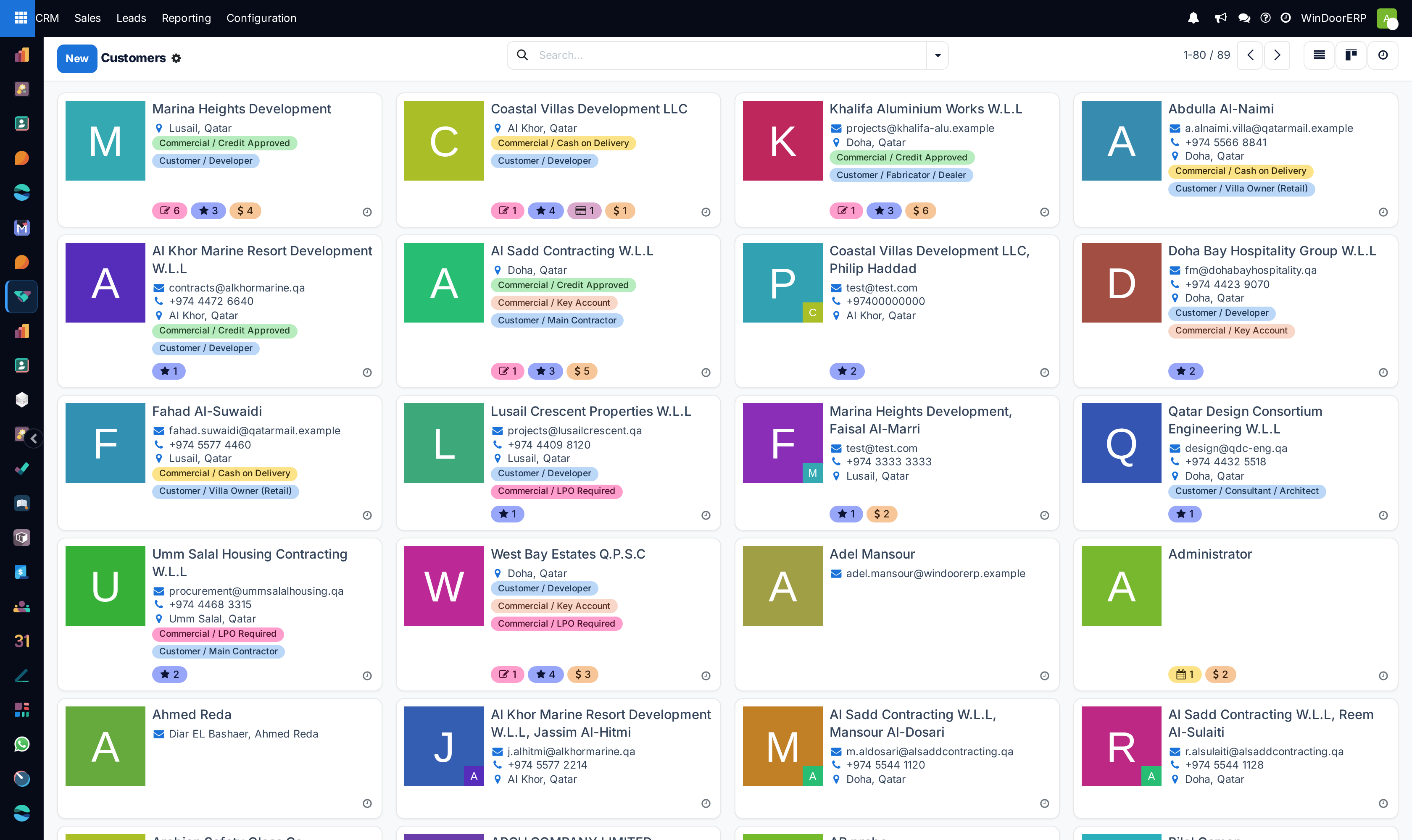
| Pill | Counts | Visible to |
|---|---|---|
| Star | Opportunities | Salesperson role |
| Currency sign | Sale orders | Salesperson role |
| Pencil | Customer invoices and vendor bills together | Accounting role |
| Calendar | Meetings | Everyone |
Important
The opportunity and meeting counters roll a company's child contacts up into the company. A deal recorded against Al Sadd Contracting W.L.L, Reem Al-Sulaiti is counted on her card and again on the company's. Add the two together and you will double-count. The opportunity counter also includes archived records, so lost deals are still in the number — which is what you want when judging a relationship and not what you want when counting live work.
What the record holds, from a sales point of view
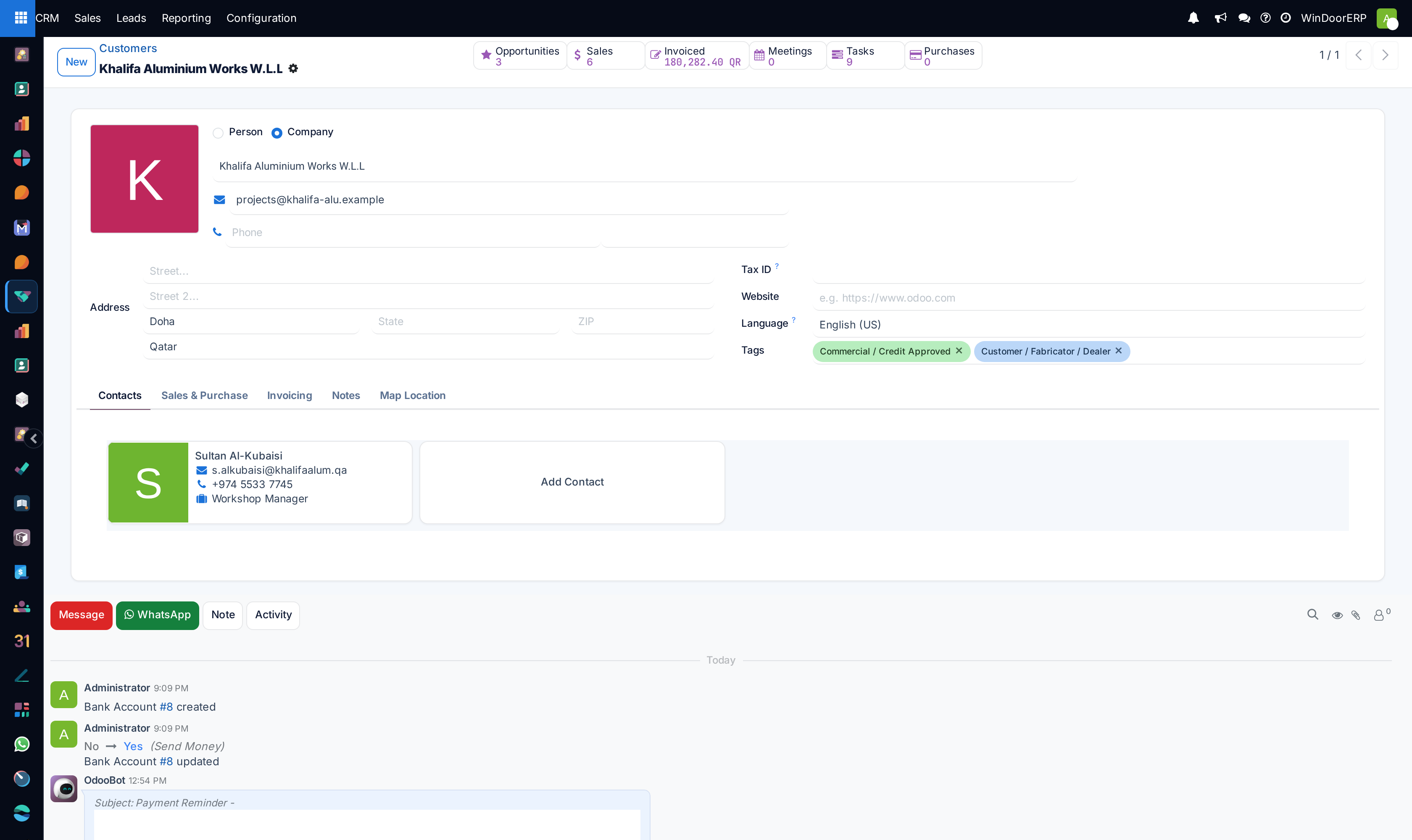
The row of buttons across the top of the record is the fastest route into that account's history. Several of them hide themselves when they have nothing to show.
| Button | Opens |
|---|---|
| Opportunities | The deals of this contact and its children, won, ongoing and lost together, as a list. |
| Sales | The sale orders of this contact. |
| Invoiced | A money total, not a count — the value invoiced to this account. Clicking it opens the customer invoices. |
| Vendor Bills | Hidden unless the contact has bills, which is how a supplier shows itself. |
| Meetings | The calendar events this contact is invited to. |
| Tasks | Project tasks carrying this contact as customer. |
| Purchases | Purchase orders placed with this contact. |
| On-time Rate | A supplier's delivery reliability. Hidden while there is nothing to measure. |
| Saved Payment Methods | Hidden unless the contact has stored a payment token on the portal. |
| Conversations | The WhatsApp threads with this contact. Hidden when there are none, and it brings a matching WhatsApp tab with it. |
| Employee | Present only when the contact is also an employee record. |
| View on Google Maps and Get Directions | Only when the record has been given coordinates. See Find every customer or opportunity within a distance of a point for how coordinates get there. |
Below the buttons the record opens with the Person / Company switch, the name, email and phone, the address block, Tax ID, Website Link, Language and Tags, then the tabs.
| Tab | What belongs there |
|---|---|
| Contacts | The people and site addresses under this company. Add contact creates one; each child inherits the company's address unless it is given its own. |
| Sales & Purchase | Salesperson, Pricelist, Reference, Industry and the purchase-side defaults. The salesperson here is the account owner; it is not what decides who owns an opportunity. |
| Invoicing | Bank accounts, receivable and payable accounts, fiscal position, payment terms and the electronic-invoicing settings. |
| Notes | Internal free text. Not visible on the portal. |
| Map Location | The coordinates and map controls added by the mapping add-on. |
| Opt-in state and message history. Appears only once a conversation exists. |
Note
On a person who belongs to a company the Invoicing tab is replaced by a single line: Accounting-related settings are managed on the parent company, with a button that takes you there. Bank details and payment terms belong to the company, never to the individual under it.
Keeping one card per firm
The system will not stop you creating a second card for a firm whose name is spelt differently, but it does warn on the two identifiers that matter. Fill in Tax ID and Company ID and, if another contact already carries the same value, a yellow Potential duplicates banner appears at the top of the record while you edit, naming the other contact and saying which identifier matched. It is a warning only — nothing is blocked.
Two working rules follow from that. Put the Tax ID on the company card as soon as you have it, because that is the only field the duplicate check can use for a firm. And create site engineers, procurement officers and project managers as child contacts under the one company card rather than as separate companies — the counters then aggregate, the opportunity history stays in one place, and quotations addressed to any of them still belong to the same account.
Troubleshooting
| What you see | Why, and what to do |
|---|---|
| Colleagues and suppliers in a list called Customers | The menu applies no filter. Add the Customer Invoices filter, or search by name. |
| No Credit Limit field on the Invoicing tab | The credit-limit feature is switched off for the company on this system, which hides the whole group. It is an Accounting setting, not a CRM one. |
| The opportunity counter is higher than the deals you can find | It includes archived deals — lost ones — and the deals of every child contact. |
| A counter pill is missing from a card | Either the count is zero, or you lack the role that pill needs. Invoice counts need an accounting role. |
| A contact cannot be deleted | Something references it — a deal, an order, an invoice. Archive it instead; the Archived filter finds it again. |
| The duplicate banner never appears | Neither card has a Tax ID or Company ID. The check compares those two fields only, never names. |
| Searching a Tax ID finds nothing | The search box offers Name, Related Company, Email, Phone, Tag and Salesperson — Tax ID is not among them. Add the Tax ID column from the column picker and sort on it, or build a custom filter. |
Common mistakes
- Creating a second company card because the Arabic and English spellings differ. Keep one card and record the other spelling on the Notes tab, so a search on either name still finds the account.
- Recording site staff as separate companies, which scatters the account history and breaks every counter on the parent card.
- Reading the pager count as a customer count. It is the whole address book.
- Adding the two opportunity counters — the person's and the company's — together.
- Setting Salesperson on the contact and assuming the deals follow. It is an account owner, not an assignment rule.
- Editing an address on a child contact to fix a company address. The company keeps its own.
Was this article helpful?
Thanks — your feedback helps.
Running a window or door factory?
Ask for a demo