Work the My Activities queue: what is due, one-click reschedule, and the activity board
What this does
My Activities is the queue of opportunities on which you owe the next step. Every row is a deal, not an activity: the activity is what the row is sorted by, coloured by and filtered by. Opened from the menu it lists your deals soonest-deadline first, and the same selection can be switched to a board that lays those deals out against the activity types waiting on them.
This article covers the screen. For how an activity is created, chained and completed in detail see Plan follow-ups; for the catalogue of activity types see Define activity types; for reusable step lists see Build activity plans; and for what the team actually finished see Activities reporting.
Before you start
- The menu is restricted to the Salesperson role. A manager who is not also a salesperson does not see it.
- The queue only contains records that already carry an activity. Nothing appears until somebody schedules one.
- Activity types are configured under CRM › Configuration › Activities › Activity Types. On this system the types that apply to a deal are To-Do, Email, Call, Meeting and Document.
Work the queue
-
01
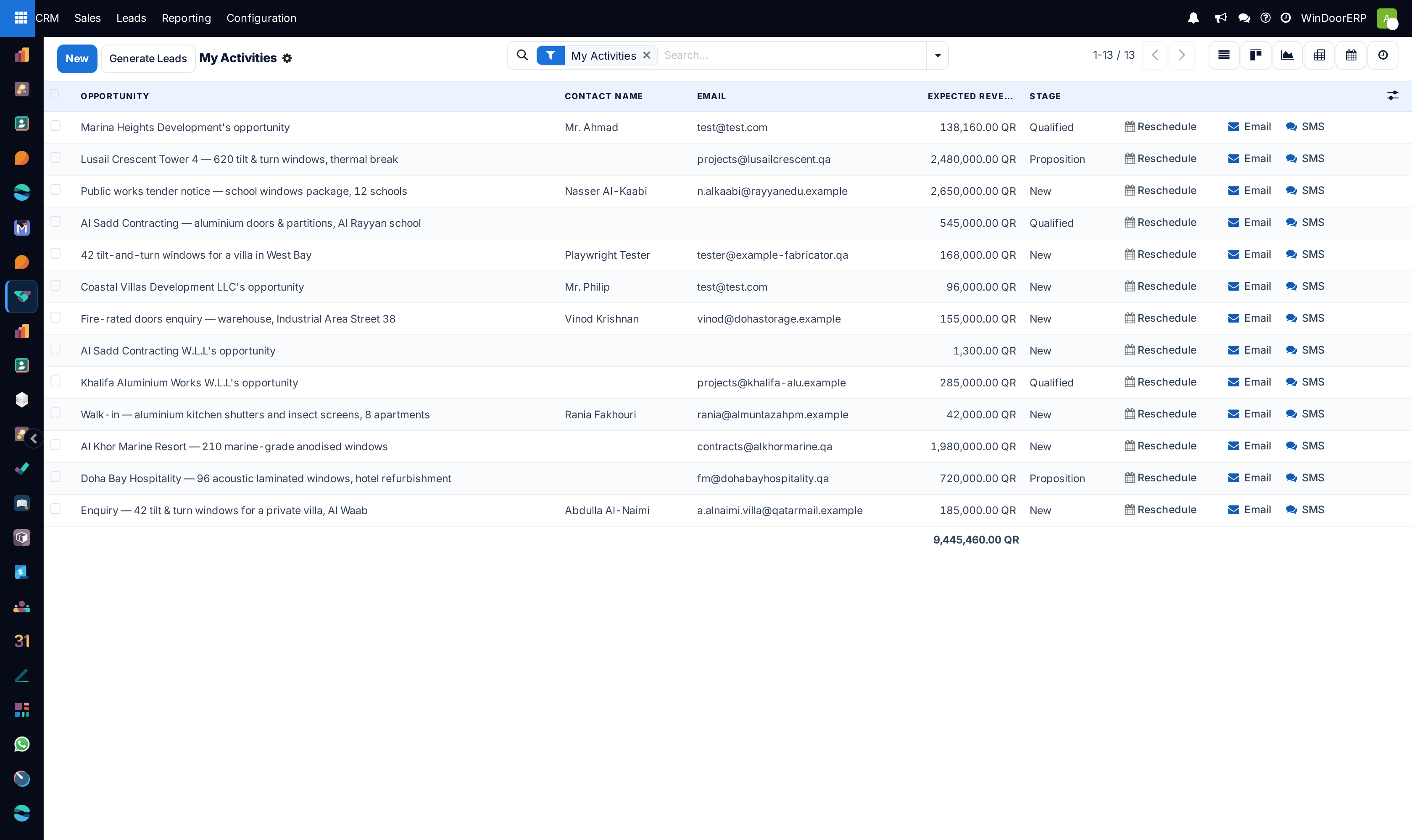
Go to CRM › Sales › My Activities. The screen opens as a list with the facet My Activities already applied, ordered by the deadline of your own next activity — the most urgent row first.
-
02
Read the row: opportunity name, contact name, email, expected revenue and stage. The foot of the Expected Revenue column totals what the queue is worth.
-
03
Use Reschedule at the end of a row to push your own next activity to today, tomorrow or the start of next week. It writes immediately — there is no confirmation.
-
04
Use Email or SMS on the same row to answer without opening the deal.
-
05
Open the deal when the step needs doing properly, then mark the activity done from the chatter beneath the form.
-
06
Switch to the Activity view when you want to see the queue as a board of deals against activity types rather than as a list.
What the queue actually selects
Two rules combine, and confusing them is the usual source of surprise.
| Rule | Effect |
|---|---|
| The window's own domain | Only records that have at least one activity — open or already completed — reach the screen at all. Archived deals are included, so a lost deal you once had a task on is eligible. |
| The My Activities facet | Keeps records that carry at least one activity assigned to you, whether or not it is still open. |
So the queue is "deals I have ever been given a step on", not "deals with a step outstanding". A deal whose only activity you already finished stays in the list, silently, with an empty deadline. Two things get rid of it: add Late Activities, Today Activities or Future Activities from the Filters menu, each of which insists on an open activity of yours, or add the optional My Deadline column and sort on it.
Note also what "mine" does not mean here. The facet reads the activity's responsible user, not the deal's Salesperson. A colleague's deal on which you owe a call is in your queue; your own deal on which a colleague owes the call is not. That is the deliberate difference between this screen and My Pipeline, which filters on the salesperson instead.
The list and its columns
The list is the standard opportunity list with two changes: it is ordered by My Deadline instead of by stage, and Salesperson and Sales Team are hidden, since on your own queue they are usually you and your team.
| Column | Notes |
|---|---|
| Opportunity | The deal name. Read-only in the list — open the record to rename it. |
| Contact Name | The person's name as typed on the deal, which is not necessarily a saved contact. |
| The address the Email button will write to. | |
| Expected Revenue | Money in the company currency, with a column total. |
| Stage | Shown as a badge. It carries the rotting indicator when a manager has enabled rotting on the stage. |
The picker at the right end of the header row adds any of: Created on, Contact, Phone, City, State, Country, Salesperson, Sales Team, Priority, Activities, Activity by, My Deadline, Campaign, Medium, Source, Expected Closing, Probability, Lost Reason and Tags. My Deadline is worth adding permanently: it shows your own next date as a plain-language countdown.
Tick rows and the header gains three mass actions: Mark Lost, Email and SMS. The list is also multi-editable — change a cell on one ticked row and it is offered for all of them.
Reschedule, Email and SMS on a row
| Button | What it does |
|---|---|
| Reschedule | A dropdown offering three dates: today, tomorrow, and the Monday that starts next week. It moves the first activity on the record that belongs to you, and it saves without asking. |
| Opens the message composer on that opportunity. The message is posted to the deal's chatter, so it is on the record afterwards. | |
| SMS | Opens the SMS composer on that opportunity, using the deal's phone number. |
Important
Reschedule does nothing at all — no message, no error — on a row where no open activity belongs to you. That happens on rows you are only seeing because of a completed activity, and on rows where the outstanding step is a colleague's. Email and SMS disappear entirely from a row whose deal has been marked lost.
The activity board
The clock icon in the view switcher turns the queue into a grid: one row per opportunity, one column per activity type, and a coloured block in the cell where that deal has that kind of task waiting.
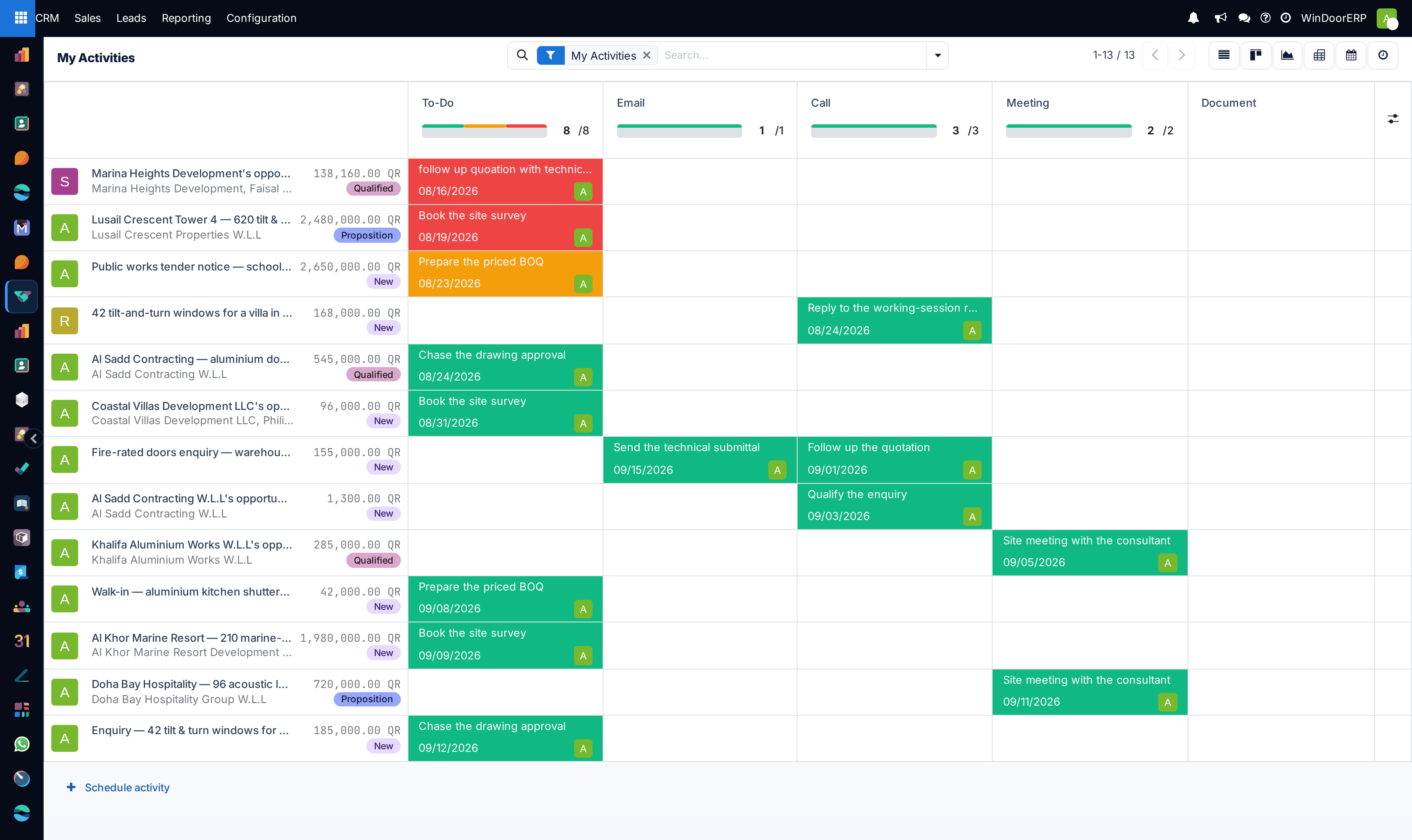
| Part of the board | What it shows |
|---|---|
| Row header | The owner's avatar, the deal name, its expected revenue, the customer and the stage as a badge. |
| Column header | The activity type, with a progress bar and a count of the tasks in that column. |
| Cell | The task's summary and due date. Red is overdue, amber is due today, green is still ahead. Click it to open, complete or reschedule the task. |
| Empty cell | Hover it and a + appears, which schedules a task of that type on that deal. |
| Schedule activity | The link under the last row adds a task to a deal you pick. |
| Column picker | The small control at the right end of the header row hides or restores individual activity-type columns. |
Only activity types that apply to opportunities become columns. Types bound to another model — WhatsApp Follow-up is bound to contacts, Certifications to employees — never appear here.
Scheduling and completing from the queue
Opening a task, from a cell or from the card icon, gives the Schedule Activity dialog.
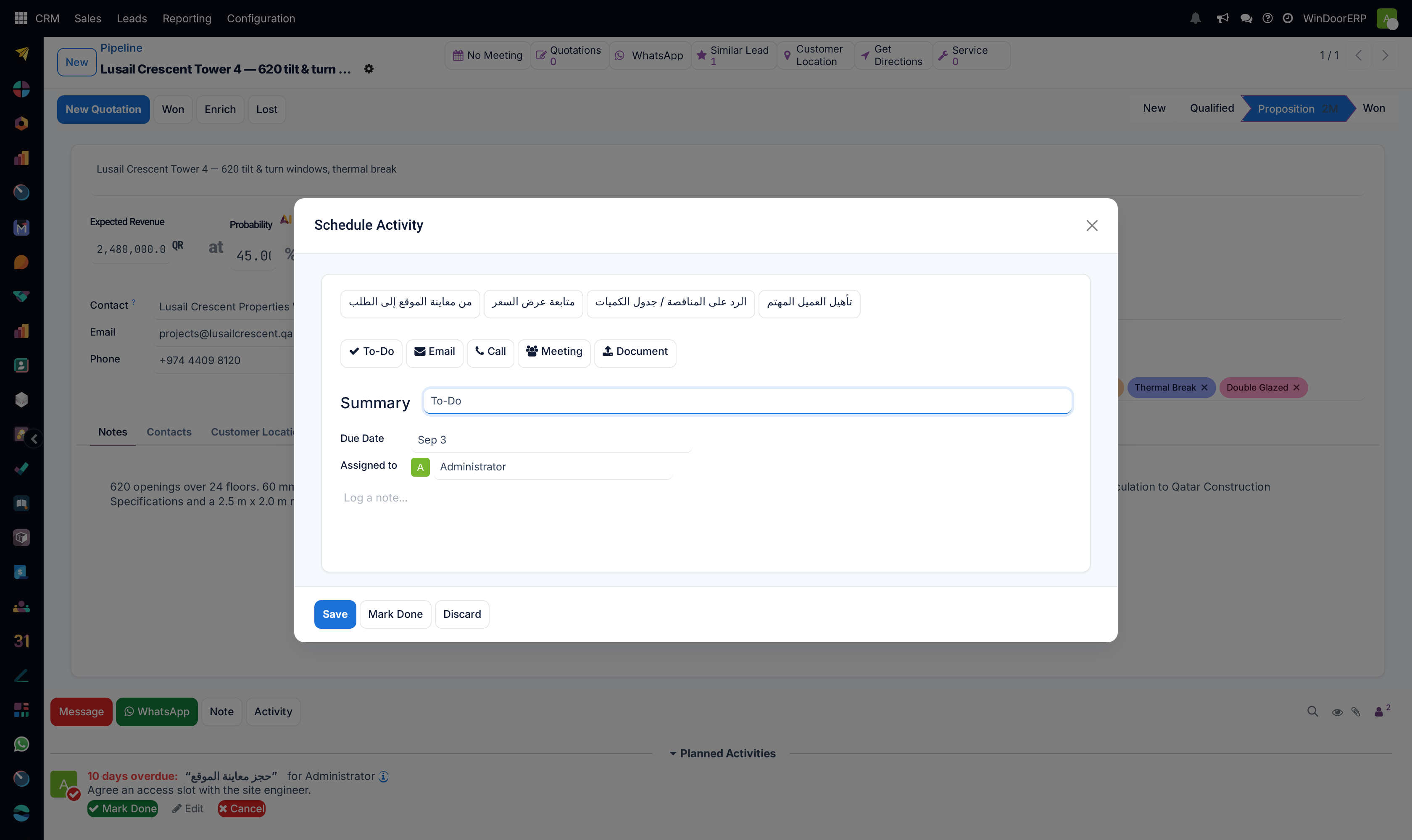
| Field or button | Notes |
|---|---|
| Recommended Activities | A row of suggestion badges, shown only when the activity you just completed names follow-ups. Picking one fills in the type and the summary. |
| Activity type badges | Required. Choosing a type sets the default summary and pushes the due date out by that type's own delay. |
| Summary | What will be shown on the card and in the board cell. Write the actual step — Book the site survey beats Call. |
| Due Date | A date, not a time. This is what colours the card and orders the queue. |
| Assigned to | Who owes it. Change it and the task leaves your queue for theirs. |
| Note | Free text carried into the chatter entry when the task is completed. |
| Schedule / Save | The primary button reads Schedule while creating a task and Save when you are editing one that already exists. |
| Mark Done | Completes the task and posts the note to the chatter. The completed task is archived, not deleted, which is why the deal can stay in the queue. |
| Discard | Closes without writing. |
Filters, groups and the other views
This screen borrows the leads search panel, so its filter list is not the one on the pipeline board.
| Filter | What it keeps |
|---|---|
| My Activities | Deals carrying an activity of yours. Applied by default. |
| Late Activities | Your own next open task is before today. |
| Today Activities | Your own next open task falls today. |
| Future Activities | Your own next open task is after today. |
| Lost | Archived losses. |
| Archived | Everything archived, losses included. |
| Unassigned | Nothing, on this system: it asks for records of type Lead, and the Leads feature is off. |
The search box also offers Activities of and Activity type, which is how a team leader turns this screen into somebody else's queue. Group by is limited to Salesperson, Sales Team, City, Country, Campaign, Medium, Source, Creation Date, Closed Date and Properties — there is deliberately no group by stage here, because the queue is meant to be read by date.
The switcher also offers Kanban, Graph, Pivot, Calendar and the deal form on the same selection. The calendar is the leads calendar: it plots deals by their next-activity date and cannot create anything by clicking a day; it has an article of its own, See the month ahead on the My Activities calendar.
Troubleshooting
| What you see | Why, and what to do |
|---|---|
| A deal in the queue with nothing outstanding | Its activity is done. The window keeps records with completed activities. Add Late, Today or Future Activities to see only live work. |
| Reschedule appears to do nothing | No open activity on that row belongs to you. Open the deal and look at who the task is assigned to. |
| No Email or SMS on a row | The deal is marked lost; both buttons are hidden on lost deals. |
| A deal you own is absent | The queue is built from activities, not ownership. If nobody scheduled a step, or the step is a colleague's, it is not here. Use My Pipeline for what you own. |
| Unassigned always returns nothing | It filters for leads, and this system does not use the Leads feature. Use Salesperson in the search box instead. |
| A card is red although your own task is next week | The colour is the worst state across every open activity on the deal, including colleagues'. |
Common mistakes
- Treating the queue as a to-do list and never filtering it, so finished work stays on screen and the count never falls.
- Using Reschedule as a way of clearing the queue. It moves the date, records nothing, and the customer hears nothing.
- Marking a task done without writing the note, which leaves the chatter with a completion and no outcome.
- Reassigning a task to a colleague to get it off your screen without telling them — the task simply moves to their queue.
- Expecting this screen to show deals you own. It shows deals you owe a step on; the two lists are different on purpose.
Was this article helpful?
Thanks — your feedback helps.
Running a window or door factory?
Ask for a demo