Work the Orders to Invoice queue: what lands there and how to clear it
What this does
Sales › To Invoice › Orders to Invoice is a work queue. It holds every confirmed order that currently has something billable on it, and it exists so that nothing gets delivered, certified or installed and then quietly forgotten at the invoicing stage.
It is a filtered view of the same sales orders you already work with — not a separate document type and not a workflow of its own. An order joins the queue when the arithmetic says so and leaves it the moment the invoice exists. Nothing here decides how to bill; that decision, and the mechanics of each route, belong to the invoicing articles listed at the end.
Its twin, Orders to Upsell, sits on the same menu and answers a different question — read Work the Orders to Upsell queue: what over-delivery really means here for that one.
Before you start
- You need salesperson access; the whole To Invoice menu is gated on it.
- Know which billing route the contract is on before you press anything. A contract already carrying bill-of-quantities claims must keep using them — see Ways to create customer invoices.
- Variation orders appear in this queue in their own right. That matters, and the warning below explains why.
Steps
-
01
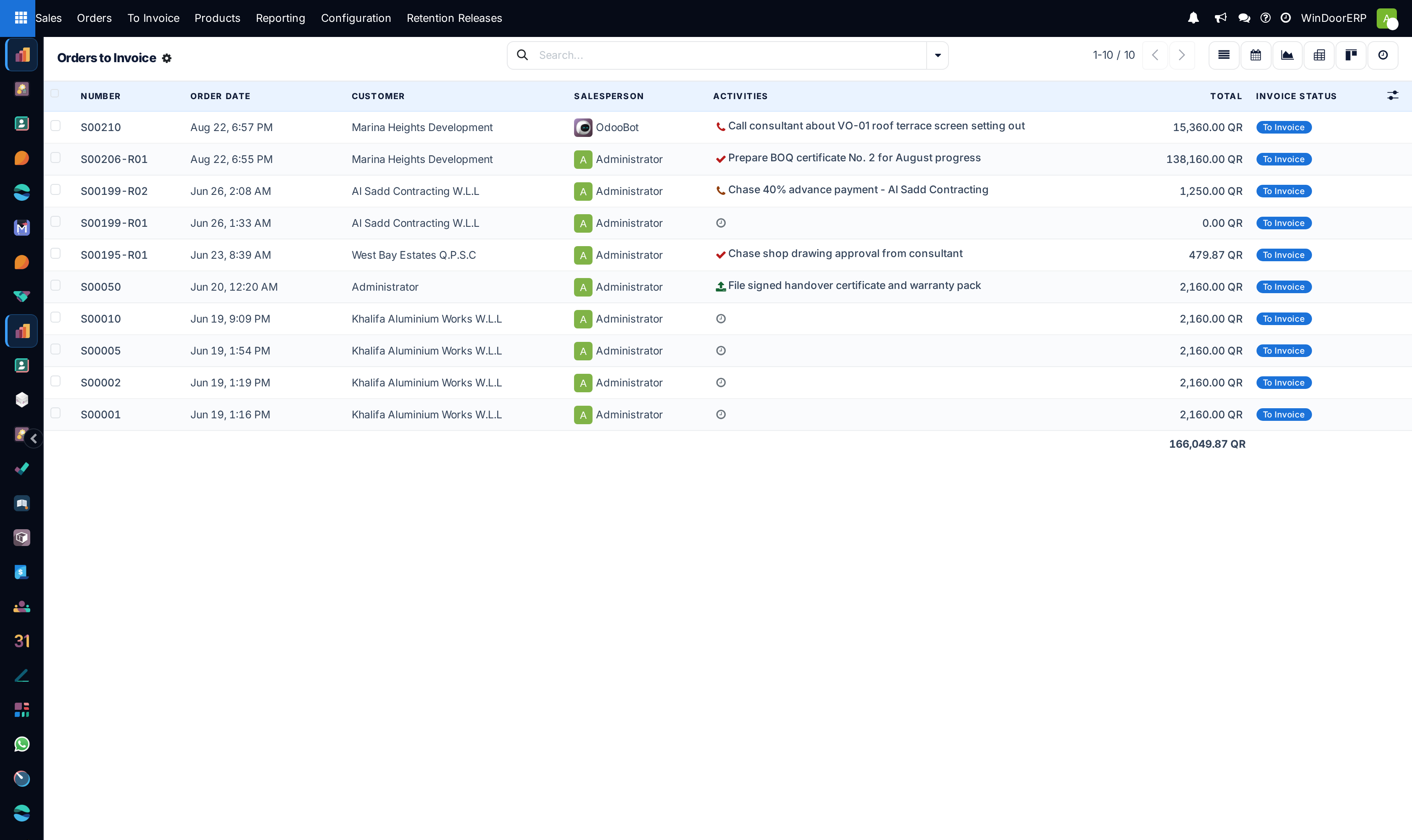
Open Sales › To Invoice › Orders to Invoice. The screen is titled Orders to Invoice and the search bar is empty — the filter is built into the menu, so there is no chip to remove and no way to widen the list except by searching.
-
02
Scan the list. The Total column sums at the foot, which gives you the value of the backlog in one number.
-
03
Decide per order, not per queue: is this a one-off bill, a contract progress claim, or a contract advance?
-
04
To bill one order, open it and use the button that matches its route — Create Invoice, Create Invoice using BOQ or Advance Payment using BOQ.
-
05
To bill several one-off orders at once, tick their checkboxes in the list. A Create Invoices button appears in the header bar; it runs the standard invoicing dialog across everything you ticked.
-
06
Come back to the queue. An order drops out of it as soon as it has nothing left to invoice.
The queue, and its single rule
The menu opens an action whose domain is one condition: Invoice Status is To Invoice. There is no default filter chip, no group-by, and no New button — creating an order from a billing queue would make no sense, so it is switched off. Everything else about the screen is the ordinary sales-order list, with the same seven default columns and the same ⚙ column picker; Work a confirmed sales order documents them.
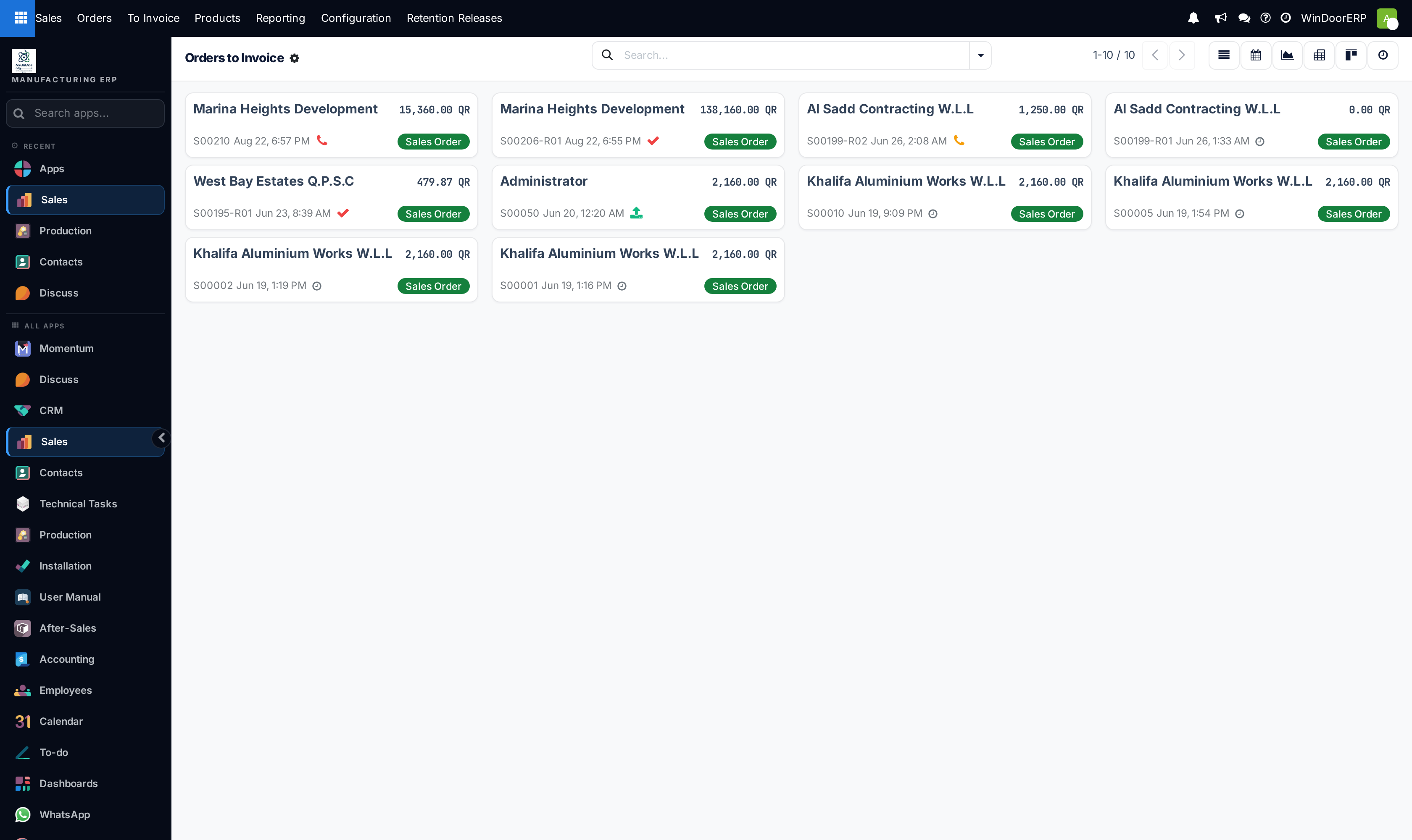
Six views are offered behind the switcher: list, calendar, graph, pivot, kanban and activity. The list is where the work happens; the others answer questions about the backlog rather than clear it.
What puts an order in the queue — and what keeps it out
The order's Invoice Status is rolled up from its lines, and the roll-up deliberately ignores three kinds of line: down-payment lines, section headings and notes. A line is itself To Invoice when it has a quantity left to invoice; the order becomes To Invoice as soon as any one line does.
| Situation | Where the order ends up |
|---|---|
| Not confirmed yet | Out. An unconfirmed order is always Nothing to Invoice, whatever its lines say. |
| Any line has a quantity still to invoice | In the queue. |
| Everything is invoiced | Out — Fully Invoiced. |
| Everything is invoiced, but a line shows more delivered than ordered | Out of this queue and into Orders to Upsell. |
| The only thing left to invoice is a discount or delivery line | Out. The system refuses to treat a lone adjustment line as a reason to raise an invoice, and reports Nothing to Invoice. |
One consequence worth internalising: the queue is about billable quantity, not about money owed. An order that is fully invoiced but unpaid is not here — chasing payment is an accounting job, not a sales one.
Variation orders sit in this queue as separate rows
A variation order is a sales order, so it earns its own Invoice Status and its own line in this list next to its parent contract. It must not be billed on its own: the bill-of-quantities route refuses it outright with "Cannot create BOQ Invoice from a variation order. Please create the invoice from the main contract.", and the standard Create Invoice button — which does not refuse — would bill scope that the main contract's next progress claim is also going to bill. On a bill-of-quantities contract, clear the parent and the variation drops out with it.
Finding out why an order is stuck
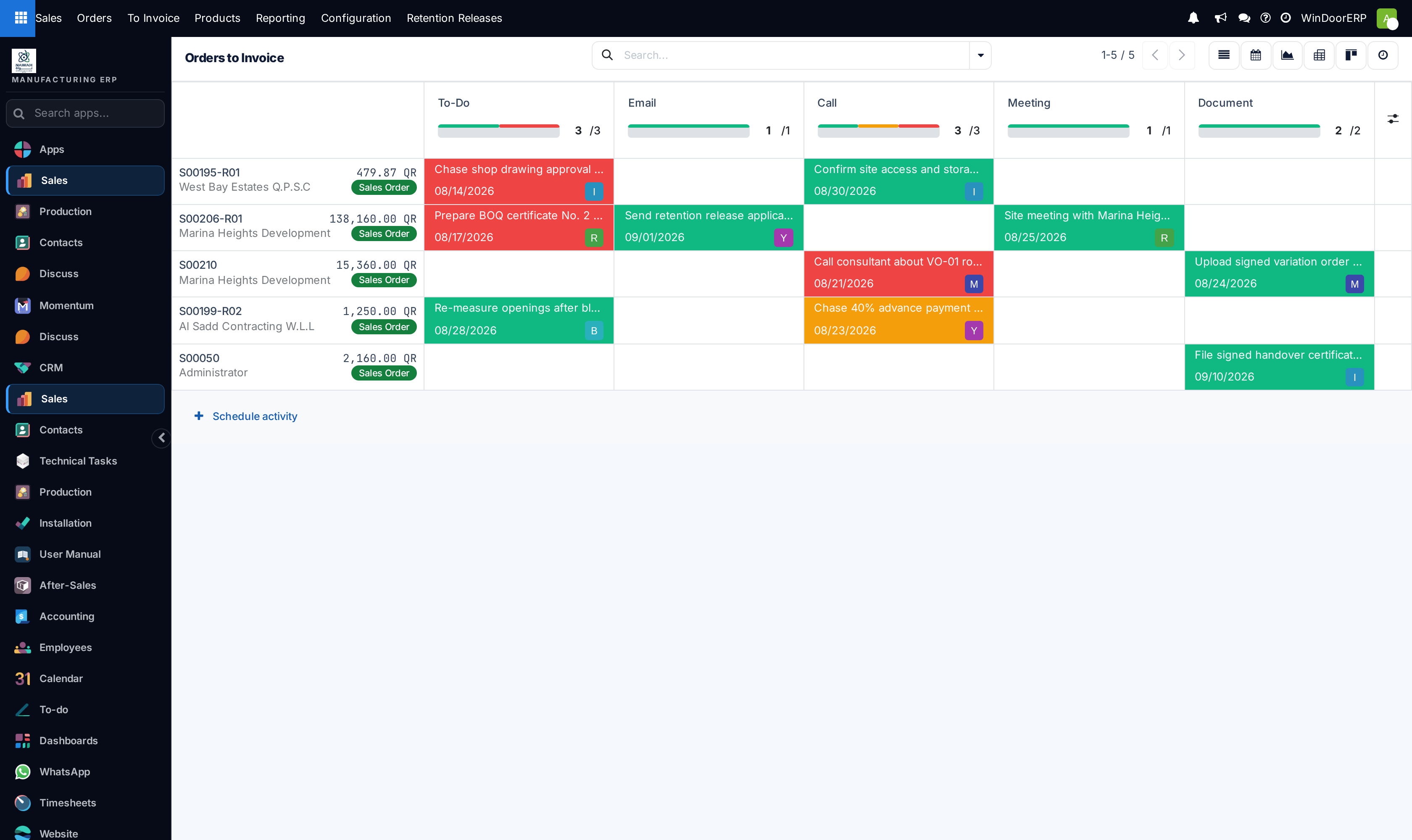
A queue that never empties usually means a few orders are waiting on something outside billing — a signature, a certificate, a consultant's approval. The activity view is the fastest way to see that: orders down the side, activity types across the top, cells coloured green for planned, orange for due today and red for overdue.
Note the record count. The activity view lists only orders that have a scheduled activity, so it will show fewer rows than the list — five out of ten in the picture above. The five that are missing are not blocked; nobody has planned anything on them. That behaviour, and the calendar's, are covered in Track order deadlines and fulfilment status.
What the backlog is worth
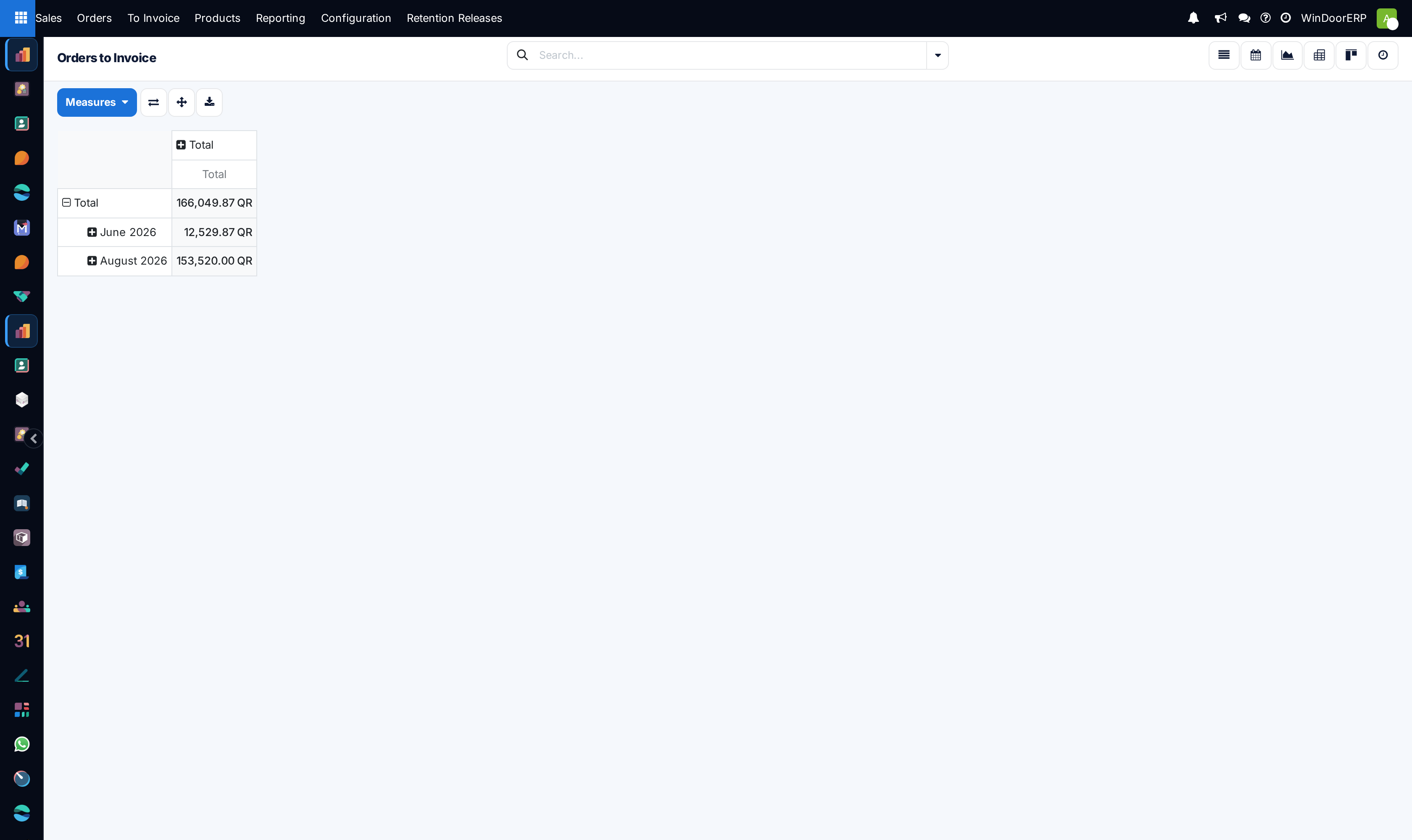
The pivot opens with Order Date grouped by month and one measure, Total. Two cautions before that number goes into a report:
- It is the whole order's total, tax included — not the amount left to invoice. An order that is 80% billed still contributes 100% of its value here. Switch the measure to Untaxed Amount for a net figure, but the whole-order problem remains either way.
- Variation orders are counted alongside their parents, so a project with variations is represented more than once.
If what you need is the amount genuinely outstanding on a contract, read it from the contract's own progress figures rather than from this queue's totals.
Which route clears which order
This screen deliberately does not choose for you, and the choice is not reversible in practice. The map is Ways to create customer invoices; the four routes each have their own article:
- Create a standard customer invoice — one-off supply, service and spare-part work, and simple deposits.
- Send a pro-forma invoice — the pre-invoice document, and what it is not.
- Bill contract progress with a BOQ invoice — progress certificates, the deduction cascade, retention and approval.
- Take a contract advance through a BOQ invoice — billing an advance and recovering it later.
The one rule to carry back to this queue: do not mix routes on one contract. Once a bill-of-quantities claim exists on an order, every later claim must go the same way, or the running totals the claims depend on stop matching the ledger.
Troubleshooting
| What you see | Why, and what to do |
|---|---|
| There is no New button | By design. Orders are created from the Orders menu or from an opportunity, not from a billing queue. |
| There is no filter chip to remove | Also by design — the condition is in the menu's action, not in the search bar. To see other orders, use Sales › Orders › Orders. |
| An order you just invoiced is still listed | Only part of it was billed. Open it and check the lines' Invoiced figures against Quantity. |
| An order you expected is missing | Either everything is already invoiced, or delivery has overtaken the order — look in Orders to Upsell. |
| "Cannot create BOQ Invoice from a variation order. Please create the invoice from the main contract." | You opened a variation. Use the order named in its This Sales Order is a Variation for banner. |
| The Create Invoices button is nowhere on the list | It only appears once at least one row is ticked. |
| The queue total does not match what the customer owes | It never will. It is the sum of whole order values, tax included, and it counts variations separately. |
| The whole To Invoice menu is missing | You do not have salesperson access. |
Common mistakes
- Billing a variation order directly with Create Invoice because the bill-of-quantities button refused it. The refusal is the system telling you to go to the parent.
- Reading the queue's summed Total as the amount left to invoice. It is the full value of every order in the list.
- Using the standard route "just this once" on a contract that is being billed progressively.
- Treating an empty activity cell as "nothing is blocking it" — an order with no activity is one nobody has looked at.
- Waiting for orders to leave the queue by themselves. Nothing here is automatic; every exit is an invoice somebody raised.
Was this article helpful?
Thanks — your feedback helps.
Running a window or door factory?
Ask for a demo