Build a quotation: customer, expiry, designed lines, sections and Confirm
What this does
A quotation is where a fenestration job stops being a conversation and becomes a priced, itemised offer. This is the screen the whole system turns on: the openings are drawn and priced here, the sections give the proposal its structure, and confirming it is what starts production, installation and invoicing downstream.
It is also the screen most heavily extended in WindoorERP. Alongside the standard Odoo quotation you will find the designer, the price engines, the BOQ options and the survey status — each covered in its own article, and each reached from a tab or a button on this one.
Before you start
- The customer must exist as a contact. Their pricelist, payment terms and salesperson all arrive from that record when you pick them.
- Know which of your products are fabricated. Fabricated lines behave differently at confirmation — see the warning below — and that difference is the single most important thing on this page.
- Several features here are switched off unless enabled: quotation templates, line discounts and pro-forma invoices each hide their field or button until turned on in the Sales settings.
Steps
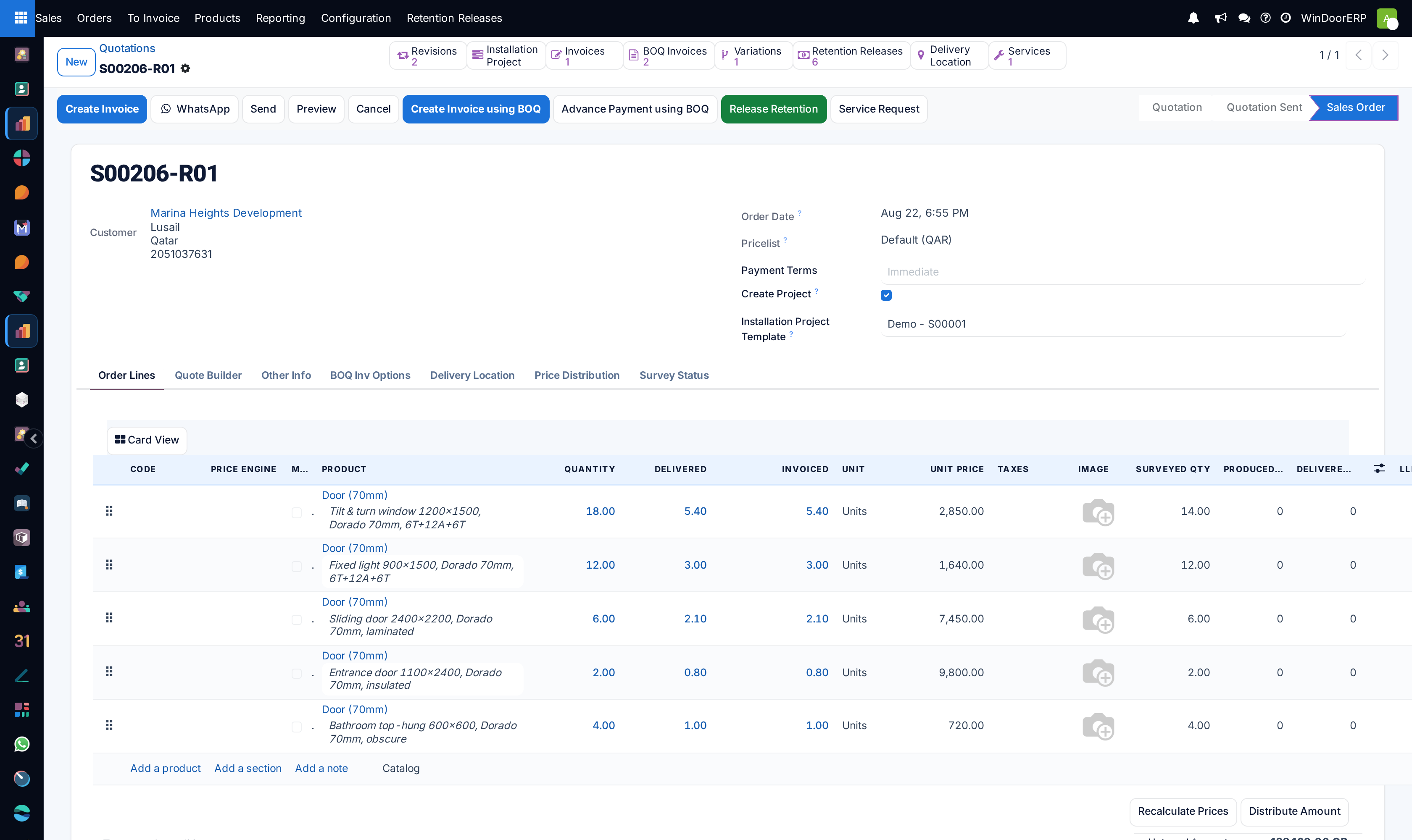
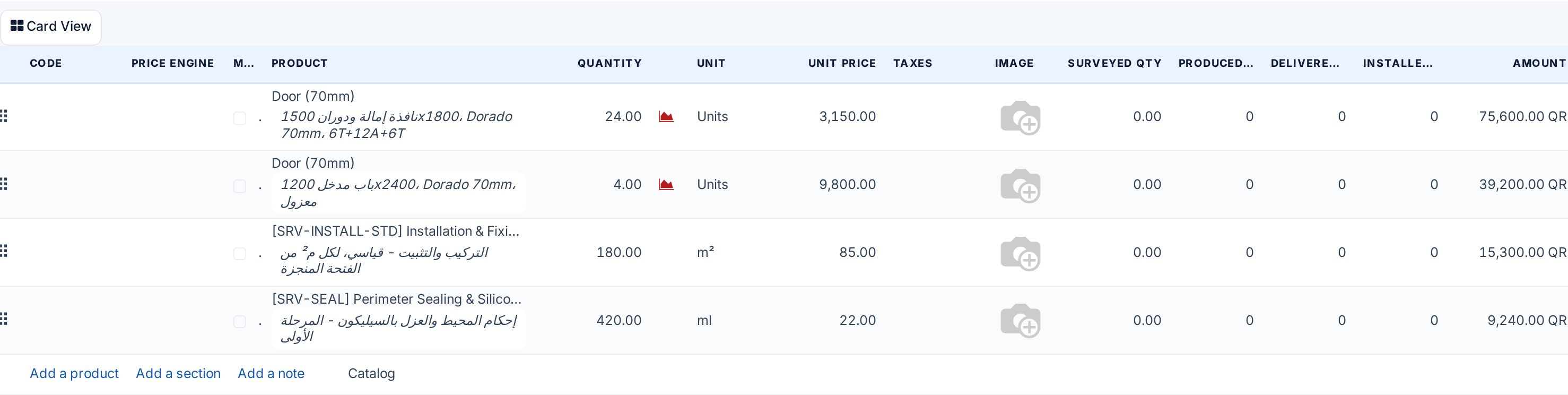
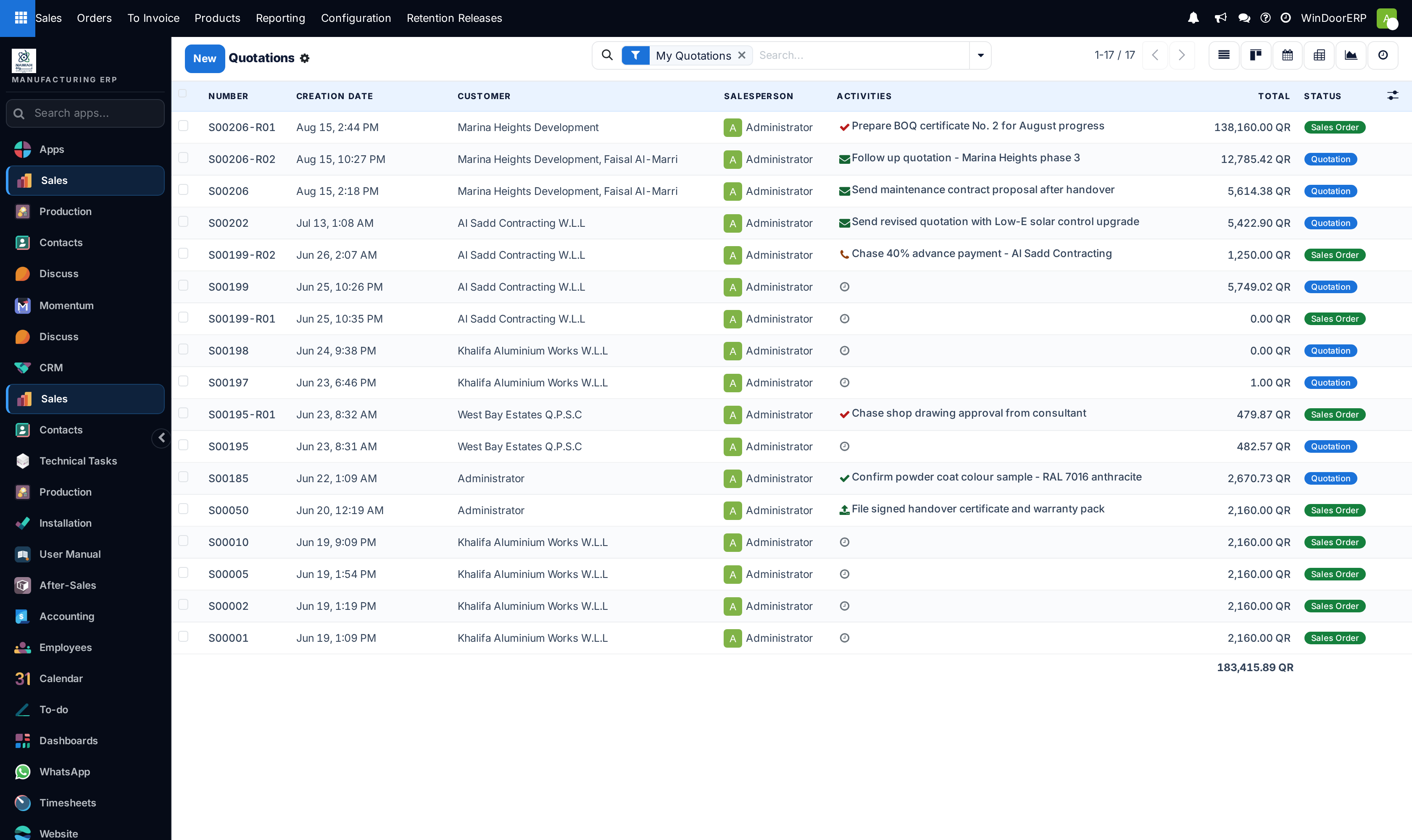
-
01
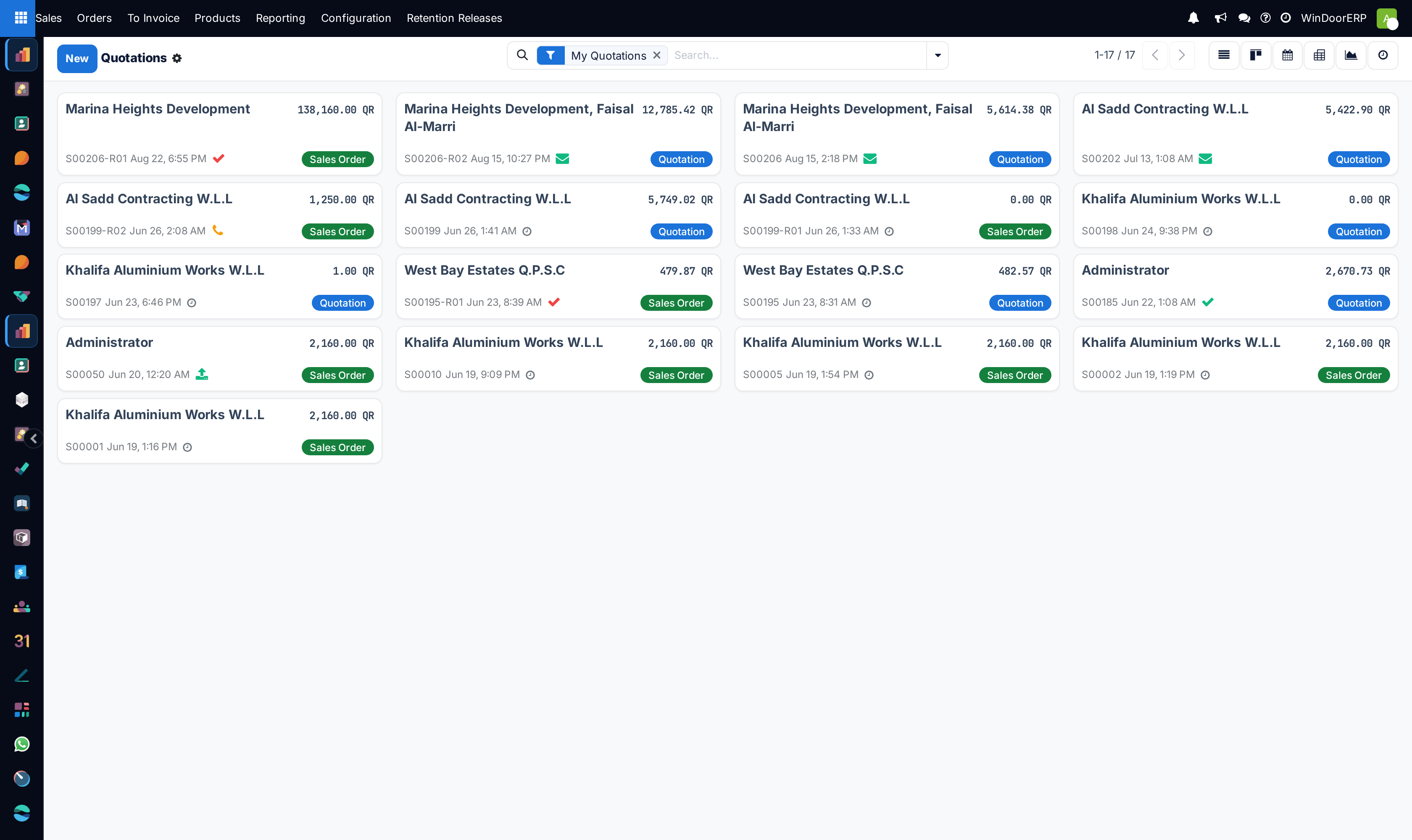
Open Sales › Orders › Quotations and click New.
-
02
Pick the Customer. This is the only field you must fill, and it drives the rest: the Pricelist, Payment Terms and salesperson are all taken from the contact record.
-
03
Check the Expiration. It is not blank — it pre-fills to thirty days out, and a quotation past its date is flagged as expired rather than blocked.
-
04
On Order Lines, build the offer. Add a product for a priced line, Add a section for a heading, Add a note for text that carries no price.
-
05
For each opening, use the Design button on the line to draw it. The designer writes the dimensions, the area, the colours and the layout back onto the line, and the price engine prices it from those.
-
06
Group the openings with sections — by floor, by elevation, by room. This is what makes a long window schedule readable, and it is the only grouping the printed quotation shows.
-
07
Press Recalculate Prices after changing a pricelist or a design, since prices are written onto the line when it is created and do not follow later changes on their own.
-
08
Use Preview to see the page exactly as the customer will, then Send to email it. The order moves to Quotation Sent.
-
09
Confirm it yourself with Confirm, or let the customer accept it in the portal. Either way it becomes a Sales Order.
The header, field by field
| Customer | Required. Changing it re-derives the pricelist, payment terms and salesperson — but only while the quotation is still a draft. |
|---|---|
| Expiration | Defaults to today plus the company's quotation validity, thirty days as shipped. Disappears once the order is confirmed, because it no longer means anything. |
| Pricelist | From the customer. Its own help text is the warning worth heeding: change it and only newly added lines are affected. |
| Payment Terms | From the customer. Empty shows as Immediate. |
| Salesperson | The contact's own salesperson if they have one, otherwise the person creating the quotation. It is not always who you expect. |
| Create Project | Ticked, an installation project is created from the template when the order is confirmed. |
Two things are absent by default and their absence confuses people. There is no Quotation Template field unless templates are enabled in the settings, and there are no invoice or delivery address fields on the form at all — they are computed silently from the customer's child contacts.
The tabs
| Order Lines | The offer itself. |
|---|---|
| Quote Builder | The header and footer PDFs that wrap this quotation. |
| Other Info | Salesperson, team, source document and the marketing attribution carried over from the opportunity. |
| BOQ Inv Options | How this order is billed progressively against a bill of quantities. |
| Delivery Location | The site on the map, which the survey and installation teams use. |
| Price Distribution | Spreading a negotiated total back across the lines. |
| Survey Status | What the site survey has confirmed against what was quoted. |
Confirming a quotation full of windows creates no delivery order
Fabricated lines — anything drawn in the designer — suppress procurement entirely at confirmation. No delivery is raised for them, deliberately: those units do not exist yet, and they ship later on the finished-goods delivery once production has made them. Only the non-fabricated lines, such as bought-in hardware, generate stock moves.
So an empty Delivery on a confirmed window order is correct and expected. Chasing it as a missing document is a common and expensive misunderstanding.
What Confirm actually does
Less than most people assume. It stamps the order date, snapshots each line's price as the baseline for later rate revisions, runs stock rules for the non-fabricated lines only, and creates the installation project if Create Project is ticked.
It does not start production, raise a site survey, or generate a bill of quantities. Production begins from the survey flow and invoicing from the BOQ, both of which are separate deliberate steps. There is no approval chain on a sales order either — the approval matrix in this system governs production, not selling.
One guard is worth knowing because of what it does not catch: confirmation refuses a line that has no product, with "Some order lines are missing a product, you need to correct them before going further." An order with no lines at all confirms perfectly happily.
Sending it, and how the customer accepts
The button is Send. It opens a mail composer already loaded with the quotation template, the PDF and a portal link, and sending moves the order to Quotation Sent. Preview shows you that portal page first, which is worth doing once before the first quotation of a new template goes out.
On the customer's side there is one action: Accept & Sign. A signature is required, there is no payment step, and signing confirms the order and records the signature and timestamp in the chatter. That signature is the acceptance — nothing else has to be pressed on your side.
Optional extras are a section, not a feature
Older versions of Odoo carried an Optional Products tab that let a customer add upgrades from the portal. It does not exist in this version, and no amount of configuration brings it back.
Quote extras as ordinary lines under a section headed as optional, or list them and remove the ones not taken before confirming. Whichever convention you adopt, apply it consistently — a customer comparing two of your quotations should never have to work out which totals include the shutters.
Troubleshooting
| Prices did not change after switching pricelist | By design — only newly added lines take the new pricelist. Press Recalculate Prices. |
|---|---|
| "Some order lines are missing a product…" | A line has a description but no product. Sections and notes are fine; an ordinary line without a product is not. |
| No delivery order after confirming | Correct for fabricated lines. Check whether any line is non-fabricated before treating it as a fault. |
| The Quotation Template field is missing | Templates are not enabled in the Sales settings. |
| No invoice or delivery address on the form | Those fields are hidden on this configuration. They are still computed from the customer's contacts and still used on the documents. |
| The salesperson is wrong | It came from the customer record, not from you. Set it on the contact if it should always be someone particular. |
Common mistakes
- Typing window sizes into the description instead of drawing the line. The designer is what feeds the price engine, production and the cutting lists; a typed description feeds nothing.
- Quoting a long schedule with no sections, then being asked to explain it.
- Editing a pricelist and expecting existing lines to follow.
- Treating the absent delivery order on a window job as a fault.
- Looking for optional products. They are gone; use a section.
Was this article helpful?
Thanks — your feedback helps.
Running a window or door factory?
Ask for a demo