Audit the ledger: general ledger, trial balance, partner ledgers, tax screens and daily books
What this does
When the auditor, the bank, or your own doubts ask "prove it", these are the screens: the General Ledger and Trial Balance under Audit Reports, the Partner Ledger and aged balances under Partner Reports, the Tax & Compliance trio, the printable Daily Reports (Bank Book, Cash Book, Day Book), and the analysis views under Management. They share the interactive report screen described in the financial-statements article — same toolbar, same drill-down to journal items, same PDF/XLSX exports.
Before you start
- Posted entries; the reports default to posted-only via the Posted Entries toggle.
- Accounting access. The legacy wizard menus additionally require Developer Mode.
Auditing the ledger
Note
Two navigation quirks. "Partner Reports" appears twice under Reporting — the populated one holds Partner Ledger and the aged balances; its identically-named twin above it is an empty placeholder, as are "Statement Reports" and "Taxes & Fiscal". And the two aged reports always age against today — they have no date control, so a backdated aging cut-off is not possible on screen.
-
01
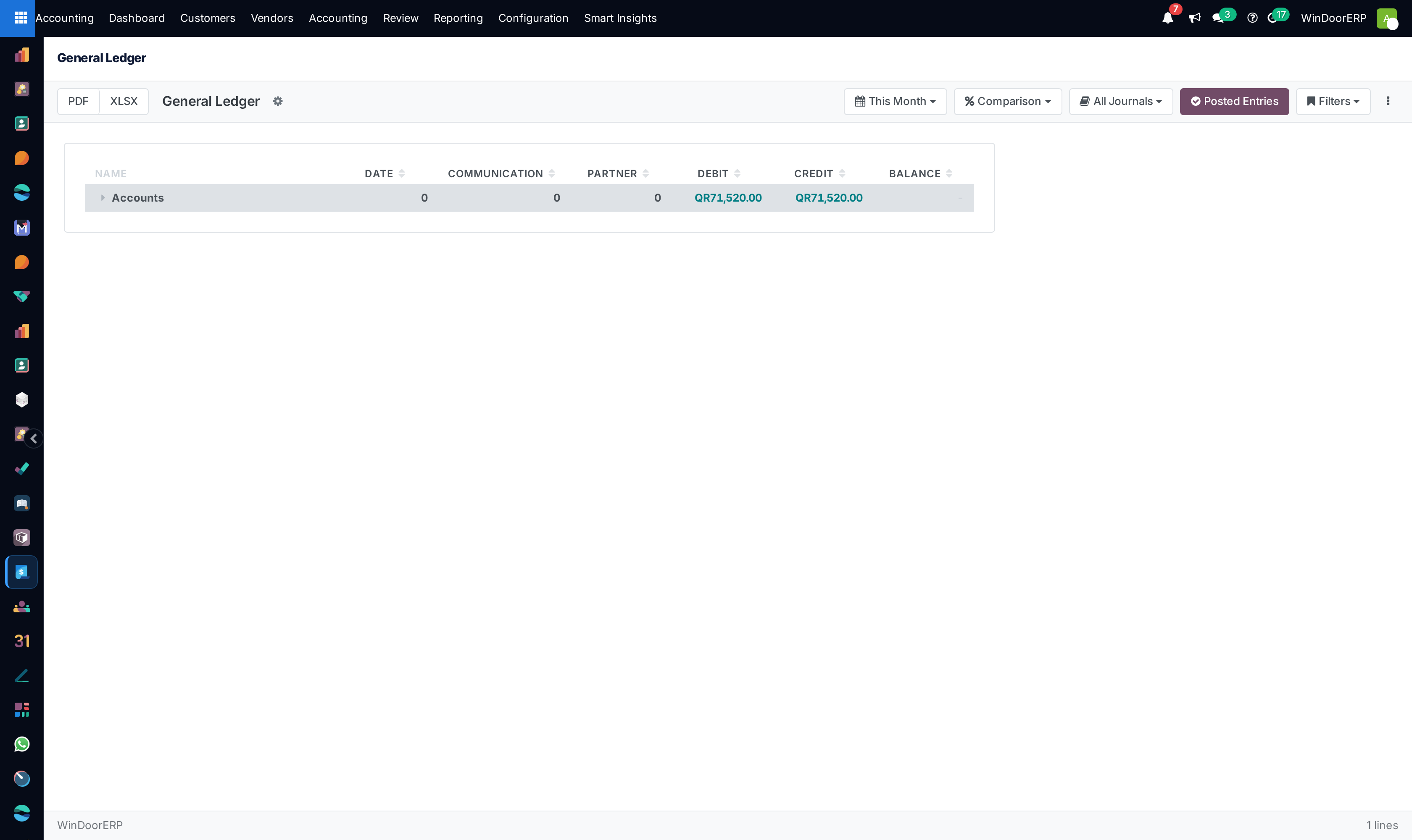
Open Reporting › Audit Reports › General Ledger. The single Accounts row totals the period; expand it for the per-account balances, and expand an account for its journal items — date, communication, partner, debit, credit, running balance.
-
02
Confirm the top-line debit equals the credit, then chase any account that looks wrong through the drill-down; the search bar filters the loaded account names as you type.
-
03
Open Trial Balance for the flat account listing with debit, credit, and balance. Zero-balance accounts are hidden by default — toggle Hide Zero Lines in the ⋮ menu to see them.
-
04
Move to Partner Reports › Partner Ledger for receivables and payables per customer and supplier — the report to reconcile against a supplier's statement of account.
-
05
Check Aged Receivable and Aged Payable: one row per partner across Not Due, 1-30, 31-60, 61-90, Older, and Total.
Tax & Compliance — read for what it is
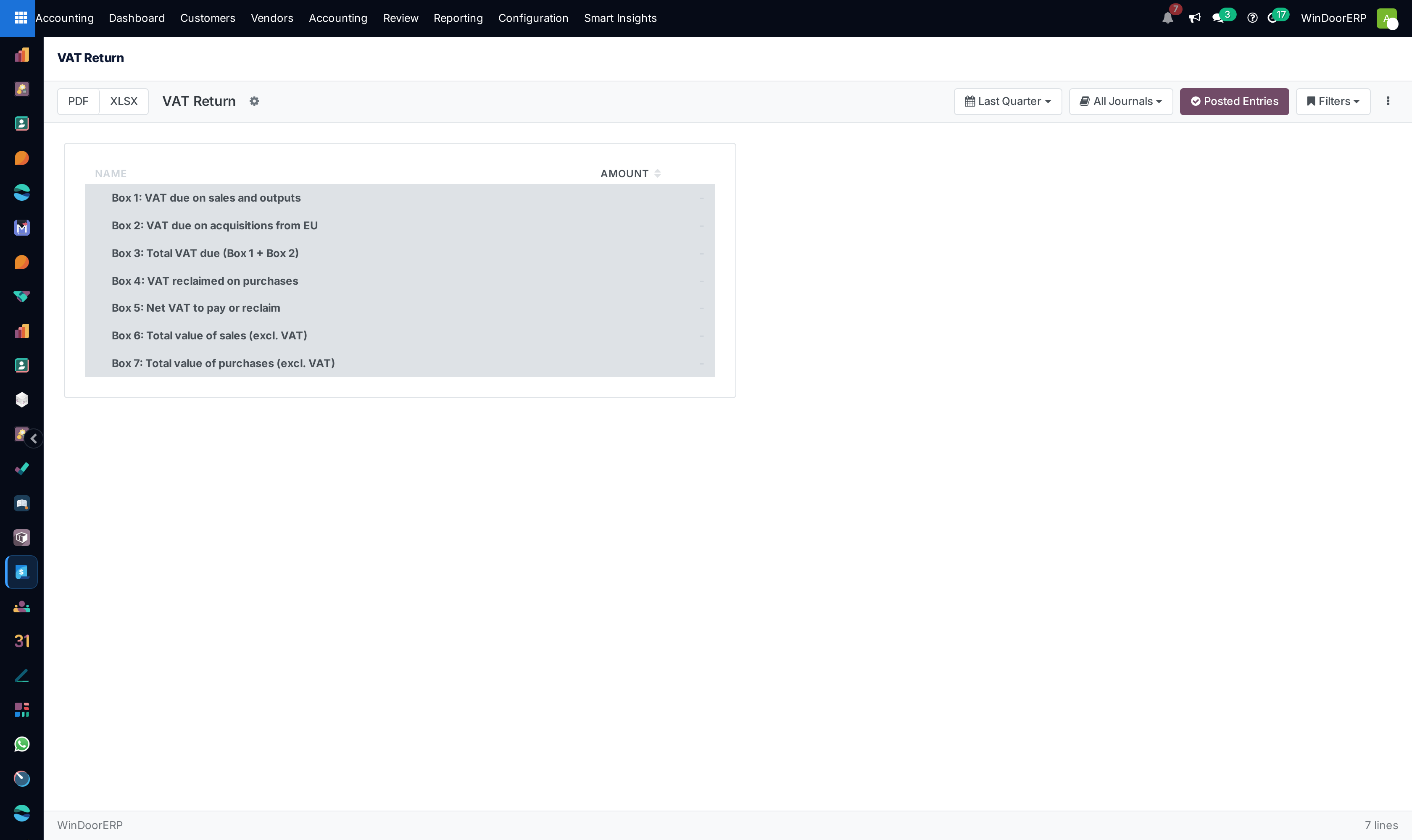
Qatar levies no VAT, and on this configuration the tax screens reflect that: with only 0%-exempt taxes and the 5% withholding in play, the VAT Return renders its boxes empty. The report itself is a generic box-style return — VAT due on sales (Box 1) against VAT reclaimed on purchases (Box 4), a net position (Box 5), and sales/purchase totals — that finds "tax" accounts by name matching, and one of its boxes (EU acquisitions) never computes at all. Tax Summary aggregates tax-named liability and asset accounts the same way, with a pair of sub-rows that always render blank. Compliance Dashboard shows exactly four figures: outstanding tax liability, overdue receivables, overdue payables, and the count of unreconciled items. None of these screens contains e-invoicing machinery — treat them as internal monitoring views, and prepare any actual statutory filing from the General Ledger and the withholding-tax accounts.
Daily Reports — the printable books
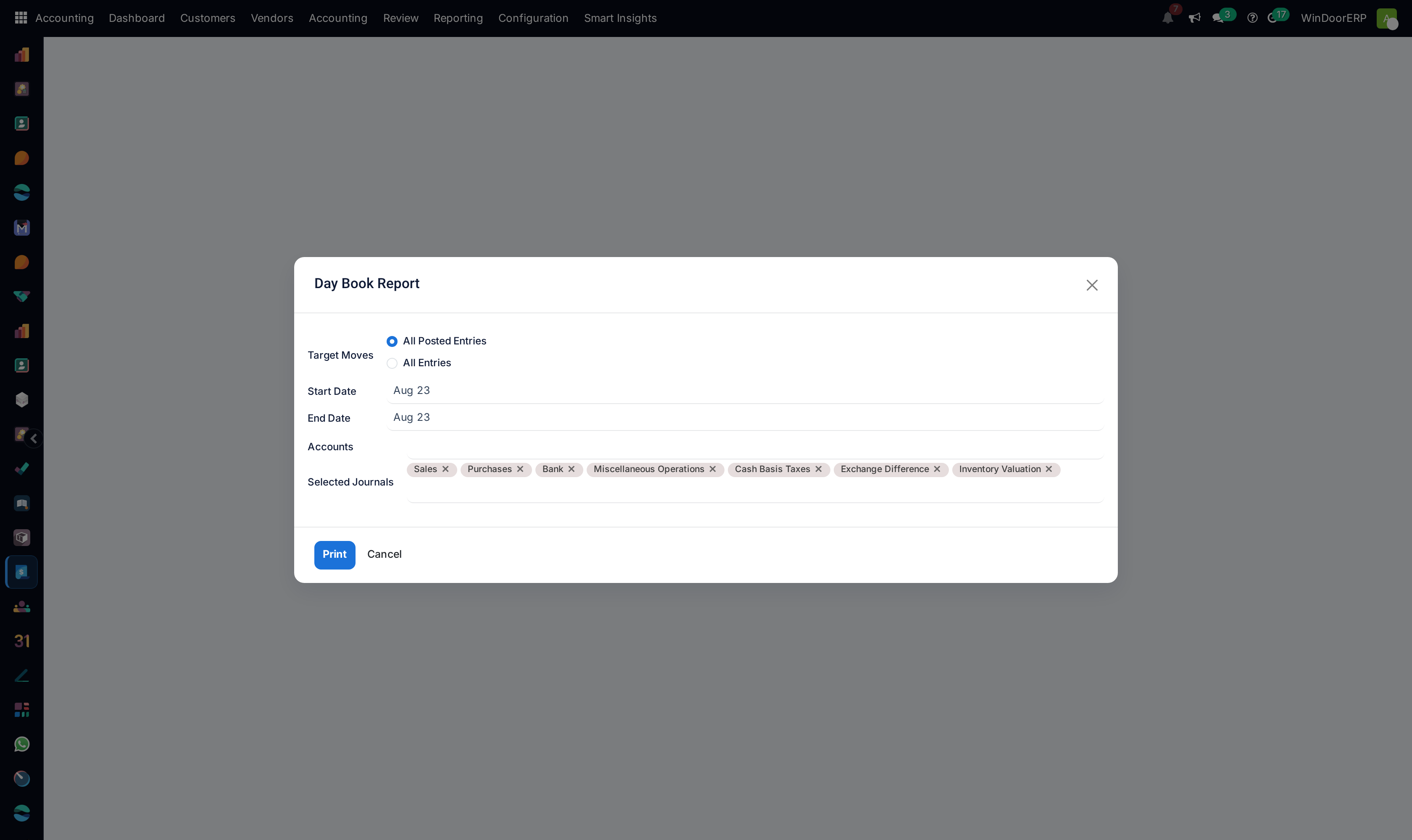
Bank Book, Cash Book, and Day Book are print dialogs, not interactive screens: choose All Posted Entries or All Entries, the date range, optionally restrict accounts, pick the journals, and Print — a PDF, with no on-screen preview or spreadsheet export. Bank Book and Cash Book add a sort choice (date, or journal and partner) and an Include Initial Balances option that carries the opening balance into the period. They are the hand-to-the-auditor daily ledgers; for anything you want to work with on screen, use the General Ledger instead.
Under the developer-only Audit Reports (Legacy) menu live two more print wizards — Tax Report and Journals Audit (entries per journal, landscape). The other legacy menus are empty; their contents were superseded by the interactive reports.
Invoice Analysis and Analytic Report
Reporting › Management › Invoice Analysis is a graph/pivot over invoicing totals, opening on customer documents grouped by month — clear the Customers filter chip to include vendor bills, and group by salesperson, partner, or product category. Analytic Report is the same screen as Analytic Items (see the journal-entries article) under a second menu entry: analytic lines grouped by project, pre-filtered to the current fiscal year and P&L accounts.
Troubleshooting
"You must choose a Start Date" — Bank/Cash Book with Include Initial Balances ticked needs the start date filled in.
The VAT Return shows only dashes — expected on this configuration: there is no VAT to report, and the report only picks up accounts with "VAT"/"tax" in their names.
An aged report ignores the date I wanted — the aged balances always compute against today's date by design; for a historical cut-off use the Partner Ledger with a date period.
Trial Balance seems to be missing accounts — zero-balance accounts are hidden by default; un-hide them from the ⋮ menu.
A "Partner Reports" or "Statement Reports" menu is empty — you opened one of the placeholder headings; the working reports are under the populated menus documented here.
Common mistakes
- Reconciling a supplier from the aged payables columns instead of the Partner Ledger — the aged view is a snapshot against today, not a statement.
- Quoting the Tax Summary to an authority — its figures come from account-name matching; the General Ledger on the tax accounts is the defensible source.
- Printing a Day Book with All Entries and treating drafts as booked figures.
- Renaming tax-related accounts without the word "tax" and silently emptying the tax screens.
- Hunting for e-invoicing status in the Compliance Dashboard — it is an internal four-metric monitor, nothing more.
Was this article helpful?
Thanks — your feedback helps.
Running a window or door factory?
Ask for a demo