Define activity types: action, default summary, schedule and chaining
What this does
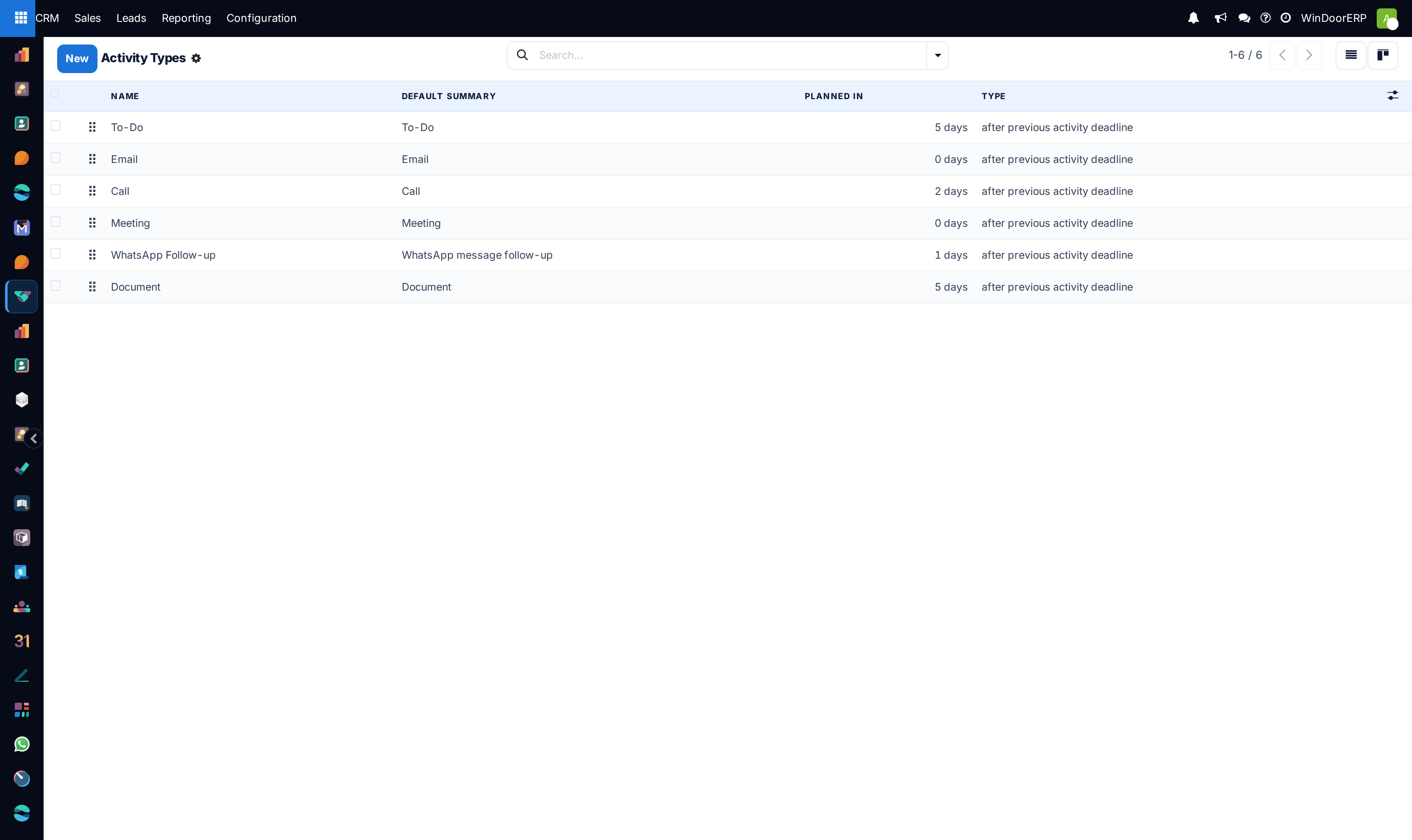
An activity type is the kind of a to-do: Call, Email, Meeting, Document, To-Do. It carries the icon, the default wording, how far ahead the activity falls by default, and what the system should suggest — or force — once it is done.
WindoorERP ships five general types and adds more with certain apps. Most companies add one or two of their own rather than reworking the set, because every type appears in every activity dropdown across the database.
Before you start
- Reach them at CRM › Configuration › Activities › Activity Types. Sales Manager rights are required.
- Know the difference between a type and a plan. A type is one kind of activity; a plan is an ordered list of several. Change a type and every future activity of that kind changes with it.
- Decide the scope. A type opened from the CRM menu is already limited to leads and opportunities; a type created from the general Settings menu is available everywhere.
Steps
-
01
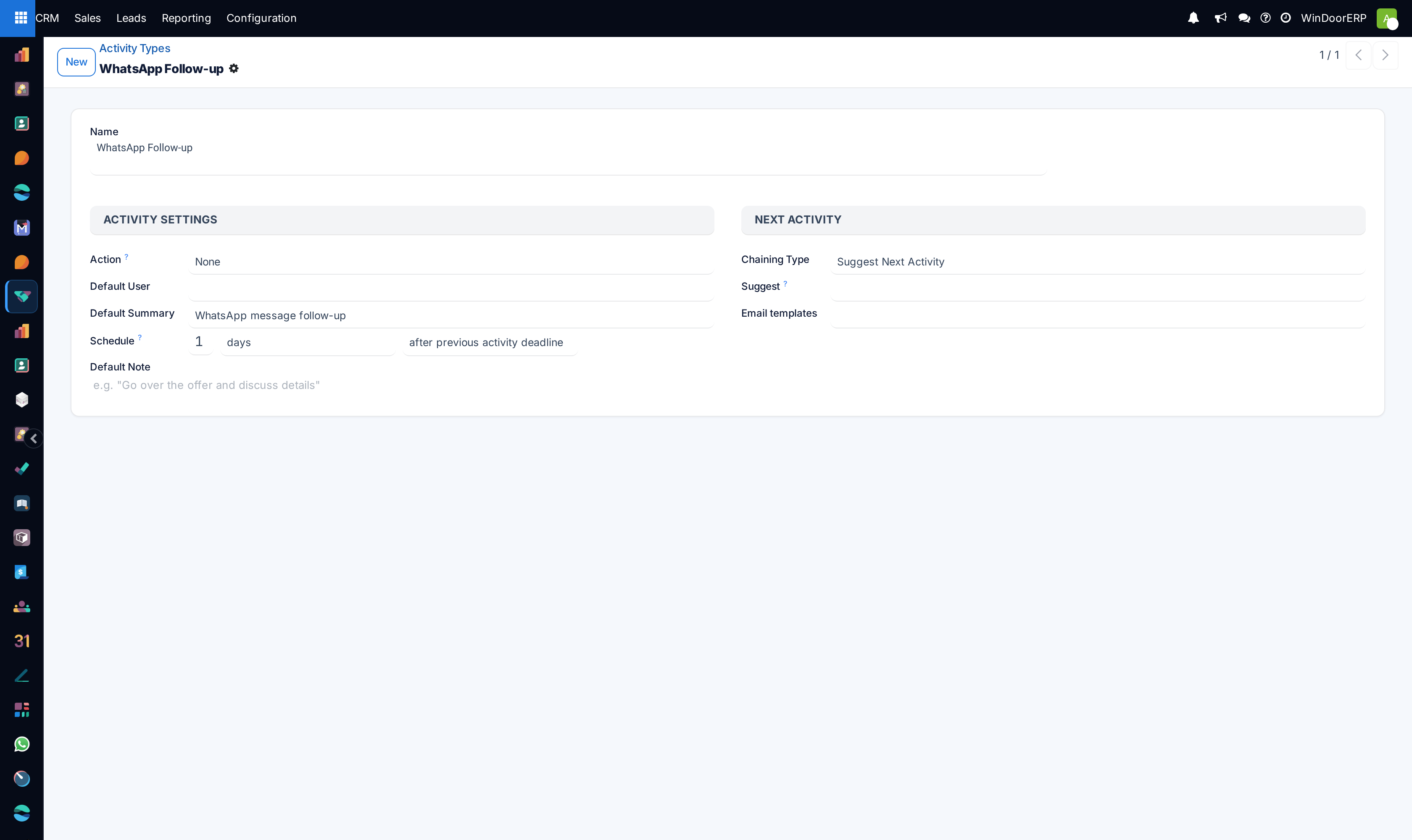
Open CRM › Configuration › Activities › Activity Types and click New, or open one of the existing types to adjust it.
-
02
Give it a Name. This is what appears on the button in the Schedule Activity dialog, and it is translated, so each language keeps its own wording.
-
03
Pick an Action. This is the behaviour, not a label: None is a plain to-do, Phonecall and Meeting hook into the calendar, and Upload Document makes the activity ask for a file before it can be closed.
-
04
Set a Default User if this kind of work always falls to the same person; leave it empty to let whoever schedules it decide.
-
05
Write a Default Summary — the line that pre-fills when someone picks this type.
-
06
Set Schedule: a number, a unit, and whether it counts from the previous activity's deadline or from the date it was actually completed.
-
07
Under Next Activity, choose a Chaining Type — see below — and then either the single activity to trigger or the set to suggest.
-
08
Use Default Note for standing instructions that should appear in the body of every activity of this kind, then save.
Activity Settings, field by field
| Name | Required, and translated per language. Placeholder e.g. Schedule a meeting. |
|---|---|
| Action | None, Upload Document, Phonecall or Meeting. It changes what the activity does, not just how it looks — a Meeting type opens the calendar, and an Upload Document type will not close without a file. |
| Default User | Pre-assigns every activity of this kind. Internal users only. Empty means the person scheduling it chooses. |
| Model | Which records the type may be used on. Hidden when you arrive from an app menu that has already fixed it. Left empty it reads Available everywhere. |
| Default Summary | Pre-fills the summary box. Placeholder e.g. "Discuss proposal". |
| Schedule | Three parts on one line: how many, of what unit, counted either after previous activity deadline or after previous activity completion date. The difference only shows when work runs late. |
| Default Note | Rich text placed in the body of each new activity of this kind. Good for a checklist people otherwise have to remember. |
Chaining: suggest or trigger
Suggest Next Activity offers a set of types when this one is marked done. The user picks, or ignores them entirely — nothing is created without a decision.
Trigger Next Activity takes one type and creates it automatically the moment this activity is marked done. No prompt, no choice. It is how you make a step that must never be skipped, and it is also how a careless edit can flood a pipeline with activities nobody asked for.
The form swaps its fields to match: choose Suggest and you get Suggest, a multi-select of types; choose Trigger and you get Trigger, a single type which then becomes required. An Upload Document type hides chaining altogether.
A trigger chain has no stop
If a type triggers another type that triggers back to the first, marking one done recreates the other for ever. Nothing detects the loop. Check any chain you build by walking it forward on paper before you save it, and prefer Suggest unless the step is genuinely mandatory.
Email templates on a type
When a type is tied to a model, an Email templates field appears and offers only templates written for that model. Attaching one puts a send option on the activity, so an Email activity can go out with agreed wording rather than being retyped each time.
Troubleshooting
| A type is missing from the dialog | Its Model restricts it to other records, or it is archived. Archived types stay on the activities that already use them. |
|---|---|
| The Email templates field is not there | The type has no Model. A template belongs to a model, so there is nothing to offer until one is set. |
| The chaining fields disappeared | The Action is Upload Document, which does not chain. |
| Activities keep reappearing after being closed | A trigger chain. Follow Trigger from the type that was just completed. |
| A renamed type still reads the old way for some users | The name is translated per language; renaming it in one language leaves the other untouched. |
Common mistakes
- Creating a type for every task. Types are kinds of work, not individual jobs — the job belongs in the summary.
- Using Trigger where Suggest was meant, and generating an activity every time anything is closed.
- Editing a shipped type such as Call to mean something specific to one team. It is used across the whole database.
- Setting a Default User on a general type, then wondering why activities land on one person.
Was this article helpful?
Thanks — your feedback helps.
Running a window or door factory?
Ask for a demo