Configure General Settings, company details, languages, and Quick Feedback
What this does
The Settings app is home base for a WindoorERP administrator: the General Settings page with every application's options, the Companies form that stamps your name, logo and tax identity on every printed document, the Languages machinery behind the bilingual English/Arabic interface, and Quick Feedback — the built-in channel to the WindoorERP team. This article covers those four surfaces and how saving actually behaves.
See also
Creating users and choosing what each may do is its own pair of articles: Add and manage users and Set access rights for a user.
Before you start
- You need administrator access — the Settings app is only visible to administrators.
- Settings changes apply to every user of the database, not just you.
Steps
-
01
Open Settings › General Settings. The left rail lists one section per installed app; the search box at the top finds any setting by name across all of them.
-
02
In the Users block, type an email under Invite New Users and press Invite — the person appears under Pending Invitations until they first sign in.
-
03
In the Companies block, press Update Info to open your company form; complete the address, Tax ID, Company ID and logo — these feed every quotation and invoice header.
-
04
Press Configure Document Layout in the same block to pick the printed-document template, font and colours, with a live preview.
-
05
In the Languages block, press Add Languages to activate another interface language.
-
06
Press Save. Leaving the page with unsaved changes asks "Would you like to save your changes?" with Save, Stay Here and Discard.
The General Settings page
One long form, one section per app that ships options — the list grows with every app you install, so your left rail will not match your neighbour's. Two behaviours matter more than any individual toggle. First, nothing happens until Save; Discard throws your changes away. Second, some toggles carry an app icon: enabling one installs a module when you save, and unchecking it later opens the uninstall confirmation with its list of data to delete — treat those toggles with the respect of an install button.
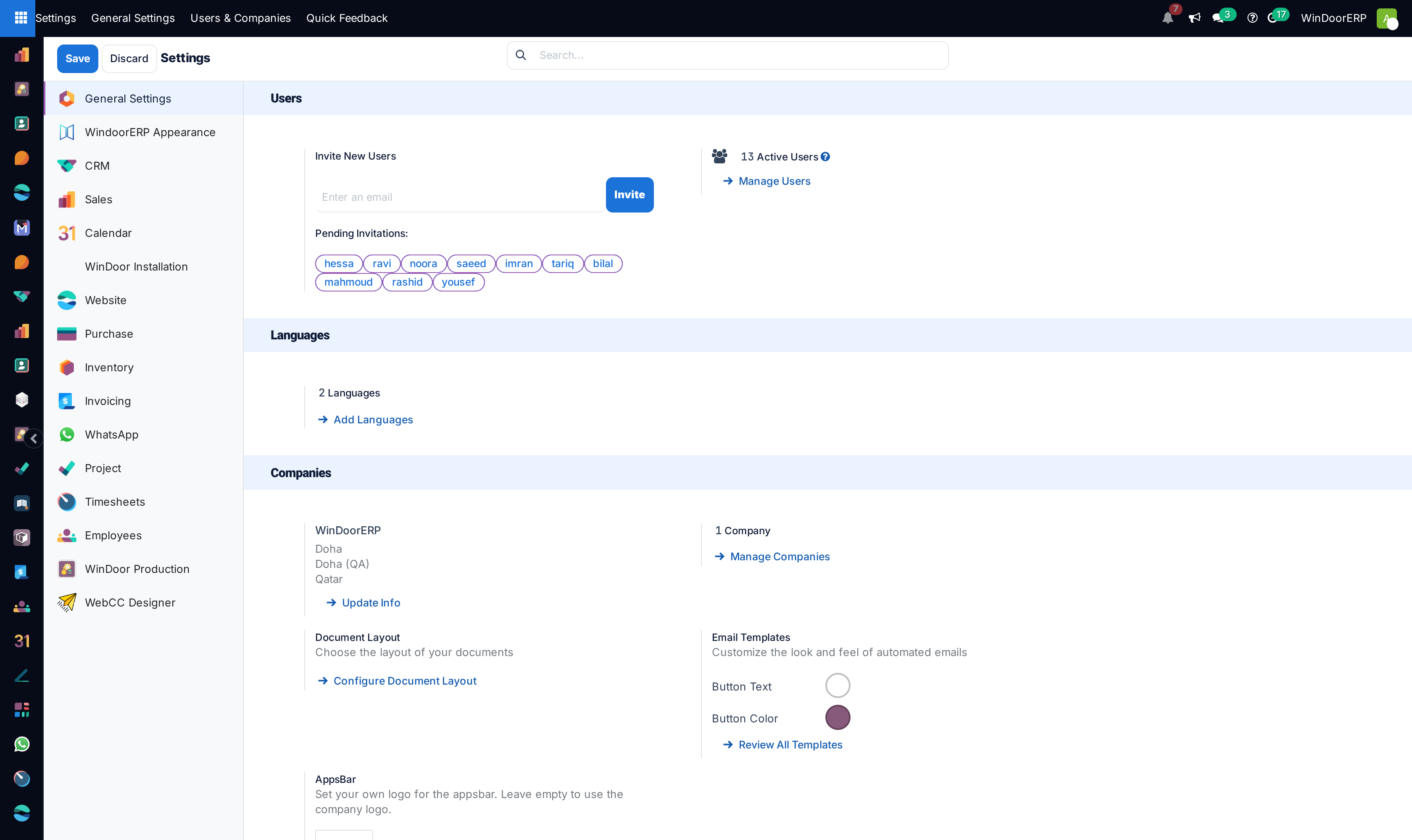
The blocks an administrator actually returns to:
| Block | What it does |
|---|---|
| Users | Invite New Users sends a signup email; invitees show as Pending Invitations pills until they connect. The active-user count and Manage Users sit beside it. |
| Languages | The installed-language count and Add Languages (see below). |
| Companies | Your company card with Update Info, Manage Companies, and Configure Document Layout for printed documents. |
| Email Templates | Button text and colour of automatic emails, and Review All Templates. |
| Permissions | The default access rights given to new users. |
| Developer Tools | At the bottom of the General Settings section: Activate the developer mode (and deactivate it) — the switch that reveals every Technical menu the administration articles rely on. |
The company form
Settings › Users & Companies › Companies holds the identity every document prints. The form has a General Information tab and a Branches tab:
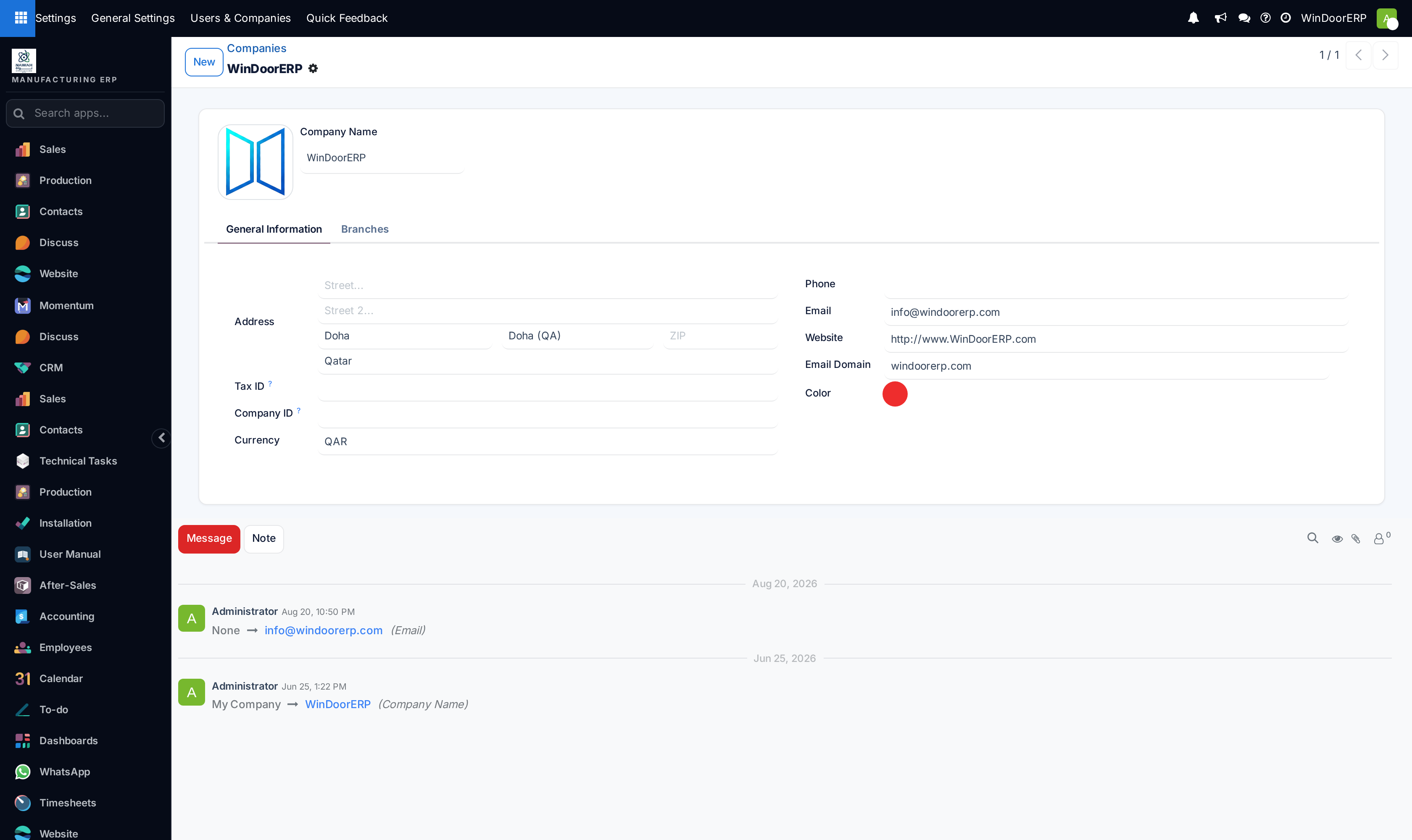
| Field | What it does |
|---|---|
| Company Name and logo | The name and logo on every report header and the app bar. |
| Address | Street, city, state, ZIP, country — printed on documents and used as the default for taxes and formats. |
| Tax ID | Your VAT/tax registration number. |
| Company ID | The commercial-registration number — this field is the CR field; there is no separate one. |
| Currency | The company currency. Picking a currency that is not yet active activates it — and once journal entries exist the currency is locked: "You cannot change the currency of the company since some journal items already exist". |
| Phone / Email / Website | Contact lines for document footers. |
| Email Domain | The alias domain outgoing mail is grouped under. |
| Color | The tag colour representing this company in lists. |
| Branches tab | Child companies. A branch shares root-level settings with its parent — the currency, among others, must match, and the parent of a company can never be changed after creation. Branches do not appear in the top-level Companies list; they live inside their parent's form. |
Every change is tracked in the chatter at the bottom — useful when "who renamed the company?" comes up. Companies cannot be duplicated ("Duplicating a company is not allowed. Please create a new company instead.") and in practice are archived rather than deleted. A company that is still some user's default company refuses archiving and names the count of users involved. Multi-company work — the company switcher in the top bar, per-user allowed companies — only appears once a user is allowed more than one company; a standard WindoorERP database runs with a single company and never shows it.
Languages and translations
WindoorERP ships bilingual: English (US) and Arabic, with the interface direction switching automatically to right-to-left for Arabic users. Each user picks their language in their own preferences; the Add Languages dialog is how an administrator activates more.
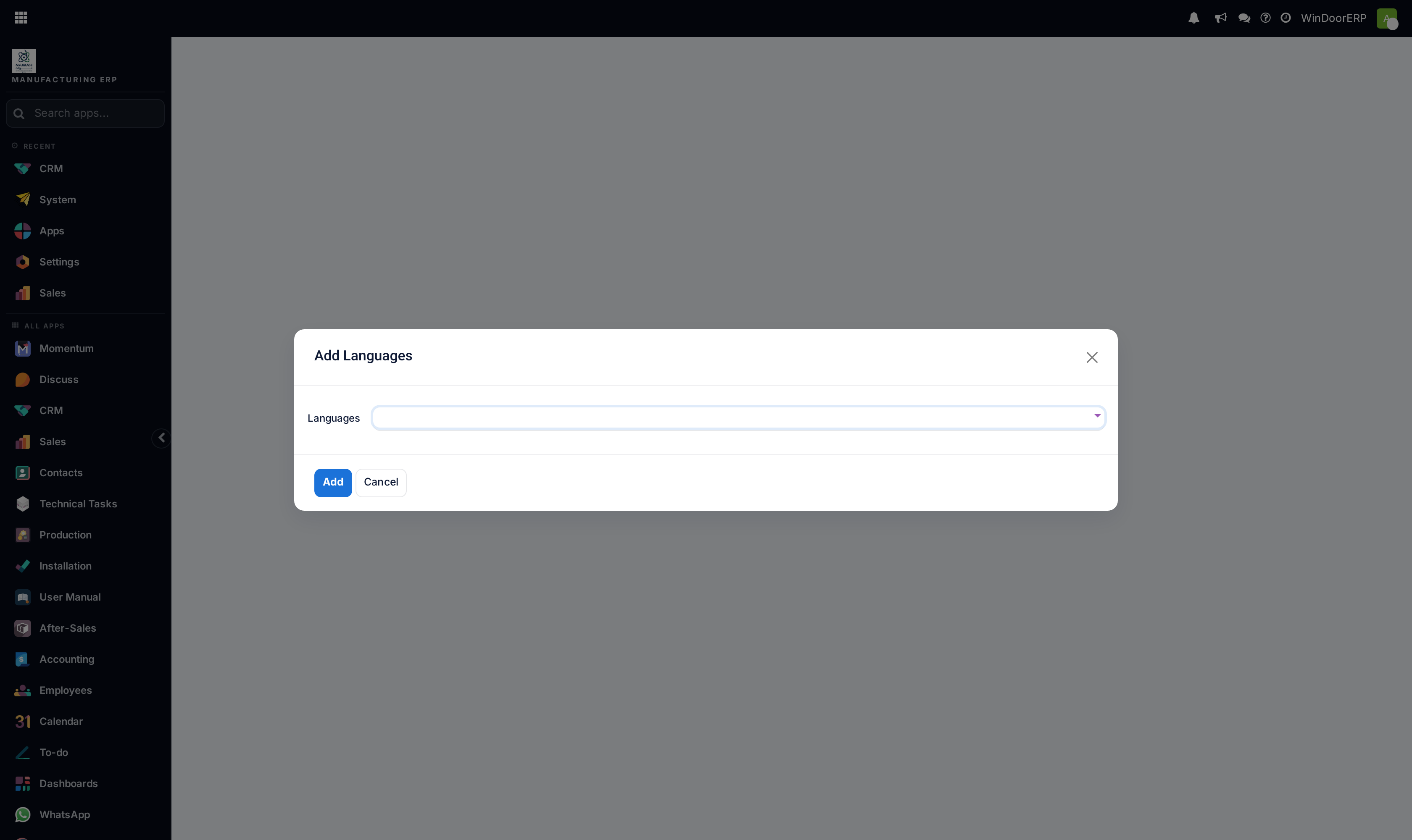
Adding a language activates it and loads every installed module's translations for it; picking a single language then offers to switch you to it immediately. "Removing" a language means archiving it, and the guards are strict: a language still used by users ("Cannot deactivate a language that is currently used by users."), by contacts, by a website, or the language the system was set up in all refuse, and at least one language must stay active. A language's Locale Code can never be changed after creation.
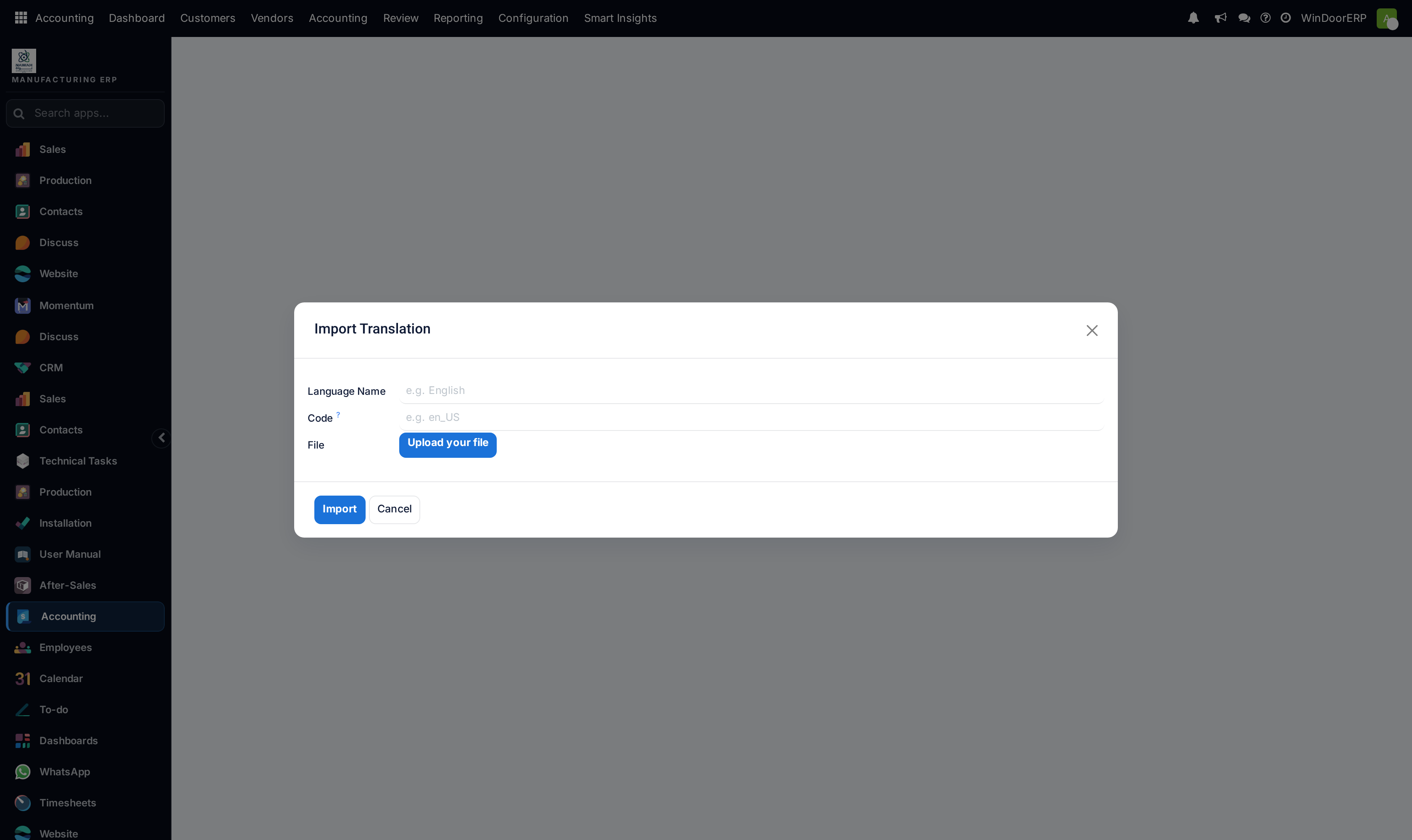
The Settings › Translations menu — languages list, Import Translation, Export Translation — only appears in developer mode. The import wizard accepts .po and .csv files and its Overwrite Existing Terms option defaults to on — and the checkbox itself only appears in developer mode, so the default applies even when you cannot see it; on a WindoorERP database the Arabic terms are curated, so importing a translation file with overwrite enabled replaces them wholesale. Export a backup first, and untick overwrite unless replacement is exactly what you intend.
Quick Feedback
The bullhorn icon in the top bar — "Send feedback to the WindoorERP team" — is available to every internal user on every screen:
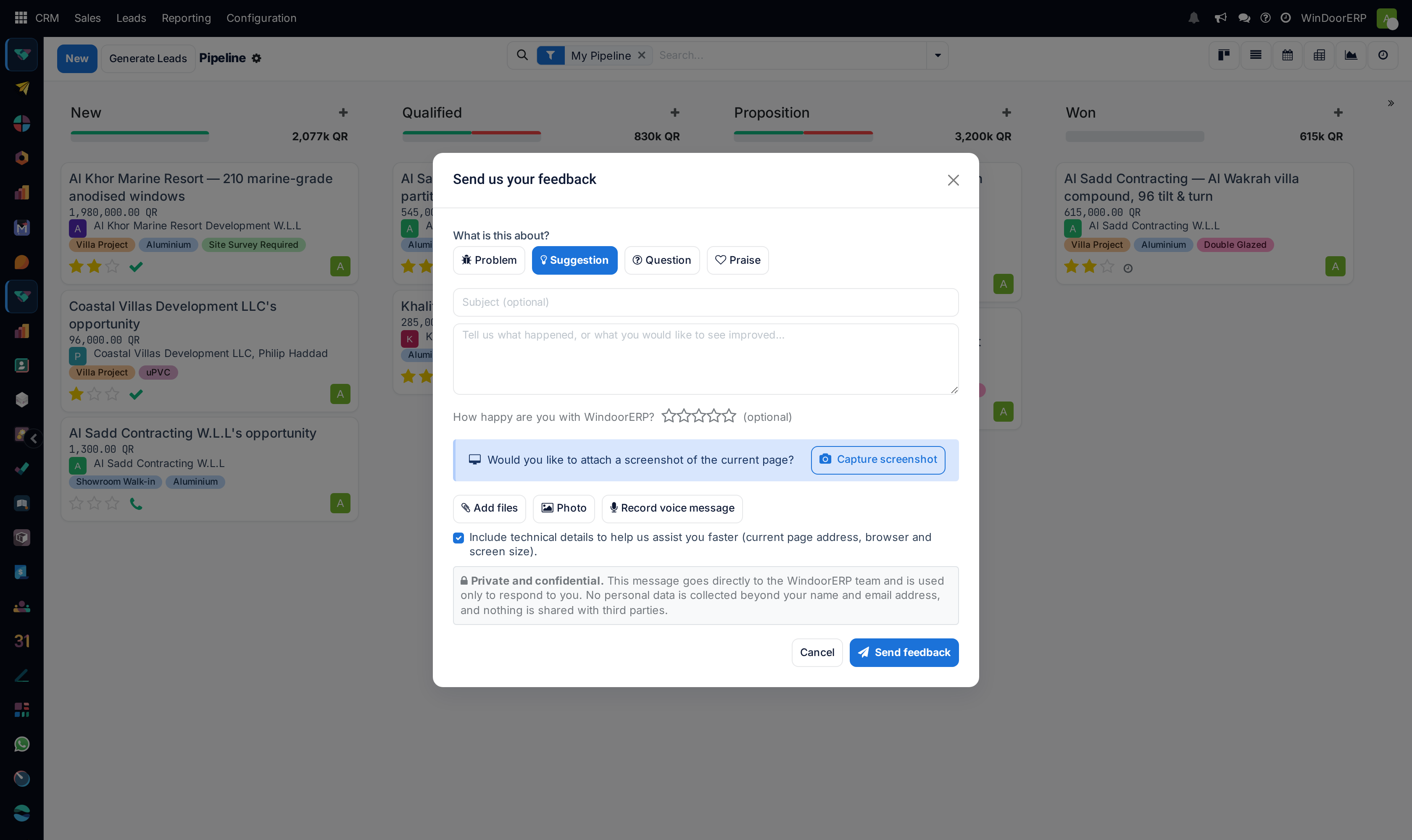
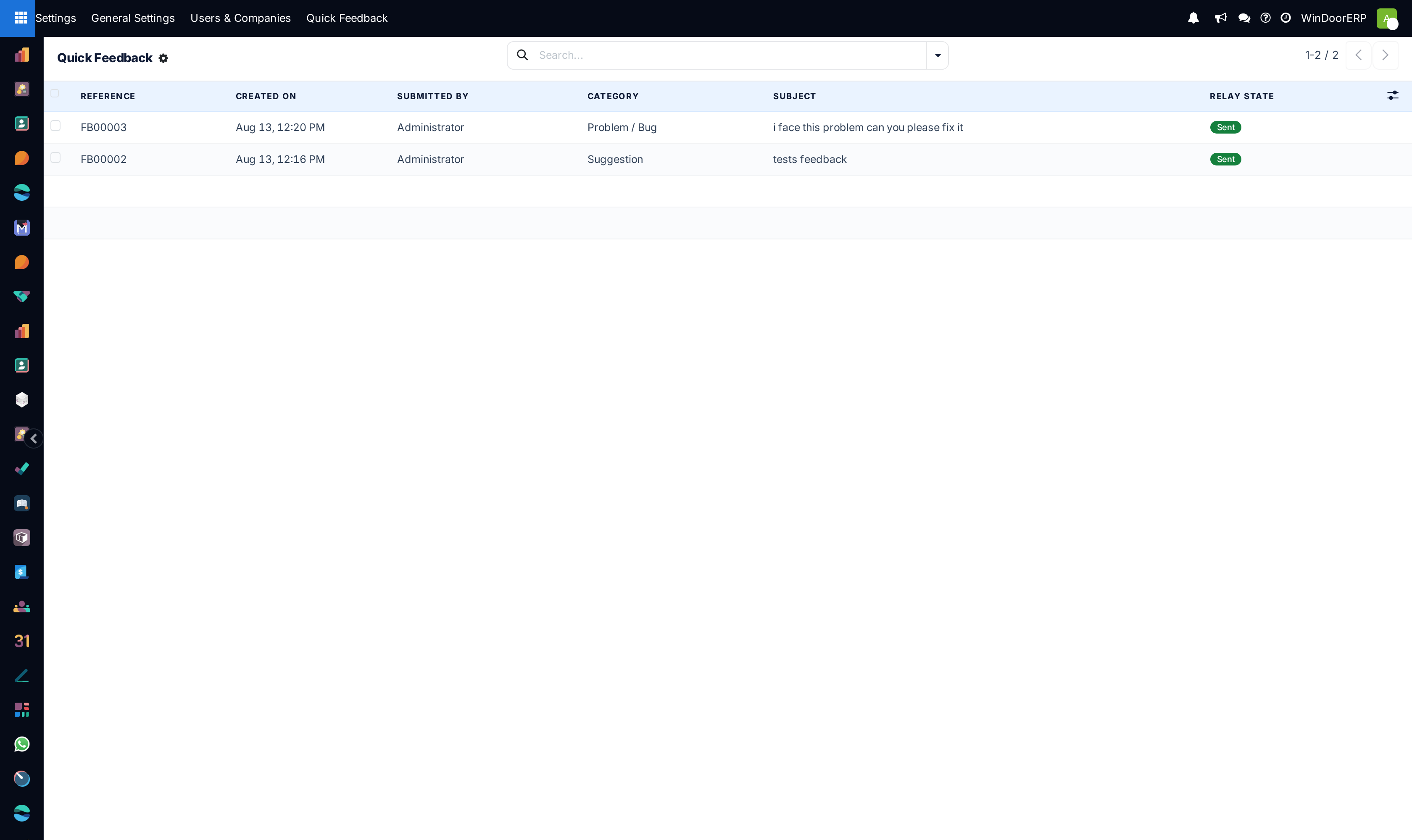
Pick Problem, Suggestion, Question or Praise, write the message, optionally rate your happiness, and attach evidence — Capture screenshot grabs the current page, Add files, Photo and Record voice message take the rest. The Include technical details checkbox adds the page address, browser and screen size, which is exactly what a support engineer needs first. Submissions get a reference like FB00042 and are relayed to the WindoorERP team automatically — a connectivity hiccup never loses one; delivery is retried in the background and administrators can follow the Relay State (Pending, Sent, Failed, with a Retry Relay button) under Settings › Quick Feedback — a menu only administrators see.
Troubleshooting
| Symptom | Cause and fix |
|---|---|
| A settings change did not stick | The page was left without pressing Save — the "Would you like to save your changes?" dialog was answered with Discard or the browser tab closed. Re-apply and save. |
| Saving settings suddenly installs something | An app-icon toggle was switched on — those toggles install modules on Save. Uncheck it before saving if that was not the intent. |
| "You cannot change the currency of the company since some journal items already exist" | Accounting entries lock the currency by design. A different currency means a new company, not an edit. |
| An invited user never appears as active | They have not accepted the invitation — they stay under Pending Invitations until their first sign-in. Re-send or check the address. |
| "Cannot deactivate a language that is currently used by users." | Switch those users (or contacts, or the website) to another language first; the guard names which dependency blocked you. |
| Arabic labels went wrong after a translation import | The import ran with Overwrite Existing Terms checked and replaced the curated terms. Restore from your exported backup file, or contact WindoorERP support. |
| Feedback shows Relay State Failed | The relay to the WindoorERP team could not get through; it retries automatically and Retry Relay forces one now. The submission itself is never lost. |
Common mistakes
- Treating General Settings toggles as harmless preferences — the ones with app icons install or uninstall whole modules on Save.
- Leaving the company form half-filled — an empty Tax ID or address prints as an empty gap on every quotation and invoice.
- Importing a translation file with Overwrite Existing Terms ticked "to be safe" — it is the destructive option, not the safe one.
- Reporting a bug by describing it from memory instead of pressing the feedback bullhorn on the failing page with Capture screenshot and technical details on.
Was this article helpful?
Thanks — your feedback helps.
Running a window or door factory?
Ask for a demo