Set the shifts, the onboarding plans and the HR policies
What this does
Three kinds of HR plumbing live under Employees › Configuration: the Working Schedules that give every logged hour a shift to be measured against, the Onboarding / Offboarding plans that turn a new joiner's first week into an owned checklist, and the policy records — departure reasons, job positions, contract templates and the app's Settings page. Set these before the timesheets start, because an hour without a schedule behind it cannot say what normal was.
Before you start
- You have HR configuration access; the Settings page needs administration rights.
- Know your real shift patterns — factory day shift, site hours, office hours — before typing them.
First-time setup
-
01
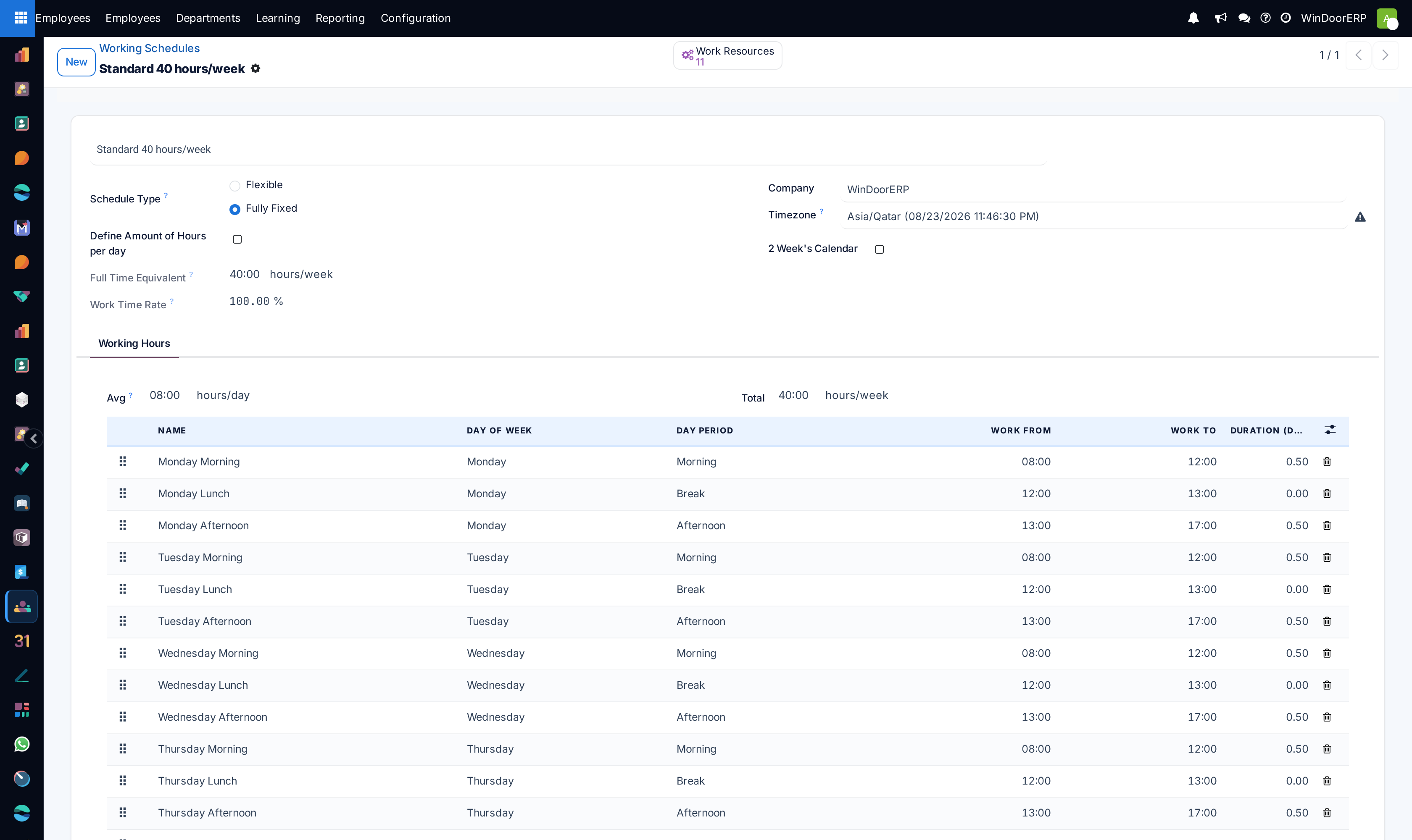
Open Configuration › Employee › Working Schedules and build one schedule per real pattern. Each is a set of weekday attendance lines (day, morning/afternoon, from-to hours) with the timezone and the resulting hours per week; the shipped Standard 40 hours/week is the template to copy.
-
02
Assign each employee their schedule on the Payroll tab of their record — that link is what overtime, costs and planning read.
-
03
Open Configuration › Employee › Onboarding / Offboarding and write the plans: one activity line per step — prepare the badge, issue the safety boots, revoke accesses — each with an activity type and who is responsible (the employee, their manager, a named coach).
-
04
Run a plan by opening the employee and pressing Launch Plan — every line becomes a scheduled activity on the right person.
-
05
Review the policy lists: Departure Reasons (offered by the archive dialog), Recruitment › Job Positions (the standard roles employees are attached to) and Contract Templates (reusable employment terms that Load a Template pulls onto an employee's Payroll tab).
-
06
Finish in Configuration › Settings (below).
Working schedules are load-bearing
A schedule is not documentation — it is the denominator. The timesheet screens compare logged hours against it, planning tools derive capacity from it, and an employee with the wrong schedule produces quietly wrong numbers everywhere. Keep one schedule per real pattern and resist per-person copies: a "Day Shift" that exists once can be corrected once.
Onboarding and offboarding plans
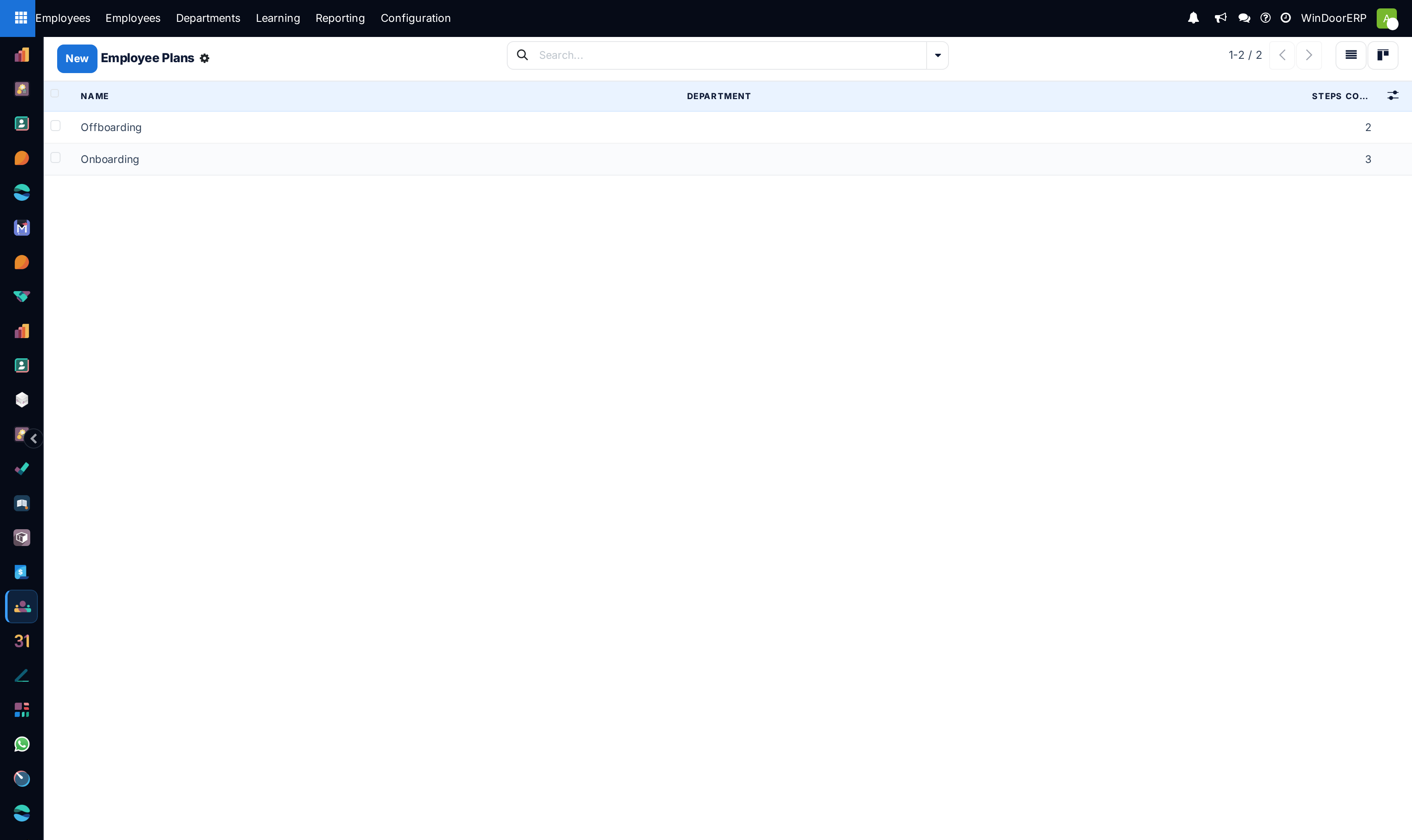
A plan is a named checklist of activity templates. Each line sets the activity type, the summary, and the Assignment — who gets the to-do when the plan is launched: the employee themselves, their manager, their coach, or a named user. Launching from the employee's Launch Plan button schedules the whole set at once, and the activities then live in each owner's normal activity flow — visible, dated, and impossible to lose in a handover email. Offboarding works the same way in reverse: launch it when the departure is agreed, and the revoke-and-collect steps get owners before the last day.
The Settings page
| Setting | What it does |
|---|---|
| Presence Display | How the presence dot on employees is computed — from attendances, or from user activity in the system; Advanced Presence Control adds the reporting screen with email and IP checks. |
| Skills Management | The switch behind the whole skills chapter — Resume and Certifications tabs, skill types and the two skills reports. On in WindoorERP. |
| Company Working Hours | The default schedule new employees start with — the arrow opens it for editing. |
| Contract Expiration Notice Period / Work Permit Expiration Notice Period | How many days before a contract end date or a work-permit expiry the responsible person is alerted — the second one is the field Gulf residency compliance leans on. |
Troubleshooting
An onboarding activity landed on the wrong person, or the launch complained about a missing assignee — the plan line's Assignment says who receives it, and Coach and Manager resolve from the employee's record at launch time. Fill the Manager (and Coach, if your plans use one) before launching.
Overtime looks wrong for a whole team — check their Working Schedule on the Payroll tab before doubting the entries; a 48-hour crew on the 40-hour default reads as permanent overtime.
No permit warnings arrived — the notice periods only alert when the expiry dates are actually filled on the employee's Personal tab; empty dates warn nobody.
The archive dialog offers no useful reason — the list is yours to maintain under Departure Reasons; add the real ones (end of project, resignation, transfer) before the first departure, not during it.
Common mistakes
- One schedule per employee instead of one per pattern — corrections then need touching every record.
- Writing the onboarding checklist in a document instead of a plan — a document has no owners and no dates.
- Filling visa and permit numbers without their expiry dates, which silences the one warning that matters.
Was this article helpful?
Thanks — your feedback helps.
Running a window or door factory?
Ask for a demo