Print invoices, purchase orders, employee documents, and company branding
What this does
The financial and corporate documents: customer invoices and their copies, the BOQ progress and advance invoices, purchase orders and requests for quotation, the employee badge and resume, timesheet tables, the product pricelist, and the branding machinery — document layout, colours, fonts and the preview reports — that stamps your company's identity on every one of them. This article says what each document actually prints on this system, including the places where a famous feature simply is not there.
Before you start
- Posted invoices, confirmed purchase orders, or employee records to print from.
- Your company logo uploaded — the layout wizard derives the brand colours from it.
- For badges: a barcode value typed on each employee record; there is no badge without one.
Customer invoices — what prints and what doesn't
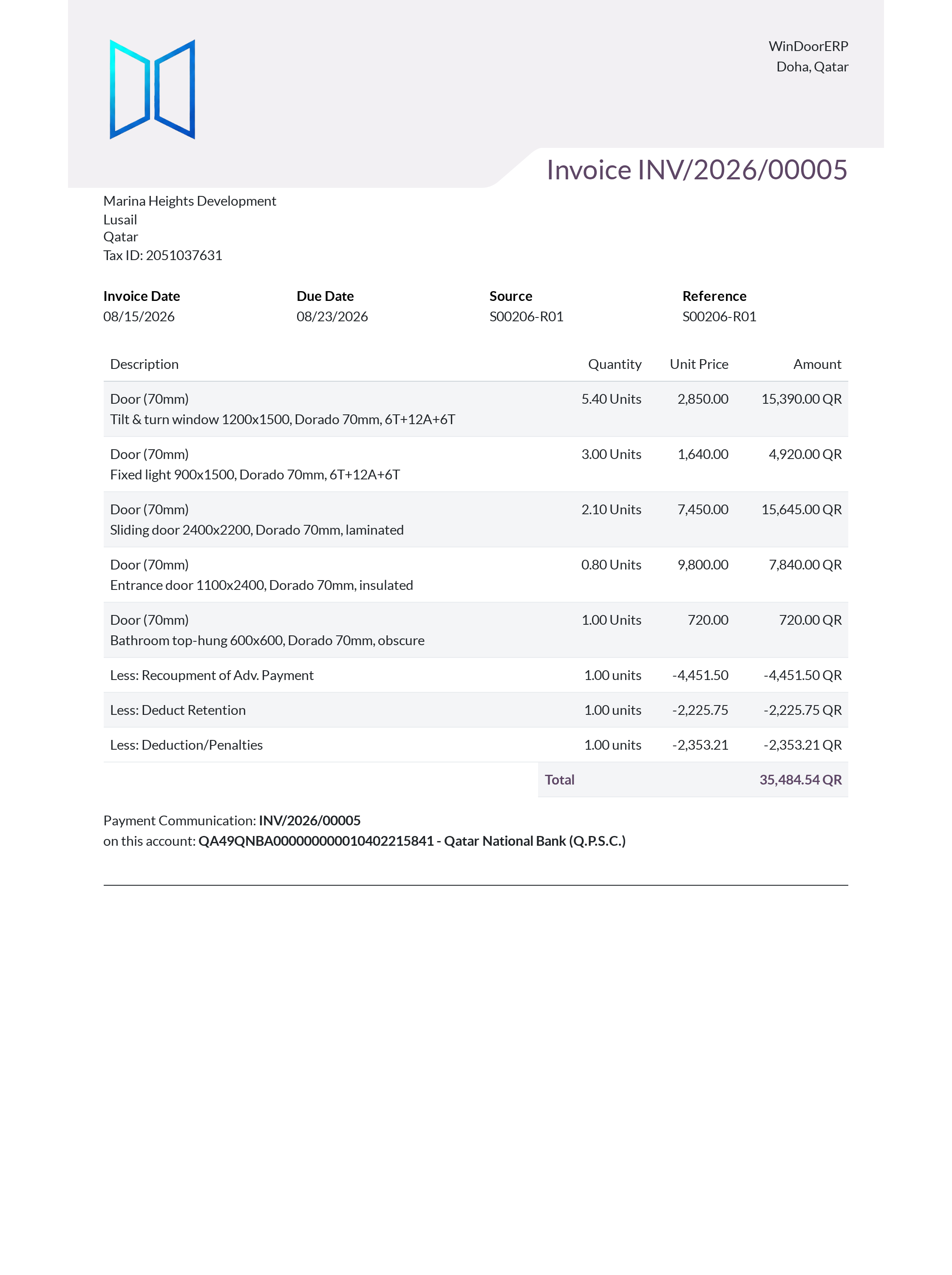
The invoice PDF is the standard Odoo invoice rendered in your company's layout. Three things people expect on it deserve straight answers:
- There is no ZATCA e-invoicing on this system. ZATCA is Saudi Arabia's mandate; this is a Qatar system, and no module in the stack implements cryptographic stamps or tax-authority QR codes.
- The QR code that exists is a bank-payment QR, off by default. It appears only when "Display QR-code on invoices" is enabled in Settings and the company has a bank account that supports a QR method — then it encodes payment details, not tax data.
- Bilingual Arabic/English invoice headings are opt-in. The GCC invoice module is installed, but its dual-language titles print only when the company setting for dual-language invoices is switched on; until then the invoice prints in a single language.
Multiple Invoice Copies prints the invoice followed by one page per configured copy ("Original", "Customer Copy", …). Know its seam: the first page is the real invoice template — bilingual when the GCC setting is on — but the copy pages are a separate, English-only layout that ignores the bilingual setting. A three-copy print on a bilingual tenant is one bilingual page and two English ones.
The BOQ Invoice Report on a BOQ invoice prints "PROGRESS INVOICE" or "ADVANCE PAYMENT INVOICE" according to the invoice's type, with the full progress table and the cascading totals — contract value, variations, cumulative progress, retention and recoupment. The accounting chapter's BOQ articles cover that document line by line.
Purchase documents
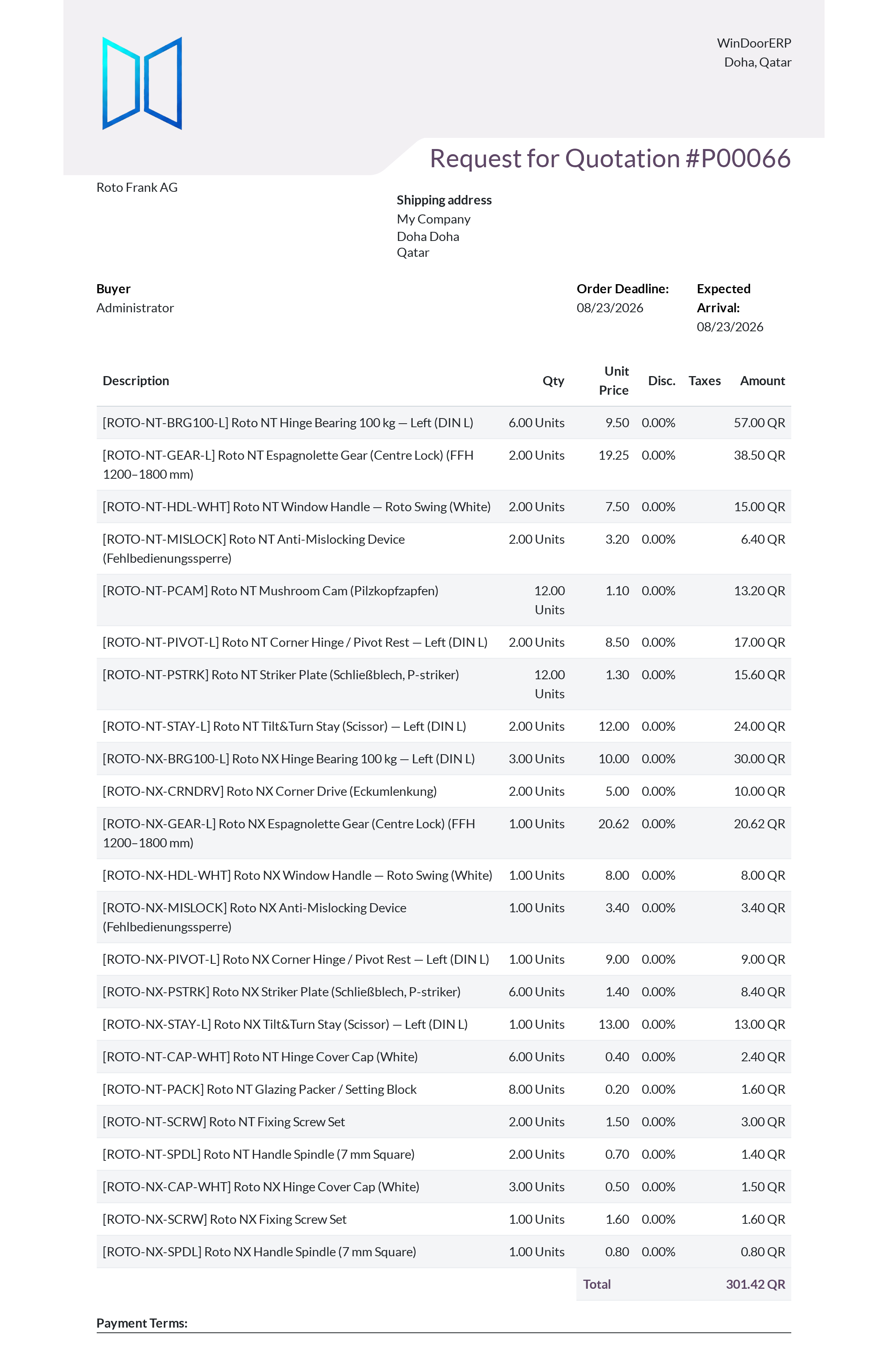
A purchase order's Print menu carries two entries that render the same table. The first names itself by state — "Request for Quotation" while the order is a draft or sent, "Purchase Order" once confirmed. The second is always Request for Quotation, kept so you can re-print the RFQ framing even after confirmation. Same content, different title block.
Employee documents

The Print Badge button on an employee form exists only when the employee has a barcode: the field is empty by default and nothing fills it automatically, so assigning a barcode (HR settings › employee record) is the step that makes badges possible at all. The badge card prints the logo, avatar, name, job title and that barcode — the same value the Attendance kiosk scans. The Employee Resume is not on the Print menu by design; use the Print Resume button, which opens a small wizard to pick colours and toggle sections before generating the CV.
Timesheets print from a timesheet list or a task via Print › Timesheets — a flat date/employee/task/hours table. There is no consolidated cross-model timesheet report: the same table exists per timesheet list and per task, and the variants for projects, sale orders and invoices are defined in code but reachable from no menu.
Pricelists and the manual itself
The Product Pricelist report is launched from the product list's action menu, not a Print menu: pick the pricelist and the quantity breakpoints on screen, then preview, print to PDF, or export the same table as CSV/XLSX. And this manual prints too: on any manual topic, ⚙ Export Manual (for users in the manual author group) exports the topic, its subtree, or everything published — as a PDF with a cover and table of contents, or as HTML, Markdown, JSON or XML.
Setting the company's document branding
Important
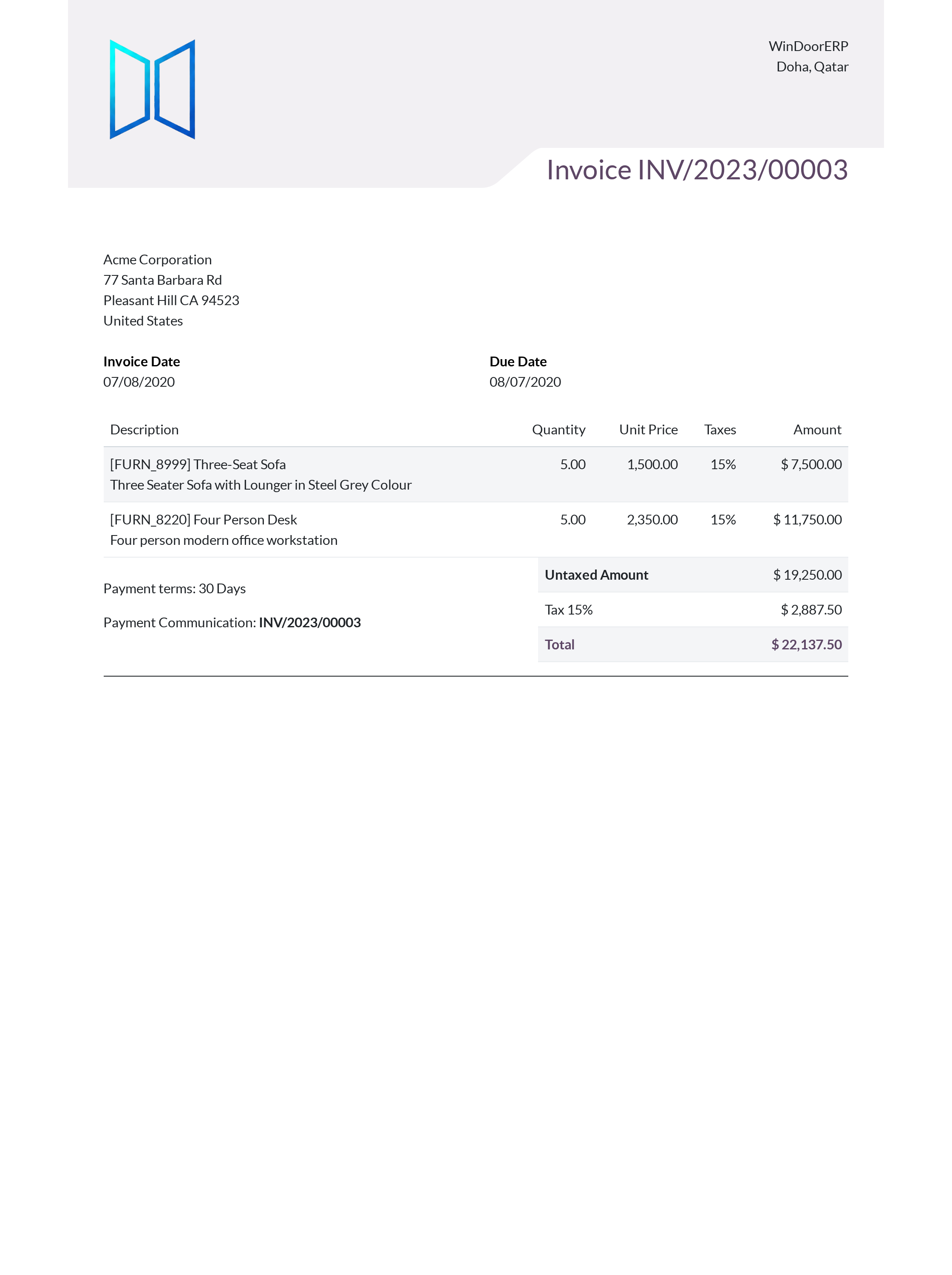
The preview reports print a built-in sample invoice — a fictional customer, sample products and a sample 15% tax line. It demonstrates your layout, colours and font only; the tax line is not your tax configuration. Three near-identical previews exist on the company's Print menu; the General Settings page links one of them ("Preview Document") only when Developer Mode is on.
Two rules govern who gets which look. A report that declares its own paper format (the badge, the CV, the survey reports, label sheets) always keeps it — the company default applies only to reports without one. And each company carries its own layout: on a multi-company system, a subsidiary with no layout chosen prints in the plain default, not the parent company's branding — set the layout per company.
-
01
Open Settings › General Settings, find the Document Layout setting in the Companies block, and click Configure Document Layout.
-
02
Pick one of the seven layouts — Light, Boxed, Bold, Striped, Bubble, Wave or Folder — and watch the live preview re-render.
-
03
Upload the logo first, then adjust colours: the wizard extracts primary and secondary colours from the logo automatically, so a logo change can silently change your brand colours unless you re-pin them.
-
04
Choose the font (Tajawal is the Arabic-appropriate choice in the list) and the company paper format — the default every report without its own format follows.
-
05
Fill the header, footer and company details blocks that print on every external document.
-
06
Verify on paper: open the company record under Settings › Users & Companies › Companies and print Report Layout Preview from its Print menu — a sample invoice in your branding.
Troubleshooting
No QR code on invoices — the "Display QR-code on invoices" setting is off, or no company bank account supports a QR method. There is no tax-authority QR to enable; the feature is a payment QR.
Invoices print in one language despite the GCC module — the company's dual-language invoice setting is off; the module alone changes nothing.
Copy pages of Multiple Invoice Copies ignore the bilingual setting — a real limitation: only the first page uses the standard invoice template; copies use their own English-only layout.
No Print Badge button on an employee — the employee has no barcode; type one on the record and the button appears.
"Timesheets" prints the same table everywhere — it is the same table; scope it by printing from the list or task whose lines you want.
A document ignores the company paper format — that report declares its own format, which always wins; change the report's format under Settings › Technical › Reporting › Reports if you really mean to.
A subsidiary's documents print unbranded — that company has no layout selected; run Configure Document Layout while switched into it.
Common mistakes
- Promising a customer "ZATCA-compliant" invoices — the system is Qatar-localised and has no e-invoicing stamps; do not claim compliance the software does not implement.
- Re-uploading a logo and not noticing the brand colours changed with it — the wizard re-derives them from the image.
- Judging tax setup from the layout preview — its 15% line is sample data, not your configuration.
- Printing invoice copies for a bilingual customer without checking page two — the copies revert to English.
- Bulk-printing badges before anyone assigned barcodes — the button is not even visible until the field is set.
Was this article helpful?
Thanks — your feedback helps.
Running a window or door factory?
Ask for a demo