Print elevation diagrams, profile cutting optimizations, glass cutting lists, and work order travelers
What this does
A production order carries its own print shop. From the order's ⚙ Print menu come the fabrication documents: the Elevation Diagram per window, the Profile and RI Cutting Optimization plans for the saws, the Glass Cutting List, the Profiles and Accessories BOQ, the per-item Production Report, the Wastage Summary, and the OEE & Quality Summary. Work orders print their barcode Work Order Traveler, produced units their Declaration of Performance, and the WebCC screens add the order-level glass and material lists. This article covers what each document contains — and, just as important, which button must have run first so it prints full rather than empty.
Before you start
- A production order with its items on it. Printing is never blocked by state — a bare draft prints a valid but empty PDF, so the prerequisites below are yours to enforce, not the system's.
- For the cutting documents: Optimize Bars has been run on the order's Material tab.
- For the material documents: every item was analysed in WebCC (design saved) and Generate / Refresh has rebuilt the material list.
What feeds what
| Documents | Fed by | If the source never ran |
|---|---|---|
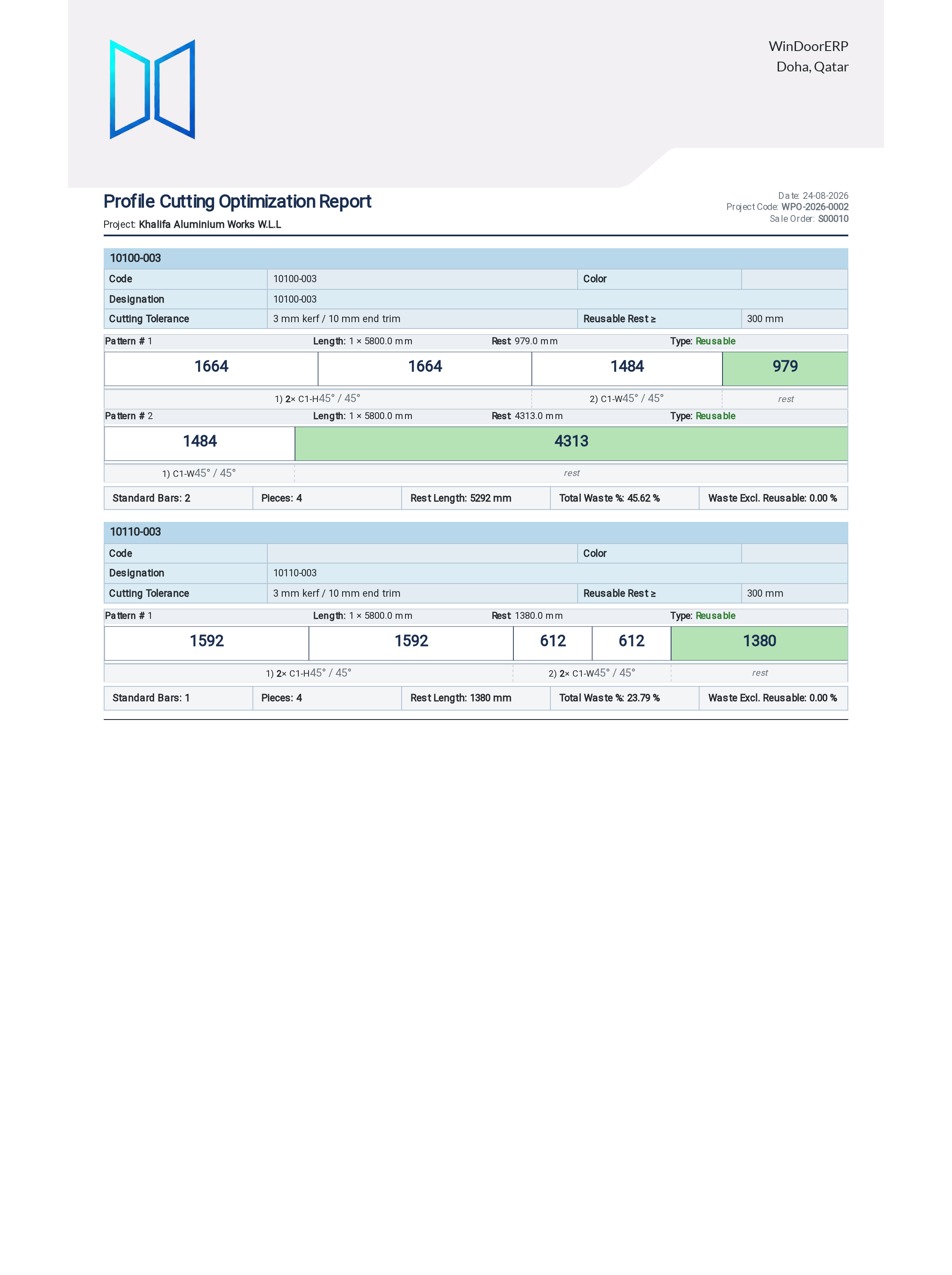
| Profile Cutting Optimization, RI Cutting Optimization, Profiles BOQ, Wastage Summary | The stored cutting plans built by Optimize Bars (Material tab). The reports compute nothing themselves. | The PDF prints a one-line note telling you to run Optimize Bars first. |
| Glass Cutting List, Accessories BOQ, Production Report (per item) | The material list built by Generate / Refresh, which itself skips any item never analysed in WebCC. | Empty sections — an unanalysed window's glass and hardware simply never appear. |
| Elevation Diagram, OEE & Quality Summary, Work Order Traveler, Declaration of Performance | The order's own lines, work orders, NCRs, and produced units. | Placeholder cells or zero-row tables, printed without complaint. |
Important
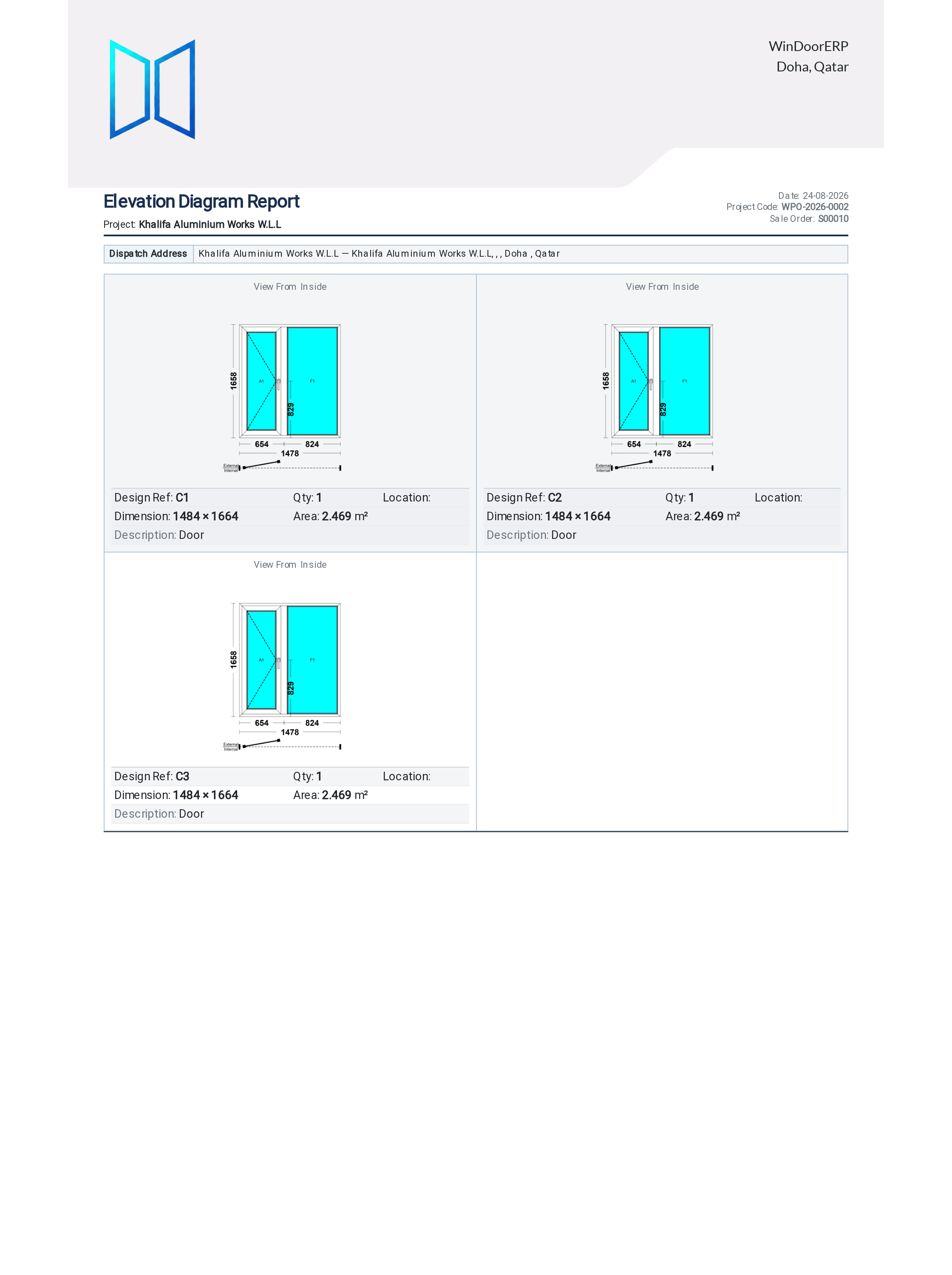
The elevation image on the diagram and the per-item report is a snapshot saved from the WebCC designer — the real drawing of the design as last saved on the canvas. A design that was auto-generated and never opened in the designer prints as a generic frame rectangle instead. If a diagram shows placeholder boxes, open each design in WebCC, save it, and print again; and treat the drawing as an illustration at page scale, not a 1:1 template to measure from.
Producing the shop package
-
01
On the production order's Material tab, click Optimize Bars. It rebuilds the cutting plans (and re-uses reserved offcuts), and it confirms first because it regenerates everything.
-
02
Click Generate / Refresh so the material list reflects every analysed item.
-
03
From ⚙ Print, print the saw pack: Profile Cutting Optimization (each bar drawn to scale with its pieces, offcut badges, and rest lengths), RI Cutting Optimization for the reinforcement, and the Glass Cutting List grouped by glass specification with true-shape outlines.
-
04
Print the procurement pair: Profiles BOQ — full stock bars billed, offcut-nested cuts explicitly not billed — and the Accessories BOQ, fabrication and installation hardware rolled up by product with package quantities.
-
05
Print the Elevation Diagram for the glazing bench and the Production Report (per item) as the full dossier — one page-broken section per window with its drawing, bars, hardware, and glazing. Above 300 items, use Print › Production Report in Batches; the direct print truncates to the first 300 with a warning banner.
-
06
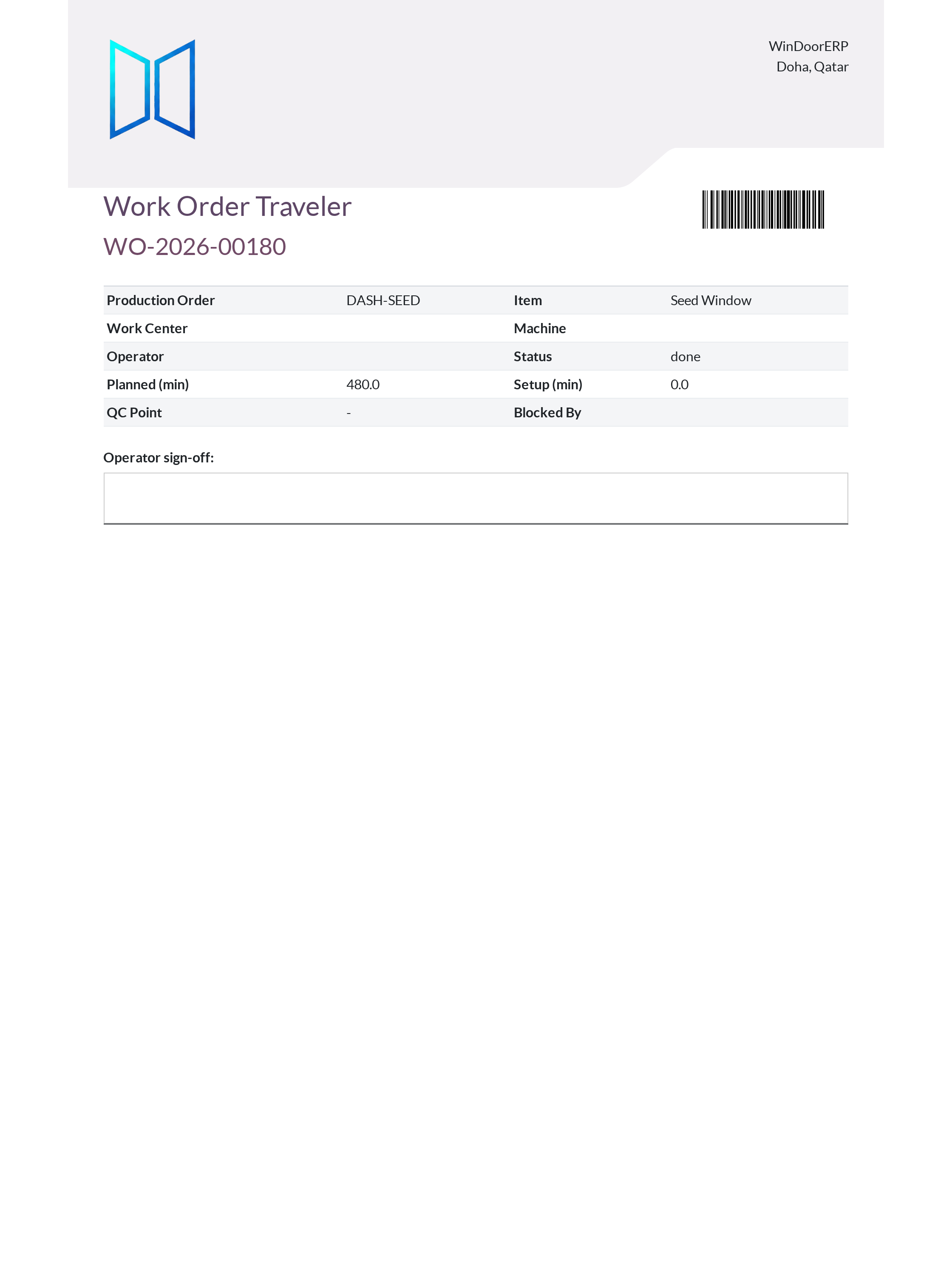
From each work order, print the Work Order Traveler — its Code128 barcode is the same value the Operator Terminal scans to start the operation and advance pieces, so the printed sheet genuinely drives shop-floor tracking. An operator sign-off box closes the sheet.
-
07
After production, print the OEE & Quality Summary — per-work-order OEE (availability × performance × quality, computed from the recorded minutes and quantities) plus the order's non-conformances — and the Wastage Summary with its used/reusable/waste bar per cutting plan.
The Declaration of Performance
Each produced unit can print a Declaration of Performance: its DoP reference and serial, the production order and lot, CE marking, the declared U-value with its glass/frame basis, and signature lines. Read it as a form the data must be earned into: the U-value appears only after Calculate U-Value runs on the unit, CE marking is a checkbox your quality team ticks deliberately, and certification (Mark Thermal Certified) refuses to run without a U-value. Printing is never blocked — an unprepared unit prints "Not declared" and "Pending thermal calculation" — so make the calculate-and-certify pass part of the handover routine, not an afterthought. Produced units themselves are created when production starts with piece scanning enabled, or at finished-goods receipt.
The WebCC order-level documents
Three more documents live on the WebCC Order Summary screen (opened from the sales order): Materials (Shop Copy) — quantities only, safe to hand a workshop or supplier; Full Summary (internal) — the same list with cost and margin, for internal eyes; and Glass List (Full Order) — the whole order's panels in landscape. A fourth, Glass Schedule PDF, sits on each design's analysis once it reaches Analyzed, with per-panel specifications and true-shape diagrams captioned as schematic. The order-level lists rebuild from the items' analyses, so they carry the same rule: every designed item must be analysed before the list is complete.
Troubleshooting
"No cutting plans found for this report. Run Optimize Bars on the production order first." — exactly that; the cutting documents only print stored plans.
"No hardware/accessory lines. Generate the material list first." / "No glass panels in this production order." — run Generate / Refresh on the Material tab; if a specific window is still missing, its design was never analysed in WebCC.
Elevation cells print "(no elevation image)" or generic rectangles — those designs were never saved in the WebCC designer; open and save each one, then reprint.
"Showing items 1–300 of N…" on the per-item report — use Production Report in Batches for big orders.
"Set or calculate a U-value before certification." — the certify button demands a U-value; run Calculate U-Value first. Printing the DoP never raises this — check the document's fields instead of trusting that it printed.
Optimize Bars refuses with a capacity error — the order exceeds the configured optimizer size limit; split the order or raise the limit with your administrator.
Common mistakes
- Printing the cutting pack straight after editing quantities — the reports show the stored plans; re-run Optimize Bars after any change to the order's lines.
- Handing the saw team a cutting list printed from a draft order — an empty-but-valid PDF looks official; check the totals row before it leaves the office.
- Reading the Profiles BOQ's billed metres as total metres — offcut-nested cuts are deliberately excluded from billing and listed separately.
- Issuing Declarations of Performance that print "Pending thermal calculation" — the paper looks right; the declaration says nothing.
- Measuring from the elevation drawing — it is a saved design snapshot at page scale; dimensions live in the printed numbers, not the picture.
Was this article helpful?
Thanks — your feedback helps.
Running a window or door factory?
Ask for a demo