Follow the technical project behind an opportunity
What this does
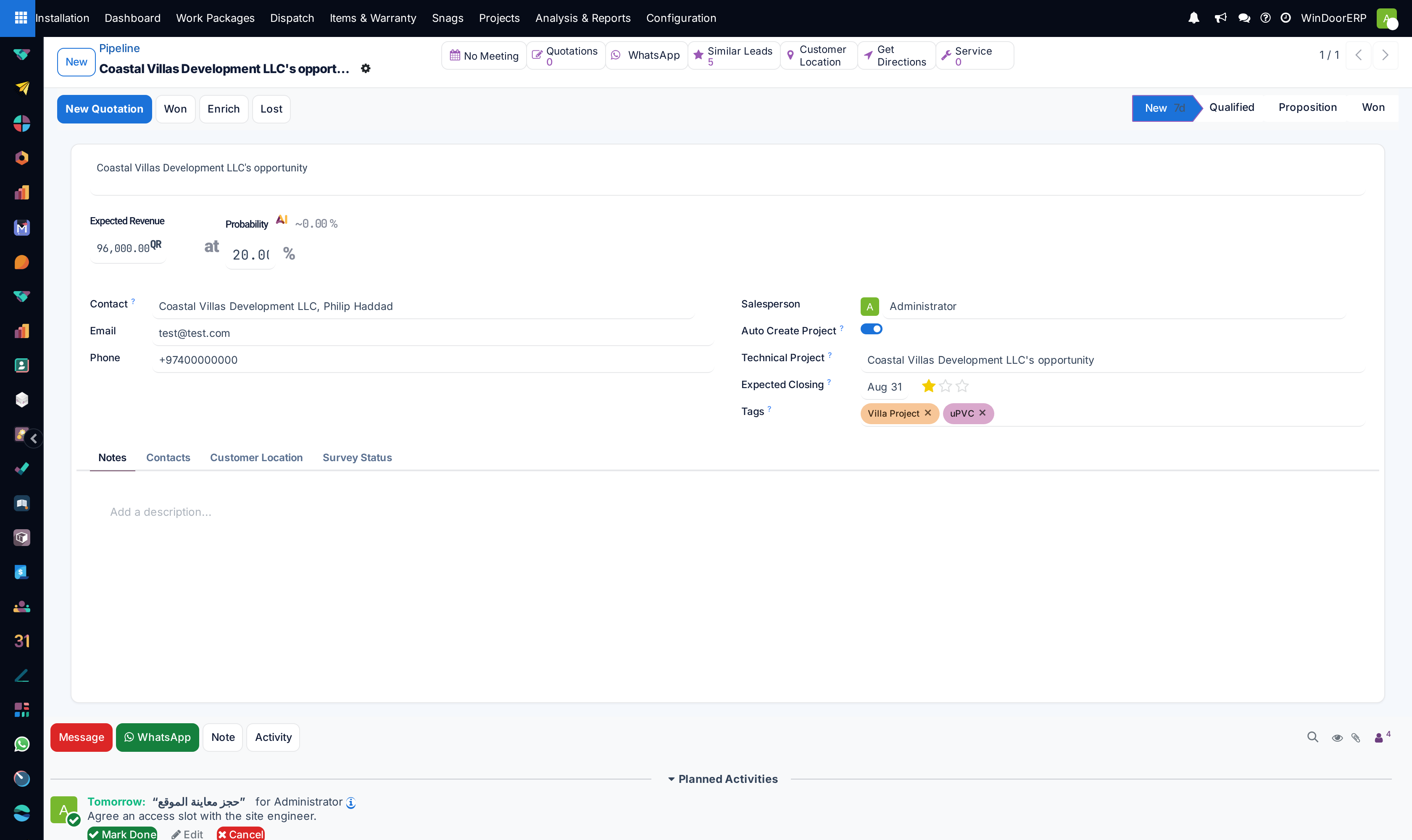
Every opportunity in WindoorERP is born with a shadow: a Technical Project, created automatically the moment the opportunity is saved with a customer. It is the container that keeps a deal's technical life together — the requests raised for it, and the documents that must outlive any one draughtsman's folder: structural calculations, stamped submittals, consultant correspondence. Two years later, when an approval is questioned, the project is where the answer is findable.
Before you start
- Auto Create Project is on (it is the default) — the toggle sits on the opportunity next to the salesperson.
- The opportunity has a customer; without one, no project is created.
Working with the technical project
-
01
Open the opportunity. The read-only Technical Project field beside the salesperson names the auto-created project.
-
02
Raise technical requests from the opportunity as usual — each request created through its dialog inherits the opportunity's project, so the deal's technical work stays gathered in one place.
-
03
Attach the engineering record where it belongs: calculations, submittal packs and stamped returns go on the project or its opportunity chatter, not on a personal drive.
-
04
When sales data changes — the opportunity's name, customer, salesperson or expected closing — the project follows automatically; there is nothing to re-type.
The synchronisation rules
| Change on the opportunity | Effect on the project |
|---|---|
| Name | Project renamed to match. |
| Customer | Project customer replaced. |
| Salesperson | Project manager replaced. |
| Expected closing | Project end date replaced. |
The mirror is one-way: edits made directly on the project are overwritten by the next opportunity edit. Treat the opportunity as the source of truth for these four fields and the project as the container for everything else.
Who sees technical projects
Ordinary internal users reach a technical project through its opportunity and links. A dedicated access right, Technical Dashboard User, exists for engineering staff who should see the technical pipeline and nothing else: members are restricted, read-only, to technical projects, their tasks and their timesheets, and gain the OWL Dashboard in the Technical Tasks app as their overview screen.
Troubleshooting
An opportunity has no Technical Project — it was created without a customer, or with Auto Create Project switched off; the project is not created retroactively when the toggle comes back on. Requests raised later still work, they simply carry no project.
The project's name looks wrong — it mirrors the opportunity; fix the opportunity's name.
Hours logged on technical requests do not appear on the project's timesheets — that is how this release behaves: request time entries carry the request, not the project. Read technical hours in Technical Tasks › Reporting › Timesheets instead of on the project.
Common mistakes
- Renaming or re-dating the project directly and losing the change to the next opportunity edit.
- Filing calculations and submittals in personal folders — the project outlives people; drives do not.
- Switching Auto Create Project off as a tidiness measure and discovering later that hours had nowhere to accumulate.
Was this article helpful?
Thanks — your feedback helps.
Running a window or door factory?
Ask for a demo