Manage confirmed purchase orders: receipts, bills and locking
What this does
Once an RFQ becomes a Purchase Order, the work shifts to keeping promises: receive the goods, pay the right bill, and protect the agreed terms. The Purchase Orders menu shows exactly the confirmed documents, with their receipt and billing state at a glance.
Before you start
- Receiving needs Inventory access; creating vendor bills lands in Accounting — this article covers the purchase side of both.
Steps
-
01
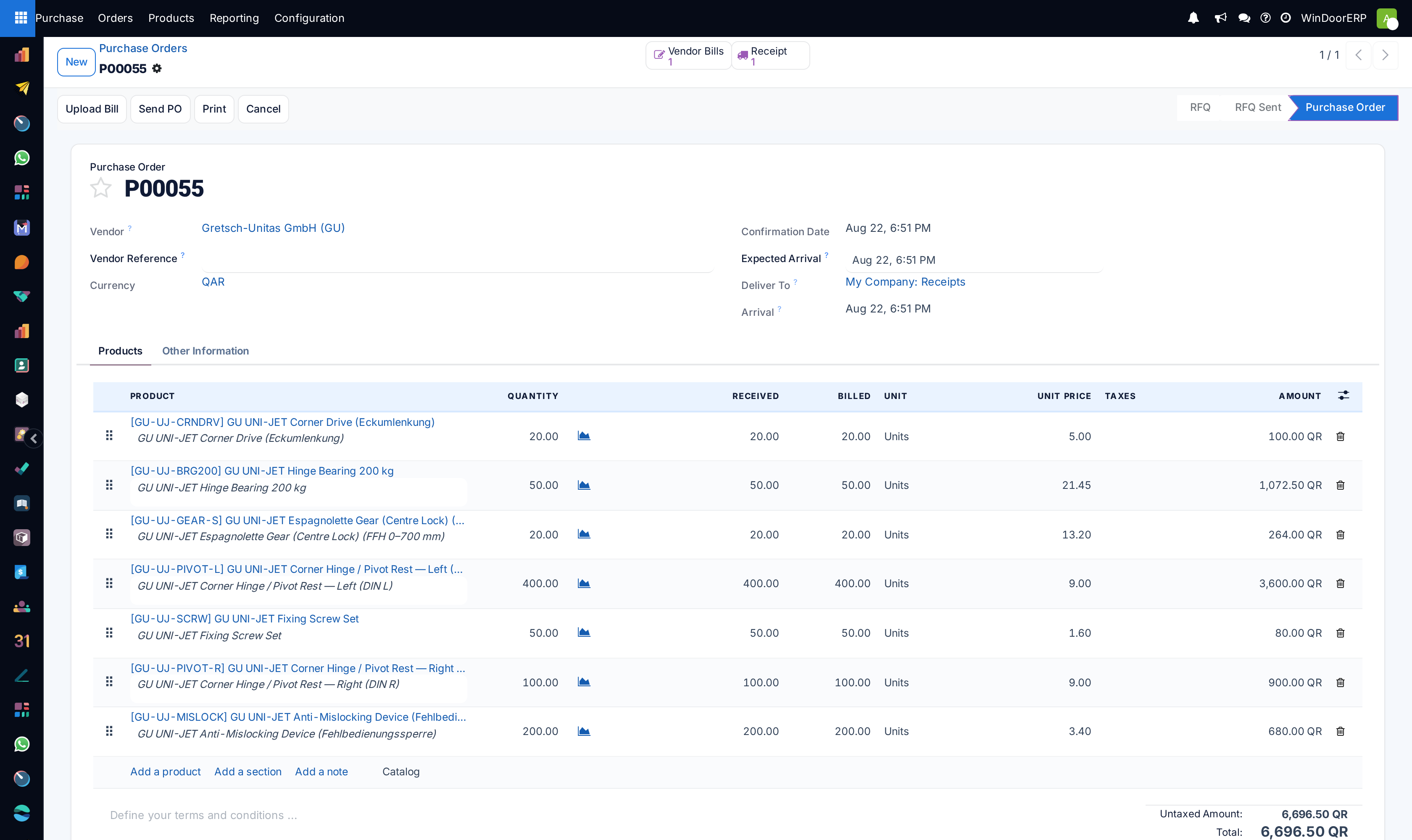
Open Purchase › Orders › Purchase Orders — confirmed orders only, with Expected Arrival in red once late.
-
02
When the truck arrives, open the order and press Receive: the receipt was created at confirmation, and validating it is what turns quantities into Received.
-
03
Watch the two badges: Receipt Status — Not Received, Partially Received, Fully Received — and Billing Status — Nothing to Bill, Waiting Bills, Fully Billed.
-
04
Bill it: Upload Bill on the order feeds the vendor's PDF straight into a draft bill; or select orders in the list and press Create Bills; or let accounting pull the order from the bill's Auto-Complete field.
-
05
Close the loop on dates: the vendor can confirm or amend the arrival date from the emailed order, and the daily reminder mail chases them before the due date.
Why the bill can be empty — Control Policy
Each product carries a Control Policy on its Purchase tab (visible to Purchase administrators): On ordered quantities bills what was ordered; On received quantities — the default for goods — bills only what has been received. With received-based goods, a bill created before the receipt has nothing to pull, and the order shows Waiting Bills only after receiving. That is the built-in protection against paying for undelivered glass; there is no separate 3-way-matching module on WindoorERP.
The dates on a confirmed order
| Field | Meaning |
|---|---|
| Confirmation Date | When it was confirmed — replaces the Order Deadline on the form. |
| Expected Arrival | The promise. Editable; editing it pushes the new date onto the open receipt. Red in the list once passed. |
| Arrival | Reality: stamped when the first receipt is validated. |
| Acknowledged | The vendor has seen the order — set by their click in the emailed portal link, by hand, or automatically when a receipt is validated. |
| Ask confirmation … day(s) before | The reminder: a daily job emails unacknowledged vendors this many days before the expected arrival; the ✉ button sends yourself a preview. |
Changing a confirmed order
- Product lines cannot be deleted any more — "Cannot delete a purchase order line which is in state “Purchase Order”." Add corrective lines instead; every added line and changed quantity is logged in the chatter.
- Reducing a quantity below what was already billed schedules an activity on the bill: "The quantities on your purchase order indicate less than billed. You should ask for a refund."
- With Lock Confirmed Orders enabled in settings, every confirmation locks the order read-only; only a Purchase administrator can Unlock. Without the setting there is no Lock button at all.
- Cancel refuses while related vendor bills are open — "You must first cancel their related vendor bills." — and while the order is locked. Cancelling also cancels the open receipt.
Orders the factory created
Production raises its own purchase documents into this same pipeline: Glass PO badges mark orders issued by the production order's glass wizard (one per vendor when tendering), Subcontract PO marks a subcontracted operation's service order, and the Production Order button jumps back to the source. They are ordinary purchase orders — confirm, receive and bill them exactly like the rest; the search view's Glass Purchase Orders and Subcontract Purchase Orders filters keep them separable.
Troubleshooting
| Message or symptom | Cause and fix |
|---|---|
| "Unable to cancel purchase order(s): …. You must first cancel their related vendor bills." | A posted or draft bill hangs on the order — cancel or credit it first. |
| "Unable to cancel purchase order(s): …. You must first unlock them." | The order is locked; an administrator unlocks, then cancels. |
| "You can only upload a bill for a single vendor at a time." | The Upload Bill widget builds one bill for one vendor — split the selection. |
| "You must set a Vendor Location for this partner …" | The vendor's contact record lacks a stock location; confirmation cannot build the receipt without it. |
| Billing status stuck on Nothing to Bill after confirming | Received-based products with nothing received yet. Receive first; the status moves to Waiting Bills by itself. |
| No receipt was created | The order holds only services — service lines receive by typing the Received quantity on the line, not through a picking. |
Common mistakes
- Validating receipts days after the truck left, which delays billing (received-based products) and falsifies the on-time statistics.
- Editing Expected Arrival to silence the red date instead of chasing the vendor — the red is the signal that protects production's schedule.
- Treating the Glass PO as a special document and inventing a side process — it is a normal order; the only special thing about it is where it came from.
Was this article helpful?
Thanks — your feedback helps.
Running a window or door factory?
Ask for a demo