Manage window actions, server actions, QWeb views, menu hierarchies, and paper formats
What this does
Settings › Technical is the machinery room: the actions behind every menu and button, the views that draw every screen, the menu tree itself, the saved search filters, and the paper formats that shape every printed PDF. This article is the administrator's reference to those screens — what each one is for, what is safe to touch, and the handful of behaviours that bite. It is a place to go deliberately; most days the right amount of time to spend here is none.
Before you start
- Developer Mode — the entire Technical tree is invisible without it, enforced in code, not convention. Turn it on under Settings › Developer Tools.
- The Administrator access right on top of that for editing a server action's Python code — without it the code editor simply does not appear on the form.
- The habit of extending rather than editing: changes to standard records here are overwritten by the next module update.
The Actions family
Technical › Actions holds one registry per action type. Window Actions open data — model, view modes, domain, context, target, and per-mode view overrides; the Visibility tab restricts by group. Client Actions are bindings to components the web client's code registers — you can look, but a working one cannot be authored from this screen. Embedded Actions are the extra tabs beside a form's breadcrumb (on this database, the Project app's Dashboard/Tasks/Milestones bar); user-added tabs can be deleted, shipped ones refuse with "You cannot delete a default embedded action". Configuration Wizards are the first-run setup steps modules queue — Launch re-runs one against the live database. User-defined Defaults stores every field default set through the developer Set Default menu, scoped by user and company.
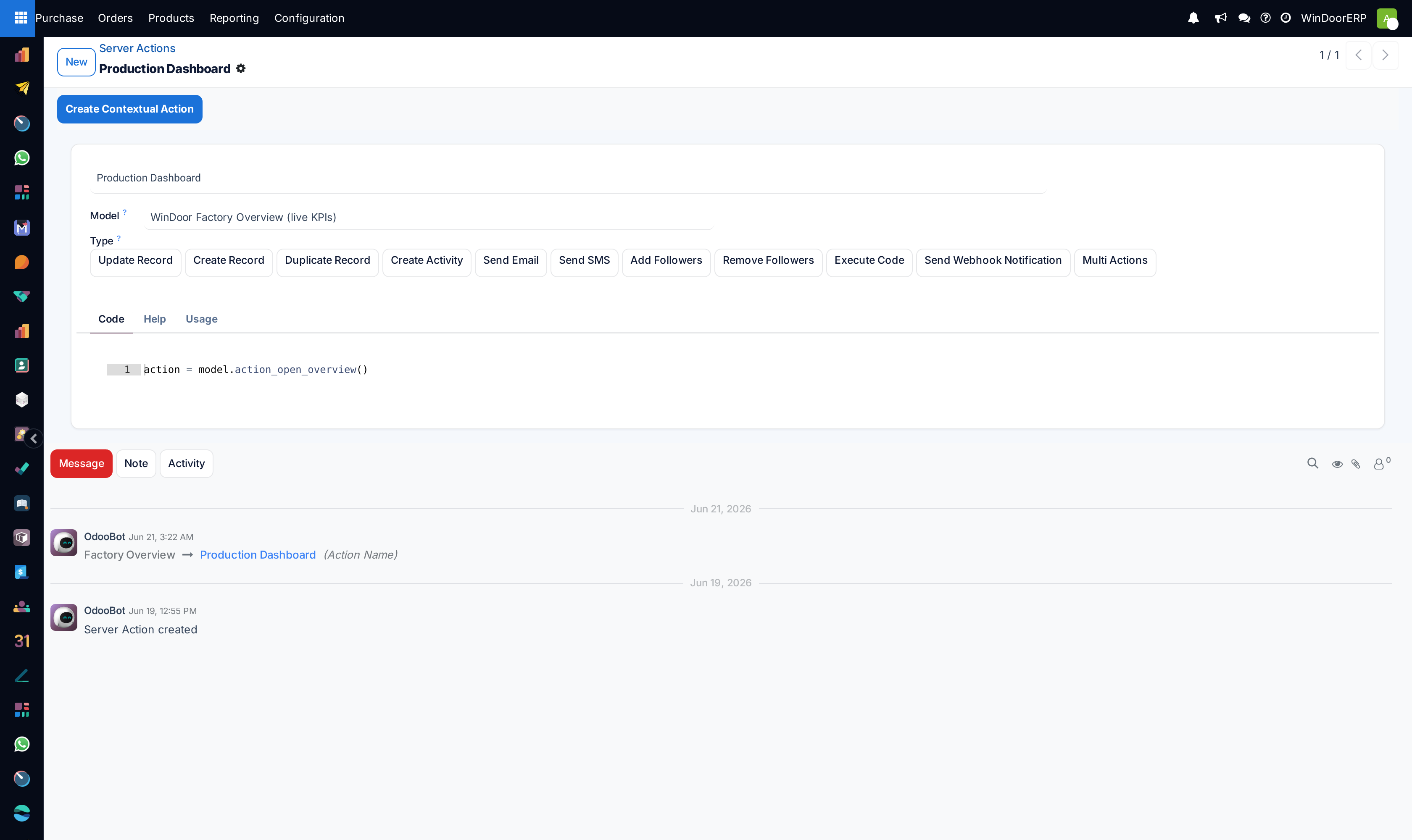
Server Actions deserve their own paragraph. An action's type is one of eleven on this build: update, create, or duplicate a record, execute Python code, send a webhook, chain several actions as a Multi Action, plus the mail-and-SMS family (create activity, send email, add or remove followers, send SMS). The Python sandbox is strict — no imports, a fixed set of builtins, and the record/environment variables the form documents. Three behaviours to respect:
- A misconfigured action saves with only a yellow warning banner — and then refuses to run ("Server action … has one or more warnings, address them first."). It can sit wired to a menu or scheduled job for weeks before anyone triggers it and discovers the problem; clear the banner before walking away.
- Webhooks are fire-and-forget with a one-second timeout: a failed delivery is logged, never shown to anyone, and never rolls back the change that triggered it.
- Create Contextual Action is what places the action in a record's ⚙ menu; Code History keeps every revision of the Python and offers a diff-and-restore wizard.
Views, Customized Views, Menu Items
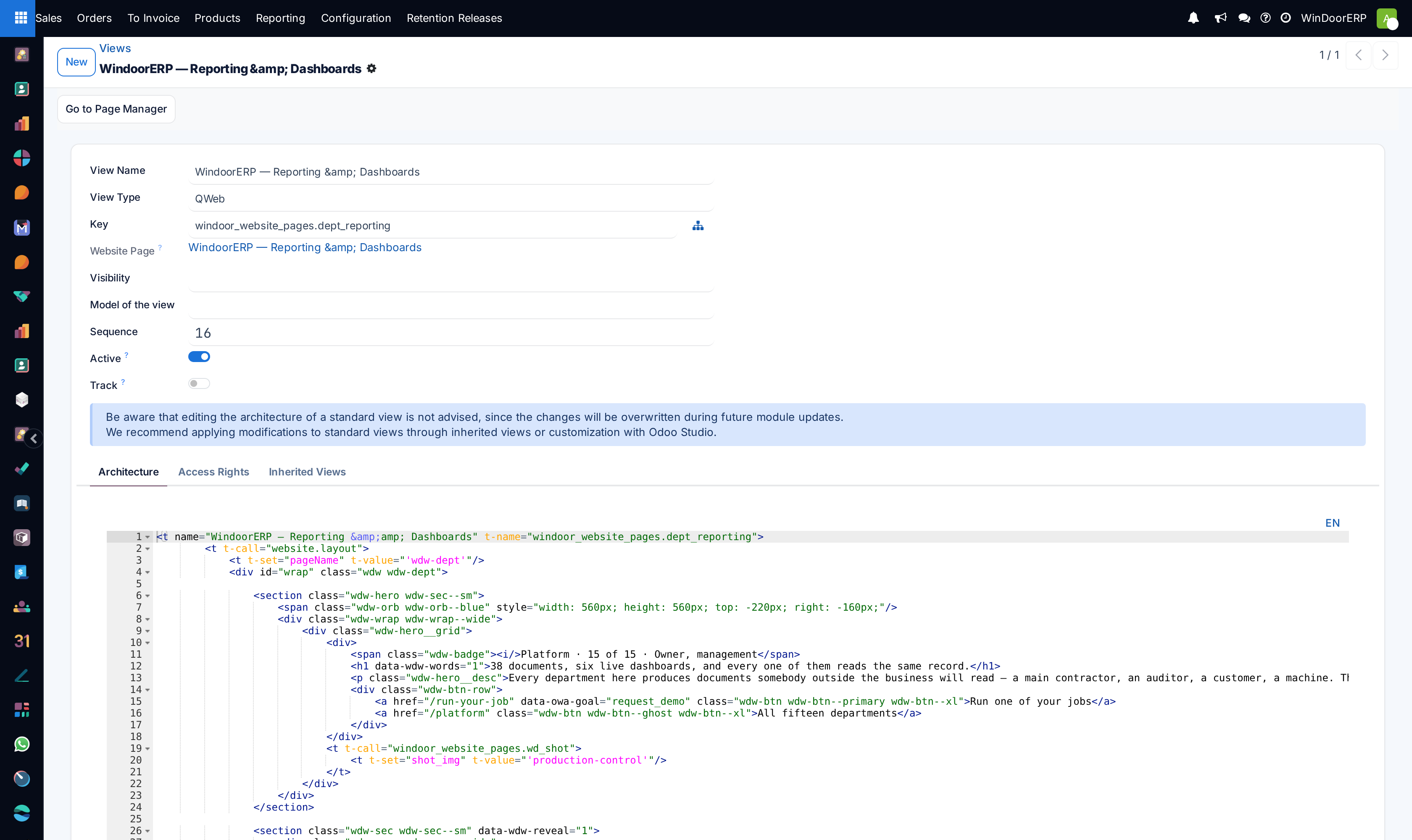
Views is the registry of every screen's XML. The form itself carries the warning that matters: edits to a standard view are overwritten during future module updates — extend through an inherited view instead. Inheritance has rules of its own (an extension-mode view must name its parent; a parent cannot be deleted while children inherit; groups go inside an inherited view's XML, not on its record), the architecture editor validates as you type and refuses genuinely broken XML with messages like "You cannot create recursive inherited views.", and the developer toolbar's Reset View Architecture can restore the previous saved version (soft), re-read the module's file from disk (hard), or diff against another view. Customized Views is quieter than its name: the per-user store of personally rearranged list layouts — on this database a handful of users' sale-order, picking, task, and invoice lists — delete a row and that user's personal layout resets.
Menu Items lists the whole menu tree, including what the app switcher hides. Two behaviours matter: a menu with no groups is not public — visibility falls back to read access on the action's model; and deleting a parent menu does not delete its children — they are promoted to top level, so tidy the subtree before removing its folder.
Filters, Onboardings, Tours
User-defined Filters stores every saved search. On this version a filter is shared with a set of users (Shared with) — and an empty set means it is shared with everyone, which is how a personal experiment ends up on the whole company's screens. Nothing enforces uniqueness: two favorites can carry the same name, and several can be flagged as default for the same screen — this list is the only place to spot and tidy that. Onboardings and Tours list the first-run banners and guided tours that have database state — the Tours list only shows tours that have been consumed or recorded, so it understates what the client actually ships.
Paper formats and the Reports registry
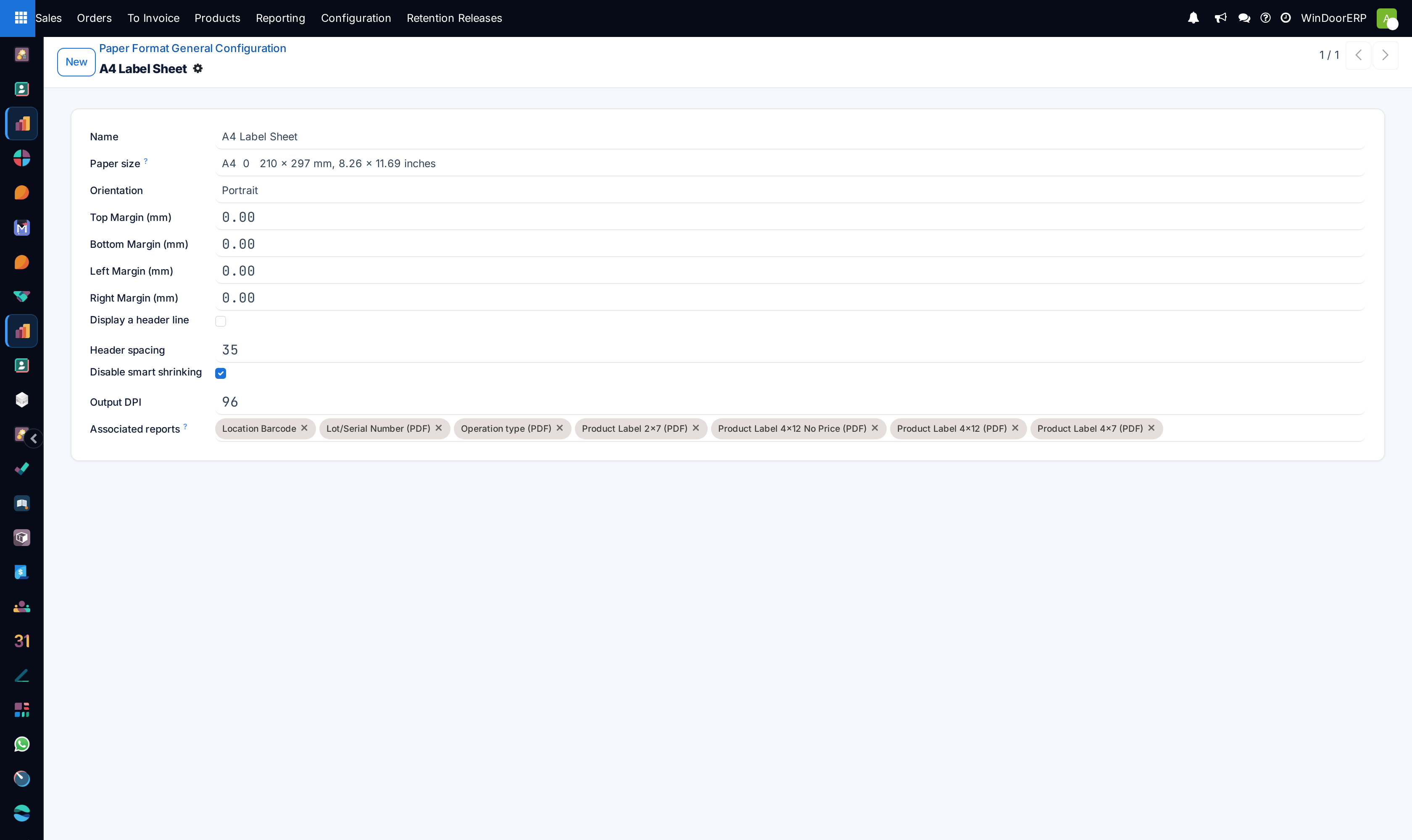
Every PDF in the system is shaped by a Paper Format: page size (A-and-B series, Letter, Legal, or custom with explicit width and height), orientation, the four margins, Header spacing (the gap reserved for the repeating header — independent of the top margin, and only equal to it when a format wants the header flush), a header rule line, output DPI, and smart-shrinking control. Thirteen formats live on this database: the stock A4 and US Letter, and eleven WindoorERP-specific ones — label sheets, the ID badge, the CV, the survey reports, the landscape glass list — where margins and header spacing are deliberately tuned per document.
The Reports screen (the same screen under both Actions and Reporting) is where a printed document is wired up: its QWeb Template Name, its type (PDF, HTML, or text), its Paper Format (shown for PDF only; empty means the company default), a Printed Report Name expression that builds the download filename from the record, Add to the 'Print' menu, an optional domain restricting which records offer it, and Reload from Attachment to reprint the stored copy instead of regenerating. The Qweb Views button is a name search, not a stored link — an empty result there does not mean the template is missing.
Giving a document its own paper format
-
01
In Technical › Reporting › Paper Format, duplicate the format closest to what you need — A4 for documents, a label format for stickers.
-
02
Adjust the size or margins, and set Header spacing with intent: equal to the top margin for a flush header, smaller to open a gap.
-
03
In Technical › Reporting › Reports, open the report and point its Paper Format at your new record — a report without one follows the company's default format.
-
04
Set the Printed Report Name if the filename should carry the record's reference.
-
05
Print the document from its own screen and check the first and second pages — header and footer repeat per page, so pagination is where margin mistakes show.
Troubleshooting
The Technical menu is missing entirely — Developer Mode is off; no access right substitutes for it.
The Python code box is missing on a server action — the code field requires the Administrator right on top of Developer Mode.
"Server action … has one or more warnings, address them first." — the action saved with its yellow banner unresolved; fix what the banner names, then run again.
A view refuses to save — the message quotes the offending rule verbatim (recursive inheritance, a missing name on a field tag, a page outside a notebook, a QWeb view without a key); fix the XML it points at, and prefer an inherited view over editing the original at all.
A saved search appears for every user — its "Shared with" list was left empty, which means shared with everyone; add the intended users to the list, or delete the row.
A hand-edited standard screen reverted overnight — a module update re-shipped the view, as the form's own warning promises; rebuild the change as an inherited view.
Looking for "Automated Actions" — that module is not installed on this build; the Automation menu holds Scheduled Actions only.
Common mistakes
- Editing a standard view's XML directly because it works today — the next update erases it; inherit instead.
- Wiring a warned server action to a scheduled job — it will fail at 3 a.m., not at save time.
- Deleting a parent menu to "clean up" and littering the top level with its orphaned children.
- Assuming a menu with no groups is visible to everyone — visibility follows the model's access rights.
- Forcing every paper format's header spacing equal to its top margin — the label, badge, and survey formats depend on them differing.
- Treating a webhook action as confirmed delivery — it never reports failure to the user.
Was this article helpful?
Thanks — your feedback helps.
Running a window or door factory?
Ask for a demo