Run an installation project on site
What this does
An installation project is the site-side container for a confirmed order: work packages hold the openings, each opening carries the actions that must be ticked off, and the whole thing rolls up into progress you can show a customer.
Before you start
- The project is created when the sales order is confirmed with Create Project ticked — see Create a quotation. You do not normally create one by hand.
- Installation tracking is switched on per database in Settings; if the Installation app is missing entirely, that switch is off.
Steps
-
01
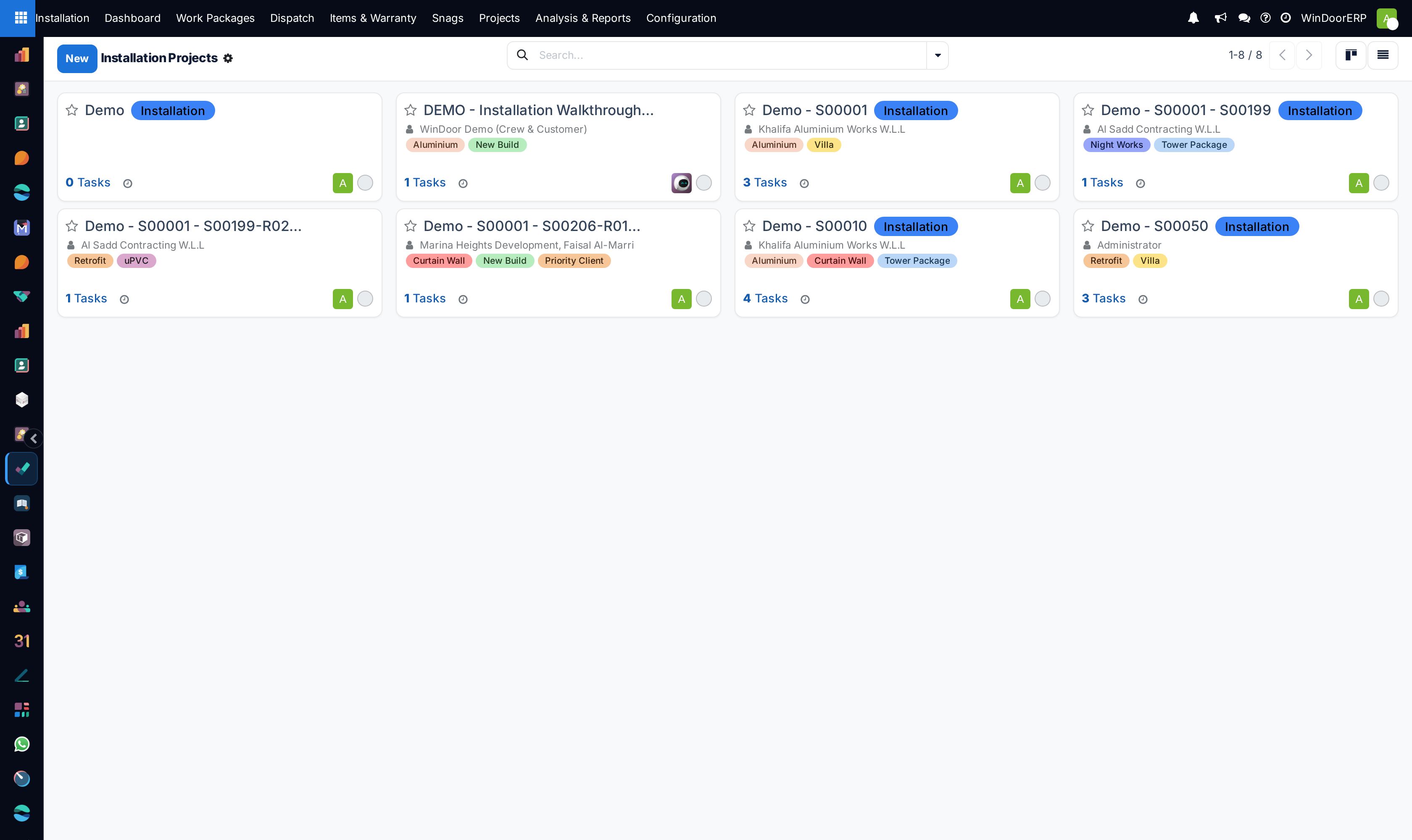
Open Installation › Projects and find the job.
-
02
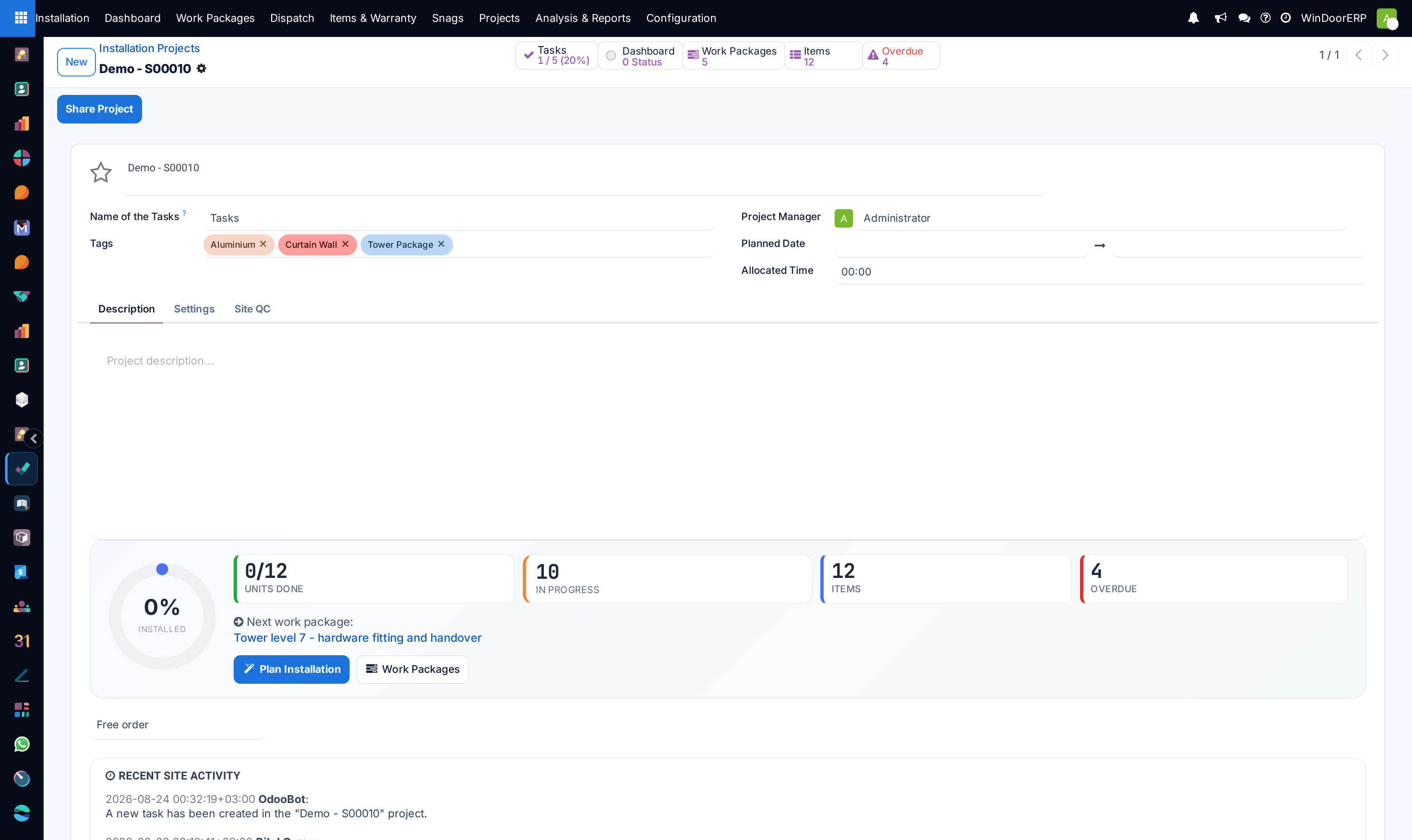
Open the project to see its work packages — the tasks that group the work, typically by floor, elevation or phase.
-
03
Open a work package to see its installation items: one row per opening, each with its own item code.
-
04
On an item, tick the installation actions as they are completed on site; the item's state and the project's progress follow from them.
-
05
Raise a snag against any item that needs returning to, and close it when the fix is done.
The three levels
| Level | What it is |
|---|---|
| Project | The job on site, created from the confirmed sales order. Everything below it rolls up here. |
| Work package | A task grouping a set of openings — a floor, an elevation, a phase. It is what a foreman is given. |
| Installation item | One opening, with its own item code, linked back to the order line it came from. Items can be split when one order line covers several physical units. |
| Action | A step on an item — the configured stages your company installs by. Ticking actions is what moves progress. |
Note
Items are generated from the order's lines when the project is created, taking their codes from the line. Hand-created items get a generated ITEM- code instead — a quick way to tell later which openings came from the order and which were added on site.
Who can do what
An Installation User — installer or coordinator — ticks actions, splits items and updates progress. An Installation Manager additionally configures the action stages and can re-open a completed action, which requires a logged reason. Neither role can delete items, by design: work that happened stays on the record.
Troubleshooting
| Symptom | Cause and fix |
|---|---|
| No project appeared after confirming the order | Create Project was unticked on the order before confirmation, or installation tracking is off for the database. The setting locks after confirmation. |
| A project has no items | Its order lines produced none — check that the lines are the fabricated ones the site will install. |
| You cannot delete an item added by mistake | Deletion is deliberately not granted. Ask a manager, or park the item rather than removing the record. |
| Progress does not move although work is done | Progress comes from ticked actions, not from dates or intentions. Tick them on site, or ask the crew to. |
| You can see other companies' projects | Backend access is company-scoped, not per-user; "my work" filtering exists on the dashboard and the portal, not in the full list. |
Common mistakes
- Managing the site in a spreadsheet and ticking the actions in a batch afterwards — the progress everyone else reads is then always a day stale.
- Splitting an item after the actions were ticked instead of before work starts.
- Recording a snag in a chat message rather than against the item it belongs to.
- Re-opening a completed action without a reason worth reading later.
Was this article helpful?
Thanks — your feedback helps.
Running a window or door factory?
Ask for a demo