Manage installation tasks across every project
What this does
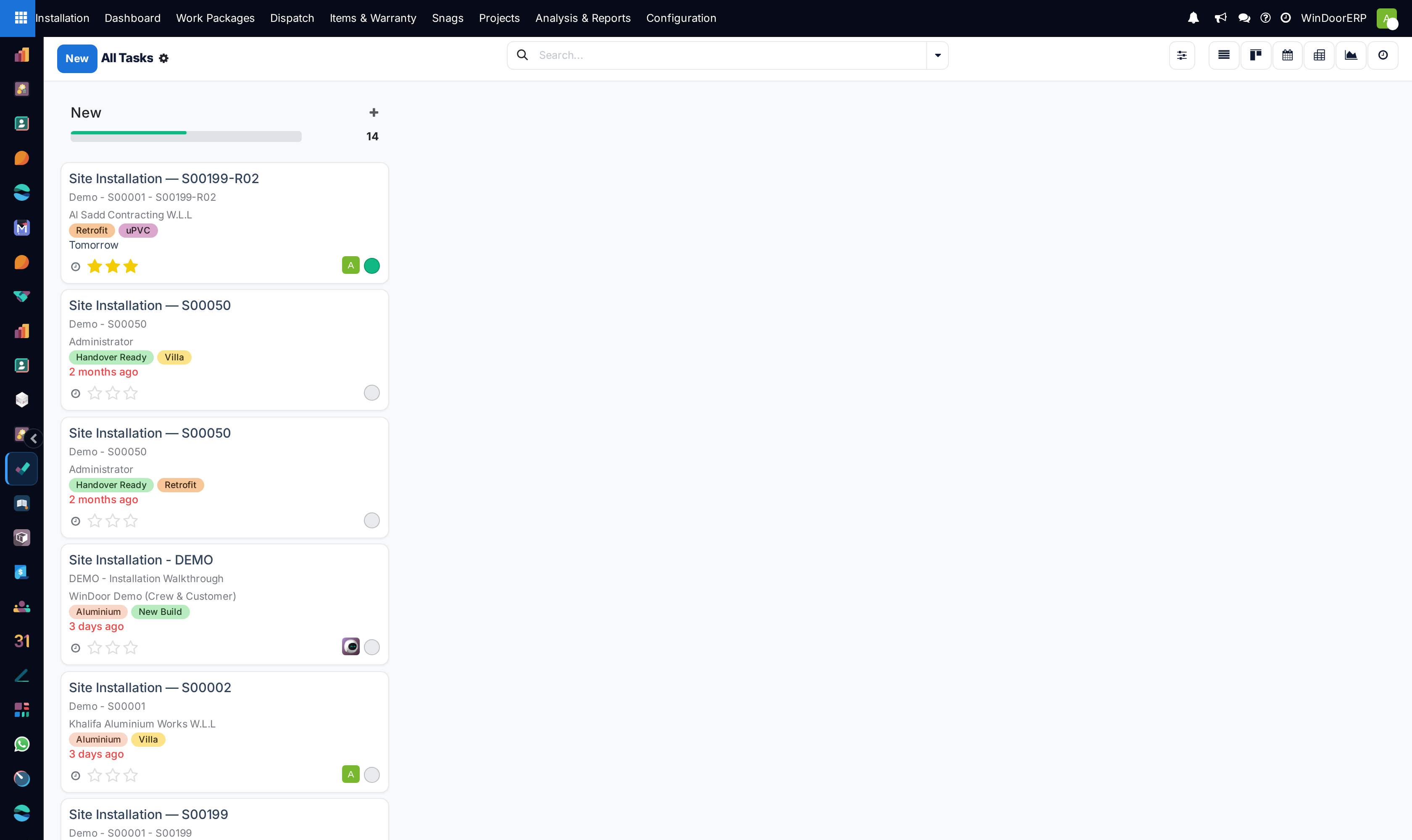
All Tasks is the plain project-management face of the same records the Installation app calls work packages: every task in every installation-type project, in the standard task views — list, kanban by stage, calendar, pivot, graph and activities. Use it when you want assignees, tags, deadlines and stages rather than tick-grids and quantities.
Before you start
- Know which face you need. The Work Packages screens show installation status, quantities and schedule health; All Tasks shows the same records as tasks. Editing either edits the other.
Steps
-
01
Open Installation › Analysis & Reports › Tasks › All Tasks.
-
02
Group and filter as in any task list — by project, assignee, stage, tag or deadline.
-
03
Drag cards between stage columns on the kanban; the columns are the Task Stages from Configuration, shared across installation projects.
-
04
Create extra tasks — a delivery escort, a scaffold strike — with New; a project must be picked, and tasks created here land in installation projects by default.
-
05
For workload numbers, open Analysis & Reports › Reporting › Tasks — the same records as a graph and pivot, grouped by project, counting tasks and hours.
What these views will not show you
The task pivot and graph measure what tasks measure — counts and hours. Installed quantities, lineage and progress percentages live on the items, so quantity questions belong to Analysis (the items report) and the dashboards, not here.
A work package opened from here shows its full task form — including the Installation Items page with the tick-grid, exactly as when opened from Work Packages.
Troubleshooting
| Symptom | Cause and fix |
|---|---|
| A whole stage of tasks vanished | Someone archived the stage — archiving a task stage archives every task in it. Un-archive the stage from Configuration › Task Stages and the tasks return. |
| A task will not save without a project | By design — a task needs a home. Pick the installation project it belongs to. |
| Tasks appear here that are not site work | The screen shows every task of every installation-type project, including plain to-dos people add. When you need only the site jobs with their quantities, use the Work Packages screens instead. |
Common mistakes
- Leaving tasks unassigned — an unassigned card sits in nobody's My Tasks and dies quietly.
- Building a parallel status vocabulary in task stages that fights the installation status badges — the stages are for team flow; installation state is computed from the ticks and cannot be dragged.
Was this article helpful?
Thanks — your feedback helps.
Running a window or door factory?
Ask for a demo