Get your WhatsApp message templates approved by Meta
What this does
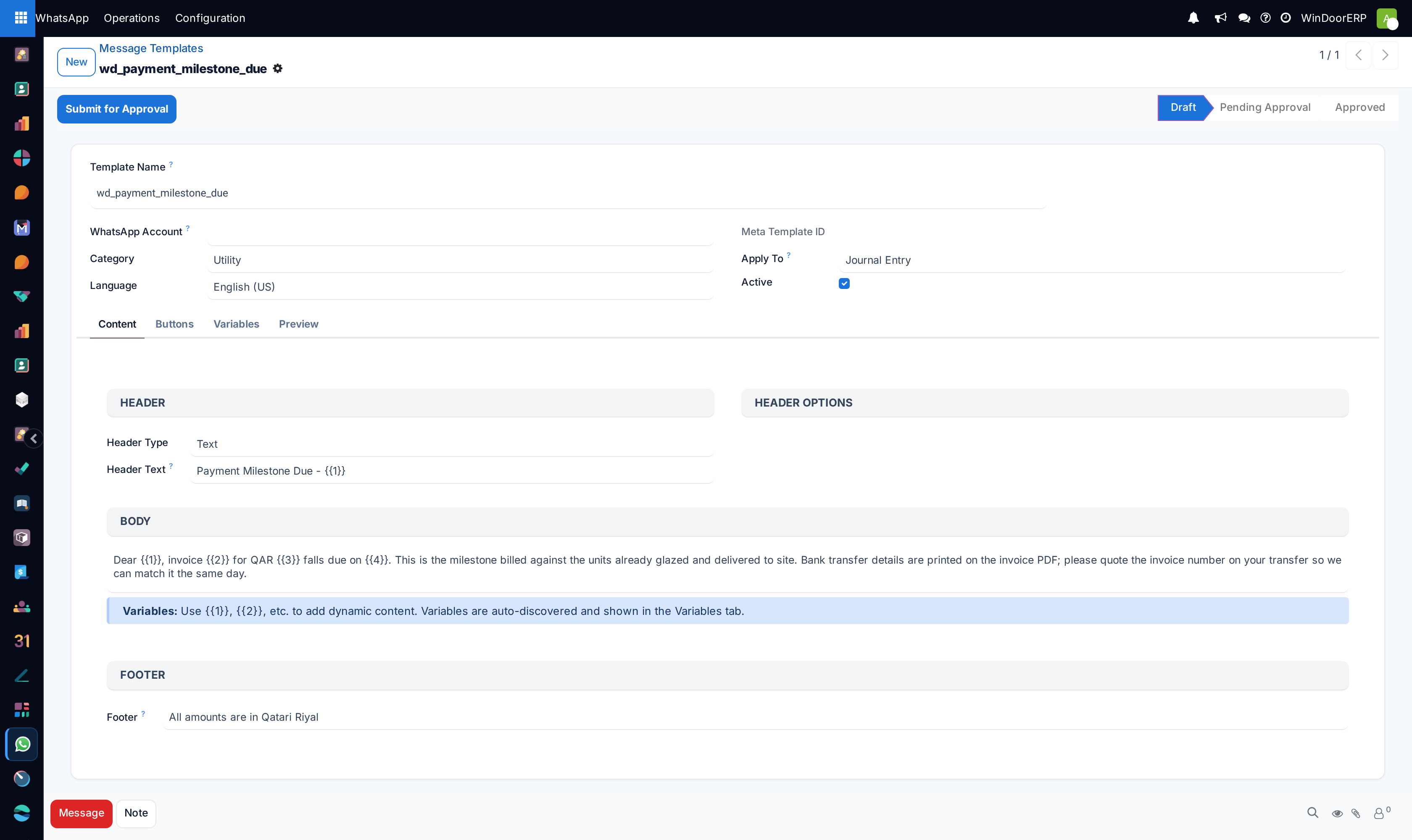
Meta will not let a business message a customer freely: to start a conversation you must use a message template that Meta has approved. This screen is where those templates are written, mapped to WindoorERP fields, submitted to Meta, and tracked through approval — the quotation notice, the delivery notice, the payment reminder, in English and in Arabic.
Before you start
- An Active WhatsApp account — submission goes to Meta through it.
- Approval is Meta's decision and is not instant: minutes to days. Submit your core templates early.
Steps
-
01
Open WhatsApp › Operations › Templates. The screen opens filtered to Approved — remove the filter chip to see your drafts, including the ready-made ones shipped for quotations, invoices, deliveries and leads.
-
02
Create the template: a machine name in lowercase with underscores, the WhatsApp Account, a Category — Marketing, Utility or Authentication — and the Language. Arabic is its own template: make
quotation_noticeandquotation_notice_aras a pair. -
03
Write the Body with numbered placeholders —
{{1}},{{2}}— plus an optional header and footer. Each placeholder you type appears automatically as a row on the Variables tab. -
04
Map each variable: pick Apply To (the document model, say Sale Order) and then the field each placeholder reads — customer name, order reference, total — with a fallback value for empty fields.
-
05
Add Buttons if wanted: Quick Reply, URL (which may carry one placeholder), Phone Number or Copy Code.
-
06
Press Submit for Approval. The template goes to Meta and turns Pending Approval; its status then follows Meta — via the Sync Status button, a six-hourly automatic sync, and Meta's own status pings.
The rules Meta enforces — before it even sees the template
| Rule | Refusal, verbatim |
|---|---|
| Name format | "Template name must start with a letter and contain only lowercase letters, numbers, and underscores." |
| Header length | "Header text cannot exceed 60 characters." — and it may carry at most one placeholder. |
| Footer | "Footer text cannot exceed 60 characters." and "Variables are not allowed in footer text." |
| Buttons | "Button text cannot exceed 25 characters."; URL buttons need their URL, phone buttons their number. |
| Submission | "Please select a WhatsApp Account before submitting." and "Only draft or rejected templates can be submitted." |
States, and what to do in each
- Draft — editable, unusable for sending. All shipped templates start here, with no account set.
- Pending Approval — submitted, waiting on Meta.
- Approved — usable everywhere: only approved templates appear in the Send WhatsApp dialog.
- Rejected — a red ribbon and Meta's reason on the form. Fix the content; category mismatch is the usual cause.
- Paused / Disabled — Meta throttled or shut the template off, usually for poor engagement; the status sync brings these in.
Category honesty matters
A Utility template must be transactional — this order, this delivery, this invoice. Promotional copy submitted as Utility is either rejected outright or re-categorised and billed as marketing, and repeat offences hurt the number's standing. The Marketing category exists; use it for what is marketing.
Troubleshooting
| Symptom | Cause and fix |
|---|---|
| The Templates screen looks empty | The default Approved filter is hiding your drafts — remove the chip. |
| "Submission failed: …" | Meta rejected the call — the message is Meta's own. Check the account is Active and the Business Account ID is right. |
| Approved in Meta, still Pending here | Press Sync Status, or wait for the six-hourly sync. |
| "Template not yet submitted to Meta." | Status sync only works after a submission has given the template its Meta identity. |
| An approved template is missing from the Send dialog | The dialog filters to approved templates of the selected account — a template without an account, or on another account, does not appear. |
Common mistakes
- Leaving the shipped templates as drafts and wondering why nothing can be sent — they need an account and a submission like any other.
- Writing Arabic copy into an English-language template; the language code is part of what Meta approves.
- Mapping a placeholder to a field with no fallback, then sending records where the field is empty.
Was this article helpful?
Thanks — your feedback helps.
Running a window or door factory?
Ask for a demo