Receive in three steps through quality control
What this does
Puts an inspection bay between the dock and the rack. A receipt lands in an input area, a second transfer moves it into a quality control area, and a third transfer moves what passed into stock. Material is not available to reserve, to sell or to issue to a job until that third transfer is validated.
It is the strictest of the three receipt modes and the only one that gives the inspection a location of its own. Goods held there are visibly held: they show on the product's on-hand figure but sit outside WH/Stock, so nothing can quietly consume them while they are still being looked at.
What the quality step is, and what it is not
The quality control stop is a location and a transfer, not an inspection application. WindoorERP creates a WH/Quality Control location and a Quality Control operation type; the transfer that uses them is an ordinary internal transfer with the ordinary fields. There is no checklist, no pass/fail field, no measurement to record, no quality alert and no inspector sign-off. The inspection is a human act, and what you do next is how its result is recorded: validate the transfer into stock to accept, or scrap or return what failed.
A separate Quality application exists in the wider product family and would add exactly those things — control points that fire on a receipt, pass/fail and measurement checks, and quality alerts. It is not part of this installation. The module is not present in the addons available to your database, and the Quality checkbox visible under Inventory ▸ Configuration ▸ Settings does not install it: ticking it opens an advertisement for a paid edition and installs nothing. If you need recorded, per-unit inspection results, note that the quality checks WindoorERP does ship attach to outgoing transfers of produced units and to on-site work — not to goods arriving from suppliers — so the honest answer for goods-in today is the three-step route plus a written note.
Note
Three-step receiving is still worth having without an inspection app. It answers a different question — where is the material and may it be used yet — and it answers it with locations, which is auditable. What it cannot do is tell you six months later what was measured.
Where this stands on your system
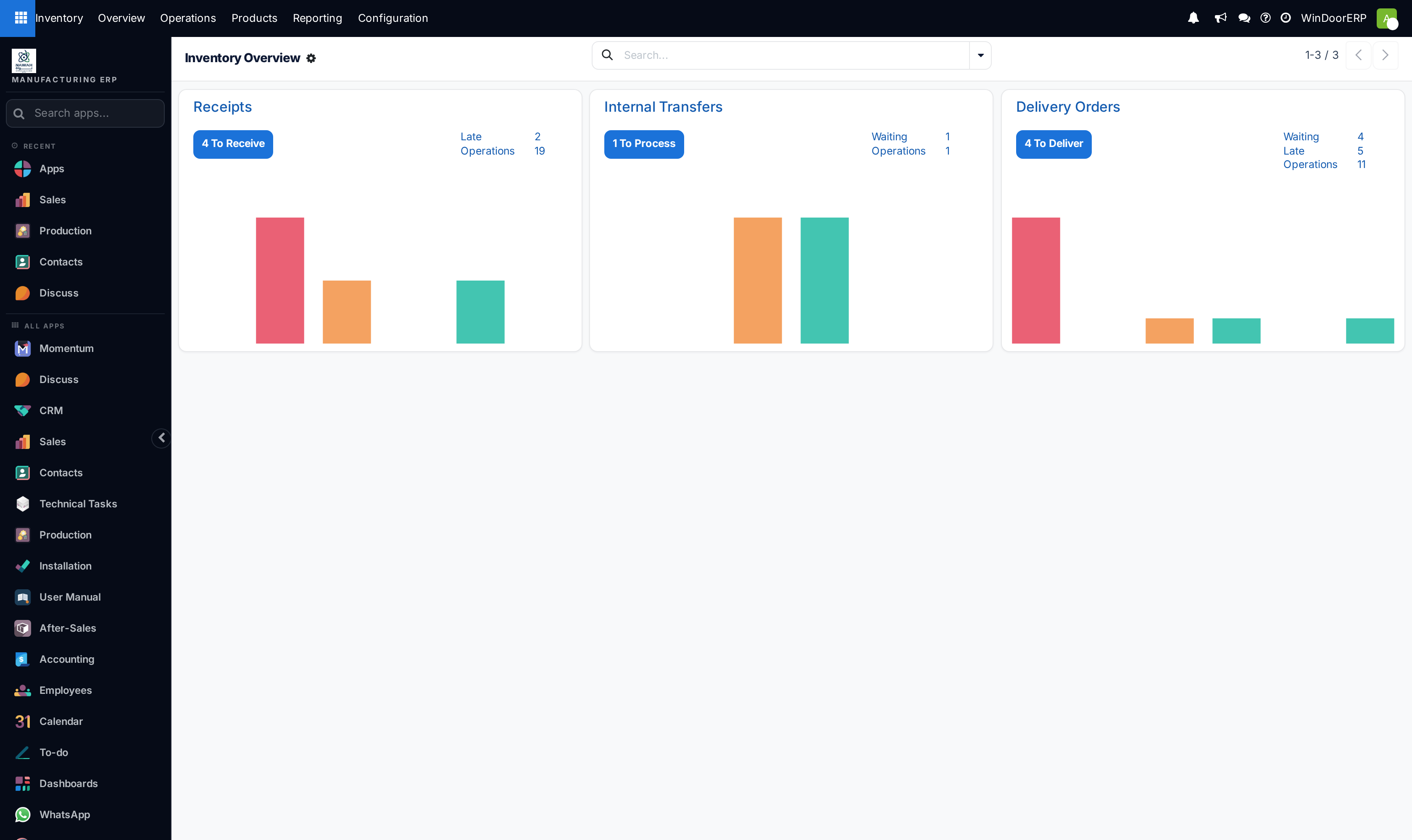
Every warehouse in this installation is set to Receive and Store (1 step), and Multi-Step Routes — the setting that offers anything else — is switched off. Receipts run from Vendors straight into WH/Stock in one hop, and the Inventory overview shows three cards, not five. So this article describes a configuration you can move to, not the one you are running.
Before you start
- Administrator rights: the setting is in Inventory ▸ Configuration ▸ Settings and the mode on the warehouse form.
- An inspection that genuinely happens, performed by someone who is not the person unloading. Three steps modelling a check nobody performs produce a queue of transfers validated in batches, and figures nobody trusts.
- A decision about failures before the first one arrives: scrapped, returned to the supplier, or accepted with a note. All three are possible; only one of them should be the habit.
- Nothing important in flight. Receipts already open are not converted to the new route.
Steps
-
01
Open Inventory ▸ Configuration ▸ Settings, tick Multi-Step Routes in the Warehouse block and click Save. Storage Locations switches on with it.
-
02
Go to Inventory ▸ Configuration ▸ Warehouse Management ▸ Warehouses and open the warehouse.
-
03
On the Warehouse Configuration tab, set Incoming Shipments to Receive, Quality Control, then Store (3 steps). Leave Outgoing Shipments alone unless you also want to change the way goods leave.
-
04
Save. Two further locations become active —
WH/InputandWH/Quality Control— together with the Quality Control and Storage operation types and a route named Receive in 3 steps (input + quality + stock). -
05
Rename the locations under Inventory ▸ Configuration ▸ Warehouse Management ▸ Locations if the yard calls them something else.
-
06
Run one purchase order all the way through before the team meets the change.
What the switch creates
WH/Input | Named Input. Where the validated receipt leaves the goods. Shared with two-step receiving. |
|---|---|
WH/Quality Control | Named Quality Control. Active only in three-step mode. Where goods wait to be looked at. |
Quality Control — WH/QC/00001 | An internal-transfer operation type moving goods from WH/Input to WH/Quality Control. |
Storage — WH/STOR/00001 | An internal-transfer operation type moving goods from WH/Quality Control to WH/Stock. In two-step mode the same type moves them from input instead. |
Both locations sit beside WH/Stock under the warehouse rather than inside it. That is what makes goods in quality control count as on hand and yet be unreservable — deliveries and production draw from WH/Stock and its children only.
Working a receipt through
Confirming the purchase order creates one transfer, the receipt, destination WH/Input. Validate it against what was unloaded; the quantities you enter here are the ones the purchase order's Received column takes.
Validating the receipt creates the Quality Control transfer, already Ready. Each further transfer in the chain is created by validating the one before it, so at any moment there is exactly one open transfer to act on and no queue of documents waiting on each other.
Validate the quality control transfer when the goods have physically reached the inspection area. Then inspect. Then validate the Storage transfer for what passed; only at that moment does the material become available to reserve.
Recording a failure
Reduce the quantity on the storage transfer to what passed and answer the backorder question — the operation type ships with Create Backorder set to Ask, so accepting leaves a second transfer holding the rejected quantity in quality control, which is exactly where it should sit while it is decided. Then deal with it:
- Scrap — on the transfer, the gear menu beside the breadcrumb offers Scrap. It writes the quantity off to the inventory-loss location and leaves an auditable scrap order.
- Return — open the done receipt and use the Return button in its header, which appears only once a transfer is Done. This produces a reverse transfer back to the supplier.
- Accept anyway — validate the storage transfer for the full quantity and record the concession in the transfer's Notes or in its message thread, so the decision survives the person who made it.
Finding the second and third transfers
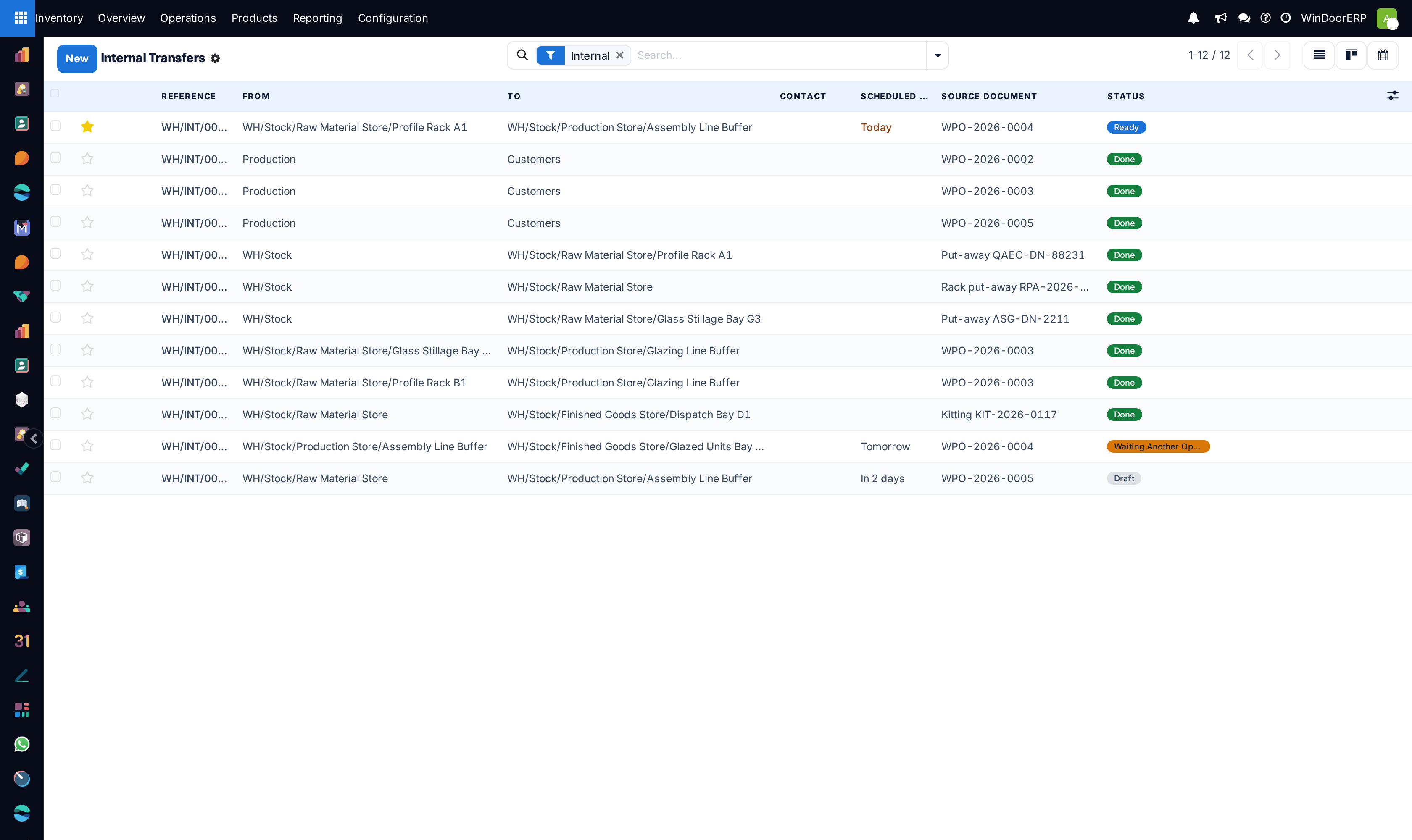
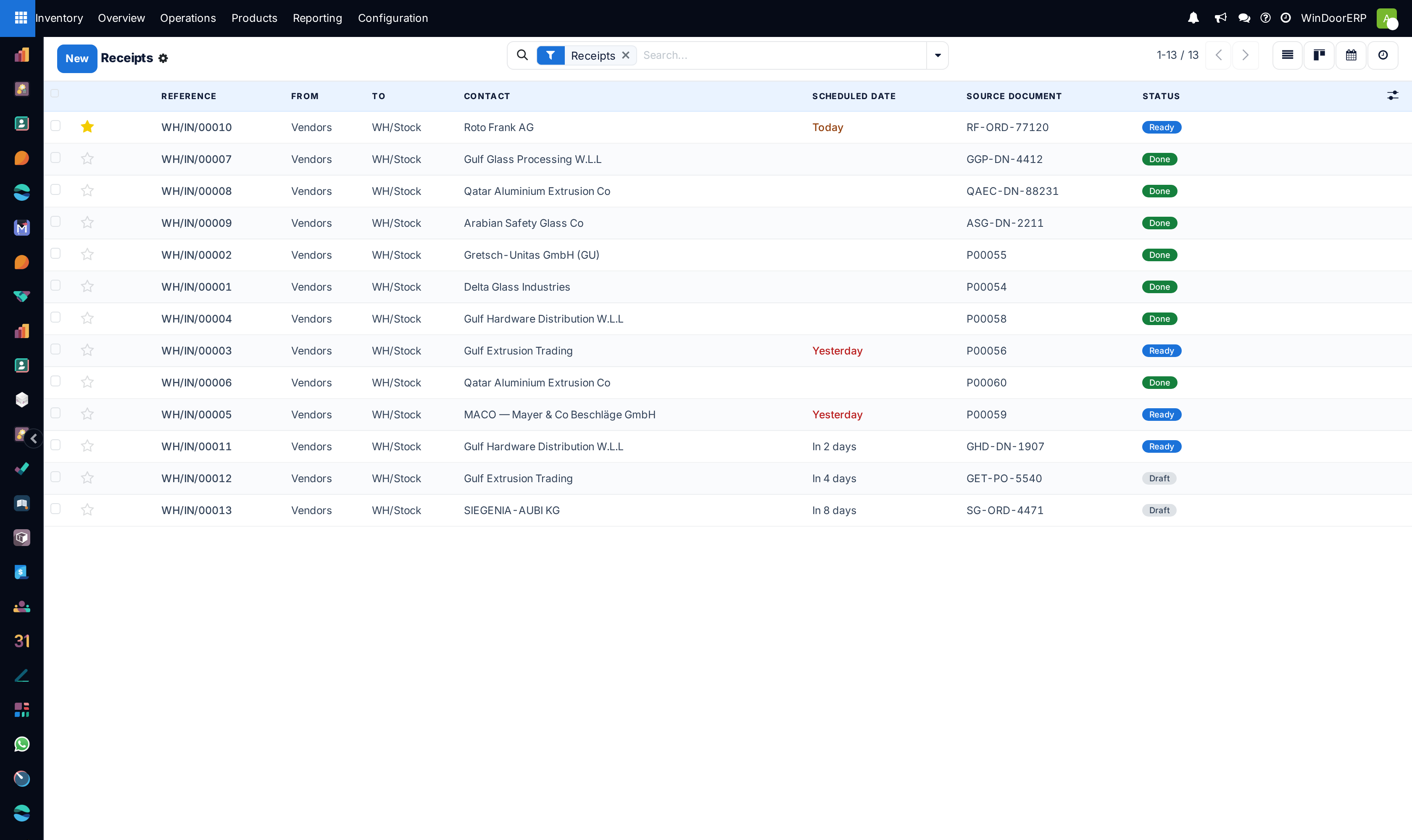
Not on the purchase order. Its Receipt smart button counts only the transfer the order itself created and stays at one whatever the mode. Use the Quality Control and Storage cards on the Inventory overview, or Inventory ▸ Operations ▸ Transfers ▸ Internal, or search on Source Document — every transfer in the chain carries the purchase order's reference.
See also
Receive and deliver in two steps covers the same configuration screens and the shared WH/Input stop in full; this article adds only the middle stop. Choose how goods come in and go out compares the modes. Scrap damaged stock covers the scrap order itself.
Troubleshooting
| Ticking Quality in Settings does nothing | Correct. That checkbox belongs to an application this installation does not carry; it opens an upgrade advertisement rather than installing anything. Three-step receiving does not need it. |
|---|---|
| The three-step option is not offered | Multi-Step Routes is off, so the Warehouse Configuration tab is hidden entirely. |
| Nothing appeared after validating the receipt | Look under internal transfers, not on the purchase order. The Quality Control transfer exists, but the order does not link to it. |
| Stock did not rise after inspection | Inspecting is not a system action. Stock rises when the Storage transfer is validated. |
| A job cannot reserve material that is physically here | It is in WH/Quality Control, which is outside WH/Stock. Finish the storage transfer. |
| Rejected material is still sitting in quality control | It will sit there for ever until it is scrapped or returned. Nothing sweeps it up, and until then it inflates the on-hand figure. |
| The chain was validated three times in one minute | The mode is being performed as paperwork. Either move the inspection into the day's work or go back to one or two steps. |
| There is nowhere to record what was measured | There is not. The transfer's Notes and message thread are the only place, by design of what this installation carries. |
Common mistakes
- Choosing three steps in the expectation of inspection forms, and finding three transfers instead.
- Validating all three transfers at the end of the day, which records a story rather than an inspection.
- Leaving rejected material in quality control instead of scrapping or returning it, where it counts as on hand and looks like stock that is not there.
- Reducing the quantity on the storage transfer and then declining the backorder, which silently drops the rejected quantity with no record of it.
- Treating the on-hand figure as available. Goods in input or quality control are on hand and unreservable at the same time.
- Switching the mode with receipts open, then finding transfers that use neither the old route nor the new one cleanly.
Was this article helpful?
Thanks — your feedback helps.
Running a window or door factory?
Ask for a demo