Drive work orders through the routing
What this does
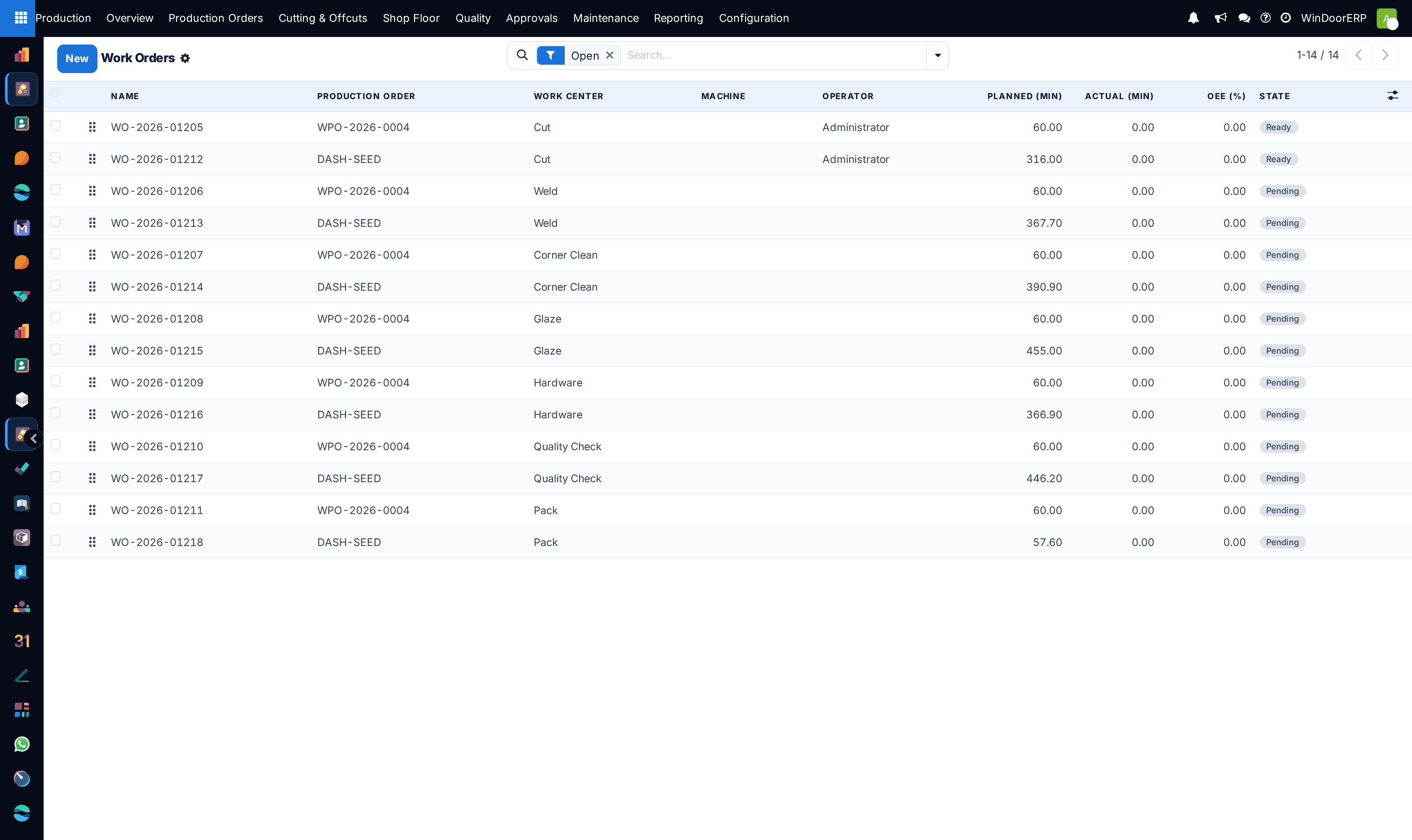
Production › Shop Floor › Work Orders is the routing: one work order per item and work centre, carrying who is doing it, on which machine, how long it was planned to take, how long it actually took, what came out good and what was scrapped, and — when the operation goes outside — the whole subcontracting record. It is the screen the floor advances through the day and the screen a supervisor reads to see what is running, ready or stuck.
The whole routing layer is optional. Work orders exist only when the Work Orders & Routing feature is switched on in Settings; with it off, no routing is required and this menu is not there.
Nor are work orders typed in here. Generate Work Orders on the production order creates them, one per item and work centre, and re-generating deletes only the pending and ready ones — anything already started is preserved. It refuses with "Enable the Work Orders feature in Settings before generating routing." or "Configure a Production Line with work centers first (Configuration ▸ Production Lines)." The order's two Schedule buttons are what fill the planned dates afterwards.
Before you start
- The Work Orders & Routing feature enabled. The menu is gated on it.
- Work centres and machines configured, and a production order that generated work orders.
- Write access to work orders. The state buttons carry no group restriction, so anyone who can edit a work order can move it.
Steps
-
01
Open Production › Shop Floor › Work Orders. It opens filtered to Open — everything not done and not cancelled. The list colours done green, in progress blue, blocked and awaiting-subcontract amber and cancelled grey.
-
02
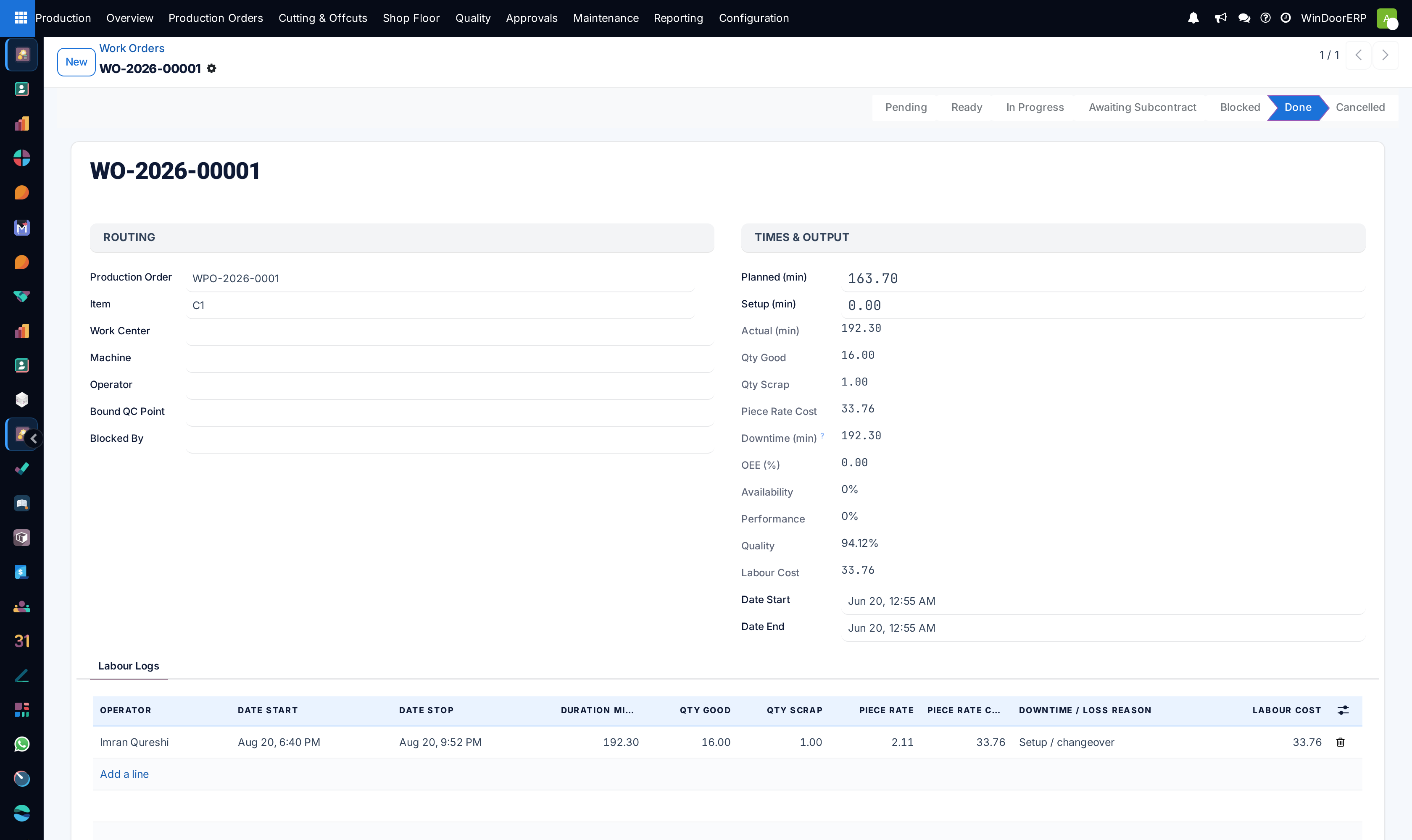
Open an operation and check its header: production order, item, work centre, machine, operator, and the Blocked By tags that list the operations which must finish first.
-
03
Press Mark Ready when the material is at the station. This is the step that checks the routing and quality gates.
-
04
Press Start. The start time is stamped and the machine is flipped to running.
-
05
Record the work in the Labour Logs tab: one line per spell of work, with operator, start and stop, good and scrap quantities, and a downtime reason where relevant. These lines are what produce actual minutes, costs and OEE.
-
06
Press Done when the operation is finished. The end time is stamped, the machine goes back to idle if nothing else is running on it, and any pending successor whose predecessors are now all done is readied automatically.
-
07
Use Block to park an operation that cannot proceed, and Cancel to drop it. A blocked operation restarts with Start, not with Mark Ready.
The states and the buttons
| State | How you leave it, and what happens |
|---|---|
| Pending | Mark Ready. Refuses while predecessors are open: "Cannot ready %s: predecessor operations are not done." Then the quality gate is checked. |
| Ready | Start. Same two guards again, then the state moves to In Progress, the start time is stamped and the machine is set running. |
| In Progress | Done, or Send to Subcontractor on a subcontracted operation. Done stamps the end time, releases the machine to idle unless another operation is still running on it, and auto-readies eligible successors. |
| Awaiting Subcontract | Mark Returned (or Done, which also accepts this state). Mark Returned puts the operation back to Ready, or to Pending if predecessors are no longer complete. |
| Blocked | Start. Block itself is a plain write with no checks; it is available from every state except done, cancelled and blocked. |
| Done | Terminal. No button remains. |
| Cancelled | Terminal. Cancel is a plain write, available unless the operation is already done or cancelled. |
Warning
Done has no guard of any kind. The predecessor check and the quality-hold check run on Mark Ready and Start only. An operation whose item is on quality hold can still be marked Done, and so can one whose predecessors were never finished. The routing protects the start of an operation, not its close — if a hold must stop work reaching the next station, someone has to enforce it.
The quality gate
When the Quality Control Gates feature is on, a failed blocking inspection puts the item on hold and the hold blocks Mark Ready and Start with "Cannot advance %(wo)s: item %(item)s is on quality hold (%(state)s). Resolve the NCR/inspection first." The gate fires for items in quality hold, awaiting parts, awaiting feedback and scrapped. With the quality feature off the check does nothing at all.
The Bound QC Point field on the work order is informational: it records which check belongs to this operation, but nothing reads it back and no inspection is triggered by finishing a work order.
Time, cost and OEE
| Field | What it means |
|---|---|
| Planned (min), Setup (min) | The estimate you plan against. Typed in, never computed. |
| Actual (min) | Computed: the sum of the labour logs' minutes. Nothing you type on the work order affects it. |
| Good / scrap quantities, piece-rate and labour cost | All summed from the labour logs as well. |
| Downtime (min) | Its own help says it plainly: "Logged availability-loss minutes (machine down / equipment failure) that subtract from operating time when computing OEE availability." It comes from labour logs whose loss reason is an availability loss. |
| OEE (%) | The classic three-bucket score, stored on the record and shown as an optional column in the list. |
| Availability / Performance / Quality | The three components behind it: operating time after downtime, actual against planned, and good against total output. |
| Energy cost | Computed from the machine's power draw, run hours and cost per kWh — but it appears in no view on this screen. |
Note
Labour logs are also the payroll record. Each line carries a payroll export state and manager-only Prepare, Mark Exported and Export CSV buttons, enforced on the server with "Only a production manager can export payroll entries." Once a line is exported it refuses to be prepared again — "Labour log %s is already exported. Only reset it through a controlled payroll correction." — so correct a spell of work while it is still unexported, not afterwards.
Subcontracted operations
The Subcontracting group appears only when the work centre is flagged as subcontract. It carries the subcontractor, the purchase order, the sent, expected-return and returned dates, supplier and dispatch references, carrier, package count, quantities sent and returned, a resupply flag with its note, and a computed Subcontract Tracking badge reading Not Sent, Sent, Partial Return, Returned or Late.
| Button | What it does, and what stops it |
|---|---|
| Create Subcontract PO | Raises the purchase order. Guards: "Work order %s is not a subcontracted operation.", "Set a subcontractor before creating a purchase order.", "Subcontract service product is missing. Upgrade the module." |
| Send to Subcontractor | Only on an in-progress subcontracted operation. Guard: "Set a subcontractor before sending %s." Sets Awaiting Subcontract, stamps the sent date and defaults the quantity sent and the due date from the work centre's lead days. |
| Prepare Dispatch | Fills what is still blank and touches nothing else: Dispatch Reference becomes SUB/<work order> if empty, Qty Sent defaults to the item quantity and Packages Sent to 1, and it posts "Subcontract dispatch prepared: %s". It is on the form only for a subcontracted operation that is In Progress or Awaiting Subcontract. |
| Flag Resupply / Clear Resupply | Raise or clear the resupply flag and its note. |
| Supplier Portal | Manager-only on the button. Generates a token and the portal link the supplier uses to report progress. |
| Mark Returned / Partial Return | Both silently skip any operation not in Awaiting Subcontract — no message, no change. If nothing happened, check the state first. |
| Open Subcontract PO | Returns nothing at all when no purchase order exists yet. |
Troubleshooting
| "Cannot ready %s: predecessor operations are not done." | An operation in Blocked By is still open. Finish or cancel it, or correct the dependency. |
|---|---|
| "Cannot advance %(wo)s: item %(item)s is on quality hold (%(state)s). Resolve the NCR/inspection first." | The item failed a blocking inspection. Close the non-conformance, then Mark Ready again. |
| "Set a subcontractor before sending %s." / "Set a subcontractor before creating a purchase order." | Fill Subcontractor in the Subcontracting group first. |
| "Work order %s is not a subcontracted operation." | The work centre is not flagged as subcontract; the whole group is inapplicable. |
| "Subcontract service product is missing. Upgrade the module." | An installation problem, not a data one — have the module upgraded. |
| Mark Returned did nothing | The operation was not in Awaiting Subcontract. Both return buttons skip such records without any message. |
| The machine still shows running after the operation ended | Another operation is in progress on the same machine. Done only releases a machine when nothing else is running on it. |
| A successor went ready by itself | Expected: Done auto-readies pending successors once all their predecessors are done. |
| An operation is missing from the list | The default Open filter hides done and cancelled work. Clear it. |
| A finished operation shows 0 actual minutes and no quantities | Done demands no output either: an operation can be closed with no labour logs at all, which leaves actual minutes, good and scrap at zero and its OEE meaningless. Only the shop-floor terminal's Finish Op back-fills the item quantity as good, and only when both quantity boxes were left blank. |
Common mistakes
- Treating Done as a controlled gate. It checks nothing — not predecessors, not quality holds.
- Typing minutes on the work order and expecting Actual (min) to change. Only labour logs move it.
- Pressing Mark Returned on an operation that was never sent, and taking the silence for success.
- Reading OEE on an operation whose labour logs carry no scrap and no loss reason, then trusting the number.
- Using Blocked By as a note rather than a dependency — it is the graph the Mark Ready guard and the auto-ready both read.
- Assuming a machine flagged down cannot be worked: starting an operation on it simply flips it back to running.
Was this article helpful?
Thanks — your feedback helps.
Running a window or door factory?
Ask for a demo