Run design analyses and map the designer's JSON
What this does
Turns a drawn design into numbers. When a window is designed in the configurator it produces a JSON description of the geometry; the design analysis reads that description and works out every bar, every pane, every hardware set, with lengths, weights and costs. The JSON mapping screens are where you control how a value in that payload becomes a field on a record — without anybody writing Python.
Before you start
- Administrative access to the System app. Mappings run against real orders; this is not a sandbox.
- The profile, glass and hardware catalogue already set up — the analysis resolves the payload against those records, and cannot invent what is missing.
Read an analysis
-
01
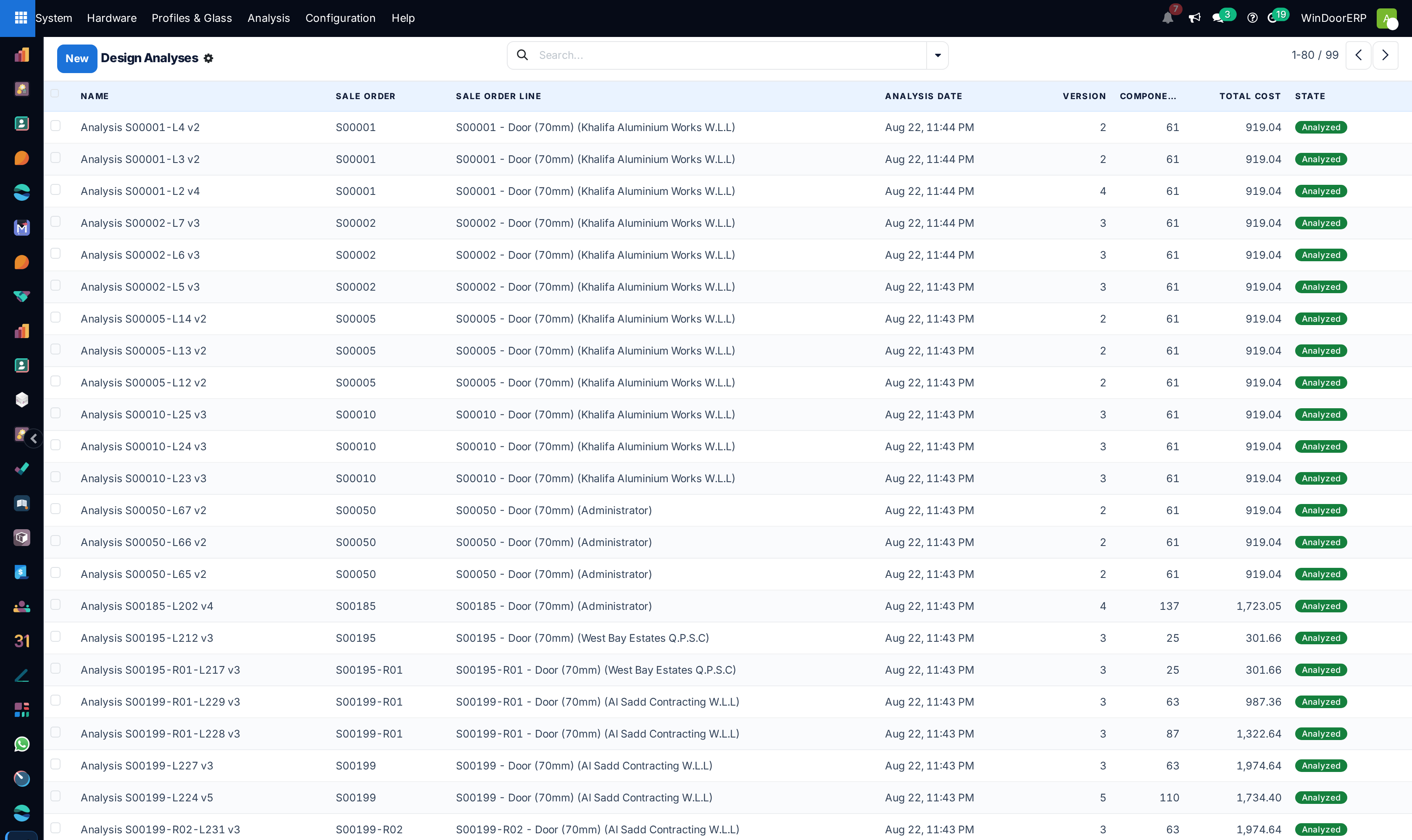
Open System › Analysis › Design Analyses. One record per analysed design, carrying its Sale Order or Production Survey, its state and its version.
-
02
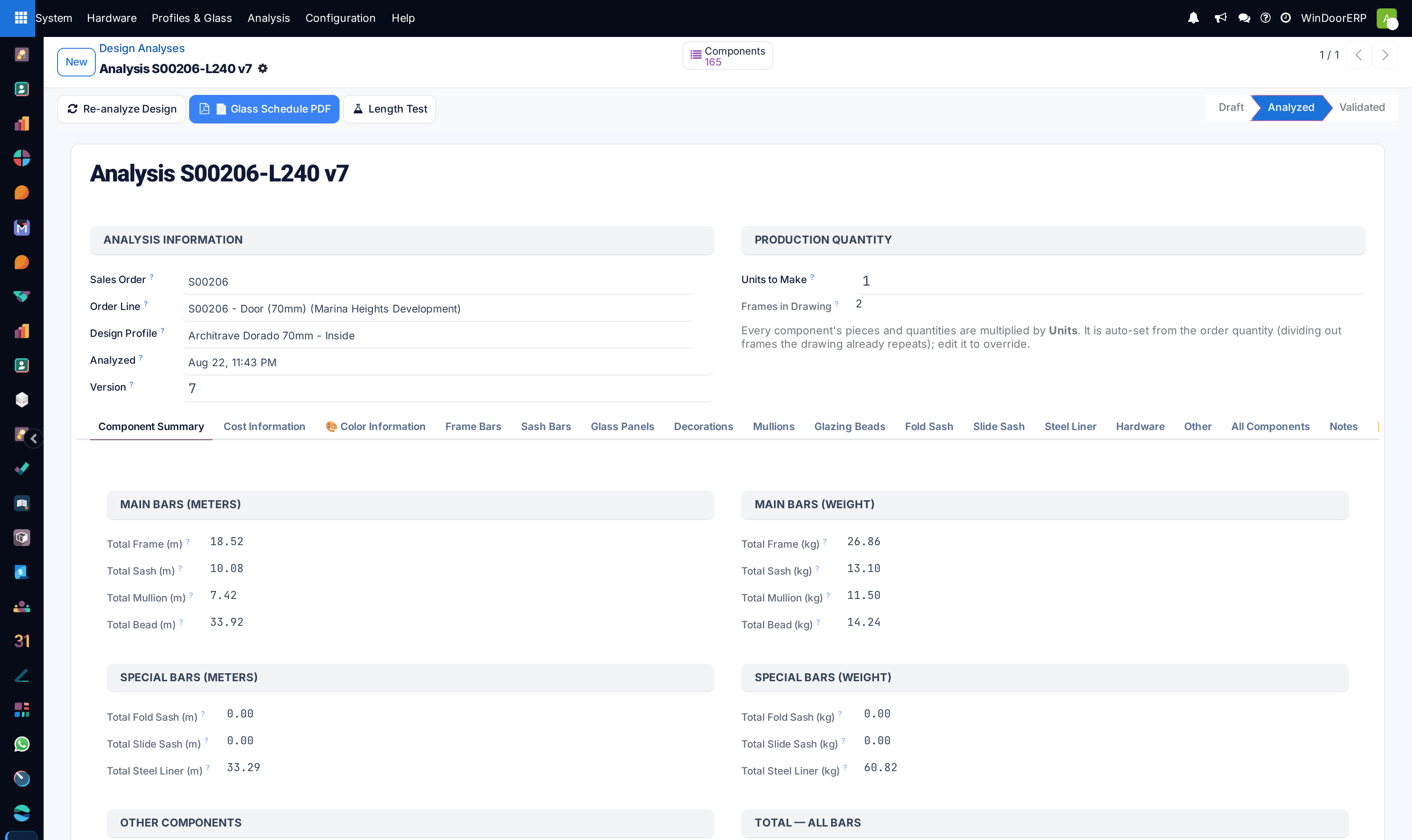
Open one. The header holds the geometry — frame width and length, sash dimensions, mullions, the number of units — and the Default System and colours it was drawn with.
-
03
Read the component lines: Frame Bars, Sash Bars, Mullion Bars, Glazing Beads, Steel Liners, Glass Panels, Hardware, Decorations — each with what it is and how much of it the design needs.
-
04
Check the totals: total length and weight per family, total glass area, Material Cost, Labor Cost and Total Cost. These are what a quotation and a cutting list are built from.
-
05
When something looks wrong, open the JSON Data to see exactly what the designer sent before blaming the calculation.
What an analysis is not
It is a bill of materials and a cost, computed from geometry. It performs no structural check: there is no deflection calculation, no wind-load verification, no compliance test anywhere in it. Sizes that are structurally unwise will be analysed, priced and cut exactly as drawn. Structural suitability remains an engineering judgement made against the supplier's tables — the maximum sizes on your glass and profile records are where that judgement gets written down so the catalogue enforces it.
Mapping a value from the payload
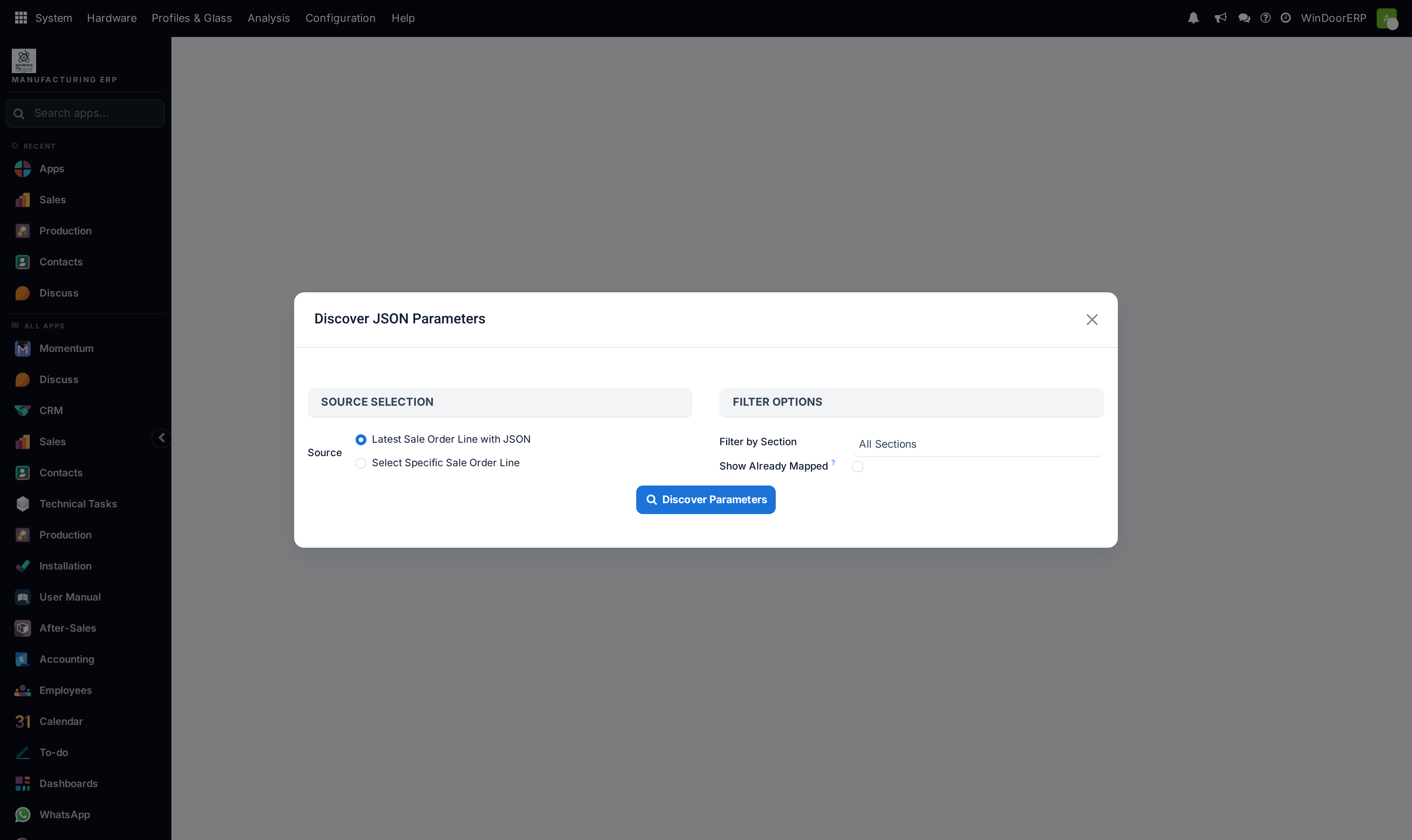
- Open Analysis › JSON Mapping › Discover Parameters, choose a sale order line to read a real payload from, and let it list the parameters actually present — filtered by section, and optionally showing the ones already mapped.
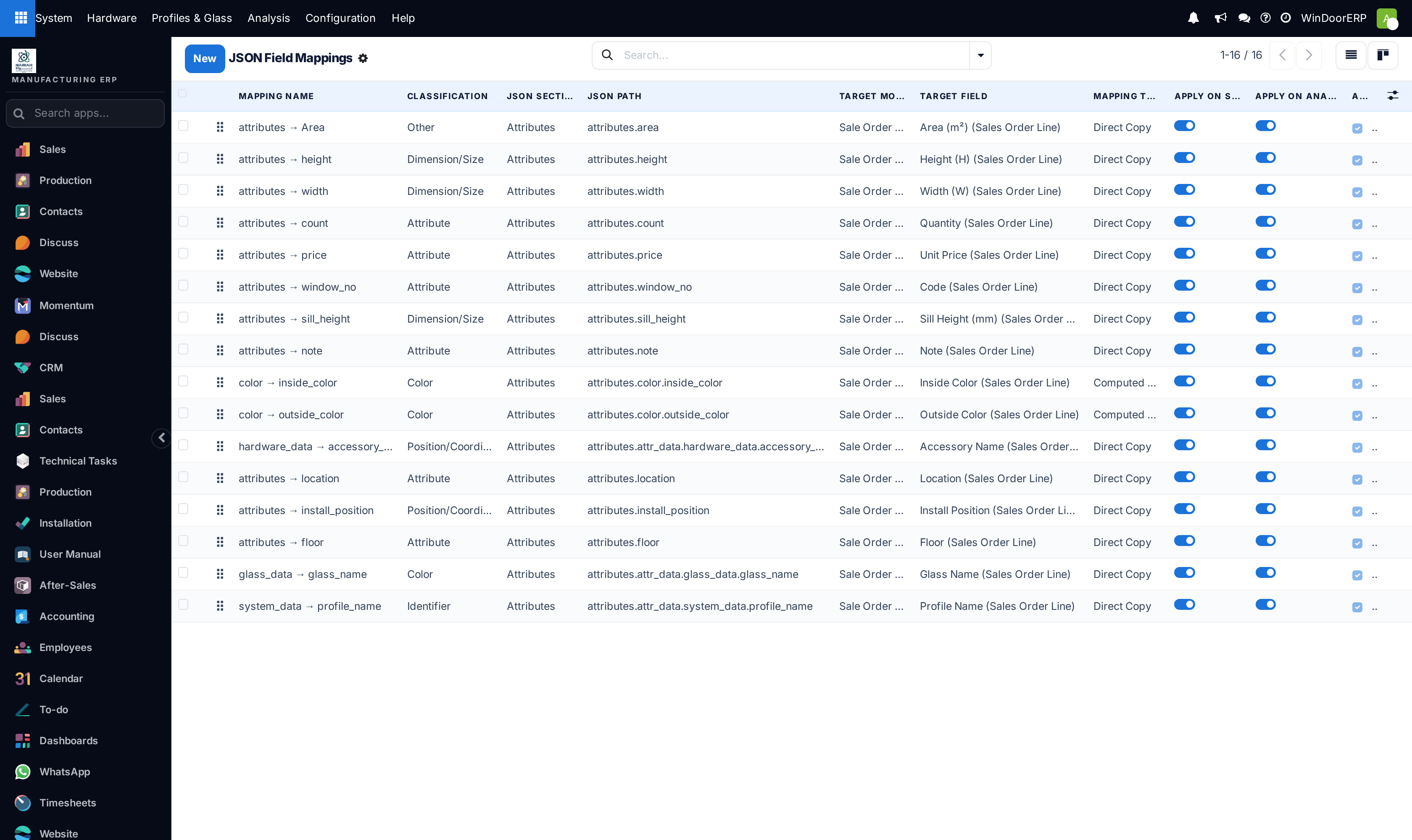
- Create the mapping under Field Mappings: give it a name, the JSON Path and section to read from, and the Target Model and Target Field to write to.
- Shape the value if you must — Multiply By, Round Digits, a Value Prefix or Suffix, or a Default Value when the payload has nothing.
- For a value that must become a link to another record, set the Lookup Model and Lookup Field, and decide whether to Create if Missing.
- Choose when it runs — Apply on Save, Apply on Analysis, or both — and use Condition and Python Expression only where the simple options genuinely cannot express it.
Watching mappings behave
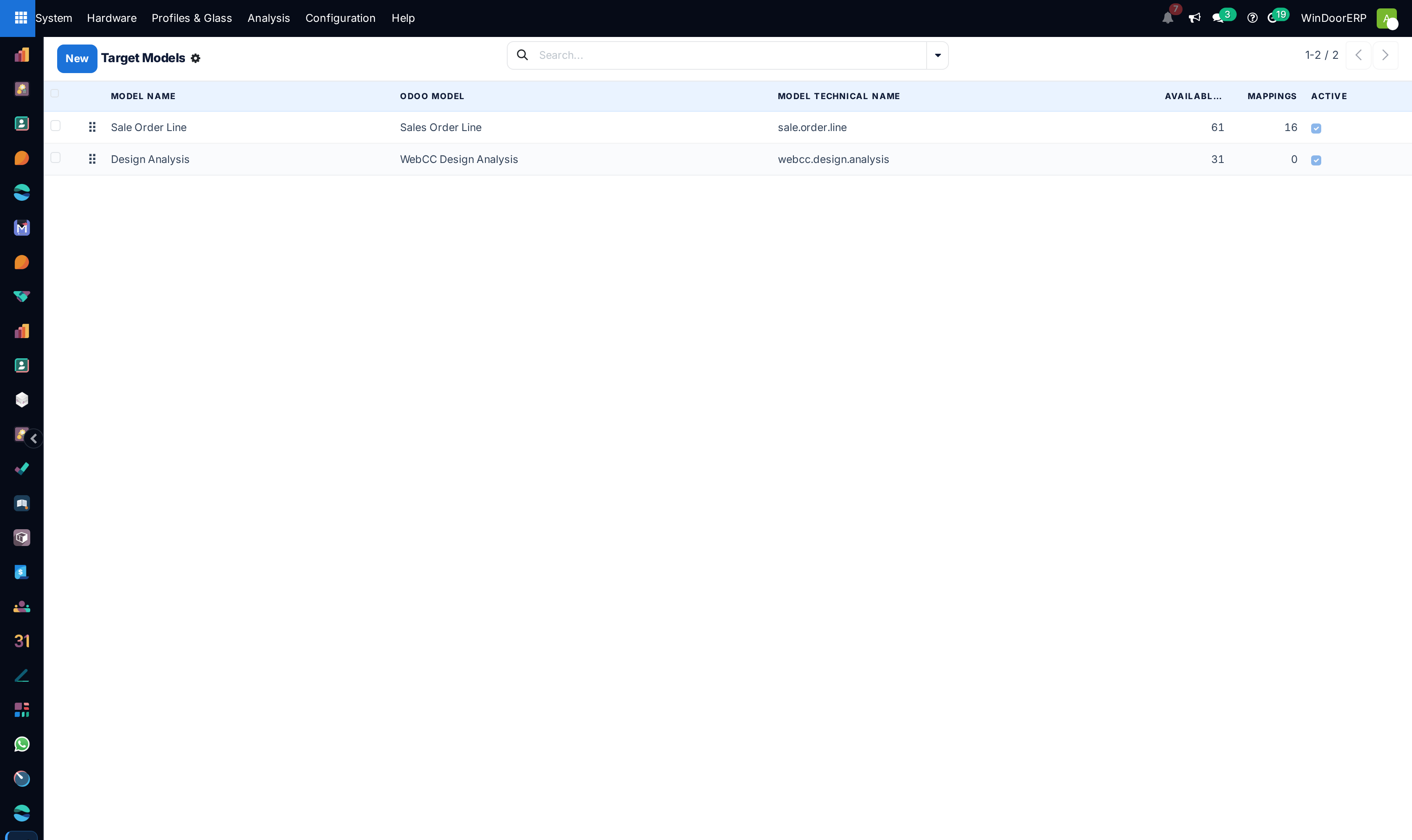
Each mapping records its own Execution Count, Last Execution and Last Error. Those three fields are the whole diagnosis: a mapping with a zero execution count never matched anything, and one with a last error is failing quietly on every design. Target Models lists which Odoo models the mappings are allowed to write into — the guard rail that keeps a mapping from writing somewhere nobody expected.
Configuration
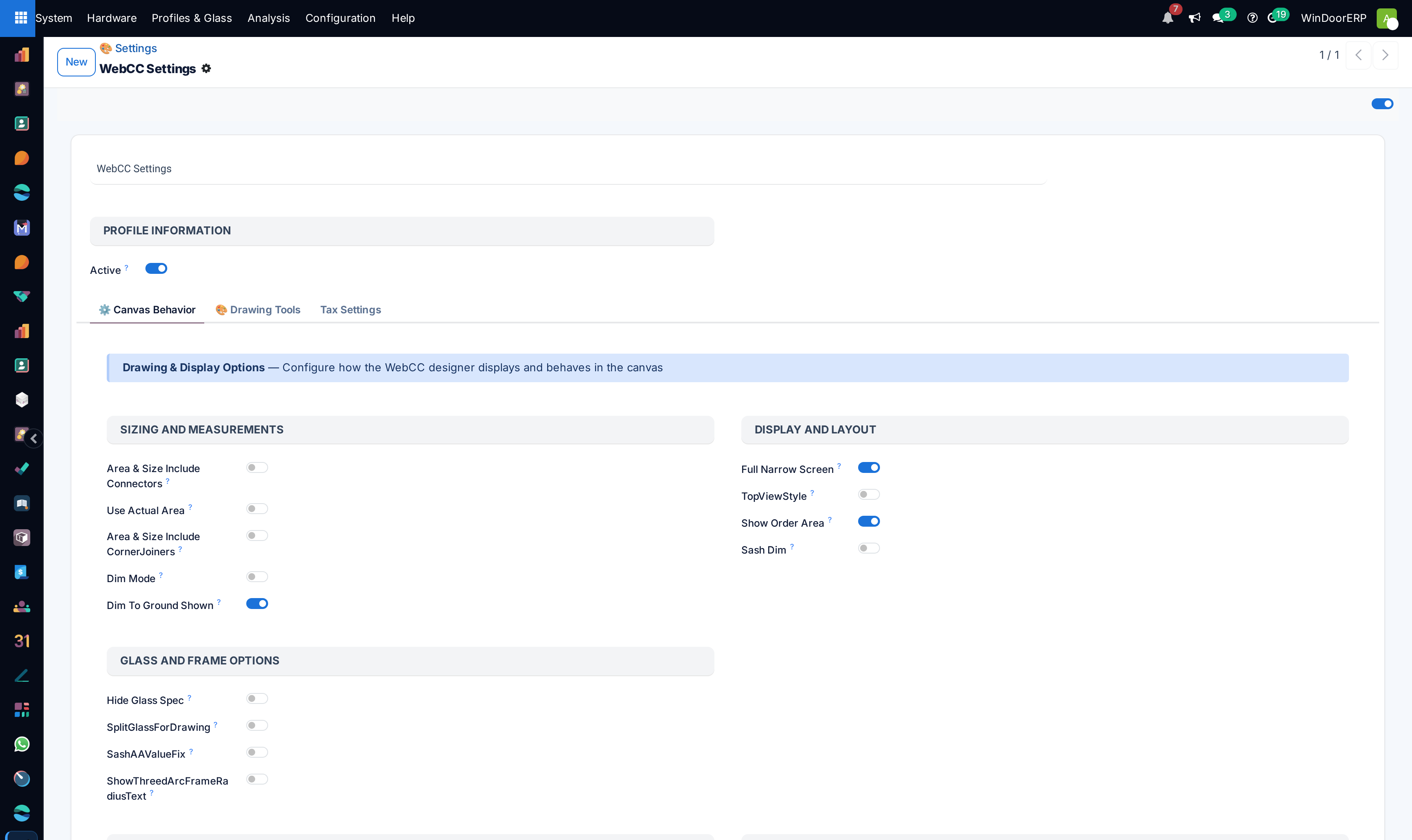
Configuration › Settings holds the designer's own behaviour — how drawings are rendered and dimensioned (draw mode, dimension mode, fonts, colours, print size), how area and size are measured, and whether a default quotation is generated. Configuration › Drawings is the drawing library those settings apply to. Neither is a place to change commercial numbers; they change what is drawn and printed.
Troubleshooting
An analysis is missing components — the payload references a profile, glass or hardware record that does not exist in the catalogue. Fix the catalogue, then re-analyse.
A mapping does nothing — check its execution count. Zero means the JSON path never matched; the Discover Parameters wizard on a real order line shows what the path should be.
A mapped number is out by a factor of ten or a thousand — the payload's unit is not the field's unit; that is what Multiply By is for.
Everything worked and now every design fails — read Last Error on the recently edited mappings before anything else.
Common mistakes
- Reading an analysis as a structural check. It is a materials calculation.
- Writing a Python expression for something the multiply, round, prefix or default fields already do — it is harder to read and it fails louder.
- Mapping a dimension into a text field, so nothing downstream can do arithmetic with it.
- Editing mappings on a live system without opening one real payload first.
Was this article helpful?
Thanks — your feedback helps.
Running a window or door factory?
Ask for a demo