Turn on the Momentum hub: focus, achievements and insights
What this does
Momentum is the personal home screen of WindoorERP: a full-screen dashboard each person lands on, with the day's focus, their to-dos and activities, a quote and a tip, quick notes — and a light gamification layer of points, levels, streaks, achievements and an opt-in leaderboard, so the team sees its own progress at login rather than only in a manager's report. This last step of the journey is mostly a switch-on-and-curate exercise: the engine ships working; you tune what it says.
Before you start
- Every participant has a WindoorERP login — Momentum is per user, not per employee.
- Decide the leaderboard policy first: it is opt-in per person, and read as a diagnostic, not a whip.
Switch it on for the team
-
01
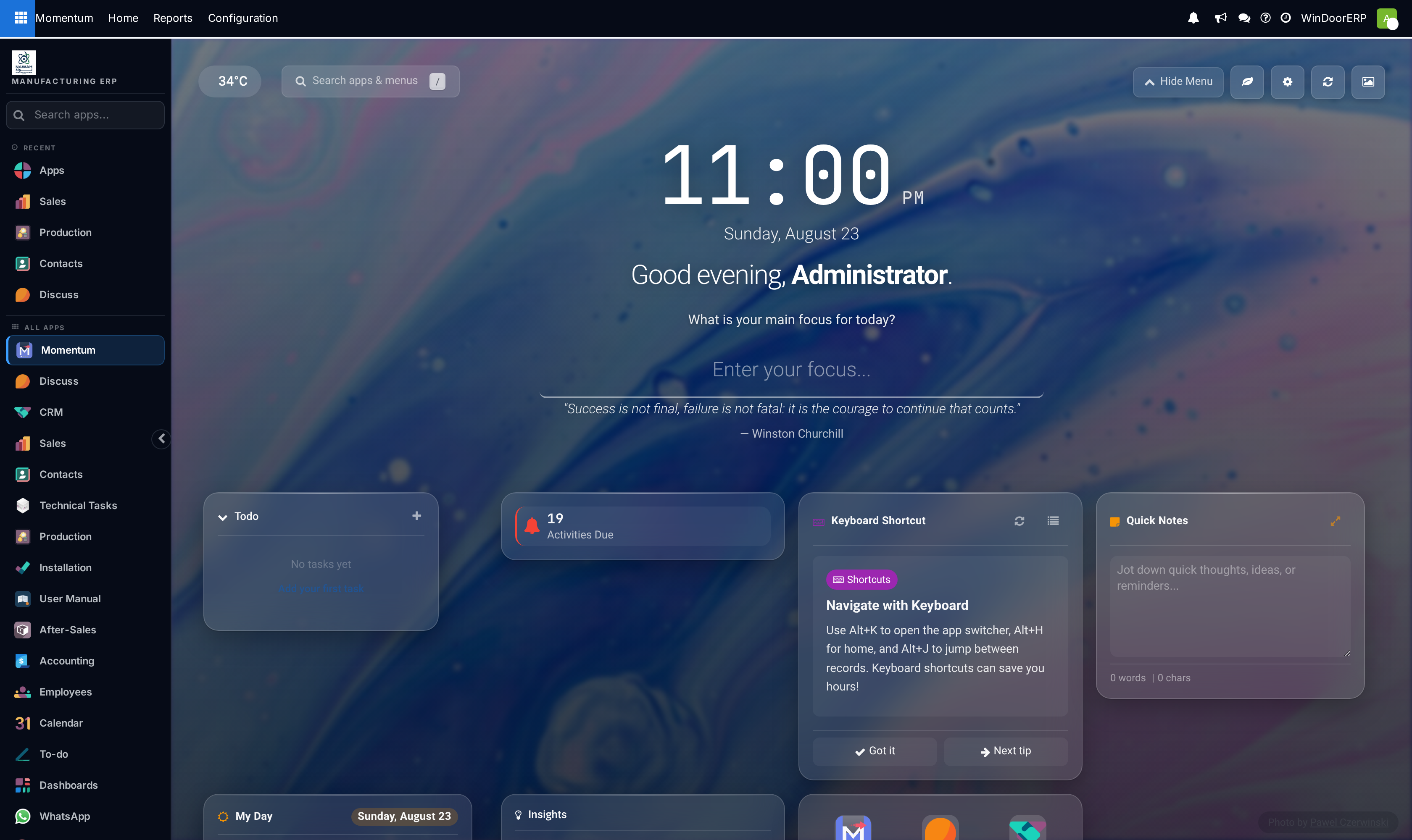
Open Momentum › Home. First use walks each person through a short setup — their preferred greeting name and look; afterwards the gear icon reopens the same preferences, including which widgets show and whether Momentum opens on login.
-
02
Type the day's focus when the screen asks — completing it is what feeds the streak — and keep the day's small items in the Todo widget, where ticking them off also earns points.
-
03
Curate the voice under Configuration: prune and add Quotes, Tips & Tricks and Backgrounds — the daily quote, tip and backdrop rotate from these lists, one per day.
-
04
Review Configuration › Achievements: each badge has a category, a rarity, points, and a trigger — leave the shipped set, retire what does not fit, and add company-specific ones.
-
05
Ask people who want to compete to enable the leaderboard in their Momentum preferences — only opted-in users appear on it.
The home screen
The centre is deliberately calm: clock and date, a greeting by the chosen name, the focus prompt and the quote of the day, over a backdrop that changes daily (with per-user blur and dim). Around it sit the working widgets — Todo, the Activities Due counter that jumps into your Odoo activities, My Day, Quick Notes, the rotating tips card, app shortcuts, weather, and an Insights feed — each of which can be shown or hidden per user in the preferences. A search bar over apps and menus makes the screen a launcher, not a detour.
How the points work
| Action | Points |
|---|---|
| Completing the daily focus | 5 — and it extends the day streak. |
| Completing a todo | 2 each. |
| Earning an achievement | That achievement's own points. |
Points accumulate into levels along fixed thresholds (level 2 at 100, level 3 at 300, up to level 10 at 10,000), each with a progress bar toward the next. The streak counts consecutive days with the focus completed; missing a day resets it, and the long streaks are themselves achievement territory. Reports › User Statistics lists every user's totals — points, level, streaks, focus days, todos and minutes — and Earned Achievements is the trophy log.
Achievements and the leaderboard
An achievement is a named badge with a category (Productivity, Speed, Teamwork, Sales… ), a rarity from Common to Legendary, points, an optional celebration message, and a trigger: Manual (awarded by a person), Count Based (a threshold of records on a model, counted for the user), or streak-driven for the long-run badges. A Secret flag hides a badge until it is earned. For companies using Odoo's own gamification badges, sync buttons link the two so a Momentum badge and a gamification badge stay one thing.
Reports › Leaderboard ranks the opted-in users by score per period — daily, weekly, monthly and all-time rows, with achievements, tasks and streaks alongside. Two honesty notes: only users who enabled the leaderboard preference appear at all, and period rows accumulate in the list rather than being purged on a schedule — read the period column, not just the ranking.
Insights
Reports › Insights is a feed of short, role-aware observations generated from your own live data — a celebration when the month's sales beat the last, a warning about overdue invoices, a reminder about idle leads — each typed (Celebration, Opportunity, Attention Needed, Pro Tip, Trend, Reminder), aimed at a persona (executive, salesperson, accountant, HR, project, inventory), and often carrying a button that jumps straight to the records in question. Insights are rule-based readings of the database, refreshed with a one-day expiry so the numbers in them never go stale; each can be dismissed once acted on.
Troubleshooting
A user does not appear on the leaderboard — they have not opted in; the preference is theirs, not an admin's.
The streak reset unexpectedly — streaks count days where the focus was completed; a day of todos without completing a focus does not extend it.
An achievement never fires — check its trigger: Manual badges are only ever awarded by hand, and a count-based badge needs its model, domain and threshold filled.
Someone finds the screen distracting — everything is per user: they can hide widgets, disable opening on login, or simply not use the app; Momentum takes nothing over.
Common mistakes
- Treating the leaderboard as a performance review — it measures engagement with Momentum, not the quality of anyone's work.
- Leaving the shipped quotes and tips untouched — a curated, company-specific rotation is what keeps the screen alive after week one.
- Creating count-based achievements with ambitious thresholds and no intermediate badges, so nobody ever sees progress.
Was this article helpful?
Thanks — your feedback helps.
Running a window or door factory?
Ask for a demo